




Welcome to my third post on the components of the Microsoft Intune Suite. This capability is included in both Microsoft 365 E3 and E5 subscriptions and is a useful feature that I recommend to everyone.
The value of endpoint visibility and analytics
Traditionally, IT has been a very reactive function: A user has an issue and submits a ticket, at which point someone has a look and (hopefully) fixes the problem. However, this is now changing with the rise of digital experience software, which can monitor your end-user estate and alert you when an issue has been found. This enables IT to call users and fix the issue before it becomes problematic. Not only will this reduce support calls, but it also will improve the perception of IT across the organization.
Intune Advanced Analytics is the native option from Microsoft. It can pull data directly from devices without needing any additional agents. It will be included in your E3/E5 licensing later this year.
Better still, due to the huge amounts of data Microsoft has access to, it not only displays the scores for your organization, but also benchmarks you against similar companies so you can quickly see how your devices are performing.
Each report has an overview for a quick look at how devices are behaving, as well as the option to drill down further and pinpoint those with a less-than-ideal performance score. As with most things within Intune, it can also be accessed programmatically via the Graph API to create your own dashboards.
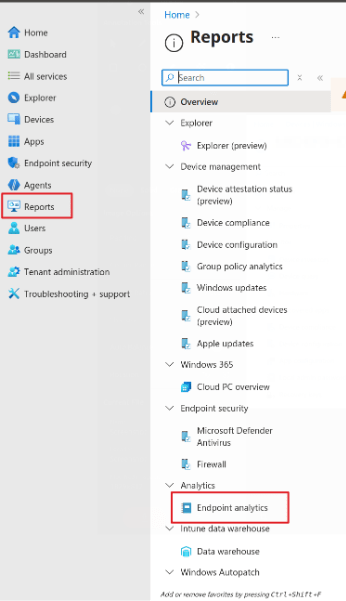
Let’s have a look at what is available. Start by loading Intune at https://intune.microsoft.com, click Reports > Endpoint Analytics (under Analytics).
Once clicked, you get an overview of your estate, as well as the scores at the device and model level. This is useful for flagging which devices may be due for replacement. If you spot the same models in the reports, it usually implies they are reaching end of life (although with the current RAM prices, budget carefully).
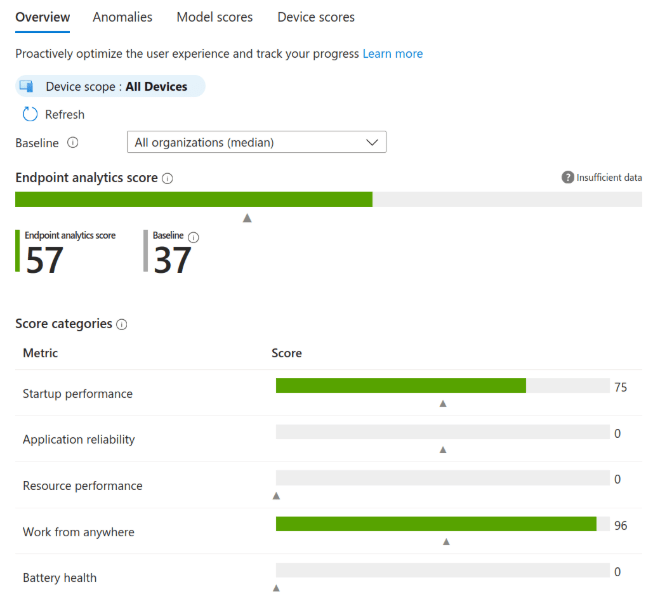
Now we can have a look at what is available in each report section.
Startup performance report
A very useful report, this shows how long your devices take to boot to the login screen, and then how long the subsequent sign-in takes. It will even alert you to what is causing any downgrade in performance.
You can drill down further to the device and model level or even look at which applications are causing the most degradation.
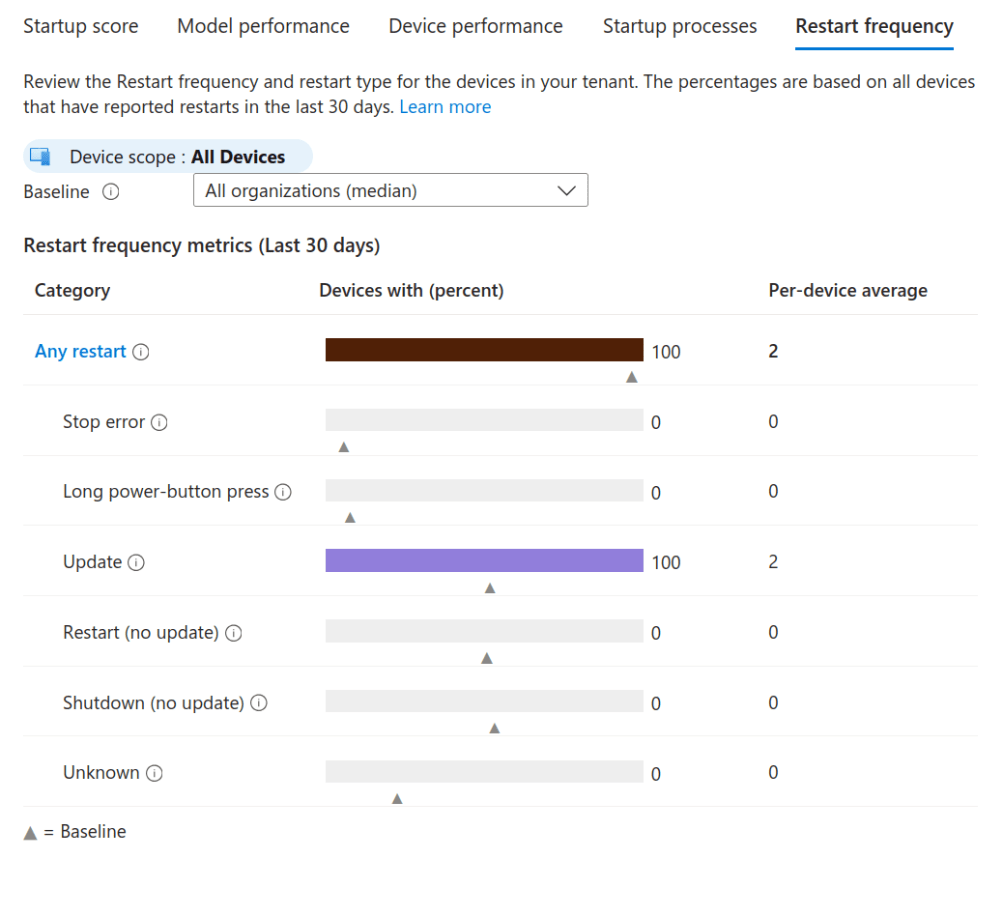
The restart frequency report will display not only how often your devices restart, but also the reason. Hopefully your environment will show mostly updates or user-initiated restarts, but if you see a lot of stop errors here, they will need investigating.
Application reliability report
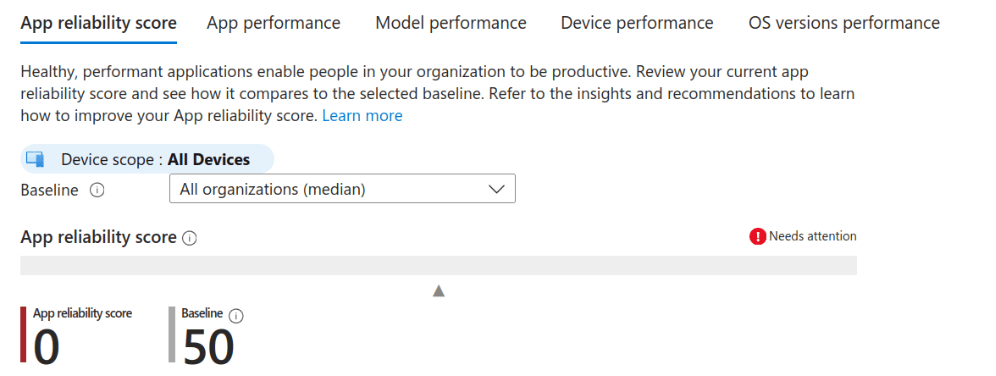
This shows which of your apps are crashing, whether this causes a BSOD or just an app crash report. Again, you can look at the models, devices, and OS level. You’ll find this useful if you are testing a new version of Windows, for example, and you see the app crashing a lot more on one OS than another.
Work from anywhere report
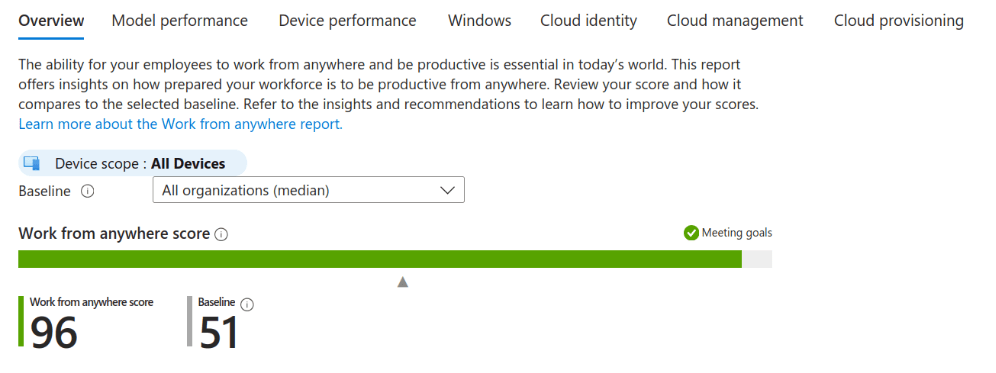
This, I feel, is slightly mislabelled, as it covers so much more than the name indicates. It looks at how your devices are provisioned and managed. In an Intune world, expect to see a lot of green in this report.
In this case, clicking on the Windows tab shows Windows 11 readiness (I imagine this will update with future versions), so you can see which devices need attention or replacing.
Resource performance report
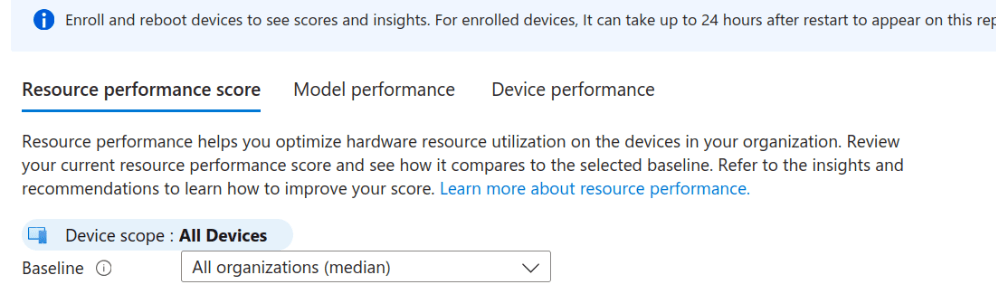
This report looks at CPU and RAM spikes across your estate as well as at the device and model level. I use this one to clarify when a user complains the machine is running slowly. You can have a look and see if the machine is struggling, or if it’s just user perception. Also, when looking at equipment refreshes, use this report to upgrade any users who need a higher-spec machine (yes, they do exist).
Battery health report
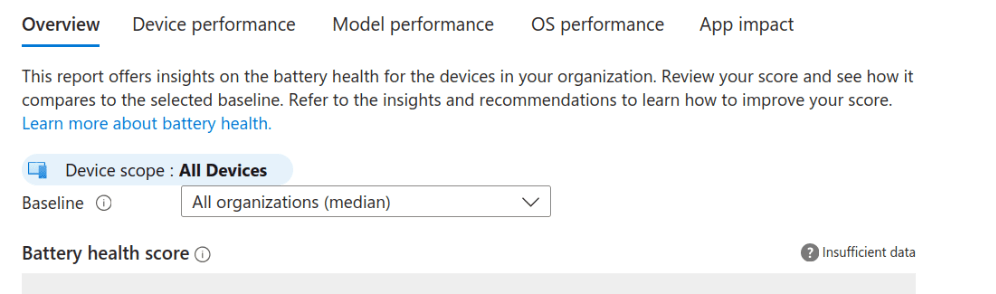
The final and, in my opinion, best report is battery health (unless, of course, you are in a desktop-heavy org). There is nothing worse than a failing battery and having to charge your laptop every five minutes, or risk losing work. Ideally, your devices have replaceable batteries, but even for those that do not, you may be able to use this for warranty calls.
It will display devices and models, which should match the model’s age. However, if a device from a different model appears in the list, that may need further investigating.
You can also see the effect applications are having on battery life. If you have one particular app that is really hammering the battery, it may be worth checking whether it’s an issue, whether that app can be replaced by an alternative, or whether it isn’t even needed.
I have found that each new OS version has better battery performance than the one before (certainly since the iOS debacle). If in doubt, you can have a look at this report and see how each OS version is behaving.
That’s it for Advanced Analytics reports and for my series on the Intune Suite. I hope you have found them all useful and manage to get added value from the incredible increase in your licensing functionality.
Recast: The Intune Companion
Microsoft offers powerful tools for IT admins through Intune Suite, and Recast is the ideal companion to help organizations maximize those capabilities. Recast builds on what Microsoft provides by delivering additional options for enhanced security and advanced device and application management.
There are scenarios where IT teams need expanded functionality, such as managing custom applications, handling third-party app patching on servers, or applying highly specific update requirements. Recast complements Intune by handling these specialized tasks, working alongside the Microsoft ecosystem to streamline operations.
We’re excited about where Microsoft is headed and how Intune continues to empower IT admins. Recast is proud to stand alongside Intune as a companion solution, helping teams do even more with the tools they already rely on.
If you don’t already have our free Right Click Tools for Intune, you can download them here.