




Many organizations that use Microsoft Endpoint Configuration Manager (SCCM/MECM) are already running in a co-managed state, where Windows devices are jointly managed by both SCCM and Intune. In these environments, it’s very common to still rely on SCCM for Microsoft 365 Apps (Office Click-to-Run) installation and update management, while Intune is used for compliance, conditional access, or modern management features.
However, as more devices become internet-facing, remote, or provisioned via Autopilot, managing Microsoft 365 Apps through SCCM distribution points and software update groups becomes less practical. Microsoft 365 Apps are cloud-native by design and update directly from the Office CDN, making Intune a natural choice for both installation and servicing.
In this post, we’ll walk through a real-world migration approach where:
- Co-management is already enabled
- Microsoft 365 Apps are currently installed and updated via SCCM
- The goal is to move both installation authority and update management to Intune
- The migration is done safely using pilot collections and Intune policies
Current state: Office updates managed by SCCM
- Devices are co-managed (SCCM + Intune)
- Microsoft 365 Apps were deployed using SCCM and Office Deployment Tool (ODT)
- Office updates are controlled through:
- SCCM Software Updates
- OfficeMgmtCOM enabled
- Devices typically receive updates from:
- Distribution Points (DPs)
- SUP/WSUS infrastructure
While this setup works well for on-premises devices, it introduces challenges for:
- Remote or internet-only devices (unless you leverage CMG)
- Cloud‑first provisioning (Autopilot)
- Faster servicing cadences such as Monthly Enterprise Channel
To modernize Office servicing, we will move Office Click‑to‑Run management to Intune.
Prerequisites for migration
Before making any changes, ensure the following prerequisites are met:
1. Devices must be co-managed
- SCCM client is installed and healthy
- Intune enrollment is active
- Co-management is enabled at least in Pilot mode
2. Move the Office Click‑to‑Run apps workload to Intune (Pilot)
Microsoft 365 Apps servicing is governed by the Office Click‑to‑Run apps workload. To begin the migration safely:
- In Configuration Manager Console:
- Go to Administration → Cloud Services → Co‑management
- Edit co‑management properties
- Move Office Click‑to‑Run apps workload to Pilot Intune
- Select a pilot device collection (for example: Office-C2R-Pilot)
This allows Intune to manage Office installation and updates only for selected devices.
3. Sync the Pilot Collection to Entra ID (Cloud Sync)
To target the same pilot devices from Intune, we need them represented as an Entra ID group.
- In SCCM:
- Go to Assets and Compliance → Device Collections
- Select your pilot collection
- Enable Cloud Sync
- Enable Sync to Microsoft Entra ID. Create an Entra group with a name such as ConfigMgr – Office C2R Pilot, and select that group for sync.
- Wait for the sync to complete
Once synced:
- The SCCM collection appears as an Entra ID device group
- This group can now be used directly in Intune assignments
This ensures one consistent targeting source across SCCM and Intune during the migration.
Creating the Microsoft 365 Apps update policies in Intune
With the workload and targeting ready, we can now configure Intune-based Office update management using the Settings Catalog.
Configuration Profile 1
M365 – Updates – Monthly Enterprise Channel
This policy defines the standard servicing behavior for pilot devices.
Profile details
- Platform: Windows 10 and later
- Profile type: Settings catalog
- Name: M365 – updates – Monthly Enterprise Channel
Settings
Microsoft Office 2016 (Machine)
Deadline (Device): 3
Enable Automatic Updates: Enabled
Hide option to enable or disable updates: Enabled
Hide Update Notifications: Disabled
Office 365 Client Management: Disabled
Update Channel: Enabled
Channel Name (Device): Monthly Enterprise Channel
Update Deadline: Enabled
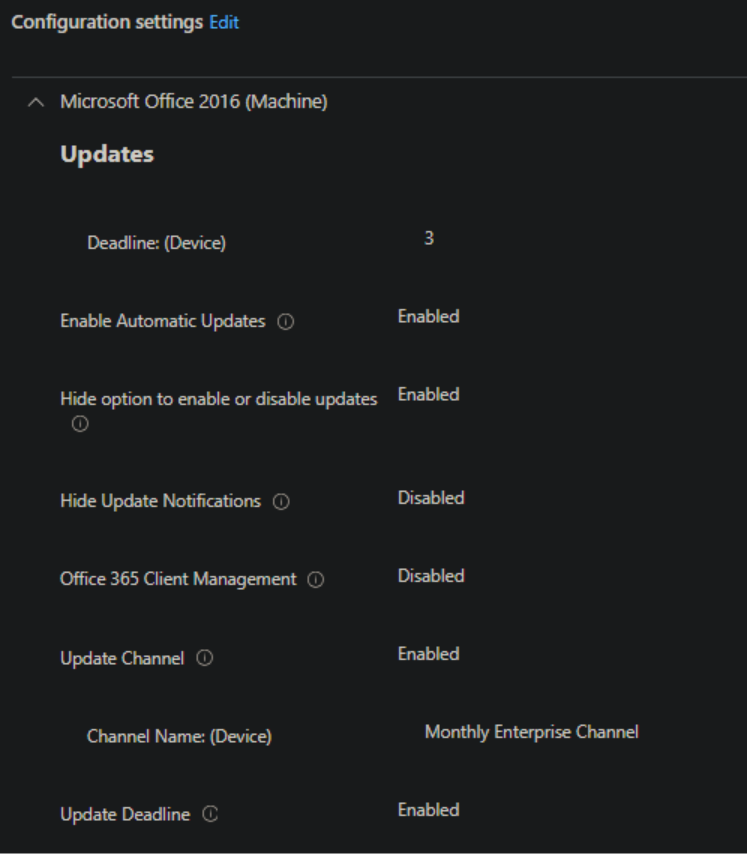
Assign the policy to the Entra ID group that was synced previously from SCCM.
Why this matters
- Moves update servicing to Office CDN
- Enforces Monthly Enterprise Channel
- Prevents SCCM from controlling Office updates
- Keeps users informed without blocking notifications
Configuration Profile 2
M365 – Updates – Monthly Channel – Hold 2308
This profile provides a controlled rollback or hold mechanism if a specific monthly build causes issues.
Profile details
- Name: M365 – updates – Monthly channel – Hold 2308
Settings
Microsoft Office 2016 (Machine)
Deadline (Device): 2
Enable Automatic Updates: Enabled
Hide option to enable or disable updates: Enabled
Hide Update Notifications: Disabled
Office 365 Client Management: Disabled
Target Version: Enabled
Update Version (Device): 16.0.16731.20822
Update Channel: Enabled
Channel Name (Device): Monthly Enterprise Channel
Update Deadline: Enabled
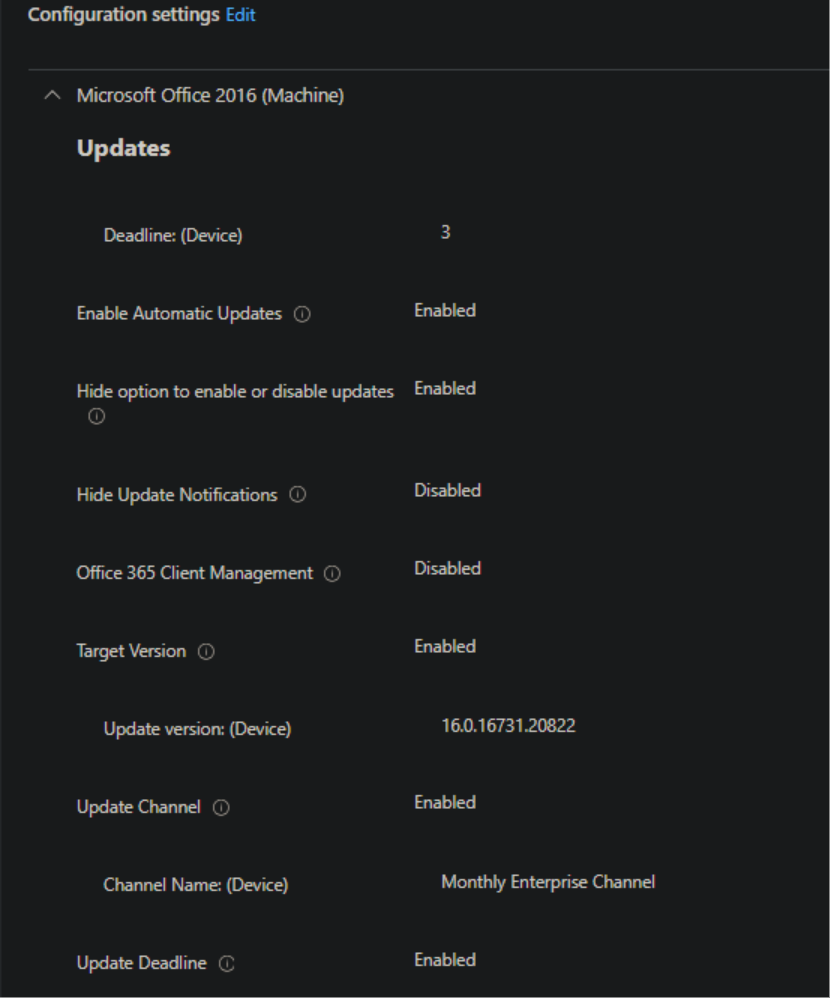
Assign the policy to an Entra ID device group to revert and hold the M365 apps to a specific version. Also make sure this Entra ID group is excluded from the automatic update policy created previously.
Use case
- Temporarily pin devices to a known good version
- Apply only to affected users or regions
- Remove once the issue is resolved
This approach avoids emergency rollbacks and gives IT teams operational control during fast-moving release cycles.