




By Donny van der Linde, Field CTO BeNeLux at Recast Software.
At the beginning of 2025, I published a blog post titled “macOS Enrollment in Microsoft Intune: Simplified with this Bootstrapper Script.” Since we never stand still at Recast, it was time to revisit that article and provide an update based on the latest improvements and developments.
One of the biggest changes is that the workaround for installing the Application Workspace Universal Agent on macOS is no longer required. Previously, there was an issue where the Root CA Certificate had to be installed manually in the System Keychain. Fortunately, this has now been resolved, making the enrollment process much smoother and more user-friendly.
In addition, a new version of the Bootstrapper has been released: version 4.4. This blog focuses on simplifying the enrollment of macOS devices into Microsoft Intune using the Application Workspace Agent Bootstrapper.
To make deployment even easier, I will share two Bash scripts that can significantly reduce the effort involved in rolling out Application Workspace on macOS devices.
Bootstrapper 4.4
Let’s start with a quick recap of what the Application Workspace Agent Bootstrapper actually is.
The Bootstrapper is a lightweight tool designed to simplify the installation and updating of the Application Workspace Agent and Application Workspace Universal Agent. In addition to handling agent deployment, it can also optionally trigger an Application Workspace deployment immediately after installation.
The tool is available for both Windows and macOS, making it a versatile solution for managing Application Workspace environments across multiple platforms.
You can download the latest version of the Bootstrapper here.
When I first looked into Bootstrapper 4.4, what stood out to me was how much simpler the whole deployment process has become. Instead of juggling complex configuration files, you can now handle most of the setup through straightforward command-line parameters, which feels a lot more intuitive.
What I particularly like is the move toward a more consistent, cross-platform approach. It makes things easier to standardize, especially if you’re working across different environments. Overall, it feels like a solid step forward with less overhead and a smoother experience when managing deployments with Intune.
If you want to dive deeper into what’s new in Bootstrapper 4.4, I highly recommend checking out this excellent blog by my colleague Frank van Wattingen.
The updated scripts explained
Script 1: Bootstrapper_macOS_v2.sh
I’ve rewritten the shell script that’s natively supported by macOS. It’s a pretty basic script that you can expand to your heart’s content with all sorts of extra checks and features. You can find a link to the updated script, “Bootstrapper_macOS_v2.sh,” on my GitHub.
Here’s what the script does:
- First, it checks to see if an Application Workspace Agent is already installed.
- It then creates a destination directory called “ApplicationWorkspace” under /tmp.
- It downloads the Agent.json and a necessary self-signed certificate from an Azure Storage container to the destination directory /tmp/ApplicationWorkspace/.
- The Bootstrapper is downloaded directly from our download page to the destination directory /tmp/ApplicationWorkspace/.
- The Bootstrapper will create its own log file, “BootstrapAgent.log,” which this script places in the destination directory /tmp/ApplicationWorkspace/. You can change this location with the –LogPath command.
Script 2: Bootstrapper_macOS_Roy.sh
Thanks to Roy Appel, Senior Network Engineer at Unica, one of our Dutch Application Workspace Partners, we now also have a second shell script that can be used within Intune. This script is more advanced, as it automatically generates both the Agent.json configuration file and a self-signed certificate, further streamlining the deployment process.
You can also find a link to Roy’s script, “Bootstrapper_macOS_Roy.sh,” on my GitHub.
Here’s what Roy’s script does:
- First, it checks to see if an Application Workspace Agent is already installed.
- It then creates a destination directory called “ApplicationWorkspace” under /tmp.
- It creates the Agent.json under /tmp/ApplicationWorkspace/.
- It creates the self-signed certificate under /tmp/ApplicationWorkspace/.
- The Bootstrapper is downloaded directly from our download page to the destination directory /tmp/ApplicationWorkspace/.
- The Bootstrapper will create its own log file, “BootstrapAgent.log,” which this script places in the destination directory /tmp/ApplicationWorkspace/. You can change this location with the –LogPath command.
From script to action: Adding the script in Intune
Now comes the fun part, adding the script to Intune. Yes, this is the moment when we take our little scripts and unleash them into the wilds of Intune!
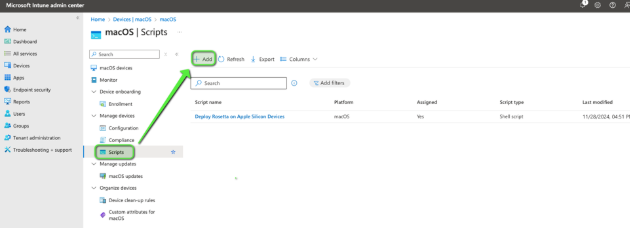
1. Go to Microsoft Intune admin center >> Devices >> macOS >> Scripts and click Add.
2. In Basics, enter a desired name, for example, “Application Workspace Bootstrapper (macOS).” Optionally, add a description if needed, and click Next.
3. In Script settings, click on Upload script and browse to the script.
4. At the “Run script as signed-in user” option select No. This will run the script as a root user.
5. At the option “Hide script notification on devices” select Yes and click Next.
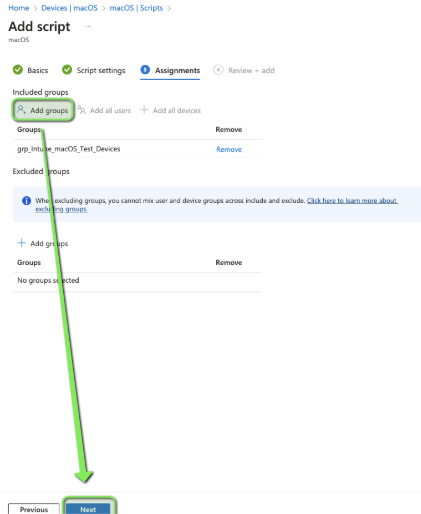
6. In Assignments, click on Add groups and add a group of devices that should receive this certificate. Click Next.
7. In Review + add, check in the summary to see whether all settings have been set correctly. Click Add.
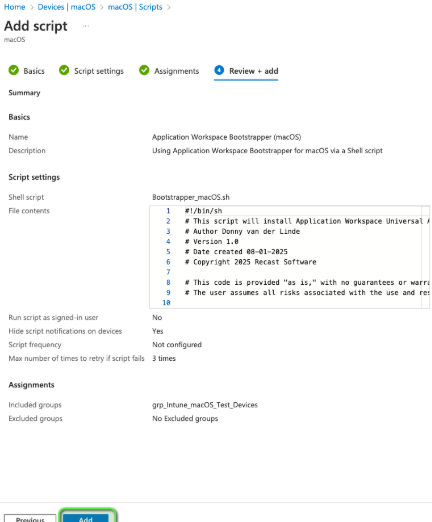
That’s all, folks! The script has been successfully added to Intune and is now all set for use. Now comes the moment of truth. Sit back and relax. Recast has your back!
Learn more about Application Workspace for Intune.