




If you’ve been managing devices with Microsoft Intune for a while, or if this is your first time, you might encounter accidental mobile device management (MDM) enrollments. For example, a user adds their work account to Teams on a personal laptop, clicks through a prompt they don’t understand, and suddenly the device shows up in your Intune tenant and gets enrolled. Policies start raining down, and you’re left cleaning up the mess. The last thing you want is having to enforce BitLocker on your end users’ personal devices.
How do these personal devices get enrolled? Oftentimes, it’s due to the Allow my organization to manage my device screen that appears whenever a user adds a work or school account on Windows.
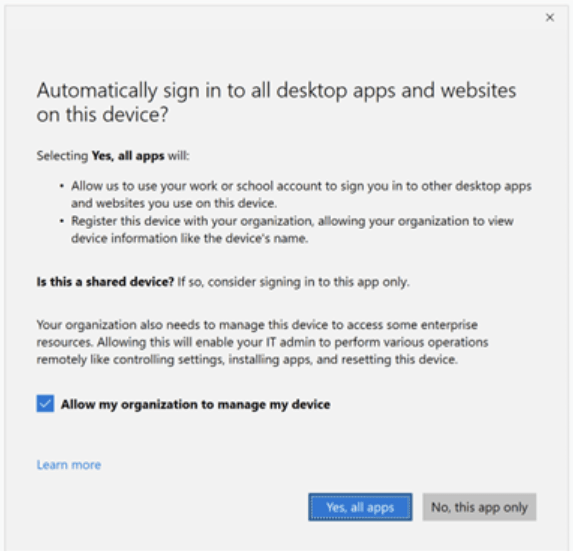
Let’s be honest. The new screen is an improvement compared to the old one, but almost nobody will read it, let alone understand the consequences of checking the box. What happens is that people just click through because they want to read their emails.
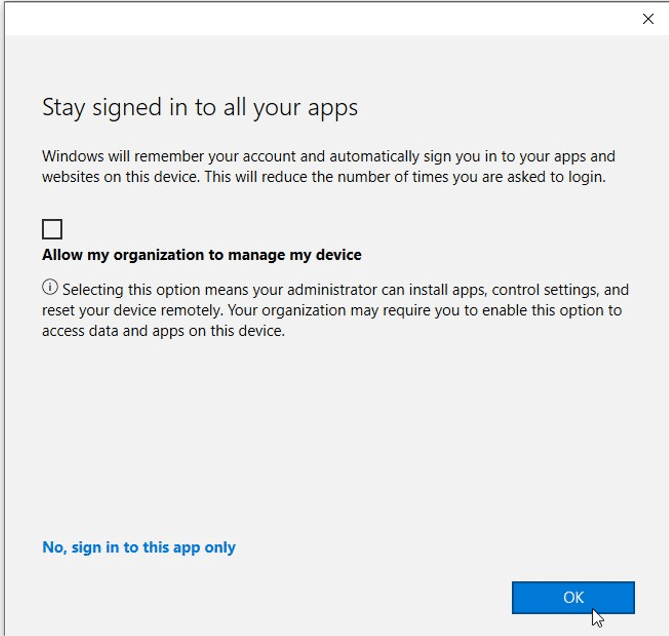
The problem
When a user adds a work or school account on a Windows device in Teams, Outlook, or Edge, Windows triggers a Workplace Join to flow behind the scenes. If that user happened to be in scope for automatic MDM enrollment (which many organizations set to All (not the best idea) or Some), the device would silently attempt to enroll into Intune. There was no separation between account registration and device enrollment.
This caused several painful scenarios:
- Bring your own device (BYOD) endpoints enrolled in Intune by accident: Users just wanted to sign into Teams, not get their device managed.
- Entra-registered devices automatically became MDM-managed: With one prompt, the device was fully enrolled.
- MAM-only: Organizations with mobile application management (MAM) enabled over full MDM enrollment had no way to prevent the enrollment step from triggering.
- Multi-tenant: Users adding a second work or school account could enroll their device into a completely different organization’s MDM—not a good situation.
The only workaround for managed devices was a registry key (BlockAADWorkplaceJoin under HKLM\SOFTWARE\Policies\Microsoft\Windows\WorkplaceJoin), but that is not the golden ticket solution.
The solution
Finally, Microsoft introduced a way to control this. Check out the Windows enrollment blade in your Intune portal, under automatic enrollment. Here you will find the toggle to enable or disable this feature.
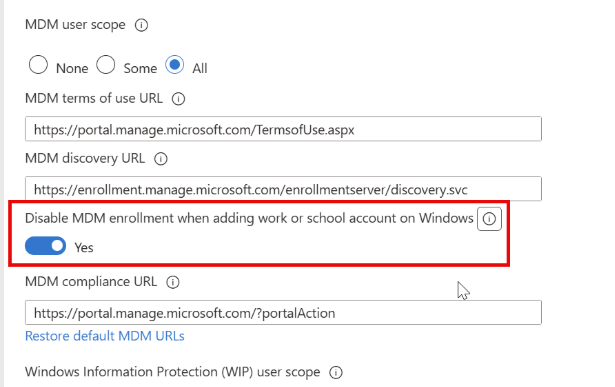
When this is enabled, Windows will stop the device enrollment after registering the account with Entra ID. So, it will not start MDM enrollment, even if the user belongs to an automatic enrollment group.
The device is registered if needed, but the enrollment step is skipped entirely. And this is what we want and what administrators have been asking for: to let users add their work accounts for app access without full device enrollment.
What this setting applies to
According to Microsoft’s documentation, this setting applies to:
- Users in the Some or All (again not a good idea) category in the MDM auto-enrollment configuration
- Users on Entra-registered and workplace-joined devices
- Users who add their account for the first time via Microsoft Edge or a native app such as Teams
Important: This setting does not apply to users by adding their account through the Windows Settings flow. Users can still MDM-enroll their device through Windows Settings if they’re in scope for automatic enrollment, and through prompts they receive when accessing a resource that requires MDM enrollment. This means you’re not blocking enrollment completely, you are just preventing it from happening.
The new registration experience
Microsoft is updating the entire account registration experience on Windows. The flow is now properly split into two stages: Registration and Enrollment. In the past, these happened together. The new feature determines whether the enrollment stage is presented at all during the flow.
When the setting is enabled, users see only the registration step. The Allow my organization to manage my device screen never appears because the MDM enrollment flow is never started during account addition on Entra-registered devices. So, no screen means no room for users to click the wrong buttons.
Testing it yourself
If you want to test this, here’s what you need to do:
- Open the Intune admin center and navigate to Devices > Device Onboarding > Enrollment > Windows > Automatic Enrollment.
- Set the Disable MDM enrollment when adding work or school account on Windows toggle to Enabled.
- On a test device, add a work or school account through Teams or Edge.
- Verify that the device registers with Entra but does not appear as MDM-enrolled in Intune.
With the setting enabled, the Allow my organization to manage my device prompt no longer appears, and the device stays out of MDM management. This is exactly what we wanted.
Important considerations
Before you flip the switch, keep a few things in mind:
- It doesn’t block all enrollments: Users can still enroll through Windows Settings or when prompted by a resource that requires MDM enrollment (such as a Conditional Access policy requiring a compliant device). If you want to block this, you will need to do it on the Device Platform restrictions. Keep in mind if you do this, the only option is to enroll devices via Autopilot.
- MAM scenarios: If you’re enforcing Windows MAM for work or school accounts, Microsoft recommends enabling this setting so that MAM policies apply without triggering unwanted MDM enrollment.
Wrapping up
This is one of those small changes that solves a huge problem. For years, the Allow my organization to manage my device prompt has been the main reason for accidental enrollments, confused end users, and unnecessary cleanup work for IT admins. With the new Disable MDM enrollment when adding work or school account on Windows toggle, Microsoft finally gives administrators a proper service-side control to separate account registration from device enrollment.