


One thing to plan for is that remediations carry a licensing requirement. Users need Windows Enterprise or Education, which are included with Microsoft 365 F3/E3/E5 or A3/A5, respectively. So, most enterprise tenants already have it, but it’s worth confirming before you build.
A lighter recurring option: A scheduled task
If you don’t have the licensing for remediations, or you simply want the update to run on the device’s own clock, a scheduled task is a neat alternative. You deploy a one-time script (as a Win32 app, or via a remediation) and that registers a scheduled task with Register-ScheduledTask. From then on, the task runs locally on whatever trigger you set (daily, at logon, at idle). Once it is created, it runs independently of Intune’s sync cycle, and it works on limited licenses, like Intune Plan 1.
There are two nice variations here:
- Run your update script on a schedule with the same download-and-install logic, just triggered by the task instead of a remediation.
- Fire the app’s own updater. Many applications ship their own updater executable (for example Google’s update binary for Chrome, Microsoft Edge’s updater, Adobe’s Remote Update Manager, and so on). Where one exists, the task can simply invoke it on a schedule and let the vendor’s updater do the actual work. That is often the lightest-touch option of all. You are not re-downloading or reinstalling, just nudging the app to update itself.
The trade-off is visibility. A local task does not report back to Intune the way a remediation does, so you lose the centralized reporting unless you build your own logging. In that case, a quick Start-Transcript or a custom log file within the script is enough to avoid flying blind. Scheduled tasks can also be removed or disabled on the device. Therefore, the robust pattern is to use a remediation to both create the task and re-create it if it ever goes missing, using detection logic that is safe to run repeatedly.
Install-time only: Packaging the script as a Win32 app
You can also package the same script as a Win32 app. This works on Intune Plan 1, supports detection rules and dependencies, and is genuinely useful for getting the latest version onto a device at install time. For example, making sure a freshly provisioned machine gets the current build during Autopilot.
However, it is a poor fit for ongoing patching, and the reason is the detection rule. A Win32 app installs once, and after that its detection rule decides whether Intune ever touches it again:
- Use simple file-existence detection and Intune decides the app is “already installed” forever, so your existing devices never receive a newer build.
- Pin a specific version in the detection rule, and you are back to editing the app every for single release, which is exactly the manual treadmill you were trying to escape.
So, a Win32-packaged script shines at first install (new devices always get the latest), but it does not keep an existing fleet patched on its own. For that recurring job, a remediation or a scheduled task is the smarter tool.
No matter which of these you pick, the same honest caveats apply to the scripted approach in general: Finding a reliable “always latest” permalink can be the hardest part and it can break without warning, there is no built-in rollback if a bad release ships, and there is no central view of who is running what version. It’s a real step up from manual packaging, but it’s still infrastructure you build and maintain, app by app.
Other native building blocks
Two more native features can help round out the picture. Each covers a specific piece of the puzzle.
Supersedence. When you do manage apps as Win32 packages, supersedence is the supported way to replace an older version with a newer one. Intune will handle the upgrade and removal of the previous build for you, rather than you having to stack duplicate apps.
A quick note on Windows Autopatch. It’s easy to assume Windows Autopatch covers everything, so it’s worth being clear: Autopatch is built for Microsoft’s own products, including Windows, Microsoft 365 Apps, Edge, and Teams. It’s excellent at what it does, but it doesn’t patch third-party applications. For the long tail of vendor apps, you are still on your own.
Stack these together with remediations and scheduled tasks, and you can build a respectable, mostly automated patching setup using only native tooling. The catch is that you are the one building and maintaining it—the scripts, the schedules, the detection logic, and the version checks—all app by app.
Microsoft’s native answer: Enterprise Application Management
Microsoft has noticed this gap too, and Enterprise App Management (with its Enterprise App Catalog) is their answer.
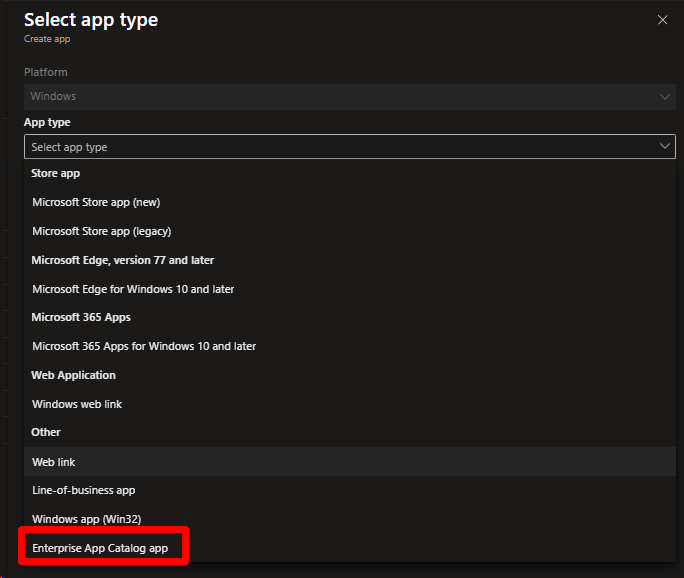
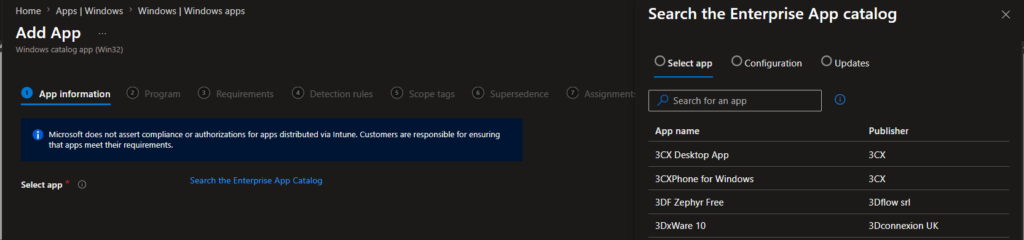
Here, Microsoft preps and hosts a set of common third-party apps as Win32 packages. You pick an app from the catalog and deploy it, and Microsoft keeps the underlying package current. When it comes to updates, you get a choice:
- Automatically update: Intune installs new versions on your assigned devices as they are published to the catalog, hands-off.
- Guided update supersedence: Intune surfaces available updates in a report so you can review each one and deploy it on your terms, using supersedence behind the scenes.
That is a meaningful improvement over packaging everything yourself, and because it’s first party, it lives right inside the console you already use. Microsoft also publishes service-level objectives for how quickly catalog updates appear. In practice, most updates land within about 24 hours of the vendor’s release, and those needing manual validation typically arrive within seven days.
It’s not a complete answer for every environment though, and it’s fair to call out where it stops:
- The catalog is a curated set, useful and growing, but it won’t cover every app you run, especially niche or in-house software.
- It’s Windows and Win32-focused. If you need to patch across macOS or virtual desktop platforms too, that’s outside its scope.
On licensing, it’s worth knowing that the ground is shifting. Enterprise App Management was an add-on, either a standalone SKU or part of the Microsoft Intune Suite. But as part of Microsoft folding Intune Suite capabilities into its main subscriptions, Enterprise App Management is included with Microsoft 365 E5 as of July 1, 2026. If you’re on E5, that removes the cost barrier entirely. If you’re on E3, it remains an add-on.
A focused patching tool: Right Click Tools Patching
Enterprise App Management is not the only way to get a strong and stable patching experience, and it’s worth knowing about an option that sits right alongside it rather than beyond it. Right Click Tools Patching by Recast is built specifically for patching third-party apps. The way to think about it is as an alternative to EAM rather than a step up from it.
Right Click Tools Patching offers compelling capabilities. First, its catalog: Recast has one of the largest third-party application catalogs in the industry, and you can package, test, schedule, and deploy updates, retire old versions, and bring in your own custom packages when something isn’t listed. Second, and more importantly, it’s not limited to Intune. It works across both Configuration Manager and Intune.
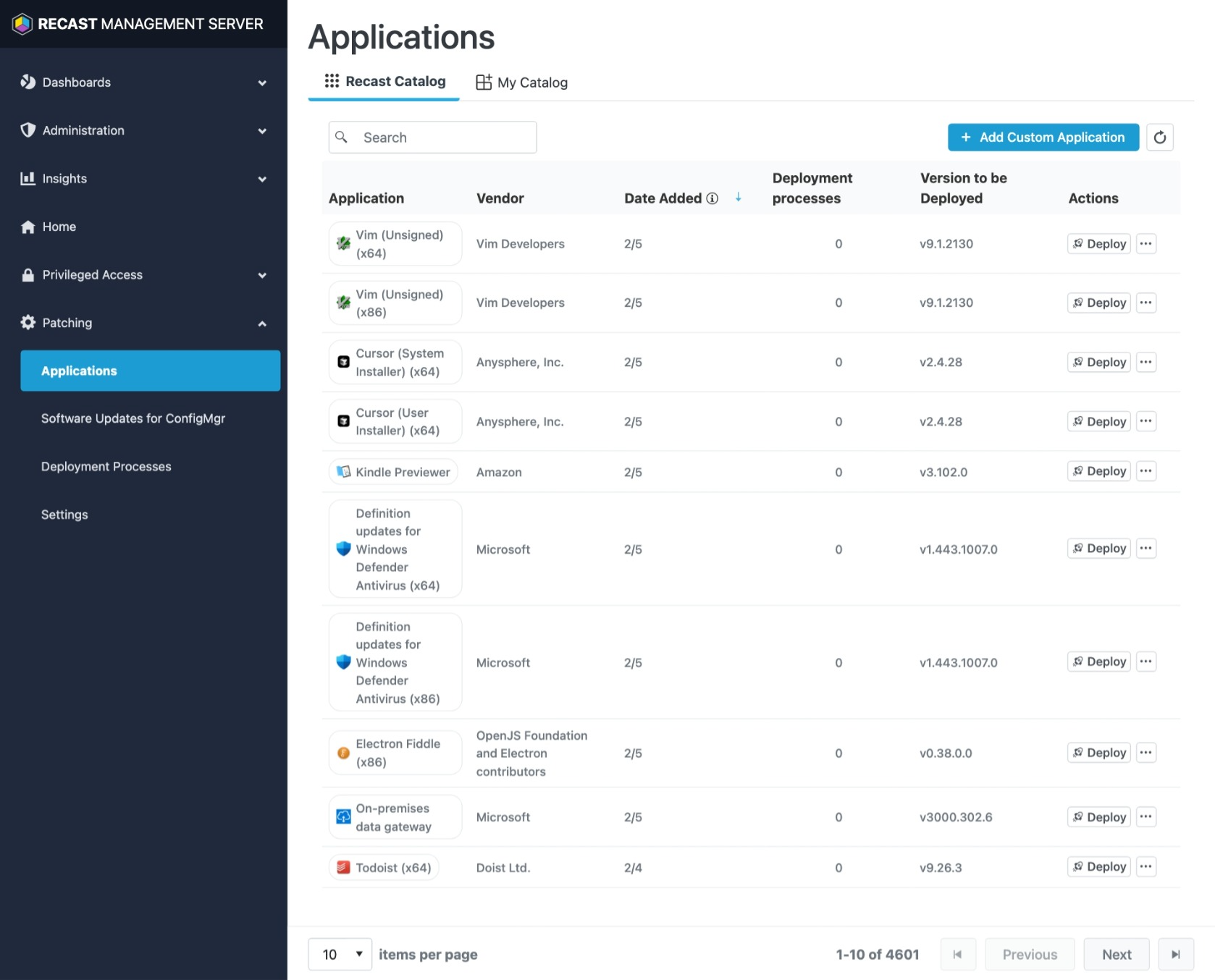
That makes it a natural fit for the hybrid and co-managed environments that are still extremely common, where teams have not fully moved to Intune, or run both side by side and just want one consistent way to patch everywhere. There are no agents on the endpoints, and the actions live in the console you already use or in the Intune admin center via a browser extension.
If you simply want to patch third-party apps well, across whatever platform you manage them with on without taking on a full application platform, Right Click Tools Patching accomplishes this. It isn’t trying to be an application delivery and lifecycle suite. That’s a different conversation, which is a good place to look next.
Removing the friction: An end-to-end solution
Everything up to this point has really been about one job: keeping apps patched. The native methods, Enterprise App Management, and a focused tool like Right Click Tools Patching each tackle that same problem in their own way, and for plenty of environments some mix of them is enough.
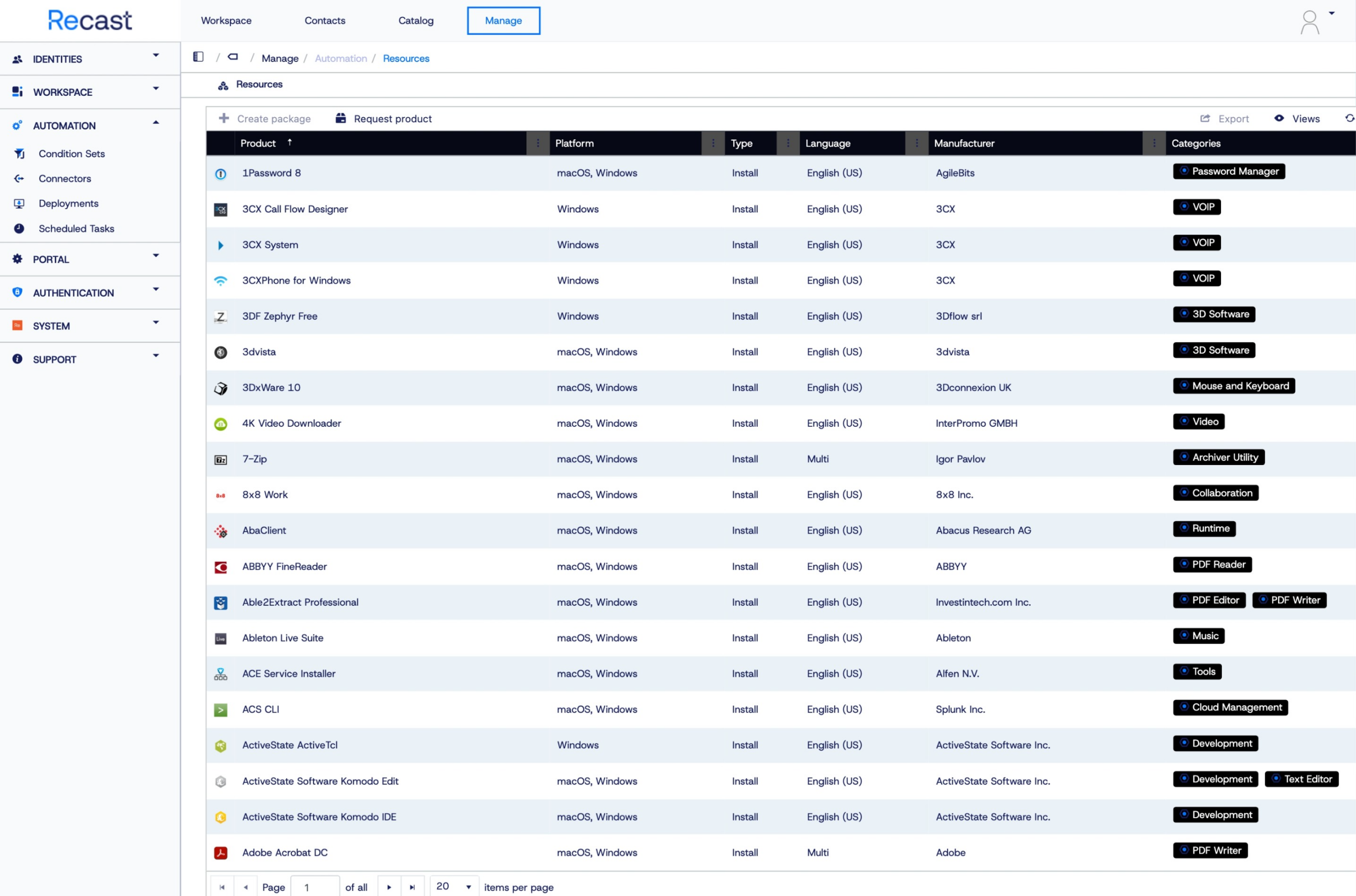
But once you are managing patching across a large, mixed, real-world app estate, with lots of apps, several platforms, and in-house software, a solution built specifically for application delivery and lifecycle starts to look very appealing. This is where a dedicated solution like Application Workspace by Recast comes in, and the appeal is how much of the above it simply makes disappear.
Instead of hunting permalinks, you can draw from both Recast’s large, curated catalog and external connectors (like the Microsoft Store) that update as vendors ship new versions. Instead of waiting on sync cycles and maintenance windows, delivery with Application Workspace is trigger-based and identity-aware, helping the right apps reach the right users when you need them to. No after-hours patch runs. Instead of crossing your fingers on a bad release, you get staged rollouts, rollback, and a single audit trail showing who got what and when. And users get a self-service portal, which quietly takes a chunk of installation tickets off your plate across laptops, Cloud PCs, and virtual desktops alike.
The point is not that scripting or native automation are wrong. They’re valuable, and plenty of environments run on them happily. The point is that once patching across your estate becomes a real operational burden, a dedicated solution turns a stack of scripts and schedules you maintain into a lifecycle that is handled for you. That’s a very comfortable place to be.
The approaches side by side
Approach | Effort per release | Scales to many apps | Keeps existing fleet current | What it covers |
Manual Win32 packaging | High | Poor | Manual | Install + update (manual) |
App self-update / Store apps | Minimal | Good (where supported) | Yes (automatic) | Install + update (Store) / Update only (self-updater) |
Scripted install (Win32-packaged) | Low (after setup) | Moderate | New devices only | Install (latest at deploy) |
Scripted update (remediation) | Moderate setup | Moderate | Yes (scheduled) | Update on a schedule |
Scheduled task (script or vendor updater) | Moderate setup | Moderate | Yes (local schedule) | Update on a schedule |
Enterprise App Management | Low | Catalog-limited | Yes (auto or guided) | Install + update |
Right Click Tools Patching | Low | Strong | Yes (automatic) | Install + update (ConfigMgr + Intune) |
Dedicated solution: Application Workspace | Minimal | Strong | Yes (automatic) | Full lifecycle |
Gotchas
A few things that will trip you up:
- Version-aware detection rules. If your detection rule matches any version (simple file existence), Intune assumes the app is already present and will not push updates to existing installs. Make detection version-aware where you want upgrades to flow.
- SYSTEM context. Win32 apps and scripts run as SYSTEM by default. Per-user installs and anything that expects a logged-in user’s profile can behave unexpectedly.
- 32-bit vs 64-bit PowerShell. Platform scripts and remediations expose a “Run script in 64-bit PowerShell host” setting that defaults to 32-bit. For Win32 app install commands there is no such toggle, so if your script touches 64-bit-only paths, registry hives, or modules, force 64-bit explicitly with the Sysnative redirect.
- Permalink reliability. “Always latest” download URLs are only as stable as the vendor keeps them. Build in error handling to identify possible disruptions.
- Simultaneous downloads. If every device runs the same download on the same schedule, you can saturate your network or the vendor’s CDN. Add a randomized delay (Start-Sleep -Seconds (Get-Random …)) so the herd spreads out.
Which approach should you use?
There is no single right answer. It depends on the size and maturity of your environment.
- A handful of apps which need tight control: Manual packaging is perfectly reasonable.
- The app can update itself or lives in the Store: Let it, and save your effort for the apps that can’t.
- Want fresh devices to always get the latest build: Package the install script as a Win32 app for install time.
- Need to keep an existing fleet patched without ongoing manual effort: Run that logic as a remediation on a schedule, backed by supersedence for your packaged apps, or, on Intune Plan 1, as a scheduled task that runs your script or fires the app’s own updater.
- Want to reduce packaging effort with first-party tooling: Enterprise App Management is worth a look, especially if you are on Microsoft 365 E5.
- Want convenient patching in a cloud-only or hybrid environment: Right Click Tools Patching is a focused, catalog-driven patching tool that also covers Configuration Manager and hybrid setups.
- Managing patching across a large, mixed app estate and want it handled for you: A dedicated solution like Application Workspace is where the friction finally goes away.
Most teams end up using a mix and lean further toward hands-off as their environment grows. Wherever you are today, knowing the next step is there makes the whole thing far less daunting.
References
- Microsoft Win32 Content Prep Tool
- Add, Assign, and Monitor a Win32 App in Microsoft Intune
- Add Microsoft Store apps to Microsoft Intune
- Remediations
- Use PowerShell scripts on Windows devices in Intune
- Add Win32 app supersedence
- What is Windows Autopatch?
- Microsoft Intune Enterprise Application Management
- Guided update supersedence for Enterprise App Management
- Microsoft Intune licensing
- Right Click Tools Patching by Recast Software
- Application Workspace by Recast Software