




Who doesn’t love granular permissions? Being able to give someone exactly the access they need, without making that person a full administrator, is one of the best parts of role-based access control.
The tricky part is getting there.
When most administrators think about access, the request is usually pretty straightforward. Maybe the help desk needs to open Remote Software Center. Maybe a desktop support team needs to restart a client service. Or maybe a security team needs to browse the registry without being able to change anything.
Right Click Tools RBAC can be managed through the Recast Management Server, or RMS, which serves as the central hub for all things Recast. Behind one visible Right Click Tool can be several plugin and action permissions. That means a request that sounds simple can turn into a lot of permission hunting.
I ran into this often enough that I decided there had to be a better way. That is where the RMS Role Manager started.
Why granular RBAC gets complicated
Let’s start with a common scenario. A Tier 1 support team needs enough access to troubleshoot devices, but the team should not be able to make broad or destructive changes.
That role might need to:
- View device information
- Run a few selected client actions
- Read files and logs
- Review registry values
An endpoint engineering team probably needs more. That team might need to create or modify files, update registry values, trigger policy actions, or work with content. A platform administrator may need even more than that, including delete or ownership permissions.
That is exactly why granular RBAC is useful. These groups do not all need the same access.
The challenge is that one tool does not always equal one permission. You can open the Recast Management Server Audit Log, run the tool, and start piecing together the actions being evaluated. That is still a great troubleshooting technique, and I use it when I need to track down a missing permission.
But doing that every time a role needs to be created is tedious. It also makes it easy for two administrators to build different roles for the exact same job.
I wanted something repeatable.
Turning an administrator request into RMS permissions
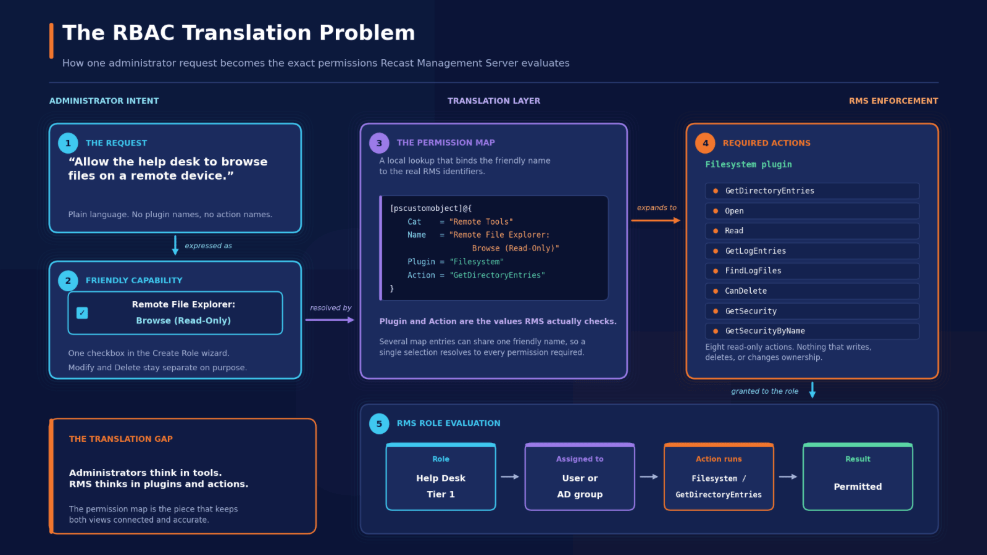
At a high level, the problem looks like this:
- The administrator says, “Allow this team to browse the remote file system.”
- RMS needs the exact Filesystem plugin actions that make browsing work.
Both are correct. They are just speaking different languages.
The idea behind the Role Manager was to put a small translation layer in the middle. Administrators choose a tool or capability they recognize, and the script resolves that choice to the plugin and action values RMS expects.
Here is a simplified example from the permission map:
[pscustomobject]@{
    Cat    = "Remote Tools"
    Name   = "Remote File Explorer: Browse (Read-Only)"
    Plugin = "Filesystem"
    Action = "GetDirectoryEntries"
}
There is nothing too fancy happening here:
- Cat tells the interface where to display the item.
- Name gives the administrator a friendly description.
- Plugin identifies the RMS plugin.
- Action identifies the exact permission RMS evaluates.
The important part is that the friendly name and the real RMS permission stay connected. The user gets a cleaner experience, but the actual permission being assigned never becomes a mystery.
One checkbox can still map to several permissions
Of course, Remote File Explorer browsing needs more than GetDirectoryEntries. It may also need actions for reading files, attributes, drives, or security information.
Instead of making the administrator select each action one at a time, the map can contain several entries with the same friendly name. In the interface, the administrator sees one capability. Behind the scenes, the script adds every mapped action required for that capability.
This gives us the best of both worlds:
- The administrator works with familiar tool names.
- The exact plugin and action values remain visible.
- Multi-permission tools do not become a wall of checkboxes.
- The permission map can be exported and reviewed.
- New mappings can be added as the product changes.
There is one catch. The map has to be accurate. Plugin names, action names, and even capitalization need to match what RMS expects. A friendly interface is only helpful if the data behind it is correct.
Finding the right level of detail
While working through Remote File Explorer and Remote Registry, I had another decision to make. Should the interface show one checkbox for the entire tool, every individual permission, or something in between?
One checkbox is easy, but it can also grant too much. A long list of individual actions is precise, but now the administrator needs to understand every low-level permission.
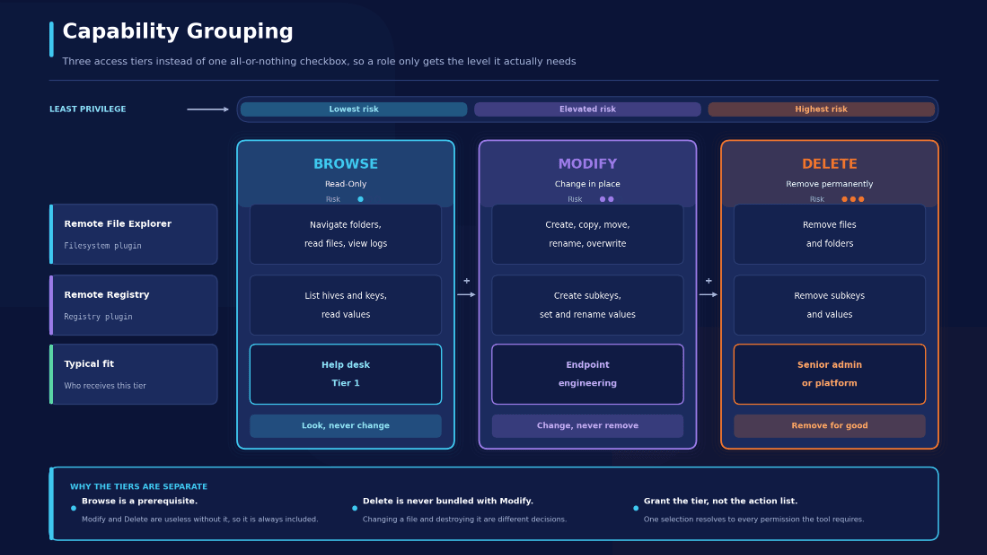
Neither option felt right, so I settled on capability groups.
Remote File Explorer
- Browse (Read-Only): Navigate folders, read files, find logs, and view available information.
- Modify Files: Create, copy, move, rename, overwrite, and update files.
- Delete Files: Remove files and folders.
Remote Registry
- Browse (Read-Only): List hives, subkeys, and values and retrieve value data.
- Modify Keys and Values: Create subkeys, set values, and rename values.
- Delete Keys and Values: Remove subkeys and values.
I intentionally kept Delete separate from Modify. Updating something and removing it are not the same access decision. With these groups, a support team can get read-only troubleshooting without also getting delete rights. A more advanced team can receive modification rights, while the highest-risk actions remain separate.
Start with the job, not the permission list
Once the capabilities were grouped this way, role planning became much easier. Instead of starting with a long permission list, I could start with a few practical questions:
- What does this team need to view?
- What actions are part of the normal support workflow?
- Does the team need to modify anything?
- Does the team really need delete access?
- Which actions should be reserved for an escalation team?
After those questions are answered, the Role Manager can handle the translation into RMS permissions.
That does not remove the administrator from the decision. The administrator still decides what access is appropriate. The utility just removes a lot of the repetitive permission hunting.
Where this took me next
The first version of the RMS Role Manager was really about one thing: making custom role creation easier during onboarding, health checks, and access discussions.
Once I started using it, though, the list of ideas grew quickly. If I could create a role, why not edit one? If I could edit roles, why not review the users and groups assigned to them? And if the tool was going to do all of that, it needed a better interface than a series of PowerShell prompts.
There you have it. A simple permission map became the foundation for something much larger.
In Part 2, I’ll walk through how the script grew into a WPF-based PowerShell application, why building the GUI was so much fun, and a few things I learned along the way.