




Keeping third-party apps up to date is one of the most time-consuming tasks in app management. Until now, we had to create a new app for every new version and connect it with a supersedence relationship. With the June 2026 service release (2606), this changes: Enterprise App Management auto-update is now generally available. In this blog post, I explain what the feature does, how you can enable it, and where classic Win32 supersedence is still the better choice.
What is Enterprise App Management?
Enterprise App Management (EAM) is one of the advanced Intune capabilities. At its core is the Enterprise App Catalog. This is a collection of Win32 apps that Microsoft prepares and hosts for you. When you add an app from the catalog, Intune prefills the install commands, detection rules, requirements, and return codes. You save all the packaging work.
Important to know: EAM is not included in Intune Plan 1 or Plan 2. It requires an additional license. You can buy it as a standalone add-on or as part of the Intune Suite. You can find all details in the official Enterprise App Management documentation on Microsoft Learn.
What’s new in the June 2026 release?
With service release 2606, which rolled out the week of June 29, 2026, two things reached general availability:
- Enterprise App Management auto-update: Intune can now update Enterprise App Catalog apps on your devices automatically when a newer version appears in the catalog.
- EAM in GCC High and DoD: Enterprise App Management is now also generally available in the U.S. Government Community Cloud (GCC) High and Department of Defense (DoD) environments.
The auto-update part is the big one for daily work. Before this feature, the catalog only told you that an update existed. You still had to create a new app for the new version and set up a supersedence relationship. This is the guided update flow, and it works, but it doesn’t scale well when you manage 50 or more catalog apps.
How does the auto-update work?
The idea behind Enterprise App Management auto-update is simple. When auto-update is enabled for an Enterprise App Catalog app with a required assignment, Intune detects when a newer version is available in the catalog and automatically updates the app on the targeted devices. You don’t create a new app. You don’t configure supersedence. The app just stays current.
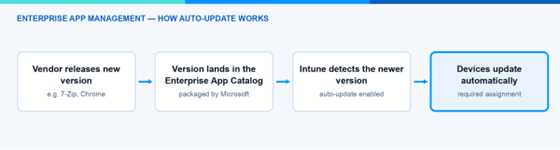
Enterprise App Management auto-update flow: Intune detects the new catalog version and updates devices automatically
A few facts about the scope:
- Auto-update only works for Enterprise App Catalog apps, not for your own Win32 apps.
- It only applies to apps with a Required assignment. Apps assigned as Available for enrolled devices keep the existing update workflow.
- It’s supported on Windows 10 and Windows 11 devices.
- The apps are installed by the Intune Management Extension (IME). EAM doesn’t use winget under the hood.
Note: Microsoft has defined Service Level Objectives for the catalog itself. The target is that 80–90% of app updates are available in the catalog within 24 hours after Microsoft receives them. Updates that need manual validation can take up to seven days. So “auto” doesn’t mean “instant.”
How can I enable Enterprise App Management auto-update?
The setting lives in the assignment of the app. You enable it when you add a new catalog app or when you edit the assignments of an existing one. This is how you add a new app with auto-update:
- Sign into the Microsoft Intune admin center.
- Go to Apps > All Apps > Create.
In the Select app type pane, select the Windows platform and then Enterprise App Catalog app. Click Select.
In the App information step, click Search the Enterprise App Catalog, pick your app and the package (language, architecture, version), and go through the steps. Microsoft prefills the program, requirements, and detection settings for you.
- In the Assignments step, add your groups under the Required assignment type and enable the auto-update option for this assignment. Then finish with Review + create.
For an existing Enterprise App Catalog app, edit the app, open its assignments, and enable the auto-update option there in the same way.
Hint: If you want to check which of your catalog apps are outdated first, go to Apps > Enterprise App Catalog apps with updates. This report shows all apps where a newer version exists in the catalog.
How does it compare to Win32 supersedence and winget?
Enterprise App Management auto-update is not the only way to keep apps current. Here’s is a small comparison of the three common options:
| EAM auto-update | Win32 supersedence | winget (Microsoft Store apps) | |
| Packaging effort | None, Microsoft prepares the app | You package every version | None |
| Update control | Automatic, no approval step | Full control, you decide when | Vendor/store driven |
| Rollout rings | No | Yes, via different groups per version | No |
| App coverage | ~1,000 catalog apps | Any Win32 app | Store catalog |
| Extra license | Yes (EAM add-on / Intune Suite) | No | No |
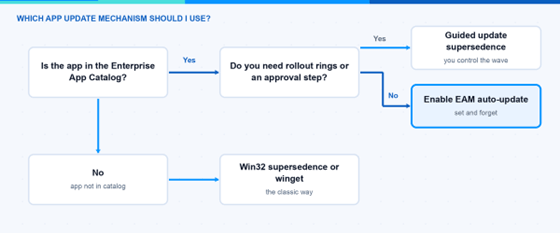
Decision diagram: Enterprise App Management auto-update vs guided supersedence vs Win32 and winget
What are the limitations?
Before you enable Enterprise App Management auto-update everywhere, you should know these limitations:
- No rollout rings: When a new version is available, it goes to all targeted devices at the same time. There is no phased deployment.
- No approval step: If you want to review updates before they are applied, keep using the guided update supersedence flow instead.
- No rollback: There is no automatic rollback or uninstall remediation. If a version must go, you have to act manually, for example with an uninstall intent or a remediation script.
- Catalog cache lag: Catalog data is cached for up to one hour. If Microsoft revokes a malicious version, devices can stay exposed during this window. You are still responsible for finding and remediating affected devices.
- Reporting shows only the latest state: Intune keeps no history of previous versions per device.
No ESP blocking app: An auto-update catalog app cannot be used as a blocking app in the Enrollment Status Page or Autopilot device preparation.
- Conflicts with other app types: Don’t manage the same app with auto-update and another deployment type (such as a LOB app). This can create a race condition where the versions flip back and forth.
Note: If app installations fail after an update, the normal Win32 troubleshooting applies. I wrote about the tools and log files in my Intune troubleshooting guide.
What would I choose?
My take is pragmatic. For standard tools like 7-Zip, Notepad++, or VLC-style utilities, Enterprise App Management auto-update is a clear win. These apps have frequent security updates, and nobody wants to build supersedence chains for them. For business-critical apps where an update can break a workflow, I stay with guided update supersedence because I want rings and an approval step there.
If you have the EAM license already, enable Enterprise App Management auto-update for a small group of low-risk apps first, watch the reporting for two or three cycles, and then roll it out wider.
I hope this helps.
Related resources
Understanding Microsoft Enterprise Application Management
From Packaging to Production: Managing Applications in One Place