




Recently, a question came up in a system administrators’ chat regarding Microsoft Configuration Manager and how it executes PowerShell scripts in various contexts. For example, if you deploy an application to a device collection, but set it to run in a user context, does it run the execution (and detection) in the system context or the user context?
There are a few old posts that seek to answer this, such as the following discussion on Server Fault from 2015: In what context do SCCM PowerShell detection scripts run in? – Server Fault Unfortunately, it references other pages that have vanished, although resurrection via the Wayback Machine is still possible…for now.
However, 10 years is certified ancient in computer time, and as reliable and stable a beast as Configuration Manager is, it still has undergone a lot of changes between version 1511 back in June 2015 and version 2603, current as of this writing. It’s high time to retest this and document it before any further knowledge disappears.
The results
If you’re interested in how these results were obtained and how to recreate them, see ‘The Experiment’ section.
PowerShell as an application
When PowerShell is used to deploy an application, there’s nothing really surprising…other than how difficult it can be to pull reliable data when the Type of Collection and Install As don’t match.
When an application is deployed to install as a user, it does exactly that. When an application is deployed to install as System, ditto.
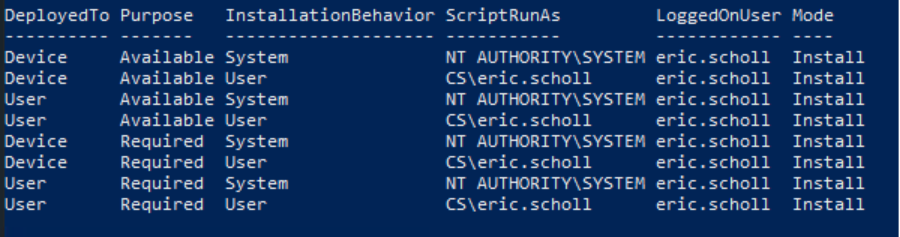
This matches the information from Jason Sandys’ blog (now 404’d) that:
When an Application’s installation behavior is set to “Install as System,”
the installer is run as System [regardless of deployment to user].
Okay, so, nothing exciting. SysAdmins like the occasional excitement, but we’re also happy when things work in reasonable, predictable, and logical ways.
But Alx9r reports that detection scripts act differently than installation scripts. So, we tested that as well.
PowerShell as detection
Surprised, we tested again. And again.
Fortunately, each time I ran the script, I made a point to rename the text file so I could keep track of which combination I had tested more easily. (“I’ve done available deployed to a device collection to install as user.”) I hadn’t gotten around to making the script do that automatically. As it turns out, it’s a good thing I hadn’t.
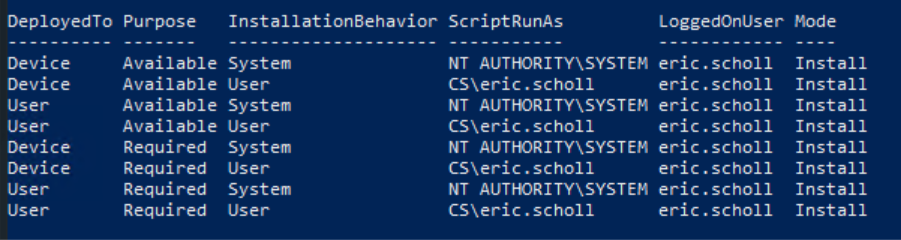
When I pulled up the table of my Install mode results, everything looked nice and normal: two deployments for each combination:
Pulling the results of the Detect mode, though? Something screwy is going on!
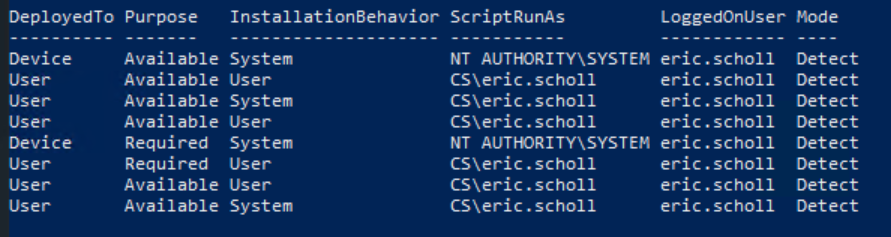
I did not, in fact, deploy it to user collections 75% of the time. My file names, fortunately, betrayed an even 50/50 split, just as expected. I did a bit of PowerShell object manipulation, and voilà:
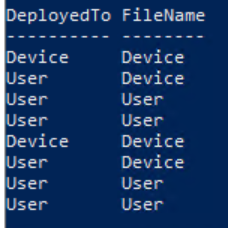
So, what’s going on here?
Reordering the columns makes it a bit clearer:
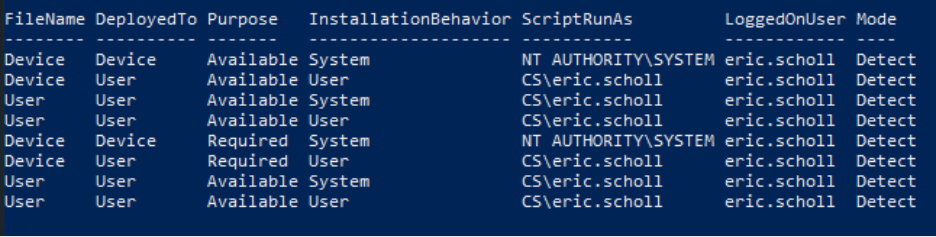
If an application is either:
- deployed to a user collection, or
- set to Install As a user context
then the PowerShell detection script runs in the user context. The only time a PowerShell detection script actually runs as SYSTEM is when the application is both deployed to a device collection and set to Install As the system account.
Conclusion
This means two things. First, if you expect a PowerShell script that’s running an application installation to behave in the same way as your detection script for that application, well, you’re wrong. (As was I!)
Second, it means that it is not only possible but easy to mismatch the context of the install and the context of the detection, creating unexpected detection failures. This again lines up with Alx9r’s conclusion:
Someone writing detection scripts for Applications where installation behavior is “Install as System” should be careful to avoid relying on any part of the environment that changes between the system and user contexts. Otherwise, detection of an Application deployed to a system collection may succeed while detection of the exact same Application deployed to a user collection fails.
So, if you’re ever wondering why installations are reporting failures even though the application installed, you can add PowerShell context mismatches to the list of possibilities!
The experiment
The setup
Credit goes to Alx9r on Server Fault for the inspiration. The PowerShell script below can be run either as a detection script or as an execution script, depending on what you want to test.
Here’s how to do it:
- Copy the PowerShell script in this blog and save it somewhere on your MECM content UNC path.
- Create a new custom application within MECM called PowerShell Context Test.
Make sure that the application name (on the General Information tab) and the localized application name (on the Software Center tab) are the same.
- Create a deployment type for the application:
- Manually specify the deployment information
- Installation Program (see The Script first!):
powershell.exe -ExecutionPolicy ByPass -File PowerShellContextTest.ps1 -OOO
- Use a custom script to detect the presence of this deployment type
- If you are testing in Detect mode, then copy and paste the contents of the PowerShellContextTest script into the window and change the $Mode parameter to Detect. Do not use Open, as then you cannot edit the script parameters.
If you are testing in Install mode, then just put [System.Environment]::Exit(0) as your detection script. This forces the installation to detect as Not Installed, so it will allow you to trigger the script repeatedly via Install in Software Center. When you do trigger the installation, it will register as failing, but we don’t care. We just want the log file it outputs.
- Set the Installation Behavior to whichever behavior you wish to test.
- Set Installation Program Visibility to Hidden.
- Once the application is created, deploy it to a user collection or device collection to test it.
The assumptions
There are a few assumptions in this setup.
1. The script assumes PowerShell 5.x, since that’s still (still!) what Windows comes with by default. The only difference this makes is that in order to use Invoke-RestMethod against the AdminService, we need to bypass the certificate check. PowerShell 7 can do this with a simple switch (-SkipCertificateCheck); PowerShell 5 needs a .NET workaround. See Could not establish trust relationship for the SSL/TLS secure channel with Invoke-WebRequest from PowerShell – Stack Overflow
2. It assumes that the Configuration Manager AdminService web API is enabled and accessible in your MECM environment. We use that to get a bit of WMI-based information about our test application that is only available in the server-based WMI classes, rather than the client WMI.
3. This was tested on Microsoft Configuration Manager 2509. The most current version as of this writing is 2603. However, given that Microsoft hasn’t changed the PowerShell context behavior in the last 11 years, odds are good that these findings apply to 2603 as well.
The script
There are three parameters at the top of the script that you’ll need to alter before deploying it for testing. These parameters can be set via command line or altered directly in the script. None of them are explicitly typed as mandatory, but all of them are mandatory.
- SMSProvider: The fully qualified domain name of your SMS Provider server (where your AdminService lives).
- OutputObjectOnly: Optional switch. If included, the generated log file contains only the output object for the PowerShell context test. When not included, it also contains (mildly) verbose information about progress and events, to aid in debugging. Not actually a true Verbose mode.
- Mode: Defaults to Install. This is primarily a way to explicitly report whether the script is functioning as detection or installation for reporting purposes. You’ll have to change this manually if you want to track both installations and detections.
As a last note: If you’re testing in rapid iteration (which you probably are!), it is extremely helpful to go into the application’s Revision History each time you change the targeting, settings, etc., and remove previous revisions. This ensures that the next time you run the Machine Policy Retrieval & Evaluation Cycle, it pulls the latest (and only) revision.
And now, for the actual script:
<#
.SYNOPSIS
Gets the execution context of a PowerShell script within ConfigMgr (MECM).

.DESCRIPTION
This script determines the context in which is being deployed and run.  It gathers:

- Whether the app is deployed to a user or device
- Whether it is required or available
- Whether it runs as system or user
- Who is currently logged on

Results are written to a log file with a unique datetime stamp.

.PARAMETER SMSProvider
The ConfigMgr SMS Provider / AdminService server to query.

.PARAMETER Mode
Controls script behavior. Use:
- Install (default): normal execution
- Detect: returns "Detected!" - will purposefully force detection to succeed
when used as a detection script.

.PARAMETER OutputObjectOnly
If set, suppresses normal log output and writes only the result object as JSON.


.EXAMPLE
.\Get-ExecutionContext.ps1 -OutputObjectOnly

Outputs results as JSON instead of wordy logging.

.NOTES
Requires ConfigMgr client installed and access to AdminService on the SMS Provider.
This script must be run on your MECM site server for reliable results.
#>


[CommandletBinding()]
param (
    [string]$SMSProvider = "mecm.contoso.com",
    [string]$Mode = 'Install',   # Valid options: Install or Detect
    [Alias("OOO")]
    [switch]$OutputObjectOnly
)

$ApplicationName = "PowerShell Context Test"

$RunTime = (Get-Date).ToString("yyyy-MM-dd__HH-mm-ss")
$LogFolderPath = "C:\$ApplicationName"
$LogFileName = "$($ApplicationName)`__$($RunTime).txt"

if ( -not (Test-Path $LogFolderPath -PathType Container) ) {
    New-Item -Path $logFolderPath -ItemType Directory | Out-Null
}

$FilePath = "$LogFolderPath\$LogFileName"


<#  Let's Begin #>

function Get-ApplicationExecutionContext {
    <#
    .SYNOPSIS
    Collects execution context details for the target application.

    .DESCRIPTION
    Queries local ConfigMgr client and AdminService to determine
    deployment type, purpose, execution context, and logged-on user.

    .OUTPUTS
    PSCustomObject with execution context details.
    #>

    begin {
        if (-not $OutputObjectOnly) { Add-Content -Path $FilePath -Value "Bypassing Cert Check for Powershell 5..." }

        # Bypass Cert Check for Powershell 5.
        # On Powershell 7 you can just use -SkipCertificateCheck

        $code = @"
                using System.Net;
                using System.Security.Cryptography.X509Certificates;
                public class TrustAllCertsPolicy : ICertificatePolicy {
                    public bool CheckValidationResult(ServicePoint srvPoint, X509Certificate certificate, WebRequest request, int certificateProblem) {
                        return true;
                    }
                }
"@

        Add-Type -TypeDefinition $code -Language CSharp
        [System.Net.ServicePointManager]::CertificatePolicy = New-Object TrustAllCertsPolicy
    }

    process {

        # Initialize result object with defaults
        $PSCTResults = [PSCustomObject]@{
            DeployedTo = 'Unknown'
            Purpose = 'Unknown'
            InstallationBehavior = 'Unknown'
            ScriptRunAs = 'Unknown'
            LoggedOnUser = 'Unknown'
            Mode = 'Unknown'
        }

        # Capture runtime identity details
        $PSCTResults.ScriptRunAs = [System.Security.Principal.WindowsIdentity]::GetCurrent().Name  # Current security context
        $PSCTResults.LoggedOnUser = Get-QueryUser -ComputerName localhost | Where-Object{$_.State -eq 'Active'} | Select-Object -ExpandProperty Username # Active console user
        $PSCTResults.Mode = if ($Mode) { $Mode }

        # Try to get application info from local ConfigMgr client
        $App = Get-CimInstance -ClassName CCM_Application -Namespace ROOT\ccm\ClientSDK | Where-Object {$_.Name -eq $ApplicationName}


        if ($App) {
            if (-not $OutputObjectOnly) { Add-Content -Path $FilePath -Value "Application $ApplicationName advertisement found." }
            $PSCTResults.DeployedTo = if ($App.IsMachineTarget) {"Device"} else {"User"} # Device vs user deployment targeting
            $PSCTResults.Purpose = if (-NOT[string]::IsNullOrEmpty($App.Deadline)) {"Required"} else {"Available"} # Deadline implies required
        }

        if (-not $App) {
            if (-not $OutputObjectOnly) {
                Add-Content -Path $FilePath -Value "Application $ApplicationName not advertised to this device."
                Add-Content -Path $FilePath -Value "This indicates a target/install-as mismatch."
                Add-Content -Path $FilePath -Value "Some application assignment information may not be available."
            }
        }

        try {
            # Query AdminService for execution context and assignment details
            # For context mismatch where $App doesn't exist, this seems to reliably
            # retrieve the details we need.

            $CI_ID =  (Invoke-RestMethod -Method Get -Uri "https://$($SMSProvider)/AdminService/wmi/SMS_Application?`$filter=LocalizedDisplayName eq '$ApplicationName'" -UseDefaultCredentials).Value.CI_ID
            $SDMPackageXML = (Invoke-RestMethod -Method Get -Uri "https://$($SMSProvider)/AdminService/wmi/SMS_Application($CI_ID)" -UseDefaultCredentials).Value.SDMPackageXML

            $SDMPackageXML -match "<ExecutionContext>(?<ExecCon>.*?)</ExecutionContext>" | Out-Null
            $PSCTResults.InstallationBehavior = $matches.ExecCon

            $AppAssignment = (Invoke-RestMethod -Method Get -Uri "https://$($SMSProvider)/AdminService/wmi/SMS_ApplicationAssignment?`$filter=ApplicationName eq '$ApplicationName'" -UseDefaultCredentials).Value

            if ($AppAssignment -and (-not $App)) {
                if (-not $OutputObjectOnly) { Add-Content -Path $FilePath -Value "ApplicationAssignment retrieved via AdminService." }

                # OfferTypeID: 0 = Required, others treated as Available
                $PSCTResults.Purpose = if ($AppAssignment.OfferTypeID -eq 0) {"Required"} else {"Available"}

                # Determine collection type (Device vs User)
                $TargetCollectionType = (Invoke-RestMethod -Method Get -Uri "https://$($SMSProvider)/AdminService/wmi/SMS_Collection?`$filter=CollectionID eq '$($AppAssignment.TargetCollectionID)'" -UseDefaultCredentials).value.CollectionType
                $PSCTResults.DeployedTo = if ($TargetCollectionType -eq 2) {"Device"} else {"User"}
            }

        } catch {
            if (-not $OutputObjectOnly) {
                Add-Content -Path $FilePath -Value "Unable to retrieve ApplicationAssignment data via AdminService."
                Add-Content -Path $FilePath -Value "$_"
            }
        }
    }

    end {
        if (-not $OutputObjectOnly) {
            Add-Content -Path $FilePath -Value "Script complete. Outputting results to file."
            Add-Content -Path $FilePath -Value $PSCTResults
        } else {
            $PSCTResults | ConvertTo-Json | Out-File $FilePath | Out-Null
        }
    }
}

function Get-QueryUser {
    <#
    .SYNOPSIS
    Gets currently logged-on users.

    .DESCRIPTION
    Wraps the native "query user" command and converts output
    into structured objects.

    .OUTPUTS
    User session objects or $false if none found.
    #>

    $userdata = query user /server:localhost

    if ($userdata) {
        $usercsv = $userdata | ForEach-Object -Process { $_ -replace '\s{2,}',',' }
        $userdata = $usercsv | ConvertFrom-Csv -Delim ','

        foreach ($obj in $userdata) {
            # If 'Logon Time' doesn't exist, then we have a mismatch
            # between expected fields and actual fields.  This happens sometimes.
            # So, we correct for it.
            if ($obj.username -and (-not $obj."Logon Time")) {
                $obj."Logon Time" = $obj."Idle Time"
                $obj."Idle Time" = $obj.State
                $obj.State = $obj.ID
                $obj.ID = $obj.SessionName
                $obj.SessionName = ""
            }

            return $userdata
        }
    } else {
        return $false
    }
}

# Entry point

if (-not $OutputObjectOnly) { Add-Content -Path $FilePath -Value "= START =" }

try {
    Get-ApplicationExecutionContext | Out-Null

    if ($Mode -eq 'Detect') { "Detected!" }
    [System.Environment]::Exit(0)
}
catch {
    Add-Content -Path $FilePath -Value "= ERROR ="
    Add-Content -Path $FilePath -Value $_
    [System.Environment]::Exit(0)
}
Compiling the results
Once you’ve run your tests, you can use this snippet of code to recreate the table found at the beginning of this blog:
$ResultsContainer = [Collections.Generic.List[PSObject]]::new()

$PSCTLogs = Get-ChildItem -Path "C:\PowerShell Context Test"


$PSCTLogs | Foreach-Object -Process {

$obj = $_ | Get-Content | ConvertFrom-JSON    $ResultsContainer.Add($obj)

}

$ResultsContainer | Format-Table
All this does is look for any files present in C:\PowerShell Context Test, fetch the content for each of them (in JSON), and then convert that JSON into a PowerShell object. Once it has all of them in a handy-dandy array, it displays the output as a table.