




Welcome back to my series looking at all things Intune Suite. As a follow-up to my previous post on EPM, this one applies to those of you with E3 or E5 licensing.
Remote Help is self-explanatory. It is a tool for taking control of devices remotely and is currently available for Windows, macOS, and Android. As I don’t have a macOS device for testing, this will be for Windows and Android devices only.
Enable Remote Help
The first step is to enable this capability within the tenant. In the Intune portal navigate to Tenant Administration > Remote Help > Settings > Configure.
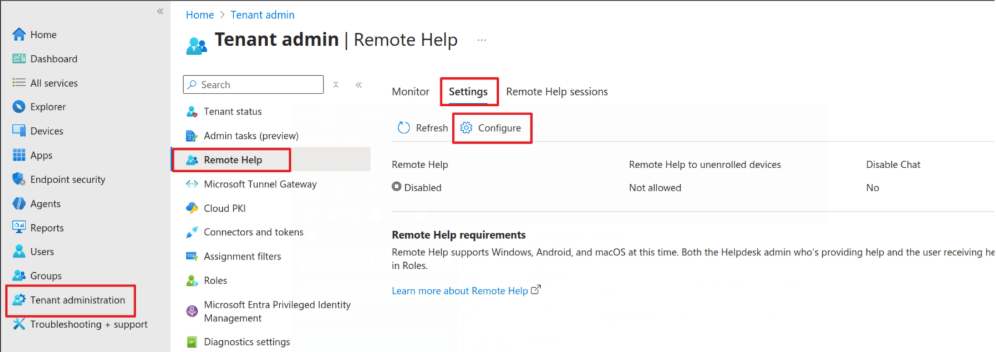
Select the drop-down to enable Remote Help. Then you can allow its usage for unenrolled devices (useful for BYOD issues) and decide whether you want chat to be enabled.
In this case, I’m allowing both:
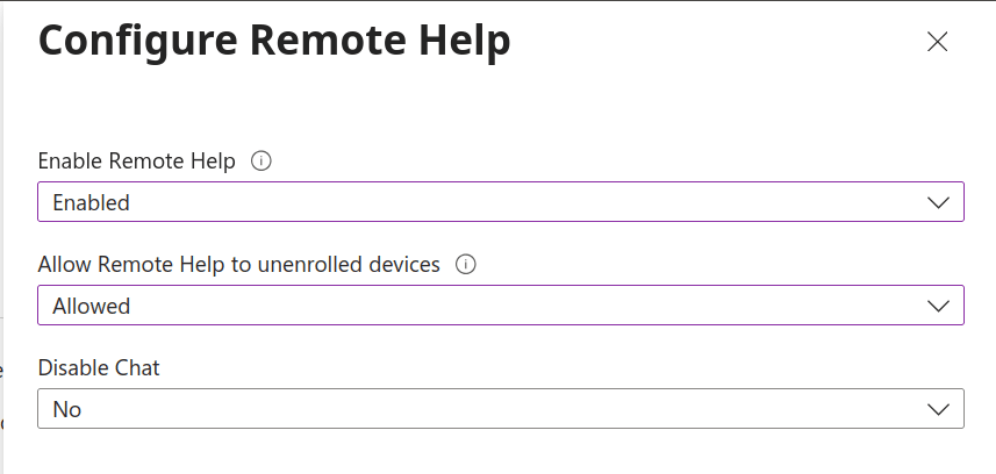
Click Save, and now it’s configured in the tenant.
Ideally, that would be everything, but alas, we have more tasks to complete.
Deploying the Remote Help app
The first step is to deploy the application itself. If you are using E5 and Enterprise App Catalog, you can quickly deploy it from there and skip this step. If not, read on.
- Download the installer.
- Package it as a Win32 app. If you haven’t done this before, I have a guide.
Fortunately, you can access Microsoft’s commands and detection rules as well.
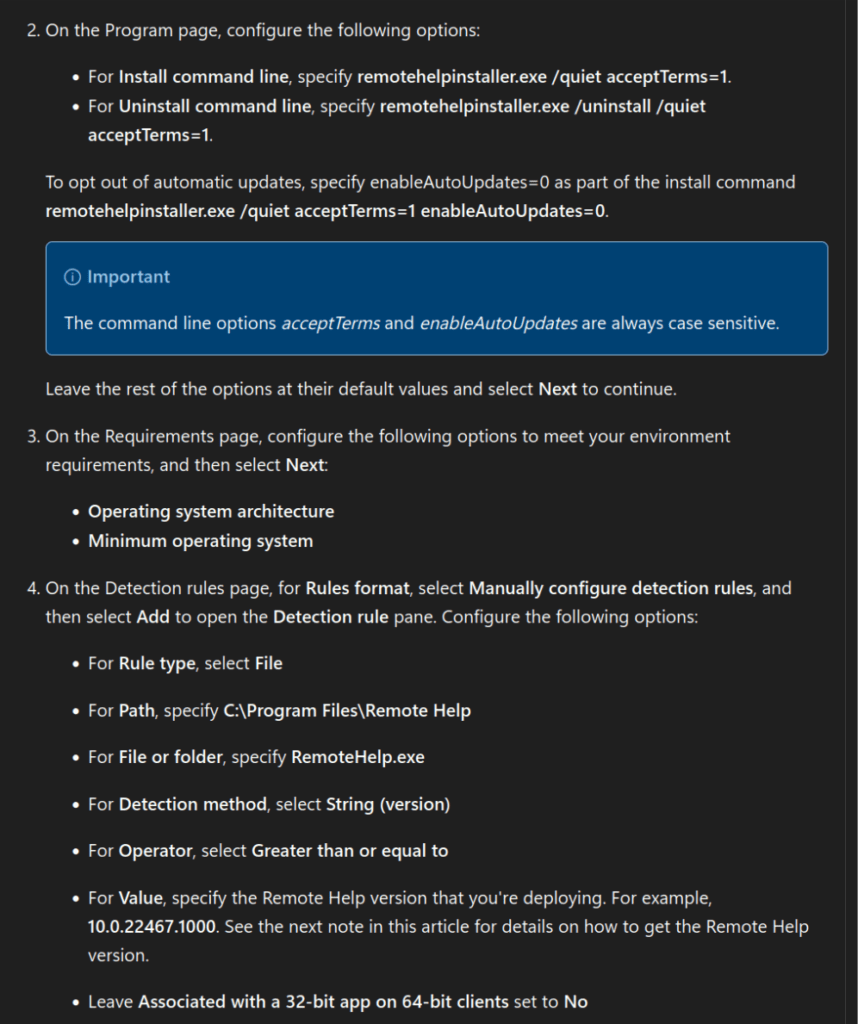
If you want an alternate option, I have a script which enables it at the tenant level, downloads the latest executable, packages it, and deploys it for you.
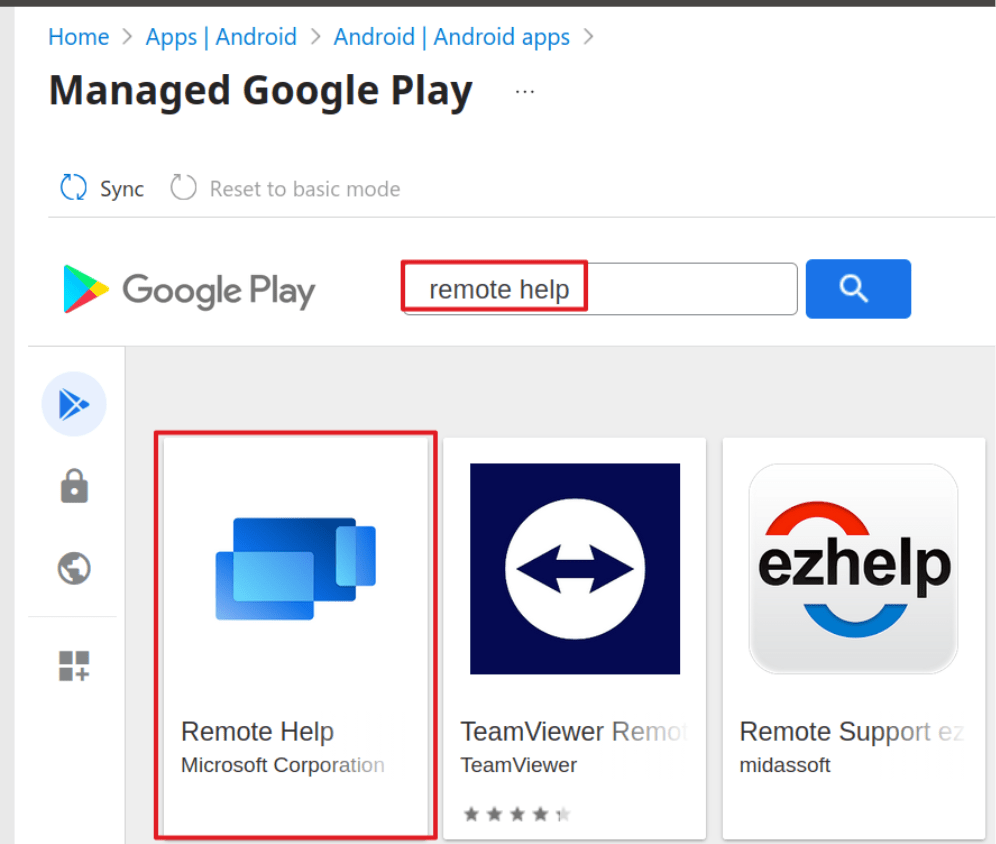
We also need to deploy the application for Android. Click on Apps > Android > Create > Managed Google Play app.
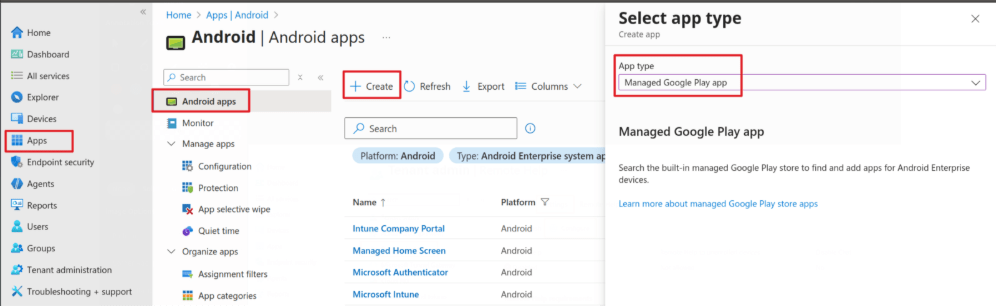
Search for and select Remote Help from Microsoft.
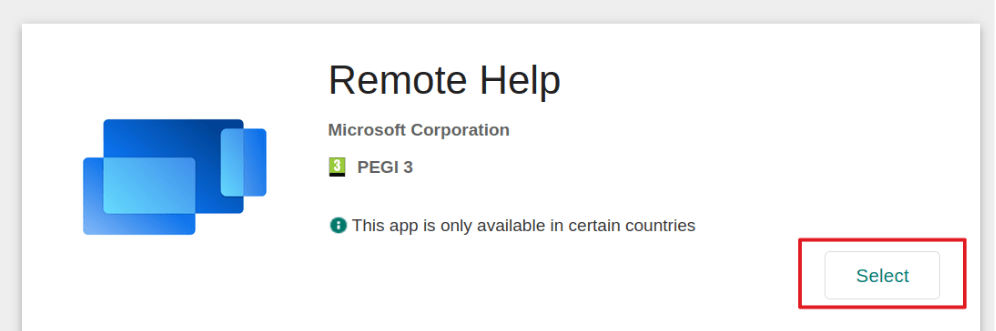
Click Select.
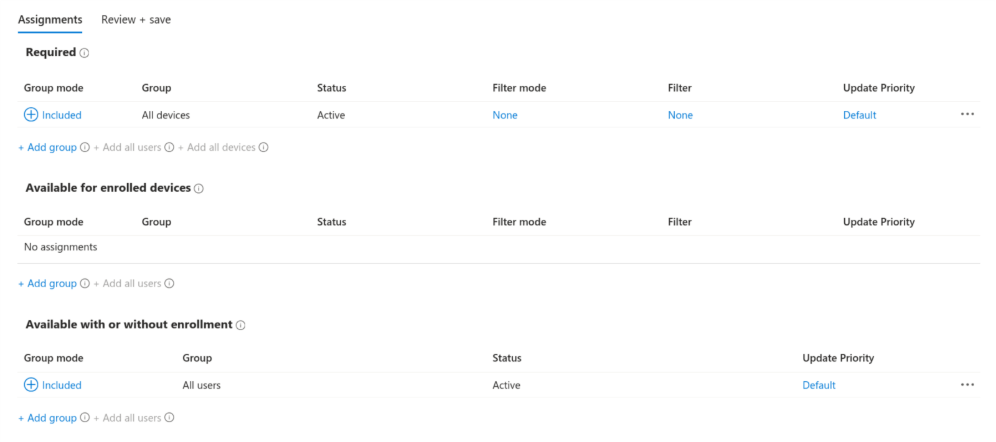
Click Sync and wait for it to display in Intune, then assign as required:
Now that we have the client deployed to our various devices, we can use it to connect.
How to use Remote Help
Operating System: Windows
Find the device within your Windows devices and click on it.
Click the three dots and select New Remote Assistance Session.
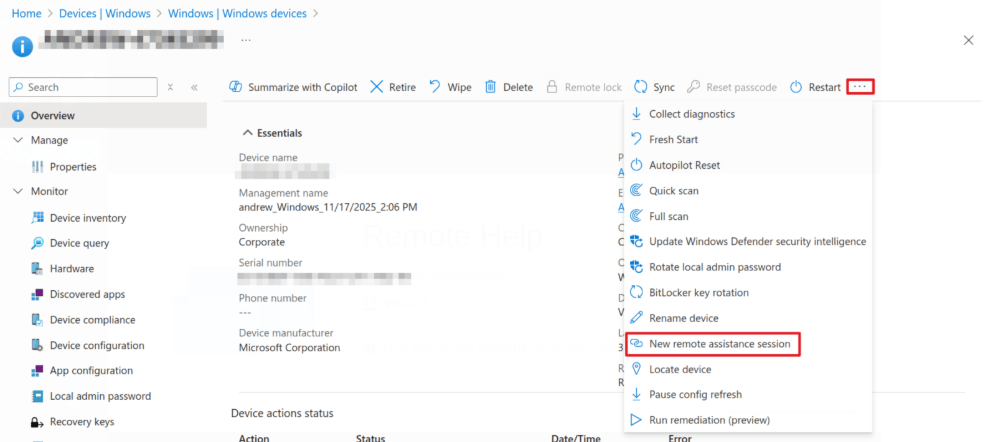
In the fly-out, providing we have completed the previous steps, Remote Help will be selected. Click Continue.
On the device, the user will receive a notification:
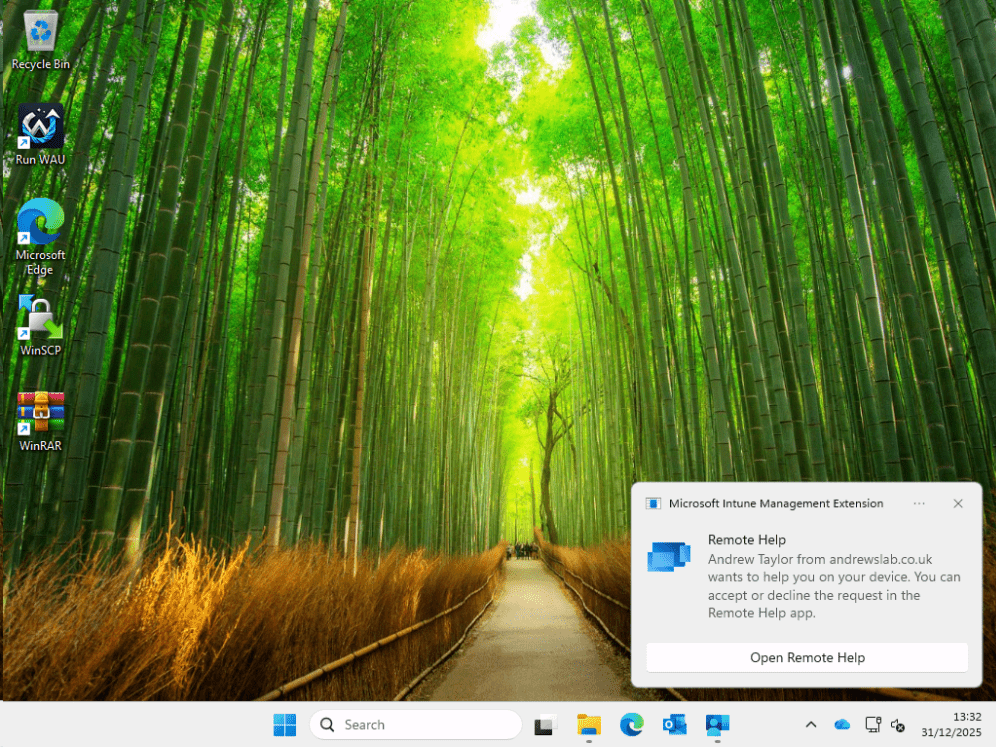
They just need to click Open Remote Help.
Back in Intune, click the button to launch Remote Help, which will open the application on your device and start the session.
The process is the same on an Android device (and I imagine on macOS as well).
Sadly, there is no support for iOS at the moment, and you also can’t connect without someone being present at the other end. This may be a blocker for some of you, but it is included with your licensing now so worth considering how essential these are against the price difference with your current application of choice.
That’s it for Remote Help. Come back soon for the next post, when I’ll be looking at Advanced Analytics to make you even more proactive. Your users will love you!