




If you, as an Intune admin, have ever had the moment when someone accidentally wiped a device, deleted an app, or retired from the wrong endpoint, you know exactly why Multi Admin Approval (MAA) exists. It’s one of those features that should be enabled in every production tenant. Period.
But here’s the thing: MAA is not bulletproof. In this post, I will walk you through how it works in detail, what it protects, and maybe more importantly, where the protection ends. Because if you rely on MAA as your only safety net, you might have a false sense of security.
Let’s dive in.
What is Multi Admin Approval?
Multi Admin Approval is a built-in governance feature in Microsoft Intune that introduces a four-eyes principle for critical administrative actions. The idea is simple: Before a sensitive change goes live, a second admin has to sign off on it.
When any admin account in your tenant makes a change to a protected resource, Intune doesn’t apply the change immediately. Instead, it creates an approval request and waits for a different admin—one who is part of the designated approver group—to review and either approve or reject it.
Think of it as a checkpoint between “someone clicked the button” and “the change actually takes effect.”
What can you protect?
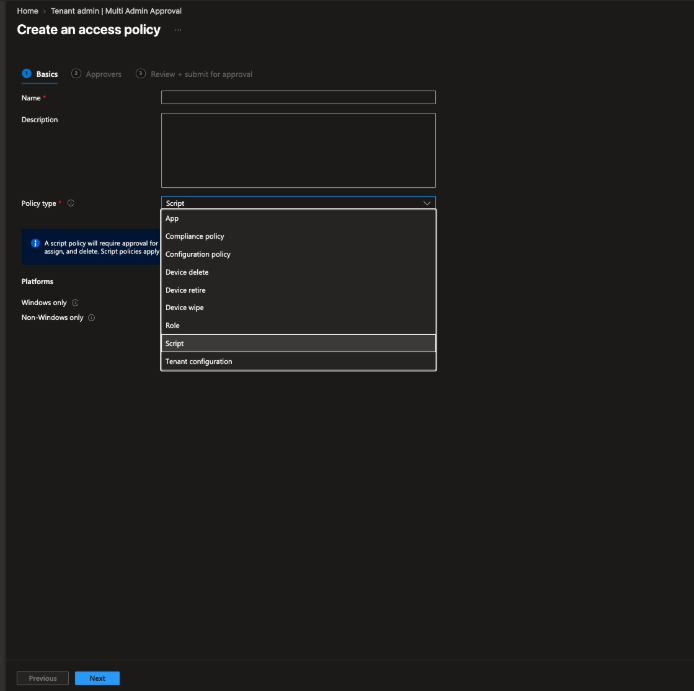
MAA works through Access Policies that you configure in the Intune Admin Center under Tenant administration > Multi Admin Approval > Access Policies. Each policy targets a specific profile type. As of today, you can protect:
- Apps: App deployments (create, edit, assign, delete)
- Scripts: PowerShell scripts and proactive remediations
- Device Actions: Wipe, Retire, and Delete
- Configuration Policies: Settings catalog-based device configuration profiles
- Compliance Policies: Device compliance policies
- Roles (RBAC) & Tenant Configuration: Changes to Intune role definitions and Tenant Configuration
The device actions part is especially critical. After the Stryker incident earlier this year, where attackers used compromised Intune admin credentials to mass-wipe devices, this became a very hot topic. MAA for device wipe would have stopped that attack dead in its tracks.
How does the approval flow work?
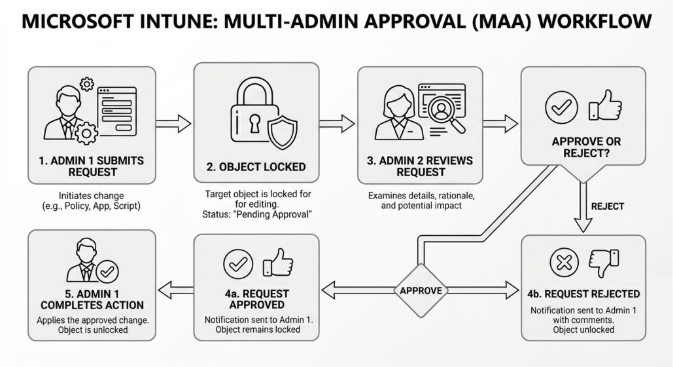
The approval workflow is straightforward:
- Admin 1 creates, modifies, or deletes a protected resource. On the final save page, they must enter a business justification and submit the request.
- The object is now locked, and no further edits are possible until the request is resolved.
- Admin 2 (member of the approver group) reviews the request, including the specific changes (deltas), and either approves or rejects it.
- If approved, Admin 1 goes back and clicks “Complete” to finalize the change.
- If no action is taken within 30 days, the request expires automatically.
Important detail: The admin who submitted the request cannot approve their own request. That’s the entire point of the four-eyes principle.
Prerequisites
Before you can set up MAA, you need:
- Intune Plan 1 license (included in M365 E3/E5, Business Premium, EMS E3/E5) for both the requesting and the approving admin
- At least two admin accounts in the tenant
- A Microsoft Entra security group containing the approver accounts (ideally a role-assignable group)
- The approver group must be assigned to an Intune role that includes the “Approval for Multi Admin Approval” permission
- To create access policies: Intune Administrator role or a custom role with MAA-specific permissions
Setup at a glance
- Create a security group in Entra ID with your approver accounts.
- Create a custom Intune role with the MAA approval permission and assign it to the approver group.
- Navigate to Tenant administration > Multi Admin Approval > Access Policies.
- Create a policy for each profile type you want to protect (Apps, Scripts, Device Actions, etc.).
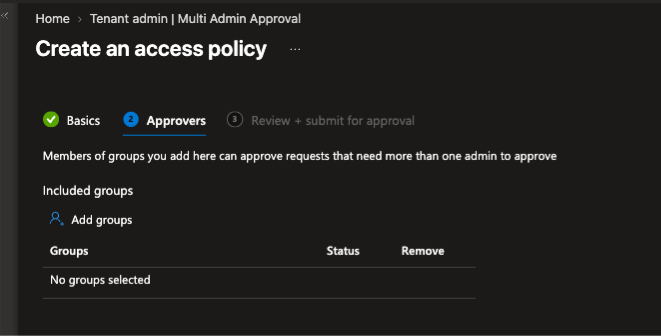
- Assign the approver group to each policy.
- A second admin needs to approve the policy itself before it becomes active.
Tip: Don’t just enable MAA for device wipe and call it a day. If an attacker can’t wipe, they’ll try to retire. If they can’t retire, they’ll push a malicious script. Cover all profile types.
Now let’s talk about the limitations
This is where it gets interesting. MAA, despite being a great feature, has some significant gaps that you need to be aware of.
1. Graph API with Application Permissions bypasses MAA completely
This is the big one. MAA is only enforced for actions performed using a user identity—that means the Intune Admin Center UI, Graph API calls with delegated permissions, or PowerShell with interactive sign-in.
If you have an app registration in Entra ID with application permissions (client credential flow) that has the right Graph API permissions for Intune, MAA does not apply. The app can create, modify, or delete apps, scripts, and even trigger device wipes without any approval workflow kicking in.
This is by design. Application permissions don’t have a “user” behind them, so the MAA framework simply doesn’t intercept those calls.
Why this matters: If an attacker compromises a service principal or app registration with Intune permissions, MAA will not protect you. They can perform all destructive actions through the Graph API without ever hitting an approval gate.
What you should do: Treat app registrations with Intune Graph permissions as highly privileged. Lock them down with Conditional Access for workload identities, restrict client secrets, use certificate-based authentication, and monitor their usage closely. Regularly audit which app registrations have DeviceManagementManagedDevices.ReadWrite.All or similar permissions.
2. Global admins can bypass MAA
A Global Admin in your tenant can always work around Multi Admin Approval. They can simply create a second admin account, add it to the approver group, and approve their own requests. Or they can modify the access policies directly.
This isn’t a bug. It’s the nature of the Global Admin role being the highest privilege level. But it’s important to call out: MAA gives you zero protection against a compromised Global Admin account.
Recommendation: Minimize the number of Global Admins, enforce phishing-resistant MFA, and use Privileged Identity Management (PIM) with time-bound activation for this role.
3. No built-in notifications
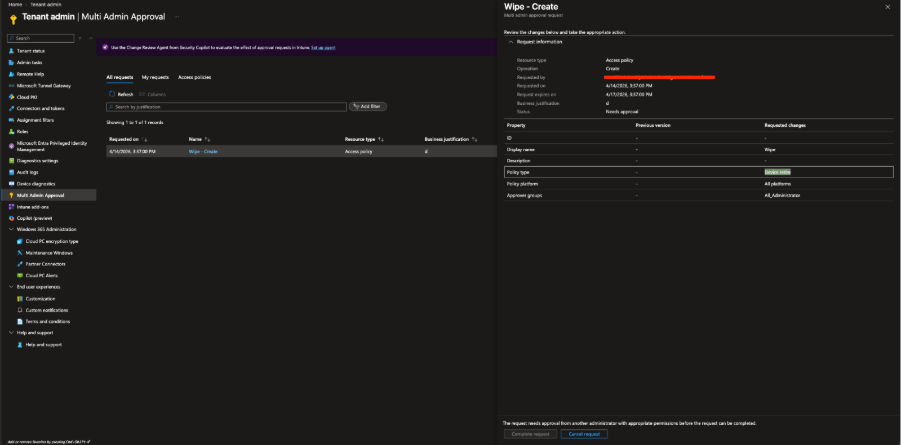
Intune does not send automatic notifications when a new approval request is created or when a request changes status. This means your approvers need to actively check the portal, or you need to build your own notification mechanism.
Recommended approach: Use Azure Logic Apps or Power Automate to monitor the Intune audit logs and trigger a Teams message or email whenever a new request appears. Without this, urgent requests can sit unnoticed in the queue.
4. Not everything is covered yet
While the list of protected profile types has grown significantly, there are still gaps. App protection policies and Autopilot profiles, for example, are not covered by MAA.
The bottom line
Multi Admin Approval is a fantastic feature, and you should absolutely enable it in your tenant. It adds a critical safety net for accidental changes and significantly raises the bar for attackers who have compromised a single admin account.
But don’t treat it as a complete solution. The Graph API bypass through application permissions is a real gap that needs to be addressed through complementary controls: proper app registration governance, workload identity protection, and monitoring. And the Global Admin bypass means your PIM and privileged access hygiene needs to be on point.
Enable MAA. Cover all profile types. Build notification workflows. And then harden everything around it.