


Updated on 5/21/2026
I’m always fascinated by the stories my colleagues tell about the times they had to upgrade operating systems in their organizations. Almost universally, it didn’t sound like a task you would look forward to doing. Thankfully, today we are fortunate enough to be able to leverage Intune to assist us in upgrading devices from Windows 10 to Windows 11, with a few configurations.
But why?
First, the question is: Why should companies consider upgrading their operating systems? The one currently in place works just fine. That might be true at this moment. However, there are benefits to upgrading operating systems. Below are a few:
Security: When you are running on outdated operating systems, you are leaving yourself open to system vulnerabilities, which can lead to security breaches.
Performance: Upgrading to the latest software could help improve performance and speed, while adding stability to your devices.
Compatibility: There are some applications that may require your device to be using a certain operating system to perform correctly. Avoiding OS upgrades could disrupt workflow and productivity if not addressed.
Compliance: If your organization needs to follow certain guidelines or standards for device operating systems, you’ll need to ensure you comply with their requirements.
How to upgrade from Windows 10 to Windows 11 using Intune
Convinced? Perfect. Let’s roll out Windows 11 then. Well before we can do that though, we’ll need to make sure we meet the following requirements for Windows 11 upgrade with Intune.
Prerequisites for Windows 11 upgrade with Intune
You need the following licenses to leverage Intune’s feature updates for Windows 10 and later:
- Windows 10/11 Enterprise E3 or E5 (included in Microsoft 365 F3, E3, or E5)
- Windows 10/11 Education A3 or A5 (included in Microsoft 365 A3 or A5)
- Windows Virtual Desktop Access E3 or E5
- Microsoft 365 Business Premium
Feature updates are supported for the following Windows 10/11 editions:
- Pro
- Enterprise
- Education
- Pro for Workstations
Device specification requirements for upgrading to Windows 11:
- Processor: 1 GHz or faster with 2 or more cores on a suitable 64-bit processor
- Memory: 4GB RAM
- Storage: 64GB or more
- System Firmware: UEFI, Secure Boot compatible
- TPM: Trusted Platform Module (TPM) version 2.0
You must also have the following in place for devices:
- Be running a version of Windows 10 that is still supported
- Be enrolled with Intune MDM and Hybrid AD Joined or Entra AD Joined
- Have Telemetry on and at a minimum have it set to Required
- Set Microsoft Account Sign-in Assistance (wildsvc) to run. By default, it’s set to Manual (Trigger start), which allows it to run when needed.
Okay, now that our bases are covered, let us go ahead and upgrade!
- Log in to Microsoft Intune Admin Center (https://intune.microsoft.com)
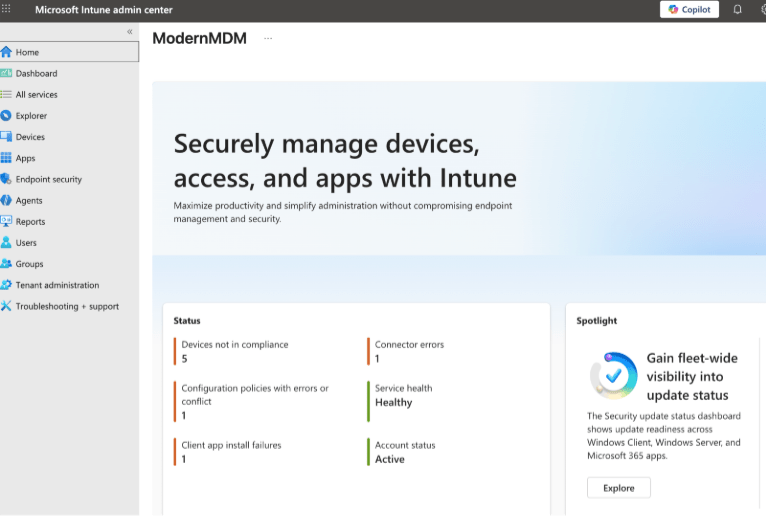
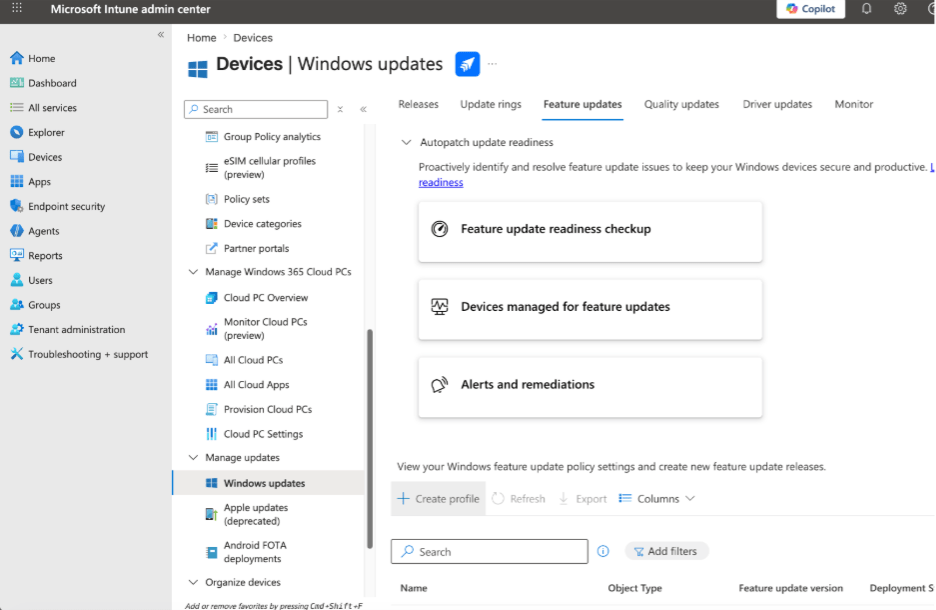
- In the Microsoft Intune Admin Center, select “Devices” > “Windows updates” under Manage updates > click on the Feature updates tab > +Create profile to create a feature policy.
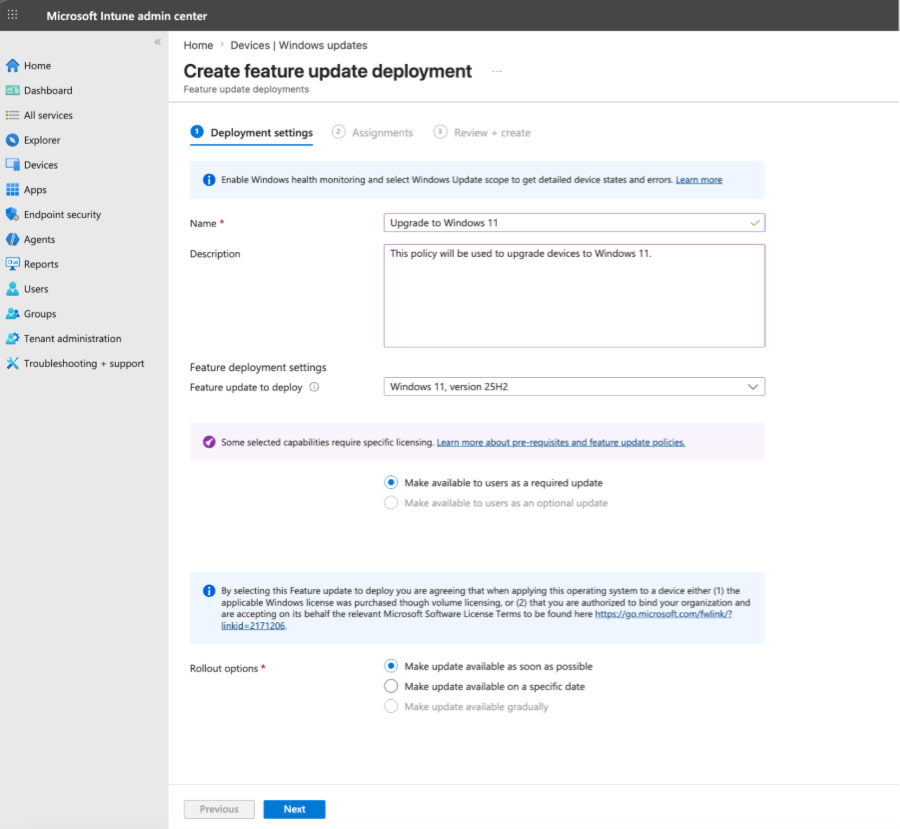
- Create a new Deployment for the Windows 11 upgrade, assign a name to help easily identify the feature update deployment, and give it a description to help give the policy some context. Under the Feature deployment settings, we can set the version of Windows we want to deploy next to Feature update to deploy. Once you have selected that option, select the Rollout options to manage when you want this update available.
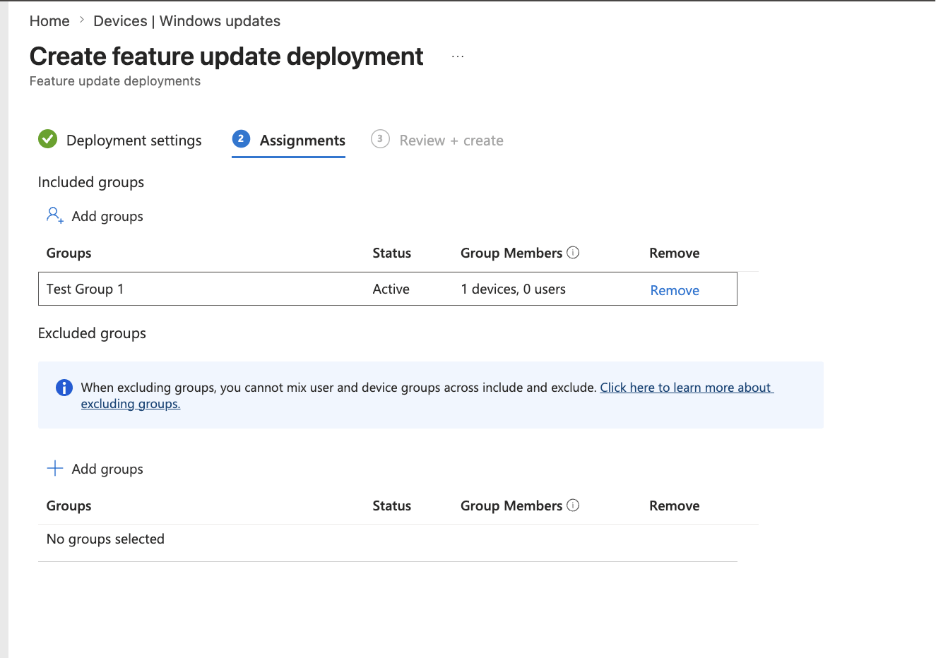
- Assign the profile to the targeted Windows 10 devices that you want to upgrade. In my case, I created a static group that I called Test Group 1 to help me scope out a test group more easily. I recommend starting off with a pilot group to help you navigate this change and get feedback so you can complete the roll out according to your organization’s needs.
- Review your assignments and policy. Once it looks accurate, go ahead and create it.
End user experience
Now that we have set that policy, let’s try it. Below I will highlight a user from that group who was on Windows 10, and we will see the experience of what happens when we upgrade it to Windows 11.
Here is my device running on Windows 10:
I ran a sync from the company portal and came back to it later to find a Windows 11 update ready to download!
Here I let the download run and got back to it a little bit later. As we see, we will need a reboot to apply those updates.
TADA! After rebooting and allowing it to run its course, we finally landed on Windows 11.
Conclusion
Upgrading your organization’s devices to Windows 11 using Microsoft Intune can help enhance security, performance, and compliance. With Intune’s feature set, the daunting task of upgrading becomes a streamlined process, allowing for a smoother transition than my peers experienced in the past.
Starting with a pilot group is a prudent approach, enabling you to gather insights and adjust before a full-scale rollout. Remember, an operating system upgrade isn’t just a technical change. It’s a strategic move toward a more robust, efficient, and secure infrastructure.
Learn more about how Recast complements Microsoft Intune with solutions built for IT productivity.