



With the year ending, we thought it was a good time to refresh some resources; today, we’ll review the top 10 most used community tools available in the Right Click Tools Community Edition.
If you’re downloading the Community Edition for the first time, welcome, happy to have you in the community. If you’re looking for a refresher, you’re in the right place too! I know downloading and using new tools can be daunting as there is a lot to dig through, but I wanted to at least help you get familiar with some of the capabilities available to you and give you some scenarios so you can get the wheels spinning and get the most out of our tools.
The Top 10 Community Tools
- Remote Software Center
- System Information
- Machine Policy Retrieval and Evaluation Cycle
- Add Devices to Collection(s)
- Connect to C$
- Client Information
- Application Deployment Evaluation Cycle
- Ping System(s)
- Interactive Command Prompt
- Deployment Launcher
Remote Software Center
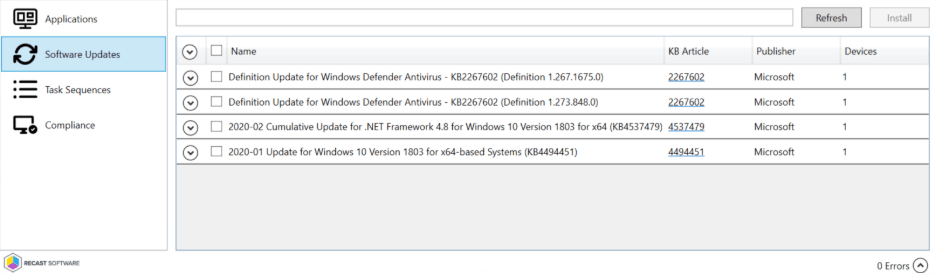
The Remote Software Center has similar functionality to the local Software Center application but can be run remotely and at scale on devices or device collections. You can view installed applications and programs, available software updates, and view and run deployed task sequences.
System Information
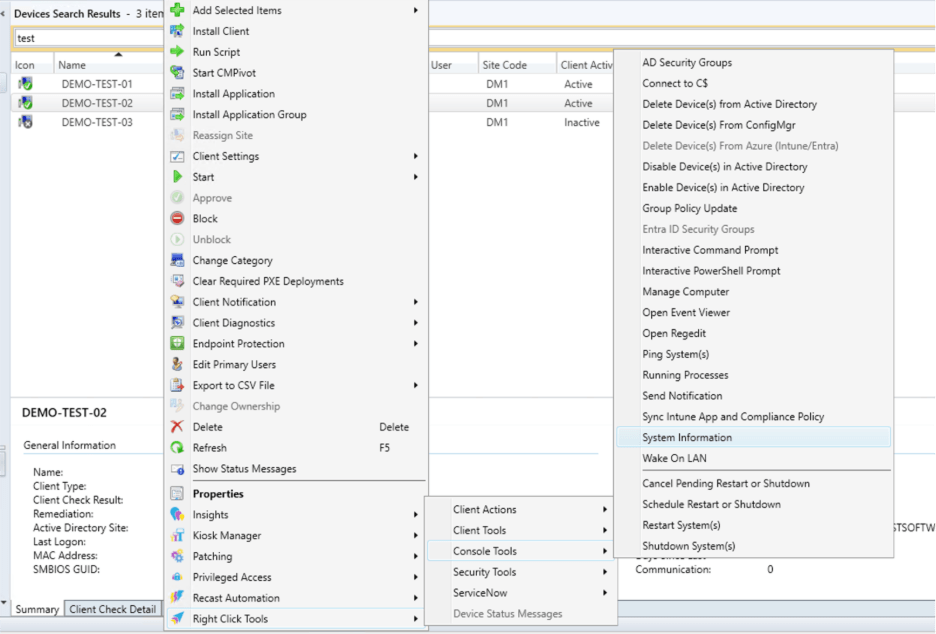
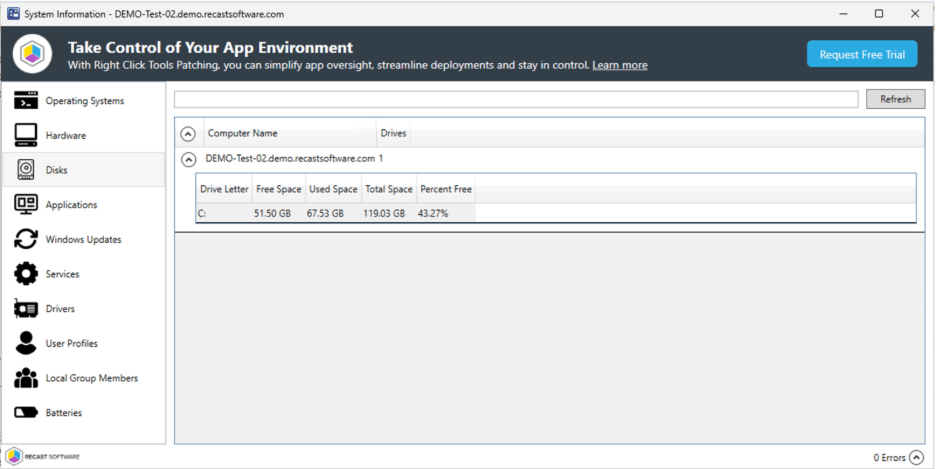
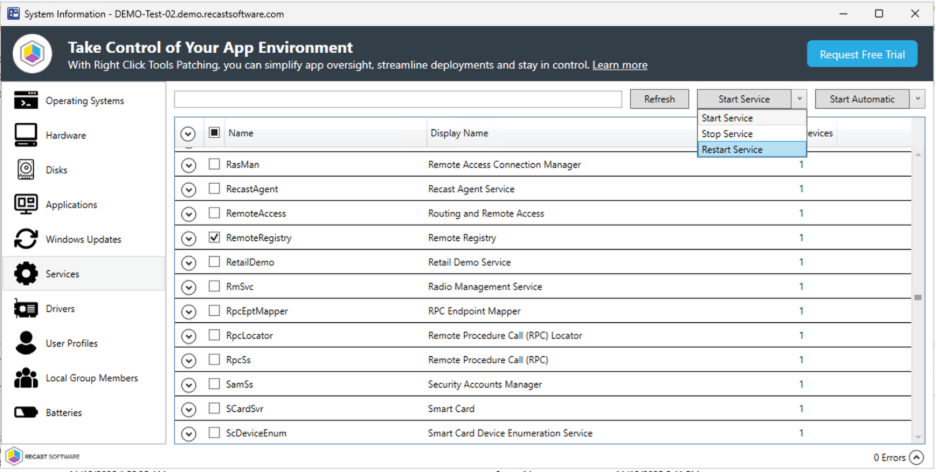
We’ll start with System Information, which is a tool that displays a variety of system details and allows for several right click actions. Some of the information you will be able to see is Operating System, Hardware, Disks, Applications, Services and more! Let’s say you are running into any issue with an end user not receiving updates on their device, we can right check on the Disks to see if it’s running low on space or if you’re having trouble with a service we can take action from the System information pane to start, stop or restart a service.
Machine Policy Retrieval and Evaluation Cycle
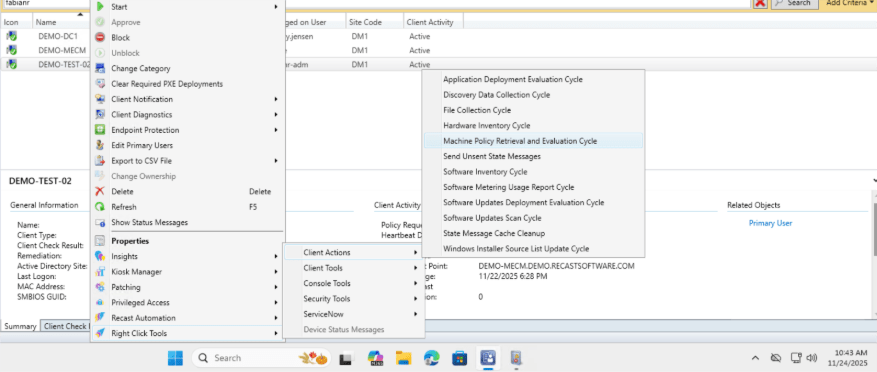
Let’s look at Machine Policy Retrieval and Evaluation Cycle. This action is going to be useful if you recently sent out a new policy or made changes to an existing configuration, and you need to go nudge the device to start an on-demand policy retrieval. It’s important to note that the default interval is up to 60 minutes.
Useful scenario: You have a collection of pilot devices that you’re testing with and want to confirm client setting changes before the 60-minute default interval.
Connect C$
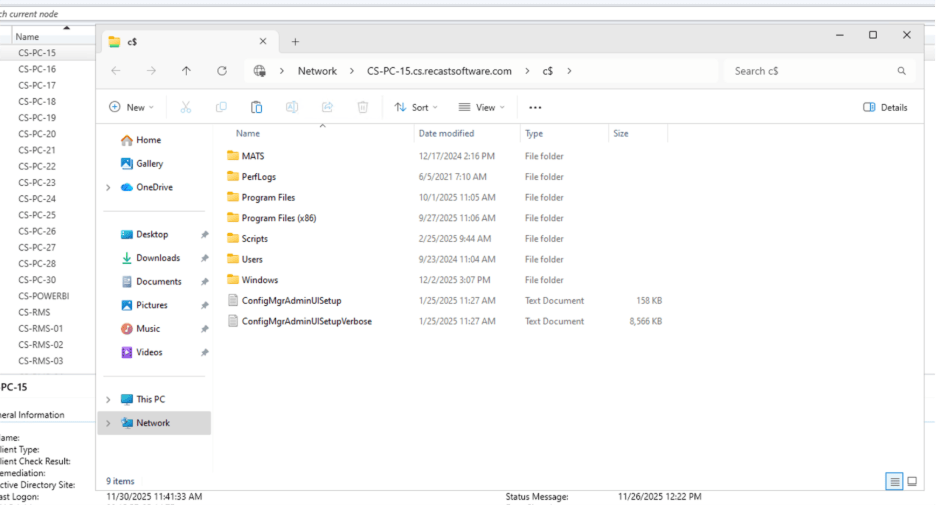
The Connect to C$ tool opens the clients C drive in a local windows explorer window. This gives IT administrators the ability to copy/retrieve files, run scripts locally, and even troubleshoot issues without physical access. This tool uses the hidden admin share (C$). This hidden admin share must be enabled
Add Device to Collection
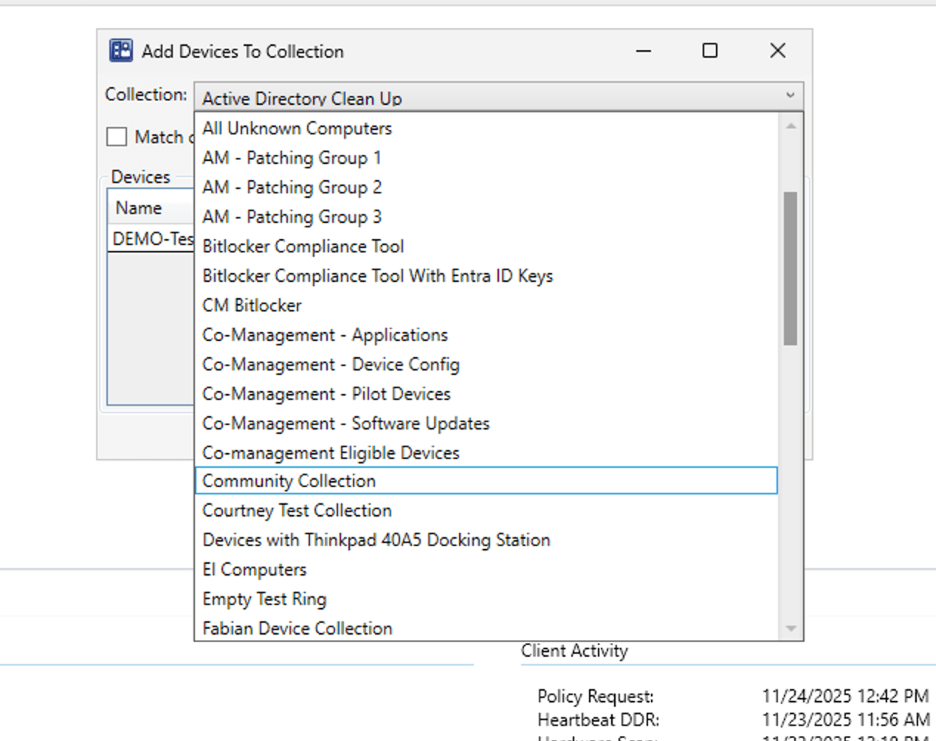
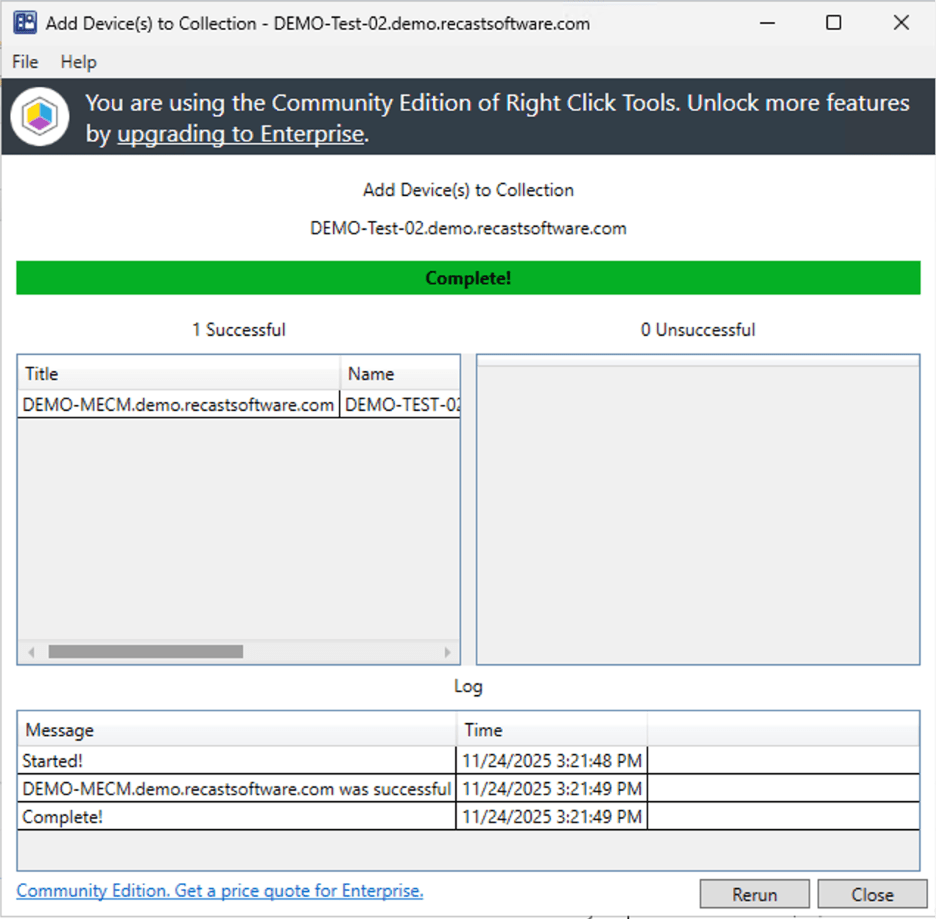
The Add Device(s) to Collection tools gives you the ability to add selected devices to an existing device collection. The community version allows you to select one device and add it to a device collection.
Client Information
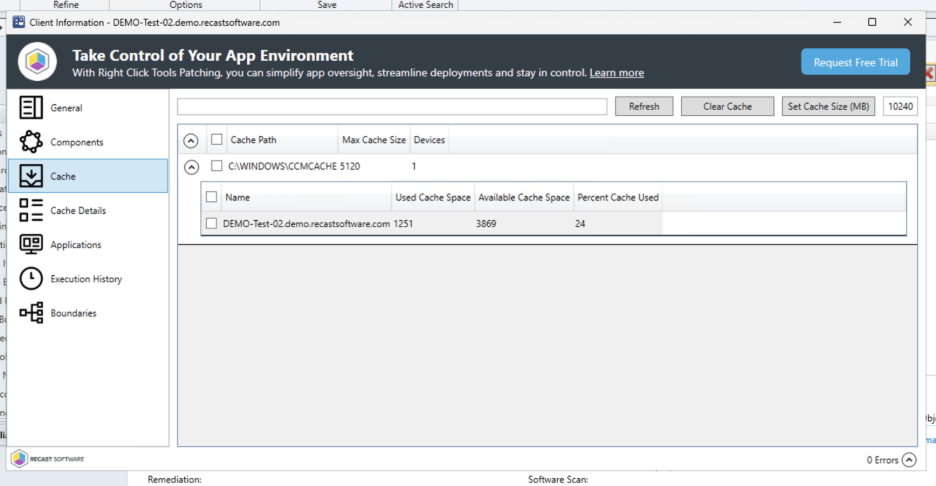
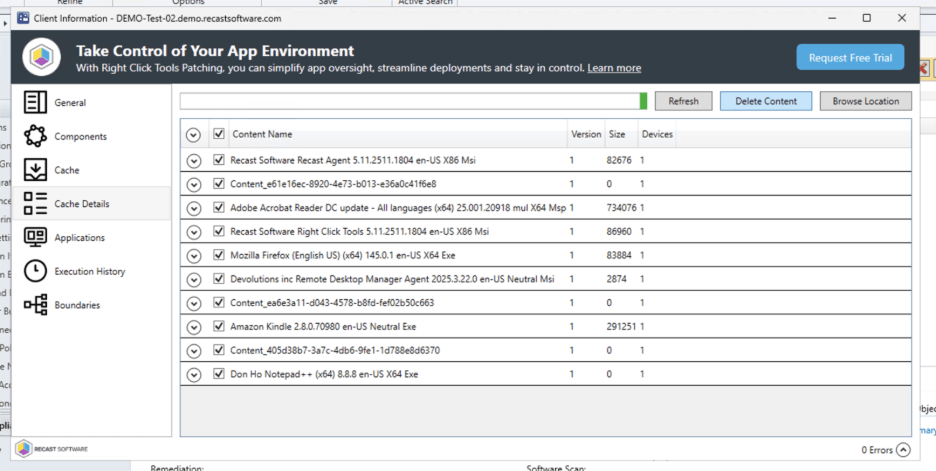
The Client Information Tool provides several types of information and available actions in the ConfigMgr client. This tool completes the lookup of this data via Remote WMI, Remote SMB, Remote Registry, and Filesystem. Client information can be used for cache management when troubleshooting installation issues.
Useful Scenario: If you need to view available cache space and or remove individual cache content.
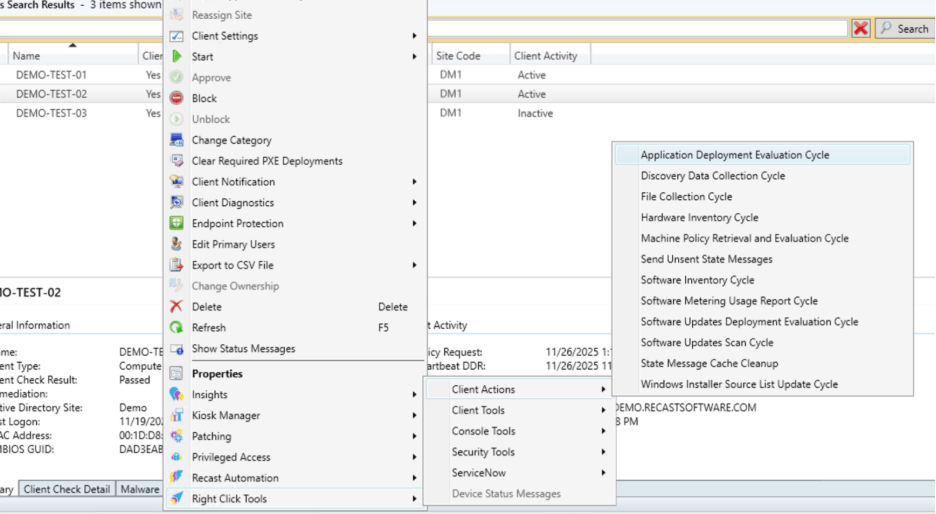
Application Deployment Evaluation Cycle
After this cycle is triggered, it launches a configuration manager process that forces the client to check the requirement rules for all app deployments. For apps that are required but are not installed, running this cycle will prompt configuration manager to trigger a re-install.
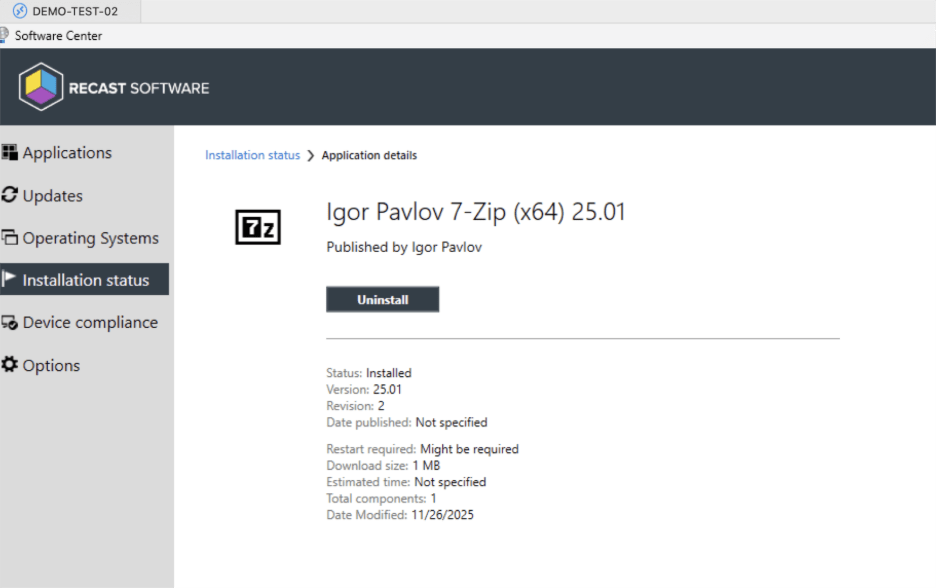
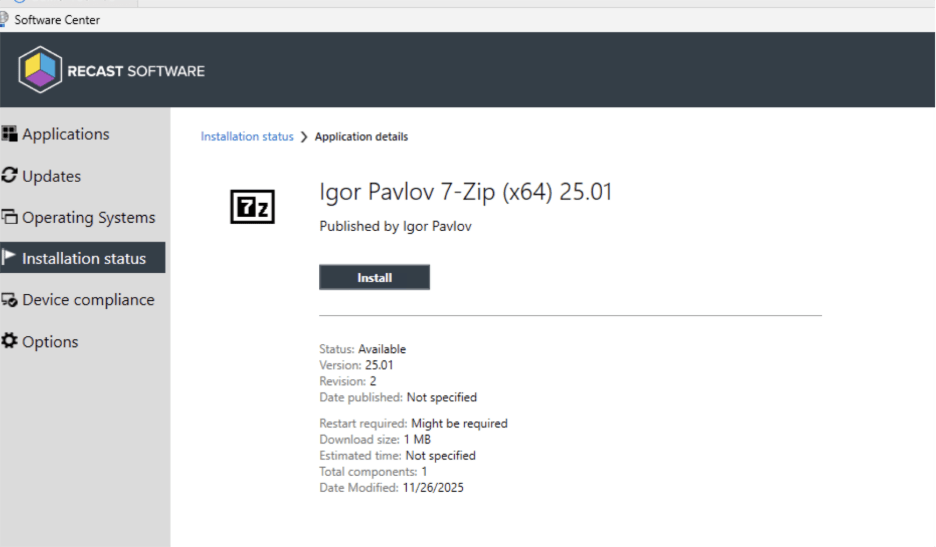
Useful Scenario: If we want to make an app available to install that was uninstalled manually, run the cycle to get the app to show the install button instead of an Uninstall button.
Before (the app 7-Zip is not installed on device, due to manual uninstall)

Ping System
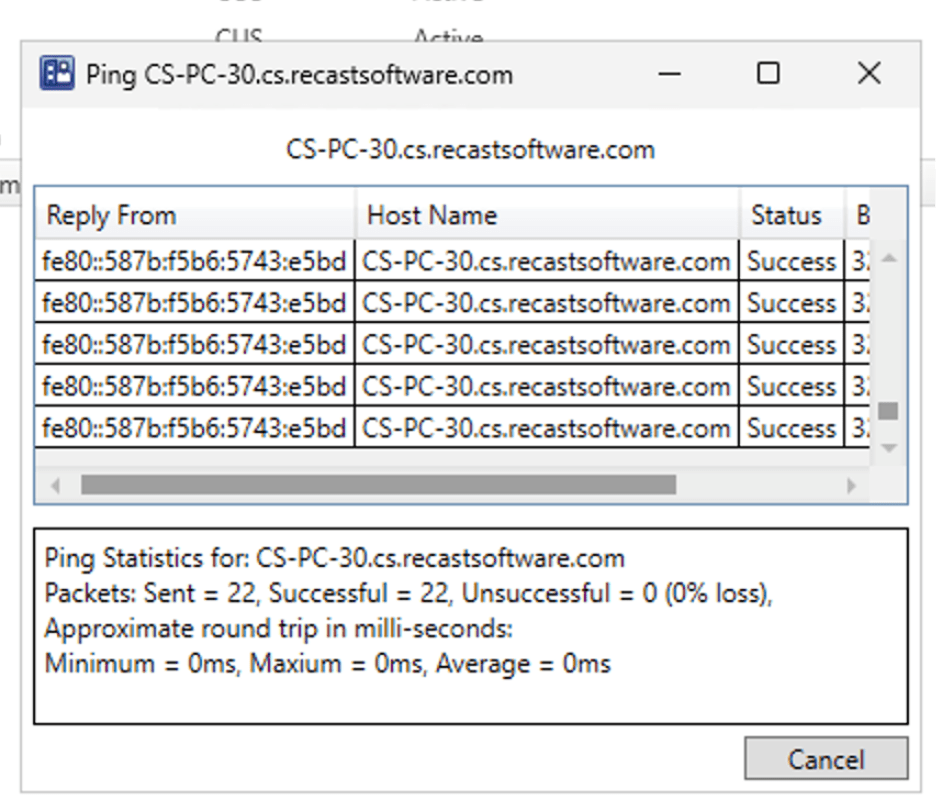
This action sends an ICMP echo request to the device to verify its action returns to an IPv6 or an IPv4 address. Scenario; If you’re troubleshooting server connections or end user devices. This feature is helpful when trying to verify if a device is online and reachable over the network. Instead of opening a command prompt on the end user device, we can do this directly from the console, saving us time and helping us get immediate feedback for device status.
Interactive Command Prompt
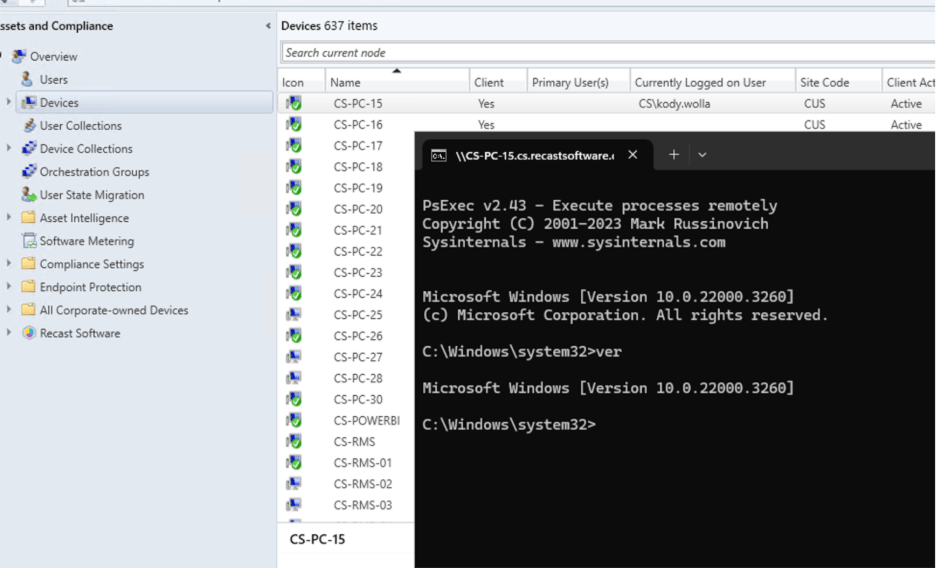
The Interactive Command Prompt tool opens a command prompt on the remote device. This allows you to run commands directly on endpoints without needing full remote sessions. Some common tasks might include checking system health (ex. Ver, Ping, ipconfig, lookup)
Deployment Launcher
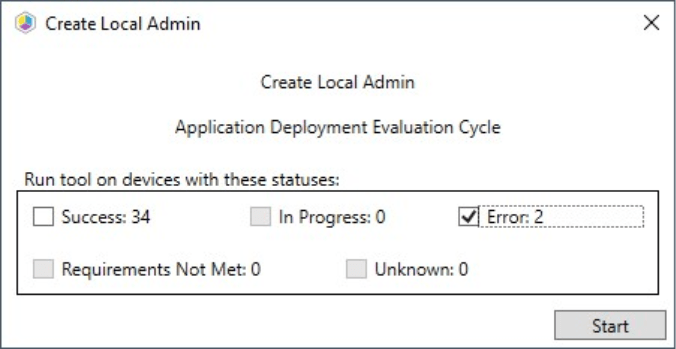
The Deployment Launcher lets you run Right Click Tools against devices in a particular deployment state. It can be used to force devices in an error state to rerun deployment, update policies, or add devices to a collection.