




As of November 2025, Windows continues to dominate the global market with an impressive 69.5% share of all operating systems (OSs) worldwide, according to StatCounter. MacOS market share has also been carving out a respectable niche, growing to almost a fifth of the market with approximately 18% market share.
As diversity in operating systems is the norm, largely due to employees having the free choice of their device (and therefore OS), a challenge of multi-OS management is passed onto IT professionals.
With that in mind, how do you manage both Windows and macOS while providing the right application, package, version, and patches? This blog showcases how Application Workspace is the solution to this problem.
Application Workspace and Intune: better together
Microsoft Intune is a cloud-based service that many organizations rely on to manage Windows, macOS, and mobile endpoints at scale. Intune is often operated alongside other management interfaces, like Microsoft Configuration Manager, where an estate needs capabilities from both platforms. With Microsoft expanding Intune Suite features in their E3 and E5 license tiers, many organizations are also seeing added value in adopting Intune.
Application Workspace is an agent-based application platform that pulls apps from every configured source, then automates delivery and updates. Because it isn’t tied to a specific management platform or operating system, it gives users a consistent, intuitive way to get the software they need.
Complementing Intune for greater control
Microsoft Intune is a robust control plane for device compliance and security policies. Application Workspace enhances this ecosystem by adding a dedicated application platform that aggregates software from every source (local and VDI, Windows and macOS) into a single pane of glass. Application Workspace complements Microsoft Intune by providing distinct advantages that ease the frustrations both users and IT teams face.
While Intune is an excellent mobile device management (MDM) solution, it still has some shortcomings regarding application management and deployment. Some of the well-known challenges include:
- The relentless application packaging and patching struggles, which are time consuming.
- The device onboarding or enrollment experience, including Autopilot and Enrollment Status Pages and their limits in capability and scope.
- Applications must often have duplicates uploaded due to users needing to launch applications in specific ways or security settings requiring different actions depending on the situation.
This is where Application Workspace steps in to help. Intune serves as the MDM software (security, compliance, Windows updates, and device provisioning) while Application Workspace provides a unified app management platform across both macOS and Windows as well as any of your other platforms (AVD, VDI, etc.). Application Workspace provides this through features like:
- Robust application packaging controls with automated updates when using the provided Setup Store of application installers.
- Device enrollments that easily reference your app package library and follow your preferred behaviors via triggers you define.
- The ability to provide a single application that associates with controls you put forth, including context awareness (e.g., on/off VPN, Finance vs HR employee, etc.)
Let’s take a closer look at some of these, starting with day one of your devices and enrollment.
Simplified onboarding and deployments with Application Workspace
When using Microsoft Intune alone, initial device setup through enrollment can be tricky. There is a lack of ability to order application installations without setting dependencies on multiple applications, as well as a limitation of having to reference or set group tags to cause certain enrollments to occur.
With Application Workspace you can simply deploy one package, the Application Workspace Universal Agent, in its bootstrapper and instantly begin controlled, cross-platform app deployments for both Windows and macOS.
From there, application deployments can be based on the context(s) you define, such as device, user, or location triggers. This method gives you the ability to exceed the current Intune application blocker limit, adds the ability to completely visualize and control the order apps are installed in, and expands your options with customized application packages like those that need registry or file system modifications.
Additionally, managed applications will help ensure the latest version is always installed automatically, even if you have customizations. This means you can set up your deployments once, and realistically only update them when a change is necessary. No more monthly maintenance!
To provide you with an example of this in practice, let’s explore a simplistic deployment example. In this scenario, I just want my devices to provision and start out with M365 and Slack.
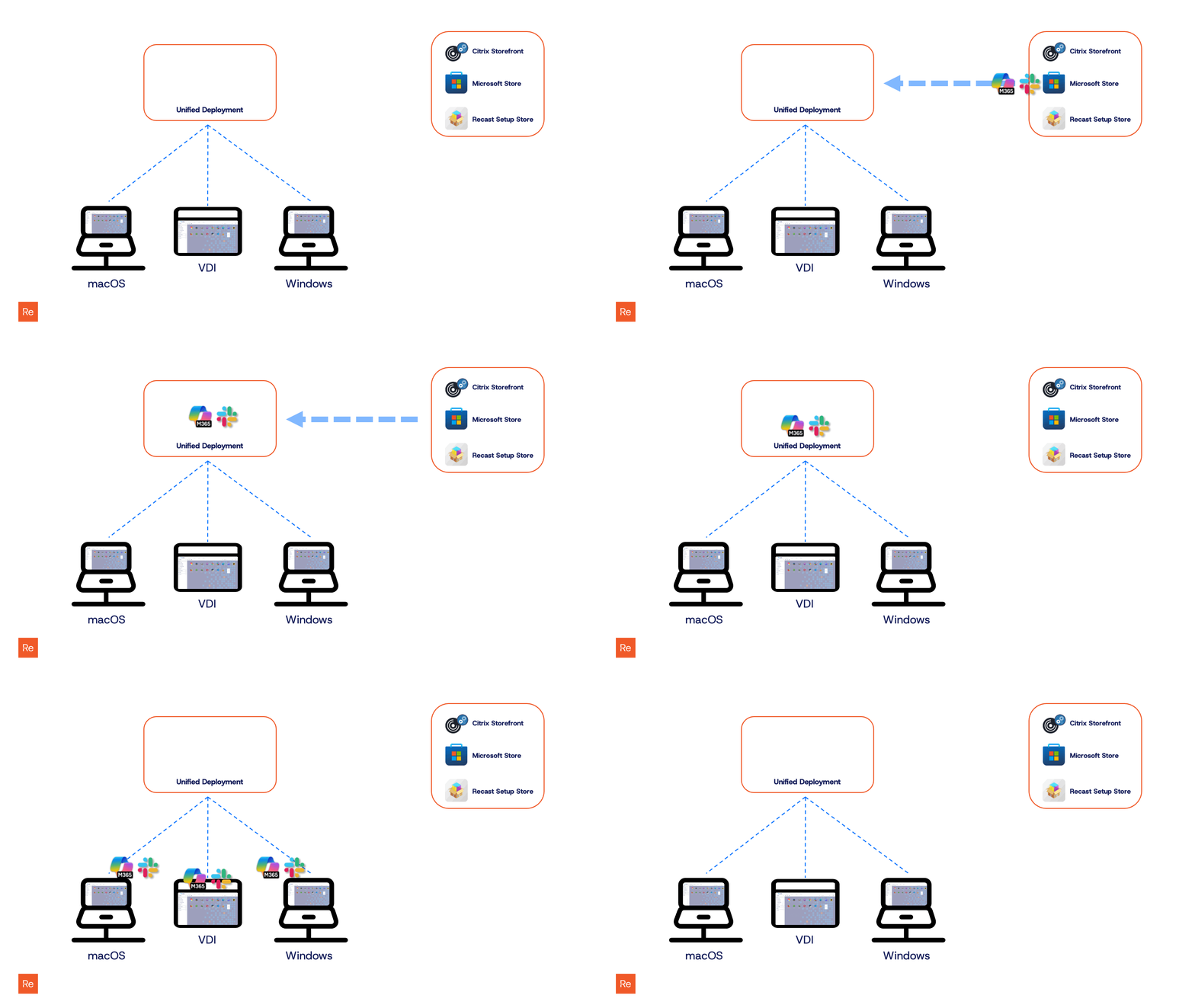
To reduce hands-on work, I’m going to import these apps instead of packaging and uploading each one myself. Application Workspace can pull apps in through connectors like Citrix StoreFront, Microsoft Store, Omnissa Horizon, and Recast’s Setup Store. I’ll use the Setup Store because it includes 8,000+ Windows and macOS packages and lets me import apps as managed, so they stay automatically updated. That means I can keep my custom Microsoft 365 XML settings while staying current on the installer version.
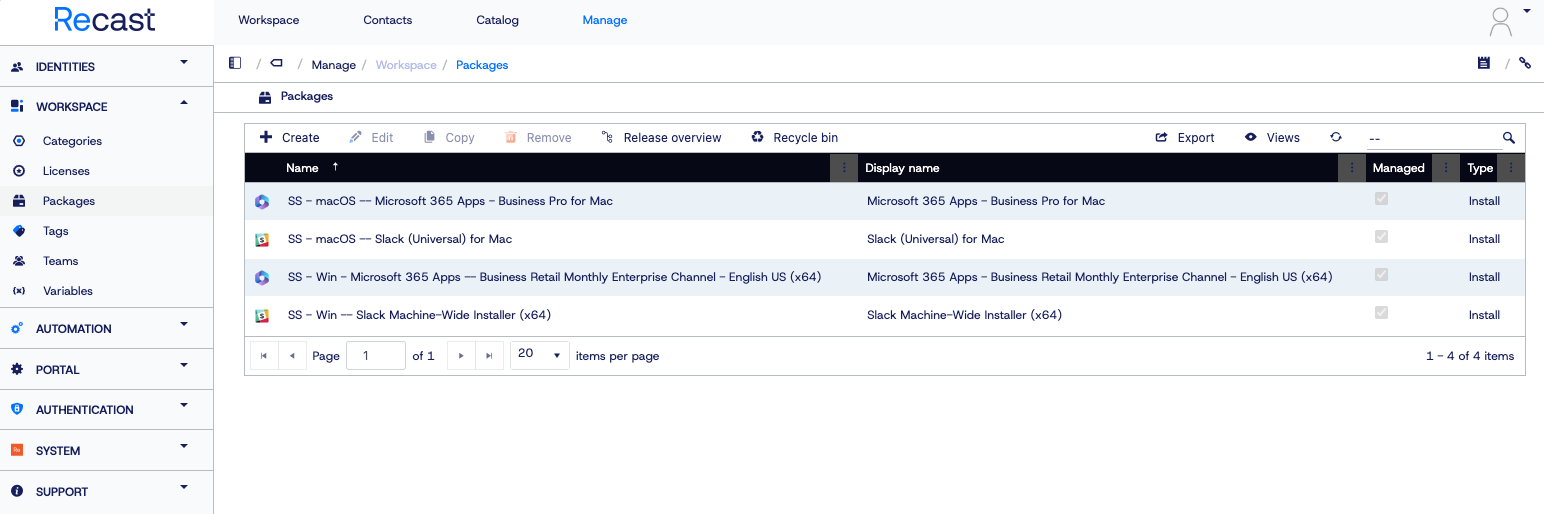
With those packages imported, I can now assign them into a deployment.
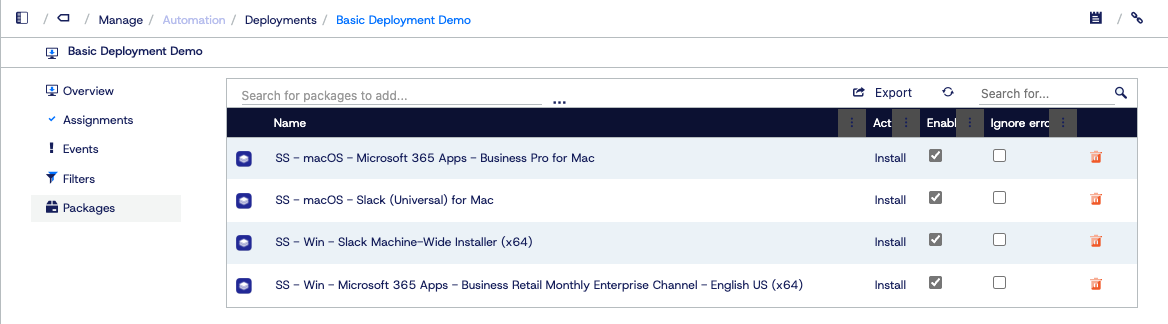
You may notice all OS types of these applications are grouped under the same deployment, which is not usually possible in most MDM platforms. With Application Workspace, we can build out deployments with apps grouped together in whatever ways we’d like and then filter using triggers or context to control what actually installs.
This offers me flexibility in being able to create deployments that also might need to be used for different organizations (if I were an MSP), or simply different teams across a single organization.
To ensure that applications apply to their respective operating system, in this example we will only filter and trigger off the platform on the installation packages:
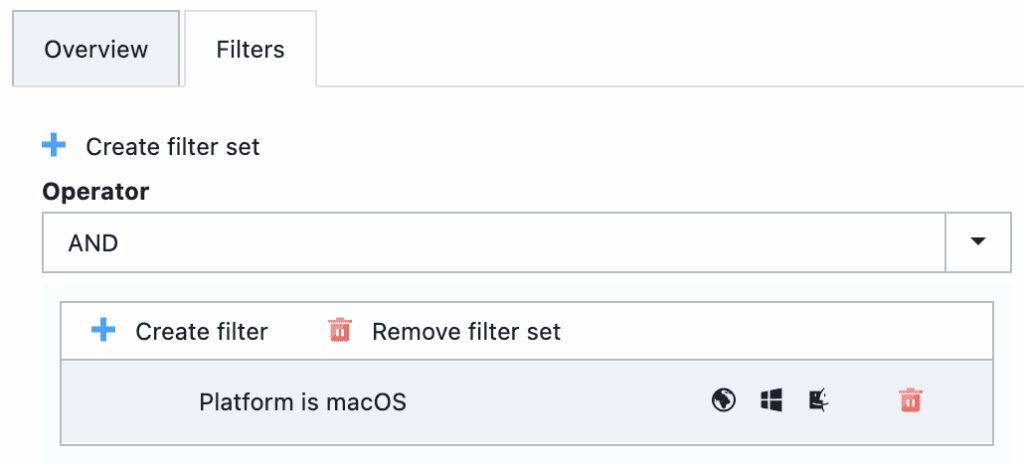
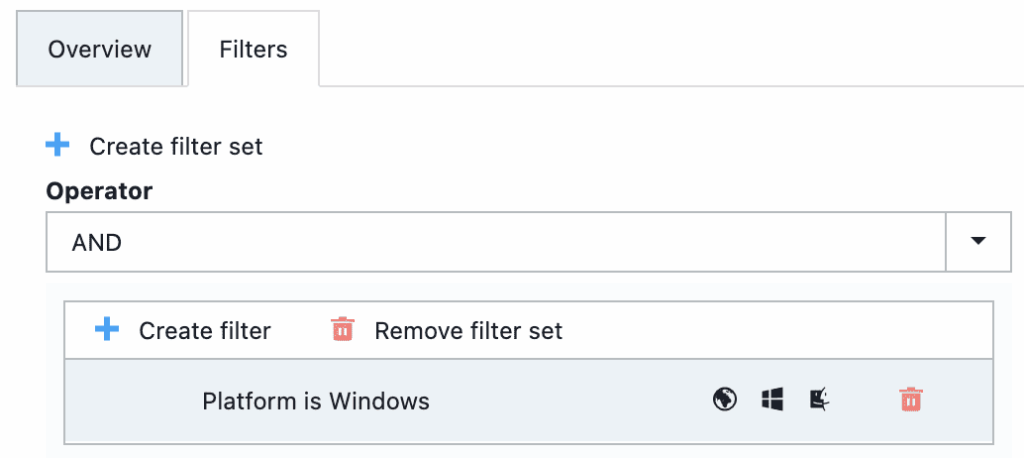
With these settings, we can now take the Application Workspace bootstrapper, which contains the agent, and deploy it to our macOS and Windows devices as the only app needed within Intune. From there, Intune handles provisioning and settings, while Workspace tackles the apps.
Smart Icon technology
Another huge challenge in IT management is providing applications to end users in the right manner, where some of those options are forcibly tied to innate knowledge or constraints.
Without a method to control application launch behavior, organizations can face several challenges:
- Lack of Immediate Contextual Access: End users don’t normally have automated, context-aware access to applications. They must be aware of their current context on their own, then often navigate through multiple steps or interfaces to launch an application. For example, the need to access an application or website may require the context of being connected to a VPN.
- Manual Intervention for Critical Tasks: Tasks like starting Excel with the necessary connecting drive mappings or network printers normally require manual intervention.
- Complexity in Dependency Delivery: Ensuring that all dependencies are in place or delivered seamlessly is challenging. End-users too often encounter issues when launching applications due to missing dependencies.
- Reduced User Productivity: The absence of a streamlined approach means that users would spend more time getting and managing applications and their settings with less time spent concentrating on their work.
- Difficulties Managing Patches: Organizations also often rely on manual processes to check for application updates or patches, and then install them. This can be time-consuming, prone to error, and difficult to coordinate.
With Application Workspace, Smart Icon Technology is where that all comes together.
Context-aware delivery with Smart Icons
Our end users shouldn’t have to know how an app is delivered; they just need it to work. Smart Icons decouple the application from the hardware, using identity-based targeting and real-time context to launch the right version every time.
One icon intelligently adapts based on the user’s network or device:
- On-network: Launches a local installation
- Remote/off-VPN: Automatically routes to a secure web portal or AVD session
This “one click” experience prevents user error and reduces helpdesk tickets.
Smart Icon demo
Let’s walk through an example of Smart Icon technology. In this demo, we want end users to see a single Smart Icon for a custom (non-managed) application: Kadaster KLIC-viewer.
That one icon must work no matter where it’s launched, including the Application Workspace web portal. If the user is on the internal network, it should launch the local app (or install it if needed). If they’re off-network or on VPN, it should launch an AVD RemoteApp instance of the same application instead.
In this example, that behavior helps maintain a security restriction for accessing the data the application exposes. It also protects the user experience when someone isn’t on the internal network, since the app (hypothetically) relies on large database connections that can perform poorly over VPN.
To start, we configure a custom package that contains three action sets. Each action set includes steps that call the individual packages (including OS-specific packages), so every possible path is managed under one “roof.”
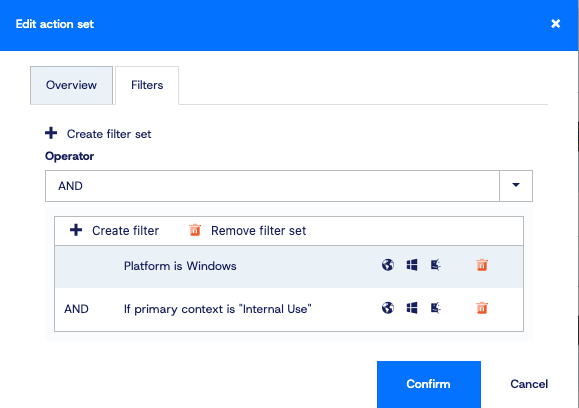
The first two action sets are configured to run only when the device is on the internal network, and then are further filtered based on whether the device is macOS or Windows. Finally, we set up one additional action set for when a device is off network (or on VPN), when someone launches the app from the Workspace web portal, or when all other filtering has failed:
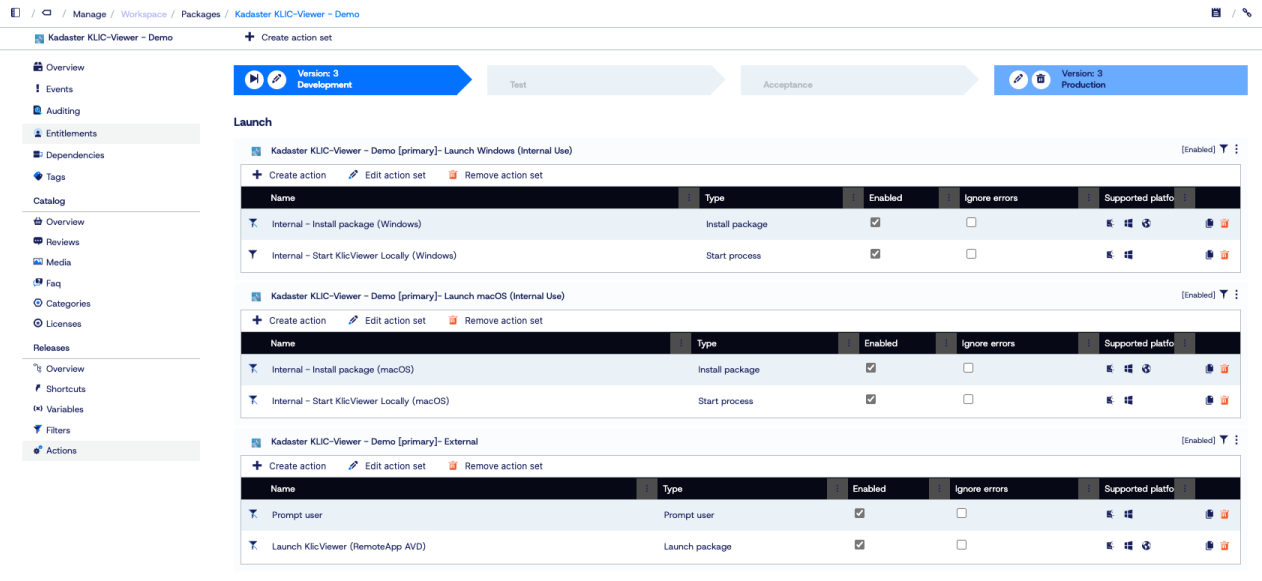
The filter being evaluated for the first two action sets is based on two contexts:
- Is the operating system the one this action set is designed for?
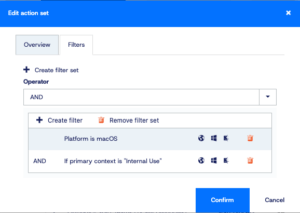

- Is the network context true, based on whether the current IP address falls within the internal network’s normal IP range?

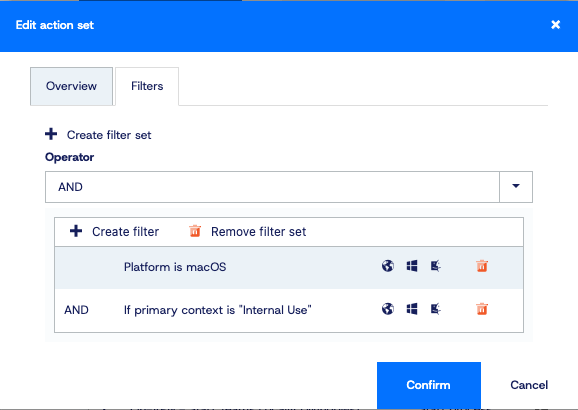
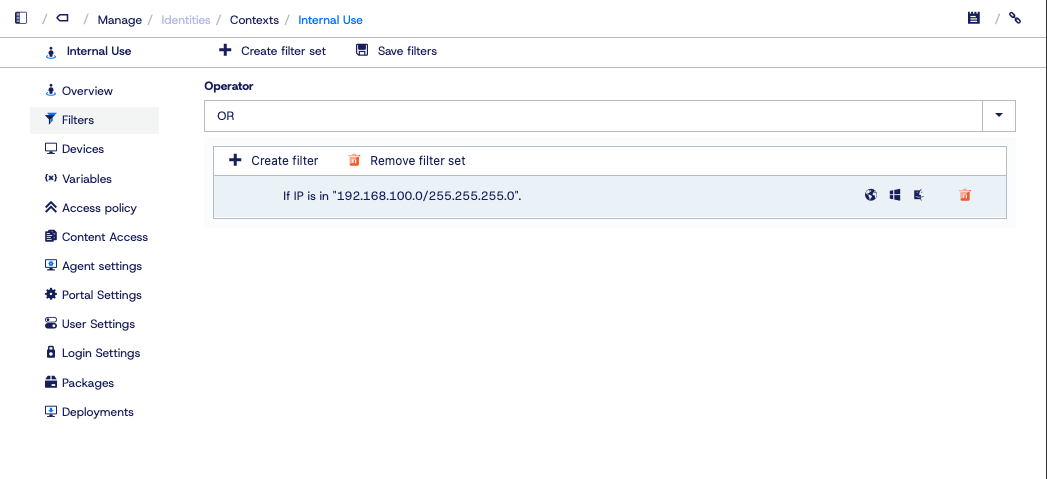
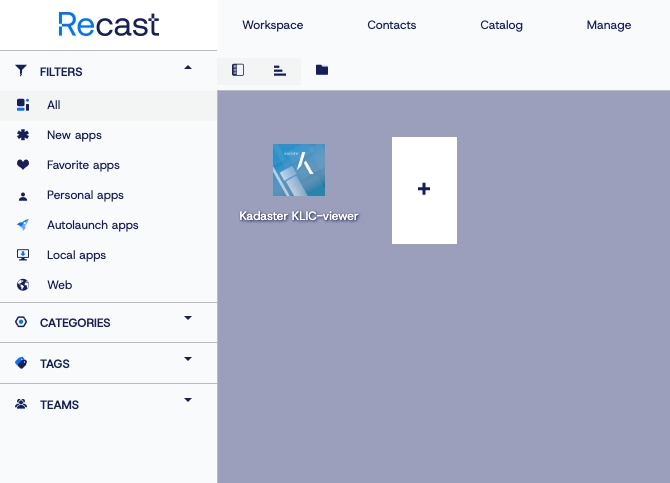
With all of this configured, every end user still sees the same single KLIC-viewer icon in their Workspace. The difference is how it behaves based on OS context and network context, including when it’s launched from a web browser:
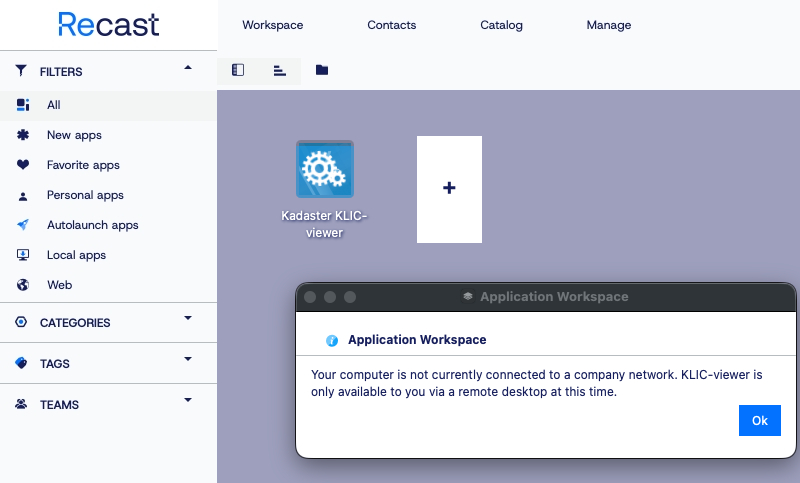
We can also ensure that users on a physical device receive a pop-up notification before the AVD RemoteApp opens when that final context is met:
Conclusion: application management for Windows and macOS
Application Workspace offers a strategic enhancement to Intune, specifically tailored to bridge the gaps in application management across Windows and macOS environments. By integrating Application Workspace’s comprehensive application deployment and Smart Icon technology, organizations can streamline their IT processes, ensuring seamless application management and deployment. This not only simplifies the IT team’s workload but also elevates the overall user experience, making application management more efficient and effective. For those looking to optimize their application management strategy, explore more about Application Workspace.