




This post highlights some of the meaningful information added into your ConfigMgr environment with Right Click Tools Insights (formerly Endpoint Insights). We’ll end with some examples of how Right Click Tools Insights reveals information that you’ll wish you had now.
Adds Items that ConfigMgr Doesn’t Inventory
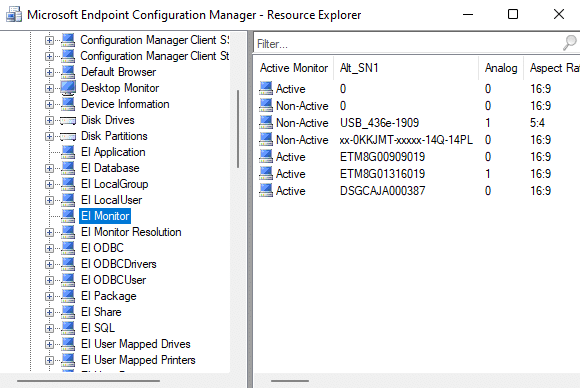
Look at the screenshot below. Everything that starts with EI is additional data that is added to your ConfigMgr database by Right Click Tools Insights.
From the list, you can probably guess that Right Click Tools Insights adds additional data about Applications and Packages that are deployed in your environment. It also adds information about Monitors – the type and resolution. As well, you can see what Local Groups and Local Users are on your computers. There’s information about ODBC and Shares. You can tell if SQL is installed on a computer and how many Databases exist. It also reveals Mapped Drives as well as Mapped Printers. Using this data and adding details that exist natively in ConfigMgr, Right Click Tools Insights provides over 200 reports that give you new insights into your environment.
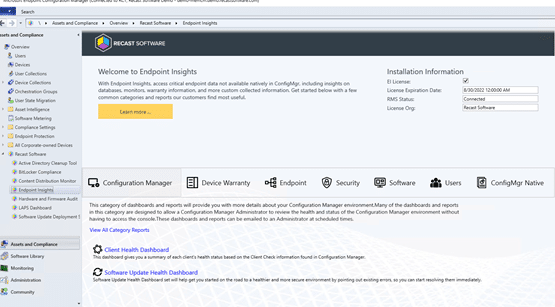
Right Click Tools Insights Dashboard
There is also a new Right Click Tools Insights dashboard built into Right Click Tools. This dashboard will show you information from selected reports right in your ConfigMgr console. And, wait for it . . .
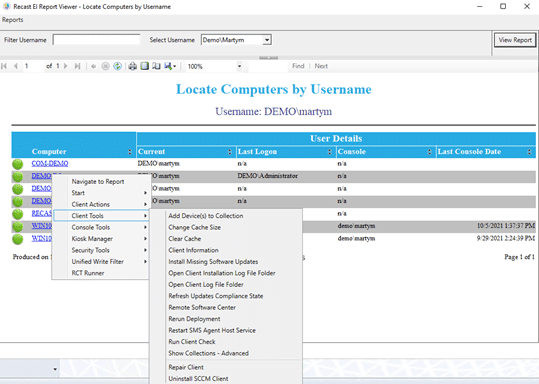
You can even run Right Click Tools actions directly from the reports! As you can see in the screenshot below, the actions are revealed by clicking your left mouse button. Yes, we know… it’s not quite Right Click Tools when you click on the left mouse button.
What can I do with Right Click Tools Insights?
Below you will find examples highlighting two of the 200+ reports that are included with Right Click Tools Insights. These reports are possible because of the information that the product adds to your Configuration Manager environment.
Remove Rogue User Accounts
Imagine you’ve been given the task of removing a “rogue” user account from your environment named, “EndpointInsightsTest.” Someone in security told you they think it has been created on a specific computer, so you must go to that computer and remove it. Before doing so, you want to verify that it really exists on that computer. You load one of the Right Click Tools Insights reports that shows all the local accounts on a computer.
Here’s the list of local accounts on the computer in question, and yes! There it is. EndpointInsightsTest really is a local user on this computer.
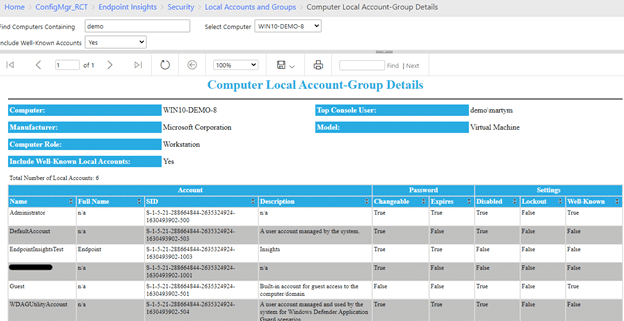
You can then take action with Right Click Tools to remove the local user from the computer you identified earlier.
This is done by opening the System Information tool. How do you get there? Right-click on the device, and you’ll see System Information in the Console Tools section.
Under the Local Group Members section in System Information, you can search for the username you are trying to find. Another option, if you already know where the user account is located, is to browse for the specific local user account.
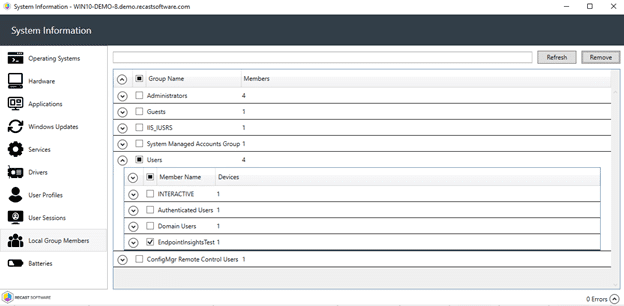
Once located, you select the account and then click on the Remove button. Right Click Tools will remove that local account from the computer.
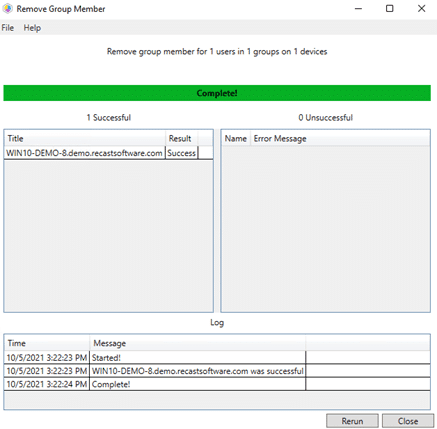
Next, click on the Refresh button. When you hit refresh, you can verify that the local account in question was deleted.
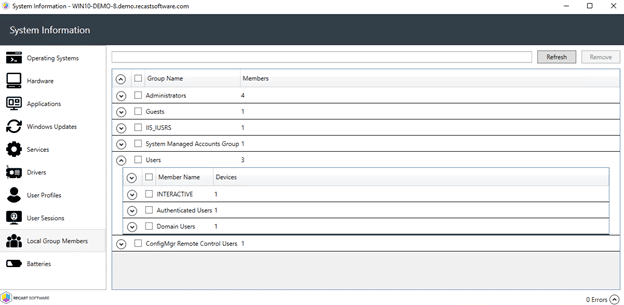
Now, you can let the security team know that it’s all been taken care of.
Computer Replacement Costs Report
Here’s another example of the amazing things you can do with Right Click Tools Insights.
One of the reports that we love showing is the Computer Replacement Costs report. This is something your organization may need to know as Windows 11 is rolled out and you find that some computers will not work with Windows 11, so they will need to be replaced. In this report you can set the amount of time you want to keep computers in your environment, and how much you are going to spend to replace them at the end of this time.
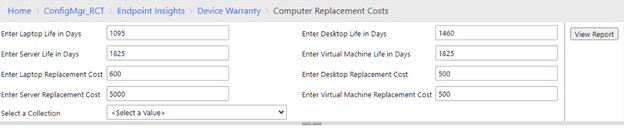
After you have entered these details, or have used our defaults, you can select the Collection that you would like information about. Right Click Tools Insights connects with each computer manufacturer and by determining a device’s warranty start date, it knows the age of your computers. That way when you run our report, we can tell you when the computers will be beyond your planned lifetime, and how much it’s going to cost to replace them each year.
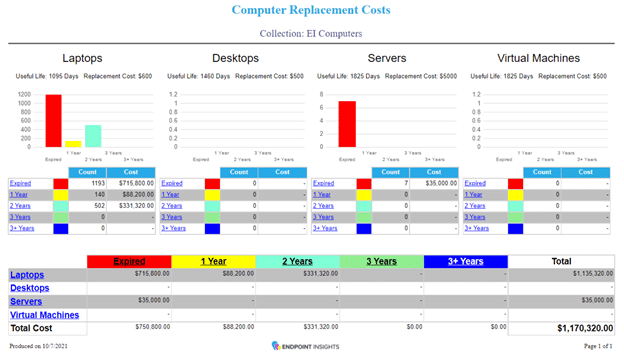
You can also click on any of the underlined parts of the report to get more information about the computers in question.
Right Click Tools Insights is Information Video
I’ve put together a short video to show you the additional information Right Click Tools Insights adds to your ConfigMgr database that I talked about earlier. Plus, I also show you how you can remove a rogue user account and use the Computer Replacement Costs report.
Conclusion
Learn more about Right Click Tools Insights (formerly Endpoint Insights). You can also download the current version of Right Click Tools Community here.
Other Right Click Tools Insights Posts:
- Use Endpoint Insights to Budget with Confidence, Gain Asset Insights, and Stay Ahead of Issues
- Endpoint Insights: Create a Collection of Computers with a Specific Docking Station