




Big news for Microsoft E3 license holders. You now have access to Intune Remote Help and Advanced Analytics without the extra cost. But how do you set them up, and why should you care? Let’s break it down.
As part of your E3 license, you will have access to the following Intune Suite products soon:
- Intune Remote Help
- Intune Advanced Analytics
First up: Remote Help. This cloud-based solution lets your IT team securely connect to end-user devices. It leverages RBAC (role-based access controls) for security and includes detailed reporting. Think about this feature if your end users need remote support. Your IT administrators are able to remote into their devices to troubleshoot and resolve any issues.
Intune Remote Help
Before diving in, check your prerequisites:
- Intune subscription
- Supported platforms and devices (Windows, macOS, Android, and Web App)
- Intune-enrolled devices registered with Microsoft Entra
Enabling Remote Help
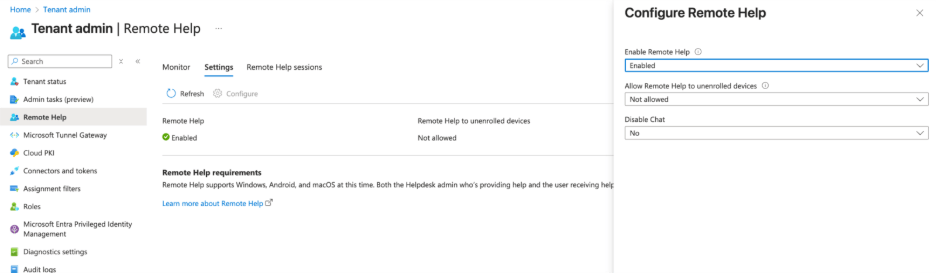
Go to Microsoft Intune > Tenant Administration > Remote Help and make sure to enable Remote Help with your organization’s desired settings.
Enrolled Remote Help: Enabled
Allow Remote Help to unenrolled devices: Not Allowed
Disable Chat: No
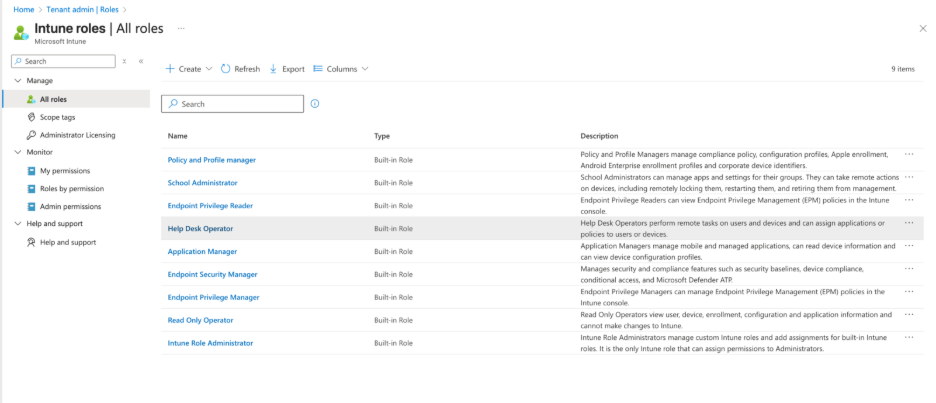
Next, assign permissions. You can select various options or customize the role to fit your needs. The built-in role Help Desk Operator includes the required permissions for Remote Help.
Download Remote Help
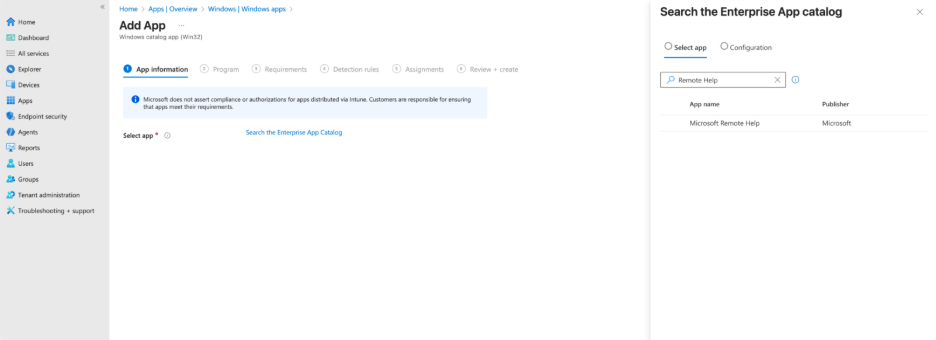
You will also need to download the Remote Help app on both the IT admins’ devices and your end users’ devices to give/receive help. You can either download it directly from Microsoft’s website, or deploy it as a Win32 app by leveraging the Enterprise App Catalog if it’s purchased as an add. It’s important to note that there might be more requirements and settings you will need to adjust depending on the platforms you need to support. Please explore the official Microsoft Documentation for further information.
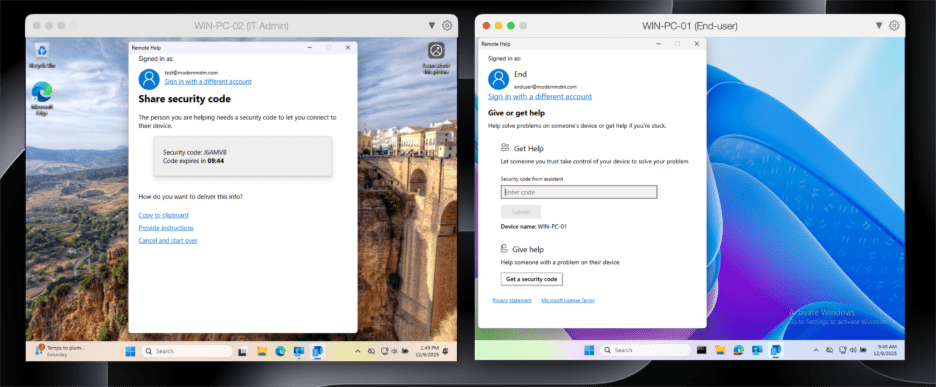
IT Admin (Give Help) and End User Experience (Get Help)
With the tools in place, the process is simple. The IT Admin generates a security code, and the end user enters it to grant access.
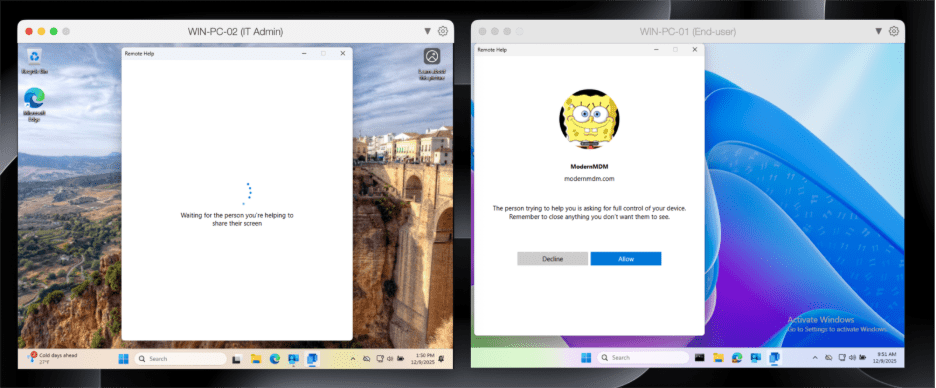
IT Admin Reporting on Remote Help
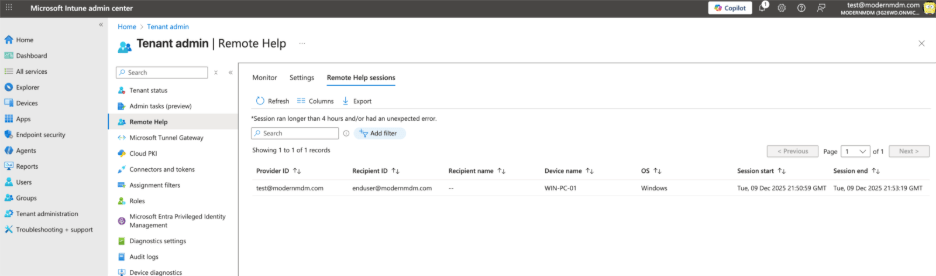
If we are looking to track information on sessions, we can view those reports inside Microsoft Intune by going to Tenant admin > Remote Help > Remote Help Sessions.
Intune Advanced Analytics
Microsoft Intune Endpoint Analytics provides detailed information about endpoints in their environment. It delivers data-driven insights on device performance and battery health to support informed decision-making that improves the end user experience.
Advanced Analytics
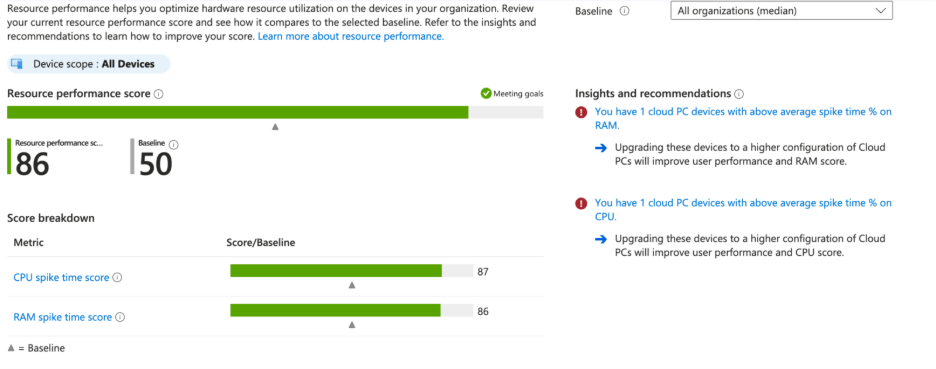
With Advanced Analytics, you’re able to access data like anomalies, battery condition, and resource metrics. When it comes to anomalies, IT admins can gain insight into user experiences to understand emerging issues. In addition, there’s a view of battery conditions and status throughout your organization, so you can determine whether any should be replaced. This gives you proactive insights on your environment to support decisions that result in better performance for end users. The image below shows insights and recommendations for devices which are above average spike time % on RAM.
Multi Device Query
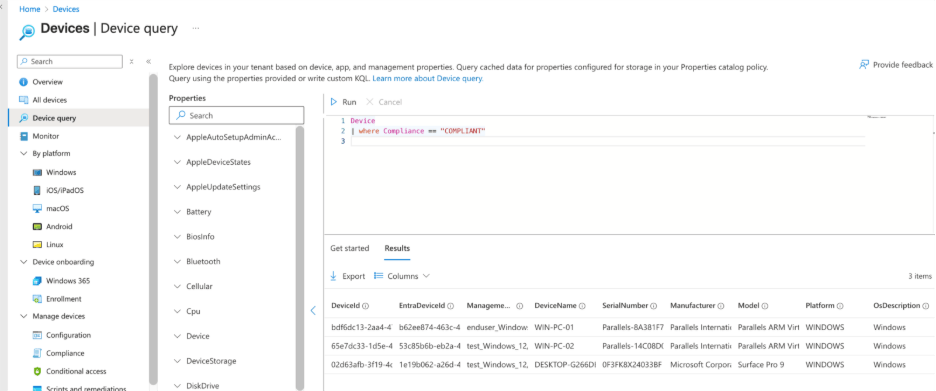
Query across your environment on multiple platforms such as Apple (iOS, iPadOS, macOS), Windows, and Android. To do this, set up and deploy a properties catalog policy. This enables teams to query between all eligible devices based on their attributes.
Here’s a simple example of the information you’re able to query across your organization with KQL. This is looking for the devices that are compliant in my tenant.
Single Device Query
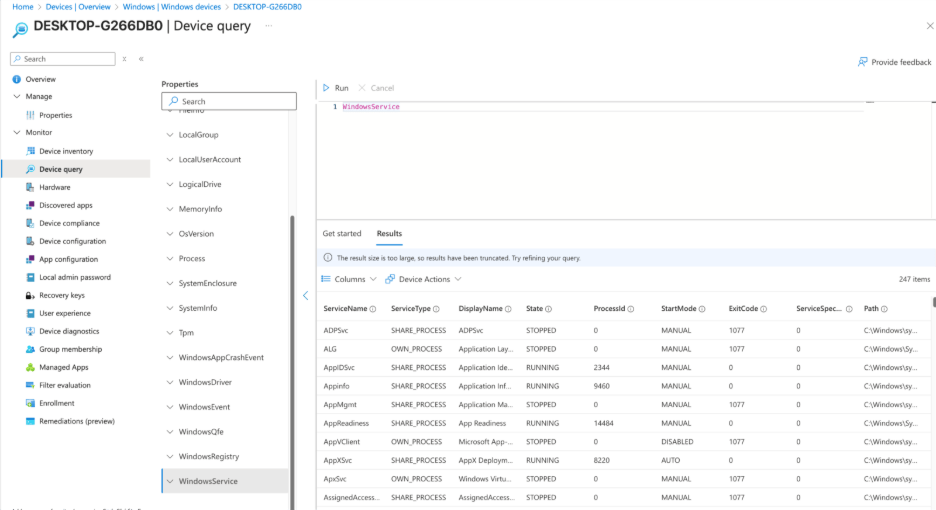
For you to query individual devices, each will need to be marked as corporate. It’s important to note that you’re also able to act on the device just as you would from the device overview. One of the advantages of single device query is that you are getting more detailed, real-time information when troubleshooting a single device. In the image below, we can query the Windows services running on that device.
These additions turn your E3 license into a stronger tool for real-time support. Use them to catch issues early, improve the user experience, and resolve problems before they escalate. collect data to enable actionable improvements in user experience and proactively identify and resolve problems before they escalate.
Recast: The Intune Companion
Microsoft offers powerful tools for IT admins through Intune Suite, and Recast is the ideal companion to help organizations maximize those capabilities. Recast builds on what Microsoft provides by delivering additional options for enhanced security and advanced device and application management.
There are scenarios where IT teams need expanded functionality, such as managing custom applications, handling third-party app patching on servers, or applying highly specific update requirements. Recast complements Intune by handling these specialized tasks, working alongside the Microsoft ecosystem to streamline operations.
We’re excited about where Microsoft is headed and how Intune continues to empower IT admins. Recast is proud to stand alongside Intune as a companion solution, helping teams do even more with the tools they already rely on.
If you don’t already have our free Right Click Tools for Intune, you can download them here.