




Introduction
Microsoft Intune is a mobile device management tool with many PowerShell options for you as an admin. Under the hood, Intune uses PowerShell to get things done as well. In this blog, I will highlight the available options.
Things to remember:
- Don’t use passwords or any other sensitive information in these scripts. The contents are stored in log files on the device you deploy them to and can be read by others.
- Don’t use these capabilities to gather personal information about users.
Deploying applications in Intune
You have a variety of PowerShell script options when deploying applications in Intune, including installation, detection, and a pre-check option before starting deployment. All are part of Intune’s standard PowerShell options and none require anything beyond the standard Intune license. (Microsoft Intune Plan 1, Microsoft Intune for Education)
Additional requirements
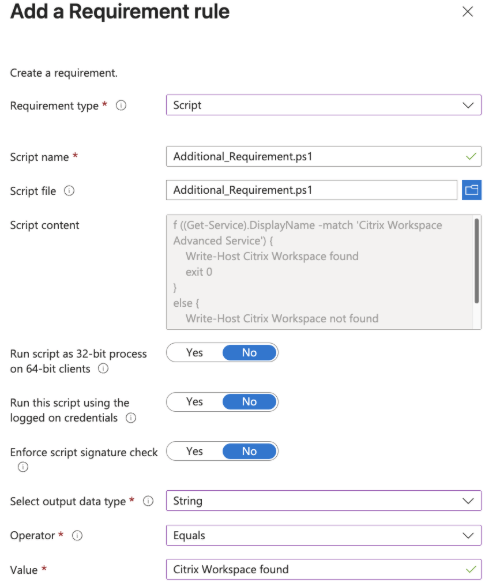
Before installing a specific application on a group of devices, you can run a PowerShell script that checks certain conditions on each device. (Next to the operating system version, architecture (x86, x64, or ARM64), memory, diskspace, etc.) The script must output a string, a date and time, an integer, a floating point, a version, or a Boolean, which must match/not match a certain value. Using this option, you can detect and validate specific things such as other software (versions), Windows services (running or not), or hardware (Dell, Lenovo, etc.) before starting the software installation.
The script must exit with exit code 0, and one of the output options tested above. Exit code 1 indicates that the device doesn’t meet the additional requirement rules, and the Windows app (Win32) installation will not start on the device.
Detection rules
When you install software or check whether it is already installed, Intune uses a detection method. This can be a registry value, a file in a specific location, or a PowerShell script. The PowerShell script option can perform the same tasks (registry or file) and offers more advanced capabilities that you might not be able to achieve with a simple detection rule for your application.
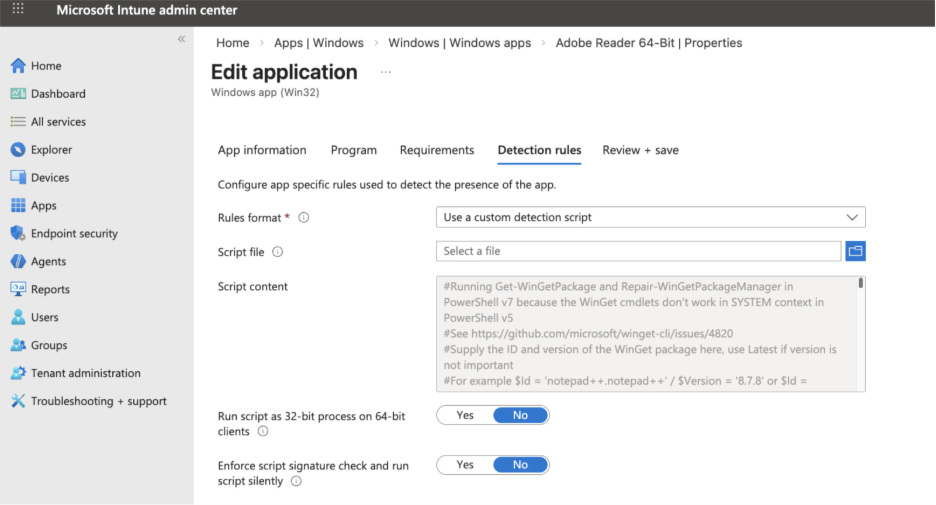
The detection script must include a write-host console output, such as “Software was not found,” and an exit code 1 if the software installation is required. An exit code 0 must be returned if the software was found and no further action is required. Note: During software uninstallation, an exit code 1 is a good sign, indicating the software was successfully uninstalled and is no longer present on the device.
Install and uninstall using the intunewin package file
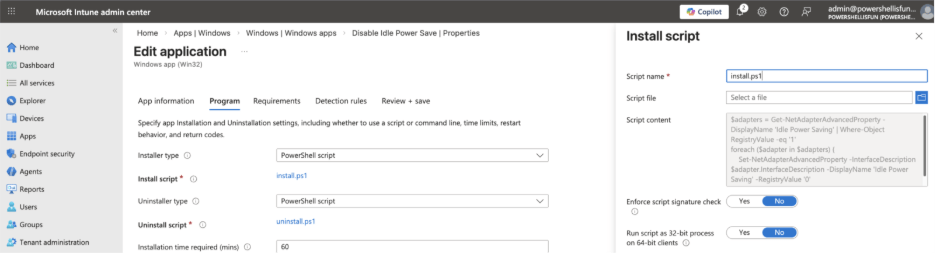
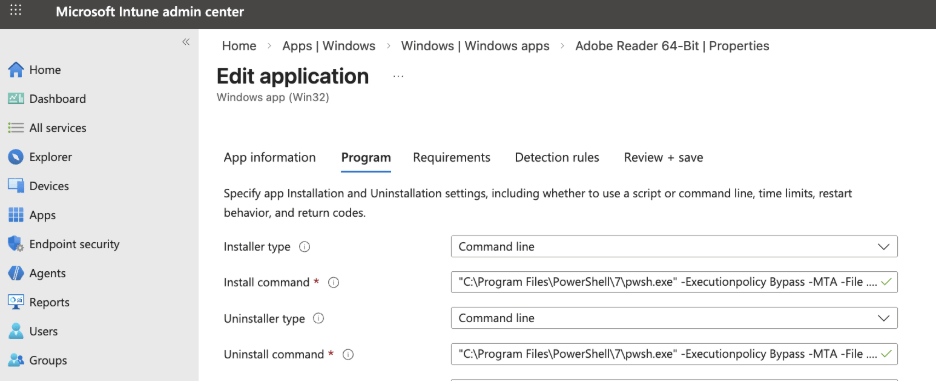
When adding a Windows app (Win32) to Intune, you can (after uploading the intunewin package file and filling in the app information tab) specify PowerShell scripts for the installation and uninstallation of the application. As of January 2026, you can do this in two ways: using the command-line option (powershell.exe -File .\Install.ps1, for example) or by uploading a specific PowerShell script that is not part of your actual intunewin file. This makes updating the installation and uninstall script adjustments easy without recreating and uploading a modified intunewin file again.
PowerShell installer type:
Command-line installer type:
Custom compliance
Checking if your devices are compliant is important. Intune has compliance policies with built-in options for device health, Microsoft Defender, etc., but there are also custom compliance policies that rely on PowerShell script output to determine if a device is compliant. You can find them in the Intune Admin Center under Devices > Manage Devices > Compliance in the Scripts tab.
It’s a two-step approach: You create a custom compliance PowerShell script, then link it inside a Windows 10/11 compliance policy. The script itself checks for specific issues, such as a Windows service that is disabled but should be running, or a local administrators group with more members than it should have. Based on the detections you perform in the PowerShell script, return a hash table as JSON to Intune with the detection results. (The hash table can include $True or $False, a number, a version, a string, etc.)
When creating a Windows 10/11 compliance policy, you can use the PowerShell script you created as the discovery script, and a JSON file containing the custom compliance settings. (You can find more information about how to format the JSON file here.)
This is part of the standard Intune PowerShell options and doesn’t require anything beyond the standard Intune license. (Microsoft Intune Plan 1, Microsoft Intune for Education)
Platform scripts
You can find this in the Microsoft Intune Admin Center under Devices > By Platform > Windows > Scripts and Remediations in the Platform scripts pane.
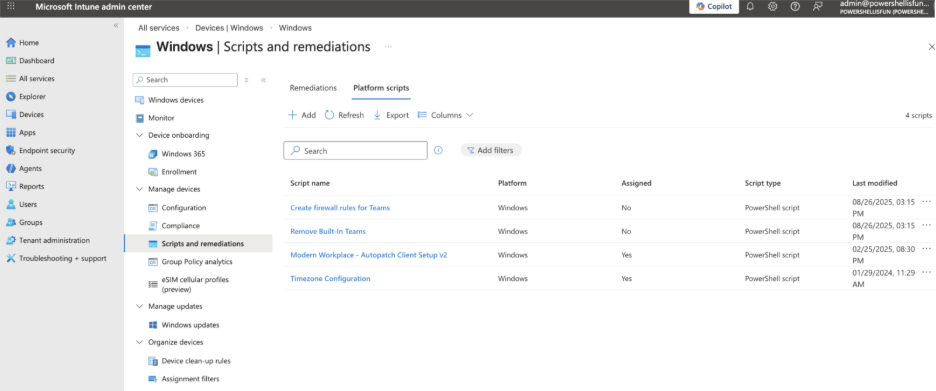
As you can see, there are already a few available, but not by default. These were created earlier for specific purposes, as indicated by the script’s names.
When I started using Intune and these platform scripts, my first thought was that I could just upload and assign scripts to my Windows devices and have them run at a set interval to always do or configure something. But I soon found out that this isn’t the case. They will only run multiple times until the script exits successfully (with exit code 0, to be precise). But it will only run three times after the first failure, at one-hour intervals. After that, it will only run again if you modify and re-upload the fixed script.
When you add a platform script, you can configure it to run in the user context (non-admin) or as a system, depending on the use of case and required rights.
The purpose of these platform scripts is to allow you to use them for one-off tasks, such as setting up a registry key or creating a folder, without further validation. This is part of the standard Intune PowerShell options and doesn’t require anything beyond the standard Intune license. (Microsoft Intune Plan 1, Microsoft Intune for Education)
Remediations
In the same pane in the Intune Admin Center, you can also find remediations.
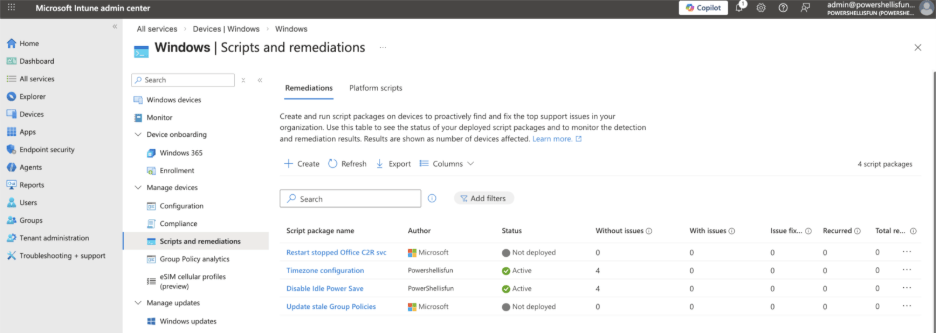
This is the grown-up version of platform scripts, and you must configure two separate PowerShell scripts in this option. One script is for detecting something, like a missing folder, registry key, Windows service that is not configured to run automatically, or anything you can detect using a PowerShell script. By default, Microsoft has two remediations configured (but not assigned) for you.
If the detection script runs successfully (with an exit code of 0), it won’t start the remediation script. But when the detection script exits with any exit code of 1, the remediation will start. The remediation script will fix the identified issue, and afterward, the detection script will run again to verify that it was fixed.
Unlike the platform script option, you can configure this to run on a schedule (hourly with an interval or daily at a specific time), or once, if needed for a specific use case at a specific date and time. This schedule is linked to an Entra ID group. You can have multiple assignments with different schedules.
This option is not part of the standard Intune licensing, unlike the platform scripts. It requires a Windows Enterprise E3 or E5 (included in Microsoft 365 F3, E3, or E5), or a Windows Education A3 or A56 (included in Microsoft 365 A3 or A5), or a per-user Windows Virtual Desktop Access (VDA) license for each device managed by a remediation script.
Wrapping up
These are all the PowerShell script options in Microsoft Intune. In an upcoming blog, we will dive further into how to create, monitor, and modify the scripts.
Additional resources
Deleting Win32 Apps from Intune with PowerShell
Deploying Third-Party Applications with Intune Enterprise Application Management
On-Demand Webinar: PowerShell Hot Takes: Scripts, Security, and Shortcuts You’ll Actually Use
What Microsoft’s Intune Suite Bundles for E3/E5 Users Mean for You