




Intro
You finally moved away from domain‑joining your workstations and went all‑in on modern management with Entra‑joined devices. Things are mostly going well, but then you realize you can’t do basic remote troubleshooting tasks anymore, like browsing a remote C: drive, making registry edits, or connecting through Remote Desktop. Sound familiar? The good news is there is a way to bring those peer‑to‑peer connections back using your Entra credentials, just like we used to with Active Directory. Read on to see how it works.
What is PKU2U?
Back in the good old Active Directory days, we relied on Kerberos for device‑to‑device authentication. As long as Kerberos was working and a Domain Controller was reachable, authentication between devices using domain credentials “just worked.” Fast forward to the modern Entra-joined world, and we no longer have our old friend Kerberos to help in these scenarios. This is where PKU2U comes into play.
PKU2U (Public Key User-to-User) is a Windows security protocol built to authenticate two devices directly without needing Kerberos. It’s not a new protocol, having been introduced all the way back in Windows 7 to support the now-retired HomeGroup feature. It looks and acts very similar to Kerberos, but instead of tickets issued by a Domain Controller, it uses public key certificates exchanged between the peers to facilitate authentication.
This PKU2U negotiation happens when Windows needs peer‑to‑peer authentication and Kerberos and NTLM are not available, which is exactly the case for two Entra‑joined devices. Windows falls back to PKU2U (if enabled) after negotiating through other available protocols.
How this plays into Entra-to-Entra remote management
When an admin signs into a Windows 11 device using Entra ID, they receive cloud-issued identity tokens. This handles the local sign-in just fine. But when that admin then tries to access resources on another Entra-joined device, that’s where the problems can begin. This includes actions like:
- Browsing \\RemoteEntraComputer\c$
- Remote Registry
- Remote WMI
- RDP
All of these require peer-to-peer authentication between two devices. With no Kerberos or NTLM to use, Windows falls back to another protocol. This is where PKU2U comes into play.
When PKU2U is enabled, Windows can (at a high level):
- Take the identity of the already‑logged‑in Entra user
- Use PKU2U’s certificate‑based peer authentication to establish trust between the two machines
- Allow the remote device to create a local security token for that user so the action can proceed
This certificate exchange enables trust between the two devices, allows the remote security token to be generated, and permits access to be granted for the remote session based on the admin’s login token. Note, the admin user still needs permission to perform whatever action is being requested. All the same standard Windows permission rules still apply here. Also keep in mind the connection is peer-to-peer, so you need to have line-of-sight networking to the remote device as well as DNS resolution. You also need to have the appropriate firewall rules configured for the remote action to be successful.
How to ensure PKU2U is enabled
PKU2U is controlled by a single Windows security setting. Fortunately, Windows configures it correctly for most modern environments by default. The expected configuration looks like this:
- Domain-Joined – Disabled
- Hybrid-Joined – Enabled
- Entra-Joined – Enabled
The great news here is unless you’ve configured Windows to do otherwise, PKU2U is generally enabled for devices that need it. The recommended settings above are applied by default unless configured otherwise.
The feature is controlled by the following setting:
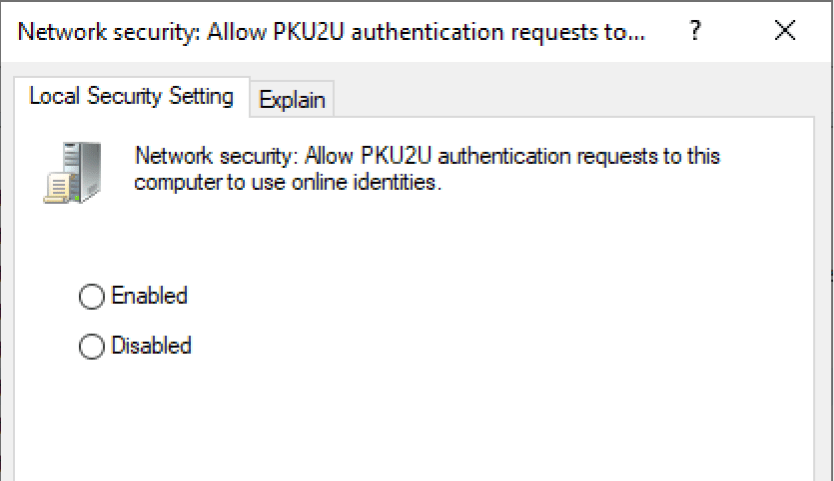
- Network security: Allow PKU2U authentication requests to this computer to use online IDs
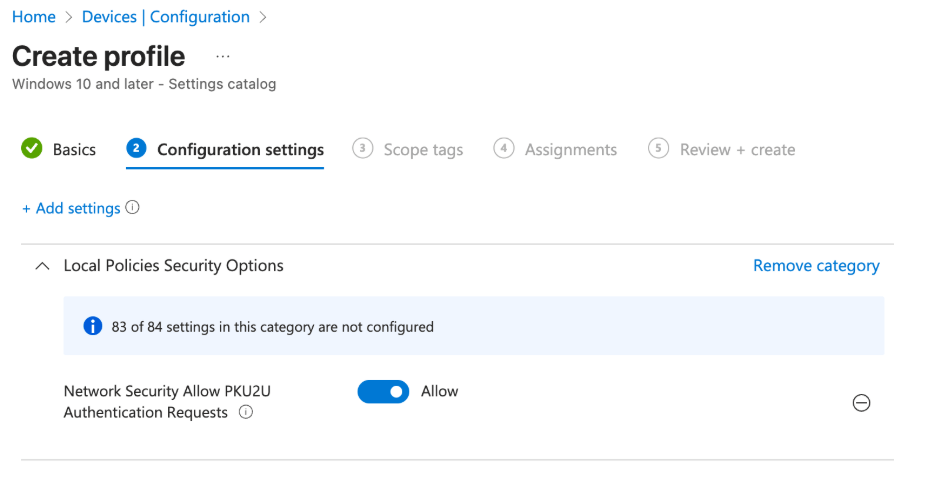
- Equivalent setting in the Intune Settings Catalog: Network Security Allow PKU2U Authentication Requests
- The setting also can be configured using the following registry key:
HKLM\SYSTEM\CurrentControlSet\Control\Lsa\pku2u
- AllowOnlineID (DWORD)
- 1 = enabled 0 = disabled
Although Windows usually configures this correctly by default for cloud-managed devices, some well-known security baselines, such as the DISA STIGs and CIS Benchmarks, have recommended disabling the PKU2U authentication protocol for domain joined-only systems since the Windows 7 days. While that guidance is valid for domain joined-only systems, Microsoft’s recommendation is for PKU2U to be enabled on Entra ID-joined systems. It’s worth partnering with your security department to reevaluate the control for Entra-joined devices. For cloud-only endpoint management, PKU2U is required to enable secure peer-to-peer authentication.
Wrap up
Entra-only environments break a lot of the assumptions we carried forward from the Active Directory and Kerberos era. The good news is that Windows still gives us a way to make remote management work. It just happens through a protocol most admins haven’t had a reason to engage with in the past.
If your team is adopting Entra-only management or is moving away from traditional Active Directory, taking a moment to review how PKU2U fits into your security and operational model can make a big difference. It is one of those small but important pieces of the Windows authentication story that becomes much more relevant as more organizations transition to cloud identity.