




With the release of Windows 11 25H2, we have found that it is now possible to take advantage of remote WMI actions on Entra-only devices. In an Entra-only environment, we cannot use NTLM or Kerberos for peer authentication. However, with the PKU2U security protocol, we are able to leverage peer-to-peer authentication between Entra-only devices. While nothing is truly “new” in this regard, I believe the Windows 11 25H2 release makes remote WMI practical by resolving the underlying identity and authentication protocol issues, resulting in greater consistency and reliability for remote WMI.
With this update, the advantages of Remote WMI in Entra-only environments are the ability to give IT admins secure, low-friction visibility and control without interrupting end users (the dream). This gives us the ability to leverage features such as remote diagnostics to query info such as hardware details and script-driven remote actions. This is where it enables tools like Right Click Tools to deliver richer insights. Below are the prerequisites needed to take advantage of Remote WMI.
Prerequisites
Windows 11 25H2
Direct network connectivity between devices
Firewall rules enabled
- Windows Management Instrumentation (WMI-In) Enabled for Domain, Private
- File and Printer Sharing (Echo Request – ICMPv4-in) Domain, Private
Administrator permissions on target device
PKU2U auth enabled (On by default for Entra-joined Windows 11 devices)
Setting up the prerequisites
For us to get started and leverage Right Click Tools for Intune for Entra-joined devices, we want to make sure we have these things in place.
- Network connectivity
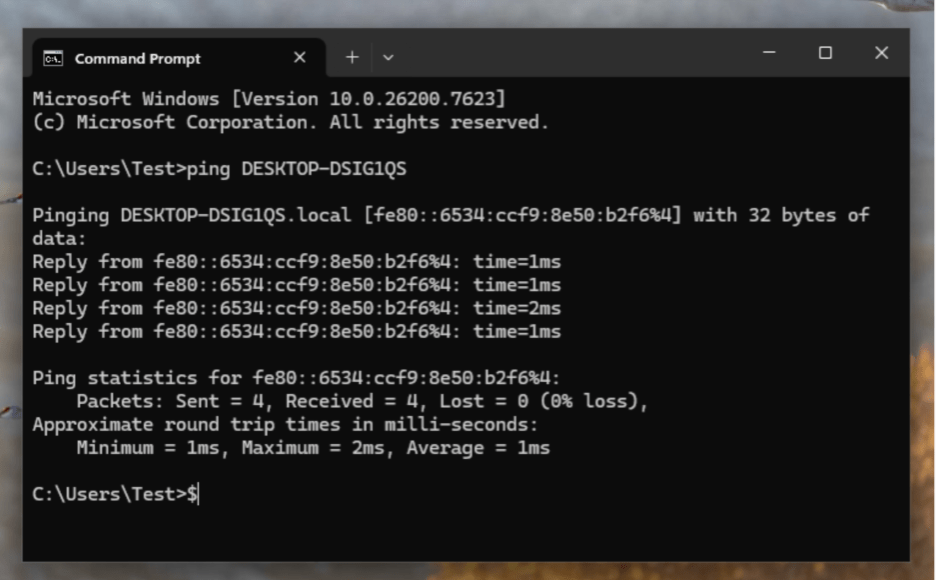
First, the devices need to be on the same network (LAN, VPN, etc.). Also, confirm that Device A can reach Device B.
Open Command Prompt and run Ping <Device Name>
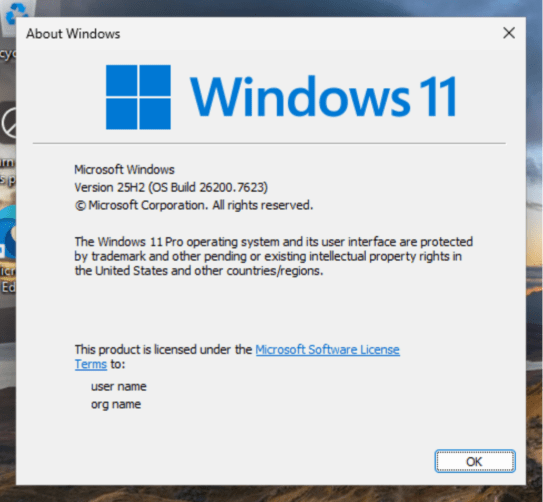
- We need to make sure we have Windows 11 25H2. You can do so by using your management platform or running winver on the local remote device.
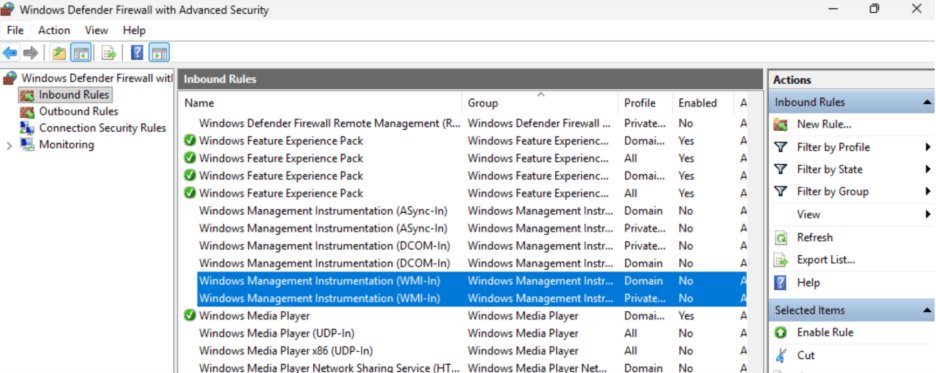
- Next, we are going to open up Firewall Rules to gather information along with being able to take action.
Enable the following Firewall Rules
- Windows Management Instrumentation (WMI-In) Enabled for Domain, Private
- File and Printer Sharing (Echo Request – ICMPv4-in) Domain, Private
- Confirm that the connecting user is a Local Administrator on Device B (Remote Device)
Adding users manually (requires local administrator rights)
- Open Command Prompt (run as administrator)
- Type net localgroup “administrators” AzureAD\<userUPN> /add
Ex. localgroup “administrators” AzureAD\[email protected] /add
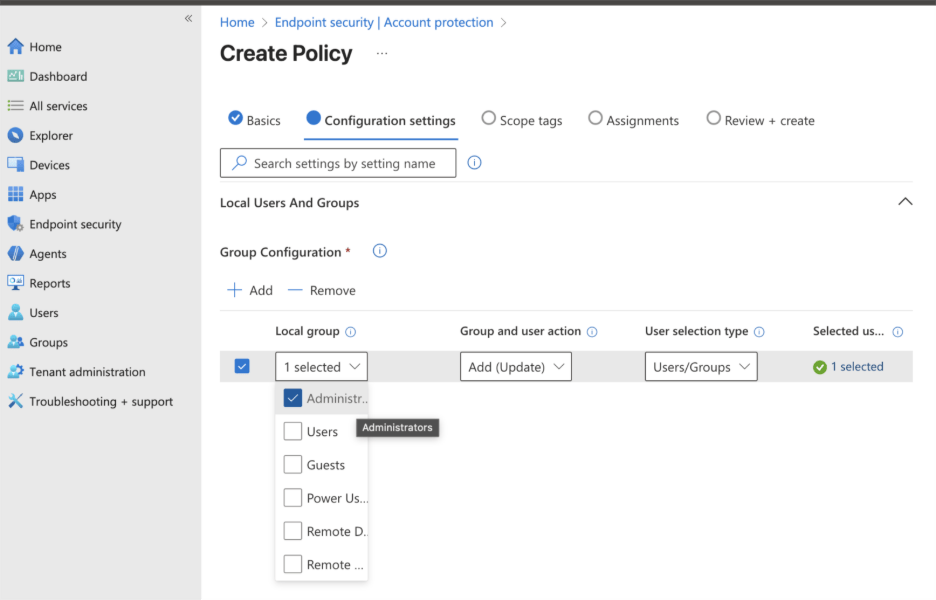
Adding users/groups to Administrators role in Microsoft Intune
- Create policy in Microsoft Intune, Endpoint Security > Account Protection > Local User group membership
Add your IT admin group or end users to: Administrators
Conclusion
By ensuring these prerequisites are properly configured, IT administrators can now make full use of Remote WMI capabilities on Entra-only devices to efficiently gather system information and execute remote tasks. With this update, Entra-only environments benefit from secure, low-friction visibility and control, empowering IT admins to manage devices without disrupting end users. This advancement also enables the use of features like remote diagnostics for hardware queries and script-driven actions, unlocking the full potential of tools such as Right Click Tools to provide even deeper insights into your environment.