




Windows Autopilot has revolutionized the typical experience of providing devices to end users. Now, you can ship a new-in-box device straight to a user, they sign in, and (when everything aligns) the machine joins Entra, enrolls in Intune, applies company policy, and gets users to the desktop and productive without IT ever touching it.
But if you’re like me and have run Autopilot at scale, you’ve probably lived the other side of the story: sure the device is enrolled, but key software is missing; a critical app fails halfway through setup; or you’ve been required to reduce initial baseline app counts just to keep provisioning behavior stable and hope that “the rest will land or retry later.”
That’s not because Autopilot is “bad.” It’s because the hardest part of modern onboarding is rarely enrollment, it’s the usability of the device: the individual applications (and their sequencing), their prerequisites, along with exceptions and visibility to all of the above.
In this blog, we’ll discuss the real frustrations IT admins are hitting with Autopilot today, and map a simple pattern that makes onboarding reliable: making Autopilot light, then orchestrating applications with Application Workspace.
The real-world frustration: Autopilot’s “day-one apps” bottleneck
- OOBE is optimized for stability, not user readiness
With Windows Autopilot or device preparation, Microsoft limits how many apps and scripts can be applied during OOBE to improve success rate. In Microsoft’s FAQ, they explain the limit is intended to increase stability, and they recommend handling non-essential apps after the user reaches desktop. For those of us coming from the ConfigMgr world, this is… limiting. We could previously include many of those apps in task sequences without issue.
- Task-sequence-style control is limited
Because many IT teams have run on ConfigMgr task sequences, they expect deterministic ordering and pre/post actions. Intune and Autopilot’s handling of applications isn’t built with that in mind, so complex builds often require compromises or workarounds.
- App ordering and prerequisites are where onboarding gets brittle
Device builds will always have real dependencies: security tooling before users browse, VPN before line-of-business apps authenticate, and runtime dependencies before vendor’s installers can succeed. With Intune today, these ordering needs can result in large dependency chains or fragile wrappers.
- Exceptions create “gymnastics”
Even once the standard build is stable, exceptions remain constant: a pilot user needs a tool early, a VIP needs a fix now, a site has unique requirements, or a role needs a different stack. Intune’s group-based targeting adds administrative overhead with every exception.
- When onboardings fail, the visibility and reporting gap is even more taxing
Intune’s enrollment processes can show basic progress and block access until required apps and policies install, but admins still often need answers when things go awry: what failed, where, and why? Without clear reporting, that means burning time on deeper investigation and log hunting.
The fix: Make Autopilot lighter, then orchestrate apps with Application Workspace
Step 1: Autopilot installs one required app—the Application Workspace bootstrapper
Instead of asking Autopilot to coordinate a long list of apps during provisioning, give Autopilot one job: kick off the Application Workspace bootstrapper install.
Step 2: Application Workspace delivers the rest of the build—predictably
Once the agent is running, Application Workspace becomes the delivery layer (packaging, sequencing, targeted delivery, and visibility across endpoints), while Intune remains your device and security control plane.
Application Workspace’s building blocks: Packages and Deployments (and why they matter)
Packages = “the work”
For those who don’t know, packages represent what you want to deliver or execute. A package can include an application install, a script, a configuration step, or any combination.
Deployments = “the enforced rollout (in order)”
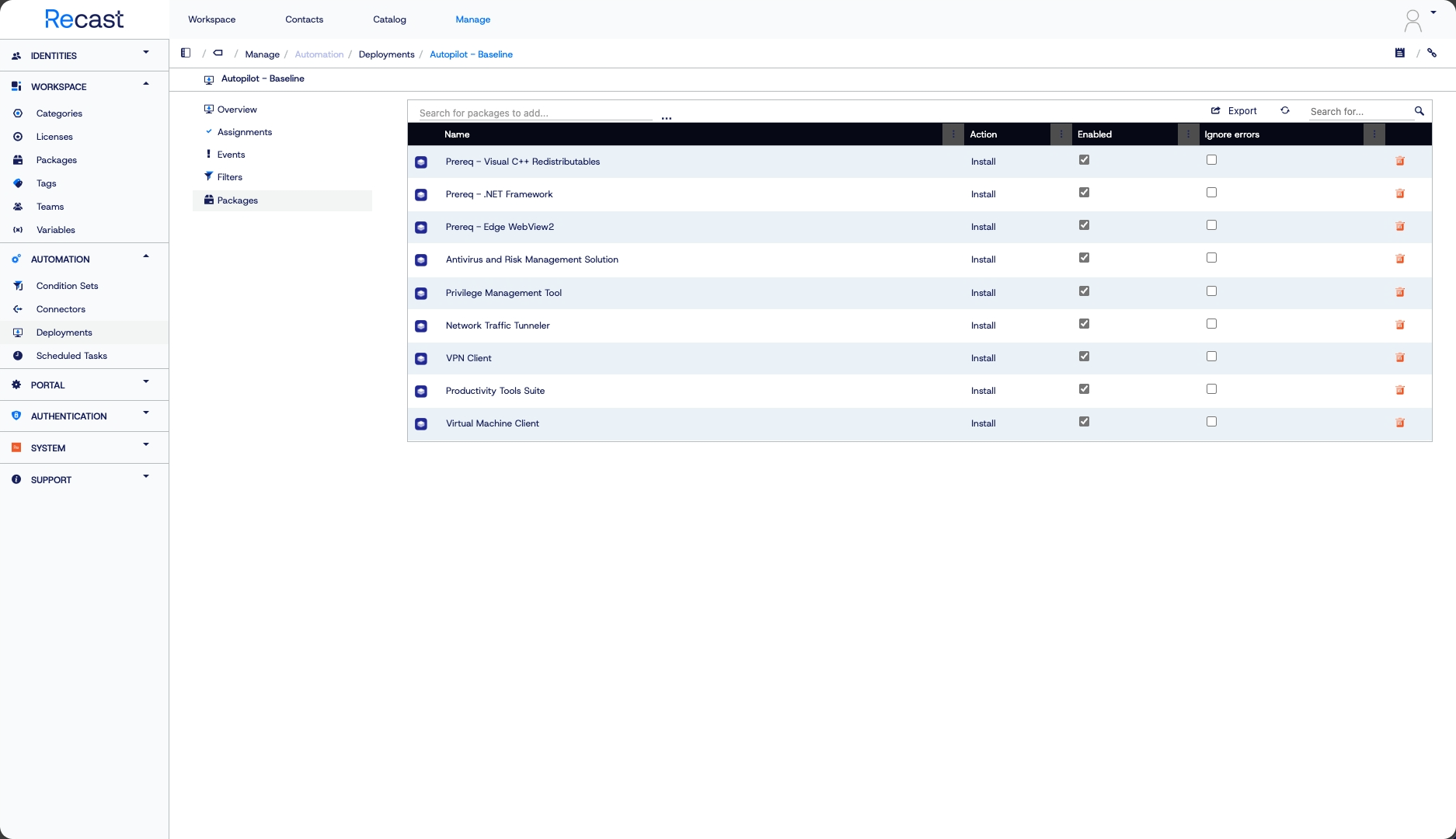
Deployments are structured rollouts of packages used to establish onboarding baselines or deliver multiple updates when you need consistent results at scale. Deployments let you predefine a set of packages to install during agent installation (think provisioning, similar in intent to Autopilot or OSD), but with an explicit, admin-defined install order.
What this solves (mapped to Autopilot frustrations)
Sequencing you can see (and trust): Deployments as a playlist
A common reason Autopilot onboarding feels unpredictable is that “installed eventually” isn’t the same as “ready to work.” Most builds have prerequisites, whether that’s security tooling your SecOps requires or VPN before privileged apps can authenticate. If the sequence is wrong, the user hits the desktop but can’t authenticate, can’t reach internal apps, or isn’t protected.
Application Workspace treats onboarding like the ordered deployment playlist we’ve enjoyed from task sequences: you define the sequence so the foundational layer installs first (security), then connectivity (VPN), then productivity, then business apps.
Context-driven installs (including one-off targeting) without Autopilot gymnastics
Autopilot is great at enrollment, but things get messy in those niche exception situations. That’s because, in Intune, targeting commonly relies on Entra ID groups, and configuring exceptions can lead to group sprawl over time.
Application Workspace supports flexible targeting by individual user, device, group, context, script-based rules, or any combination. That way, you can handle both standard rollouts and those precise exceptions without jumping through hoops every time. If you need different baselines from the start, install the bootstrapper via script. This script supports Intune device tags which can be handy for per-department or per-sub-company rollouts.
All this flexibility makes one-off scenarios feel normal: validating a new onboarding flow with a single pilot user, fast-tracking a VIP device, or fixing one machine without turning exceptions into permanent architecture.
Predictable timing with triggers
A key operational win is also making installs happen when it makes sense, without relying solely on sync cycles or narrow maintenance windows. Trigger-based delivery finishes onboarding immediately after sign-in, instead of waiting for sync to catch up. Application Workspace can also evaluate those context rules at launch time. If a condition fails, say, the user isn’t on VPN, you control exactly what happens next.
Visibility when things break
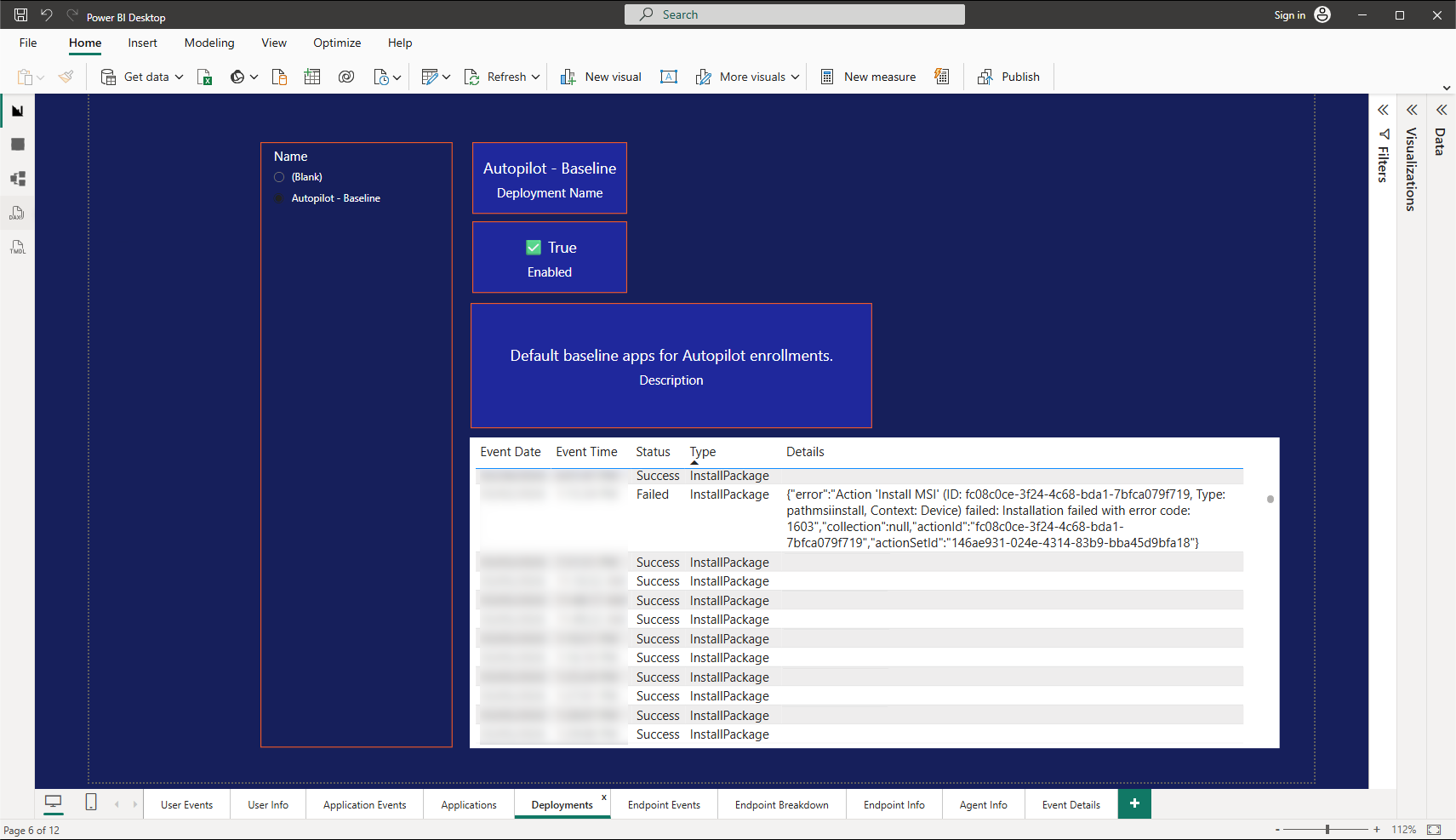
When something fails, everyone wants fast answers. Application Workspace surfaces outcomes natively so you can review results by deployment and device.
Putting it together: a practical “day-one readiness” blueprint
1. Keep Autopilot focused on enrollment for speed and stability.
2. Install one required app during Autopilot: the Application Workspace bootstrapper/agent.
3. Run an ordered Application Workspace Deployment for your baseline build (security → VPN → productivity → business apps).
4. Apply the rest using flexible targeting and context rules so exceptions don’t become tenant-wide complexity.
5. Use deployment and package outcomes to verify readiness and troubleshoot quickly when something fails.
Closing: “enrolled” is not the same as “ready”
Autopilot is and will remain a critical part of modern cloud-based device provisioning. The goal isn’t to replace it, it’s to stop forcing it to be your application orchestration engine.
When you keep Autopilot focused on enrollment and use Application Workspace for sequencing, exceptions, and visibility, you get the outcome that matters: when the user hits desktop, the device is genuinely ready for business, and IT can prove it.
If you’re interested in more about Application Workspace, check out the resources below, take a guided walkthrough, or request a demo.