


If you’re reading this article and have Microsoft’s E5 licenses in your environment, you may be wondering what’s included in the new Intune suite. E5 licenses include the following products:
- Intune Remote Help
- Intune Advanced Analytics
- Intune Endpoint Privilege Management
- Microsoft Cloud PKI
- Intune Enterprise App Management
If you are looking to see what is available to you with your E3 license, take a look at this blog where I cover Intune Remote Help and Advanced Analytics. There I go over how E3 users will benefit from those tools—from real-time end-user support to device insights that help you act before issues turn into outages.
In this blog we’ll cover Endpoint Privilege Management, Microsoft Cloud PKI, and Intune Enterprise App Management. By the end, you’ll know the basics of setting each one up and a few keyways to put them to work.
Endpoint Privilege Management
This gives your standard users the ability to run certain tasks with elevated permissions. If you’re thinking about removing admin rights, remember that some common tasks like app installs, driver installs, and certain Windows tasks still require elevated permissions. EPM helps you in your zero-trust journey by removing always-on privileges where they aren’t needed while still letting users stay productive with controlled elevation.
Auditing Before Rollout Of EPM
If you are curious to learn what your end users are doing with elevated permissions, you can enable auditing before rolling this out. This is going to help your IT team decide how you want to set up your policies and rules.
Setting up EPM
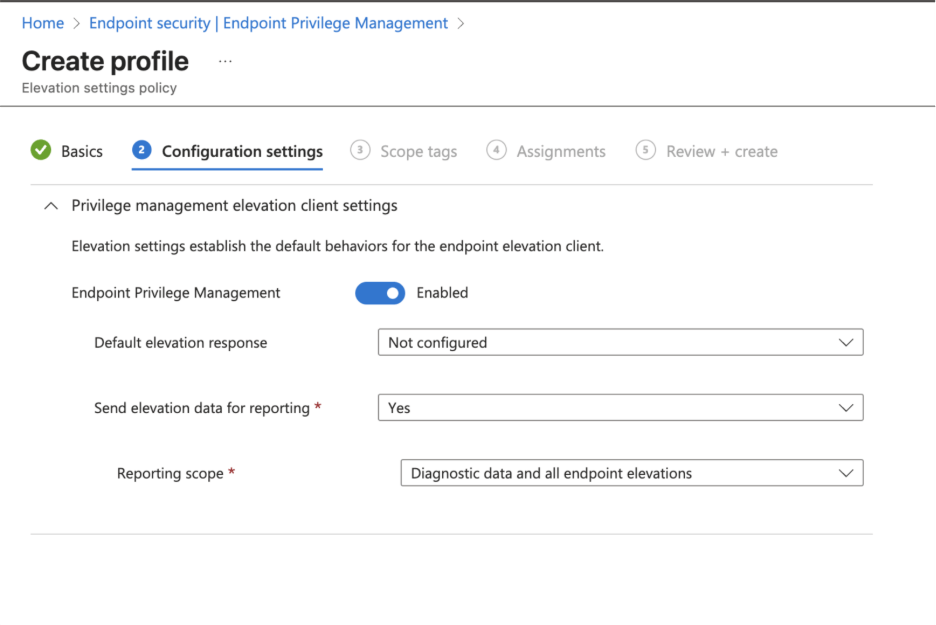
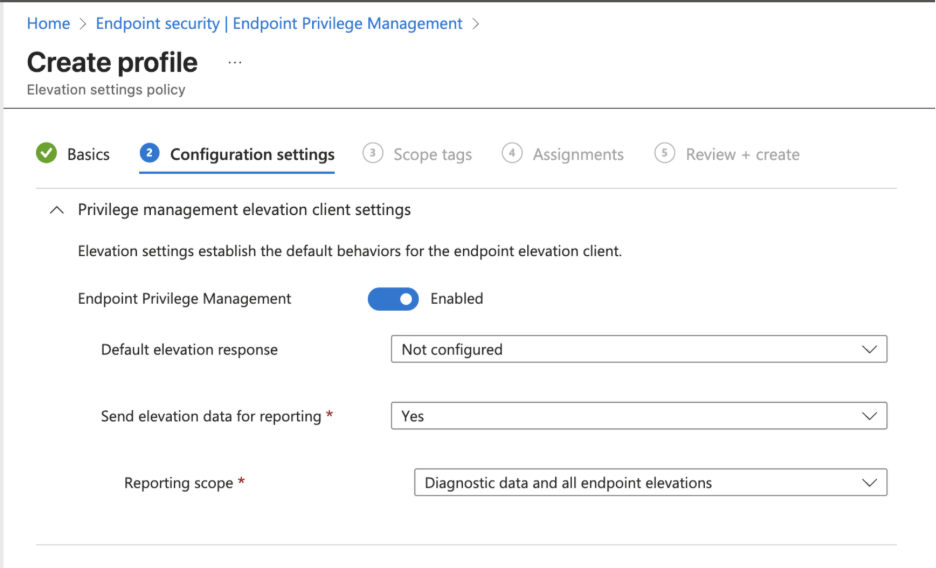
Because EPM is built into Microsoft Intune, it’s straightforward to turn on as you move toward a zero-trust model. You will need to enable the Endpoint Privilege Management agent so that the device can check in and complete the onboarding. We can do this by setting up an Elevation Settings Policy profile in Intune and making sure Endpoint Privilege Management is set to Enabled.
Require Support Approval Method
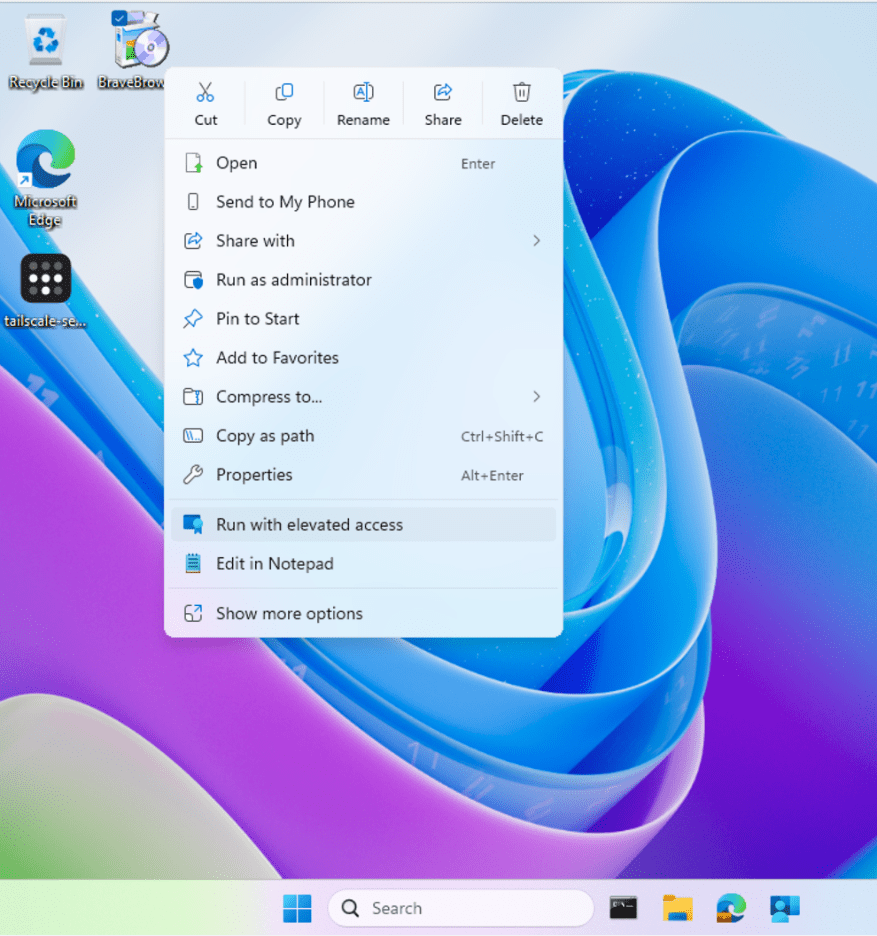
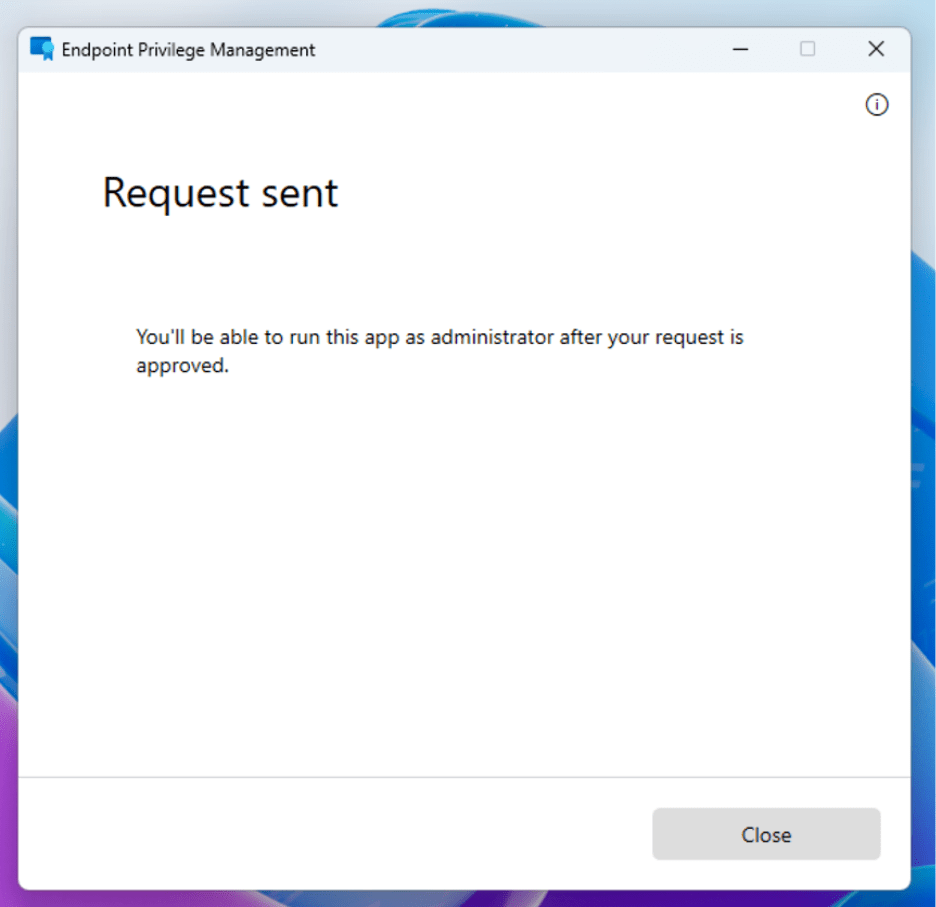
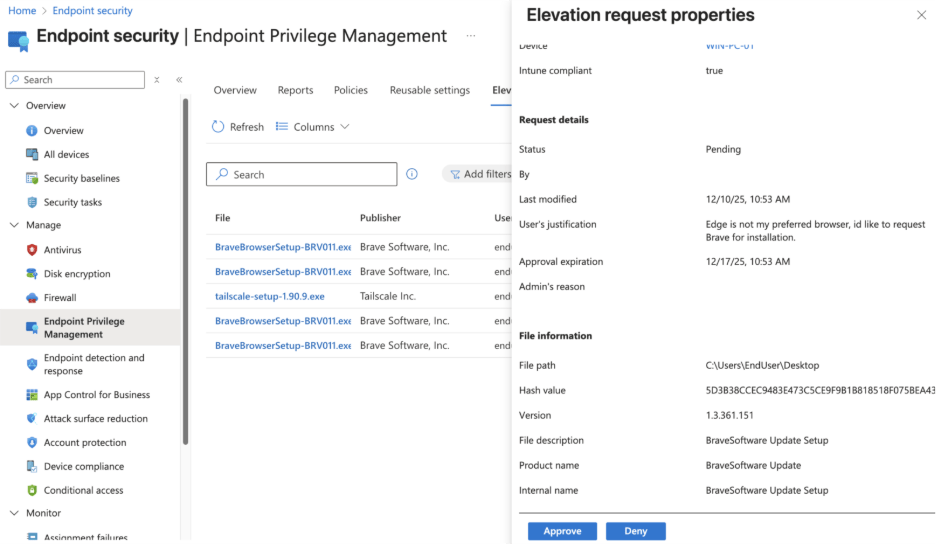
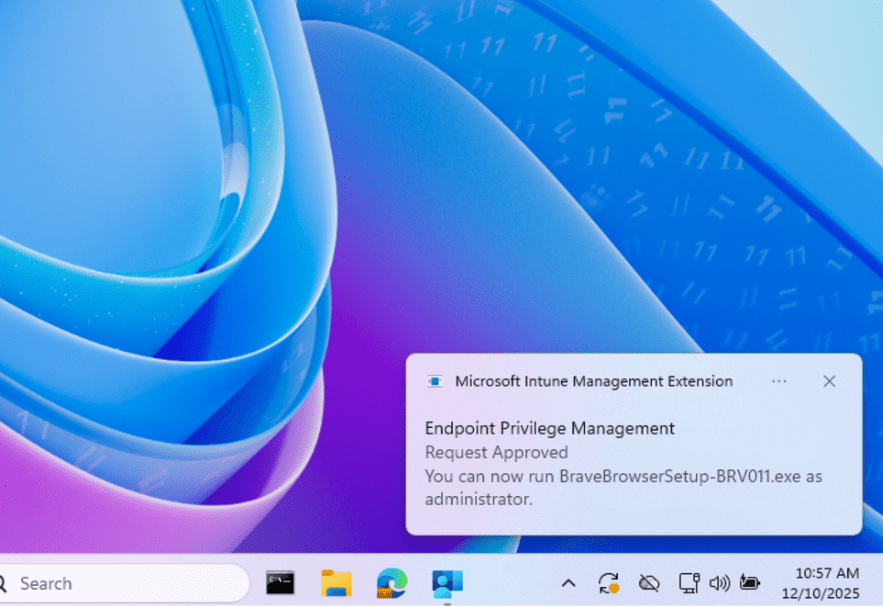
With this setting, end users can request elevation, but your IT team has to approve the request before anything runs. I’ll show you how this looks from the end user’s perspective if they want to install a new browser. In this flow, the user requests elevation to install the browser, and that request goes to the Intune portal for IT to approve or deny. If approved, the end user would get a notification letting them know that they can run with elevated access.
Creating Rules With EPM
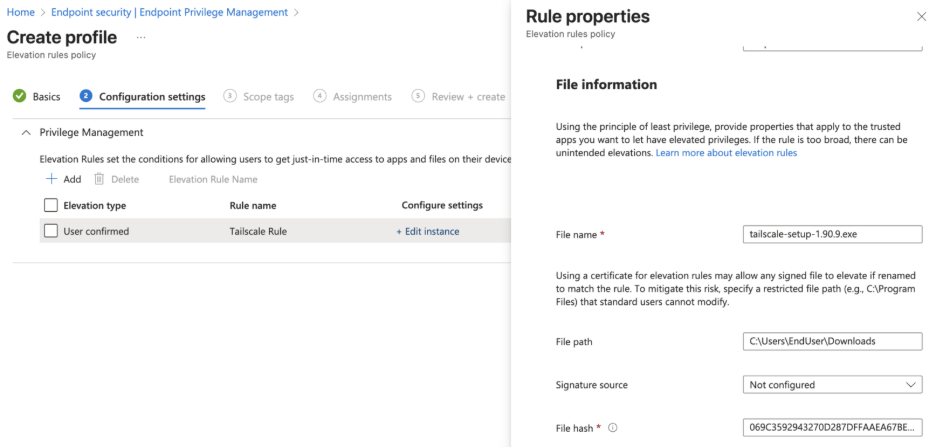
Let’s say you don’t want to rely on your IT support team to accept or deny incoming requests. If you have information based on your company’s needs and audit discovery, you can use that to help set conditions for allowing just-in-time access to apps and files, enabling faster elevation and less work for IT professionals. Think of these rules as pre-approved processes, so your end users don’t have to request approval, and your IT team has already vetted and approved the ruleset. In my case, I’m using the hash value of an application that my security team has approved. Any time a user requires admin access to run it, they can proceed without IT intervention.
Reporting for EPM
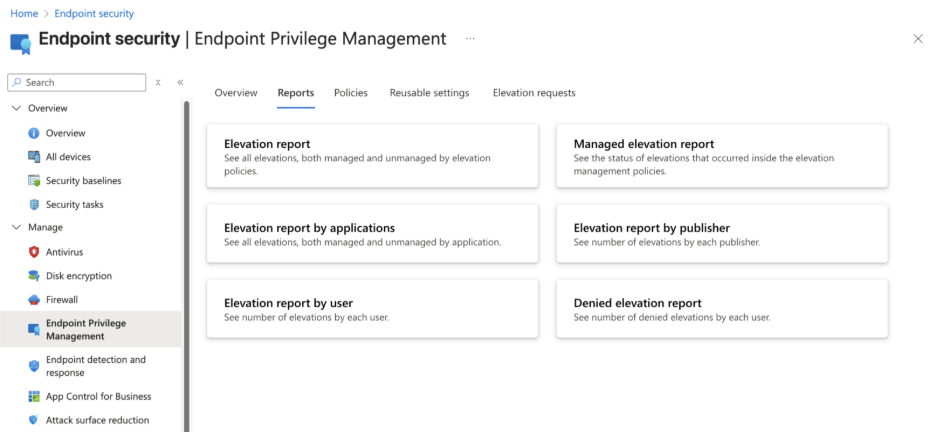
Those audit logs help you see how users are requesting elevation and refine your rules based on real activity. If you ever go through a breach (fingers crossed, you don’t) you can trace the actions taken. I’ve outlined the main reports you have access to in the screenshots below.
Enterprise Application Management (EAM)
This feature allows IT administrators to deliver and update third-party applications to their endpoints. Microsoft hosts and prepackages those applications, handling the binaries so your IT team can focus on other work.
Deploying Applications with EAM
This native tool allows you to deploy applications from Microsoft Intune using the Enterprise App Catalog, a set of Win32 apps that Microsoft hosts and maintains. To deploy an application, navigate to Microsoft Intune > Apps > Windows apps > +Create > App type Enterprise App Catalog app.
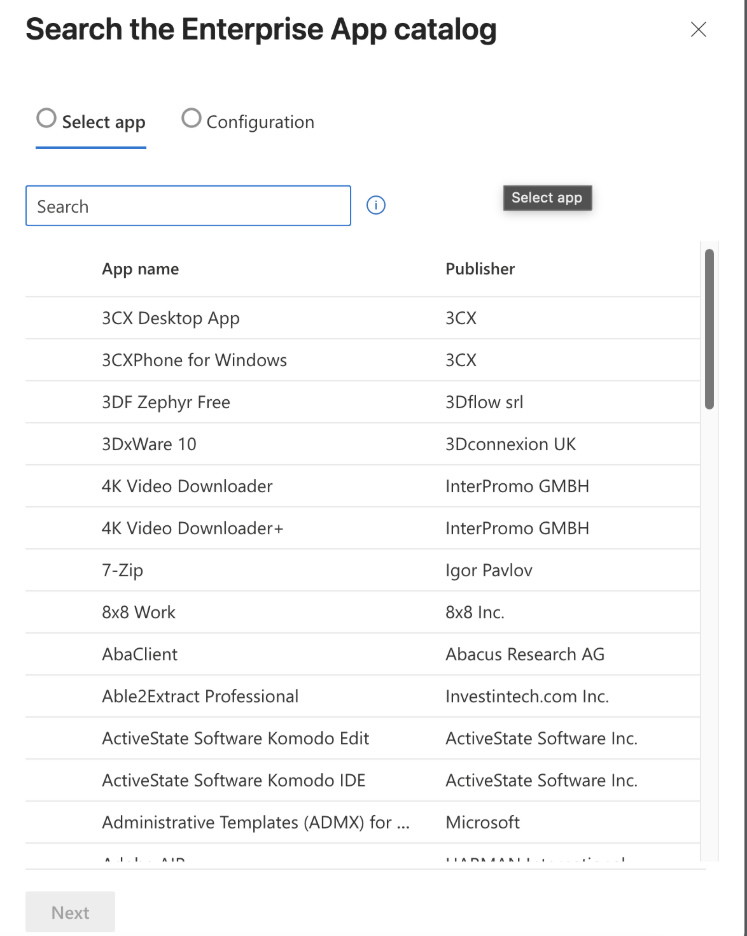
Once you select Enterprise App Catalog app, you can select the applications you want to deploy from Microsoft’s catalog.
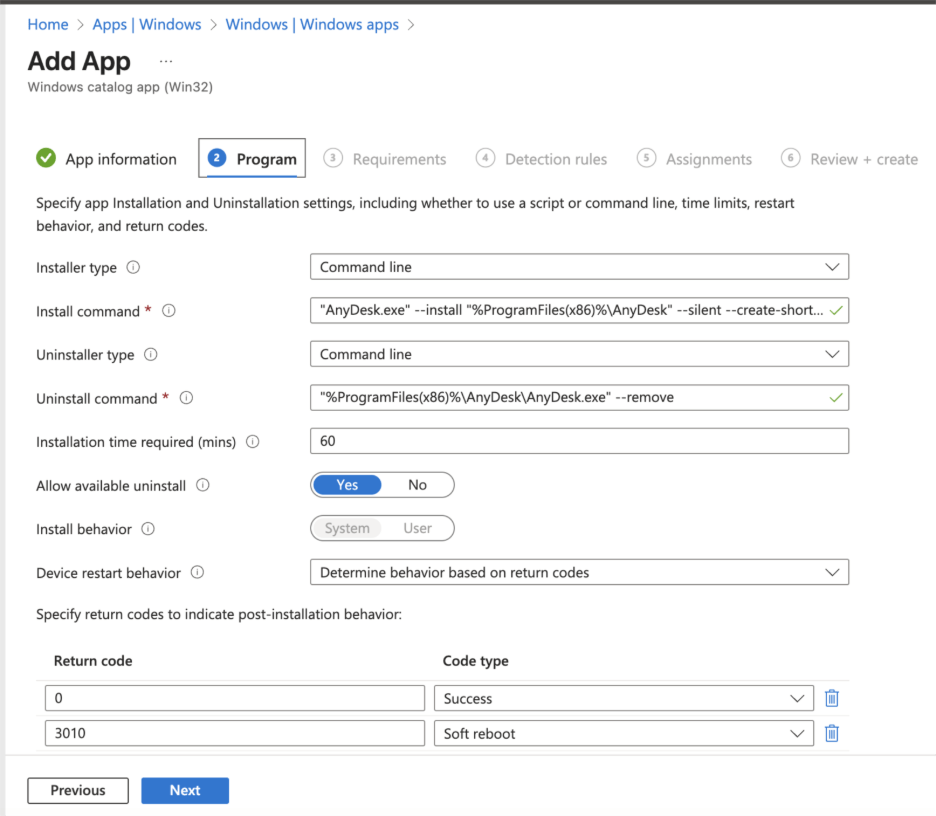
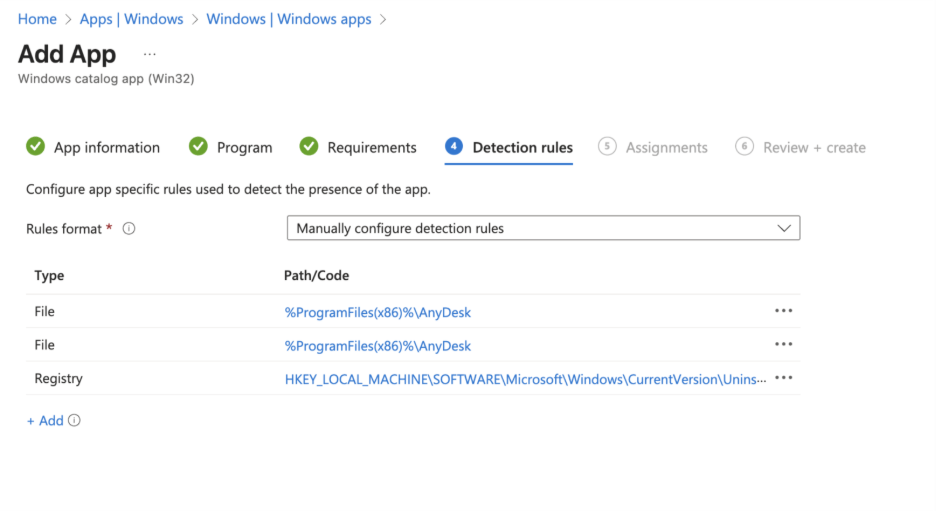
Like we discussed above, Microsoft supplies the binaries along with Install and Uninstall Commands and Detection rules when deploying these apps. Those details can be hard to track down manually, so having them prepopulated saves time.
Updating Applications
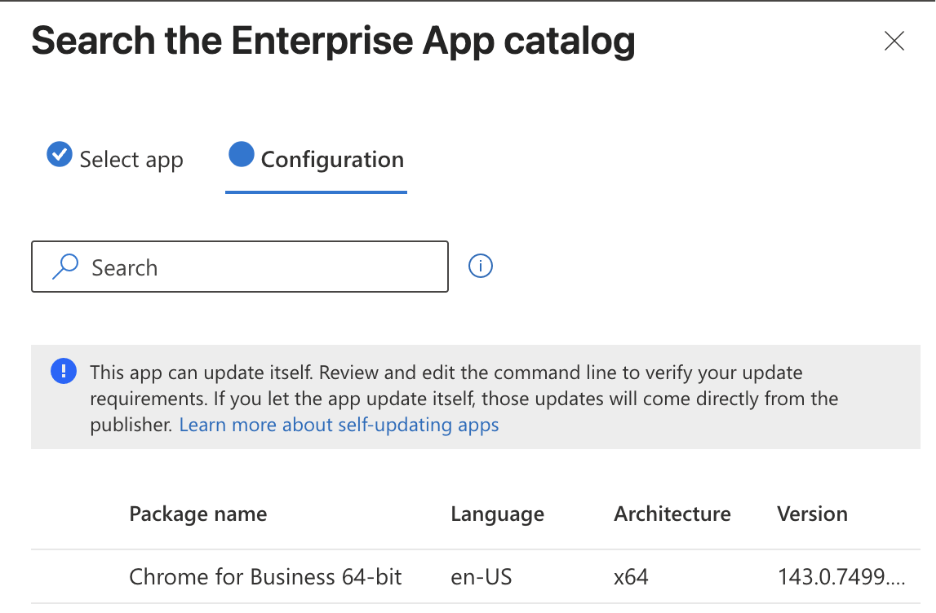
In this section, we’ll look at the different ways Microsoft EAM updates applications. The most hands-off capability is Self-updating apps; these applications follow the vendor’s own update process. One example is shown in the screenshot below.
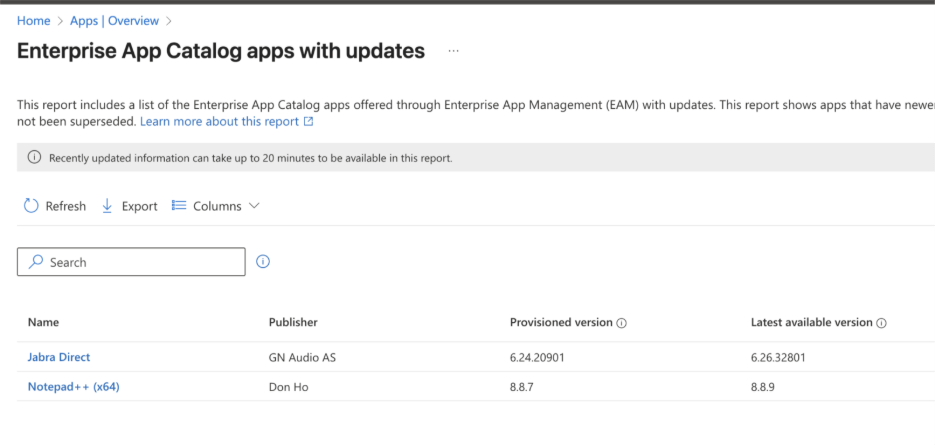
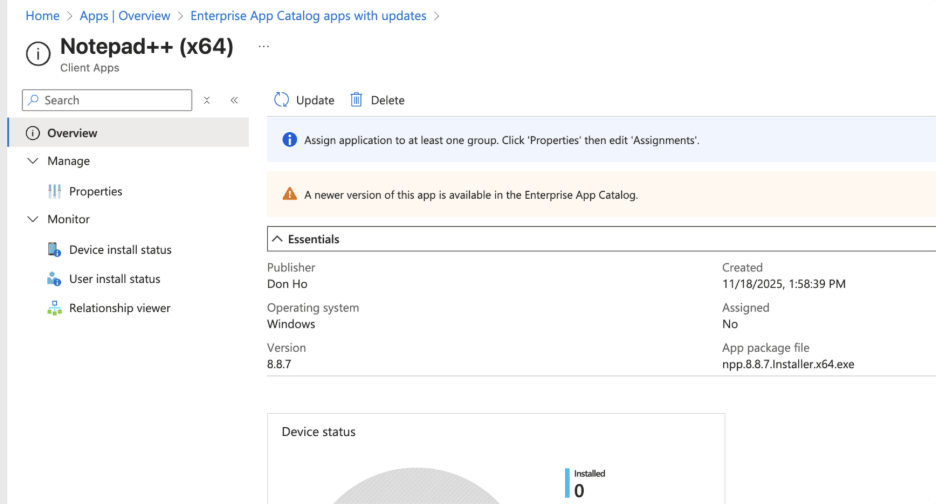
Alternatively, you can update your apps when new versions appear under Apps in Microsoft Intune. For instance, after deploying Notepad++ (version 8.8.7), you’ll be alerted that Notepad++ (version 8.8.9) is now available. At this point we would need to create a new app and supersede the provisioned version.
Cloud PKI
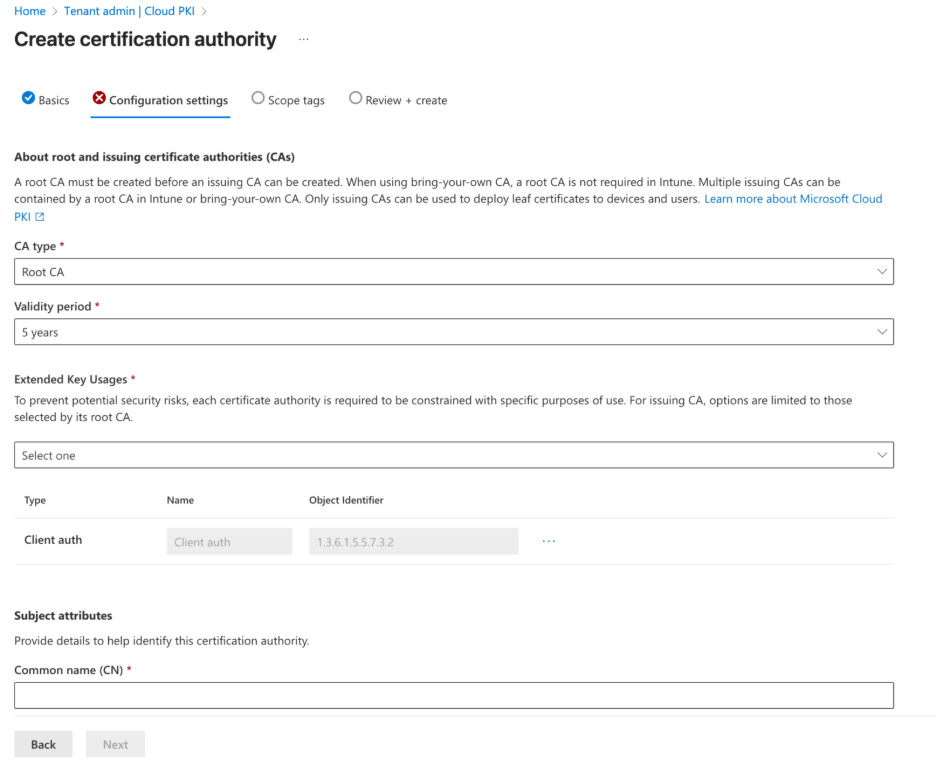
Microsoft Cloud PKI is another feature available to E5 licensed users. It makes certificate delivery and management easier for IT admins by letting them set up public key infrastructure quickly while streamlining certificate management. Visit our blog on Cloud PKI to get more in-depth information.
Recast: The Intune Companion
Microsoft offers powerful tools for IT admins through Intune Suite, and Recast is the ideal companion to help organizations maximize those capabilities. Recast builds on what Microsoft provides by delivering additional options for enhanced security and advanced device and application management.
There are scenarios where IT teams need expanded functionality, such as managing custom applications, handling third-party app patching on servers, or applying highly specific update requirements. Recast complements Intune by handling these specialized tasks, working alongside the Microsoft ecosystem to streamline operations.
We’re excited about where Microsoft is headed and how Intune continues to empower IT admins. Recast is proud to stand alongside Intune as a companion solution, helping teams do even more with the tools they already rely on.
If you don’t already have our free Right Click Tools for Intune, you can download them here.