




Collections and Application Deployments
Now that we have our CM environment up and running, it’s time to add some Collections and Application Deployments.
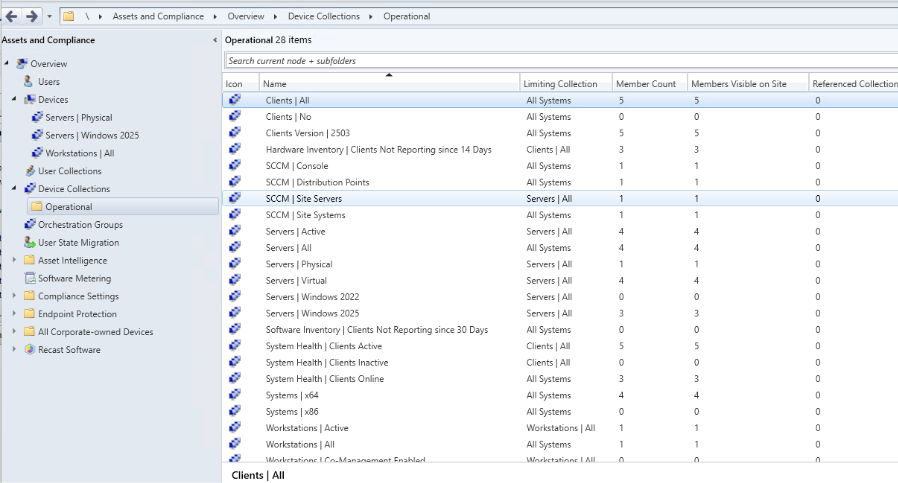
- There is a community script available here that can automatically create a number of collections for you. I would recommend deleting ones that aren’t useful. Your homelab hopefully doesn’t have any Windows XP machines installed in it, but the script creates many useful collections. Below are some of the ones I’ve decided to keep.
- Now let’s create a user collection.
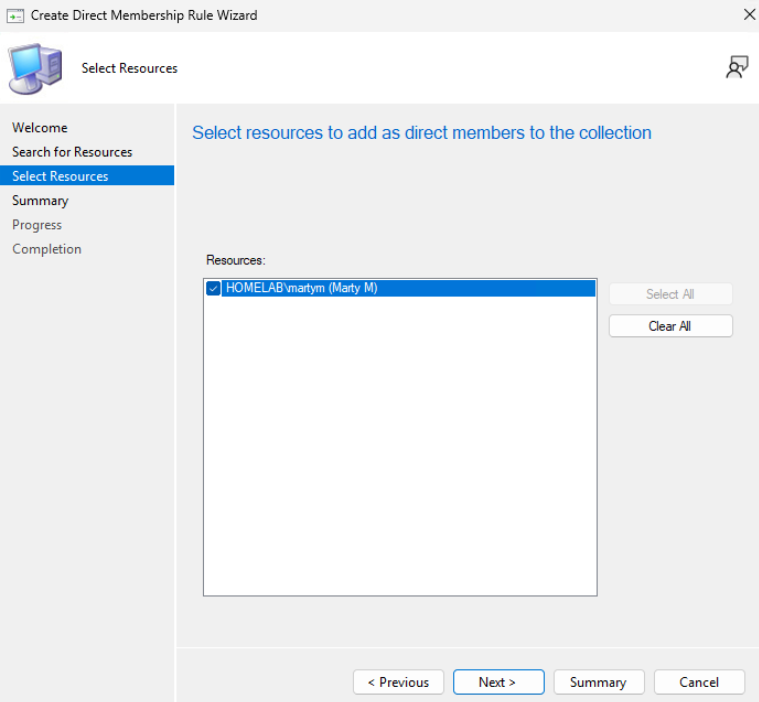
- I’m going to create it using a direct rule. Here is some documentation on how to do that.
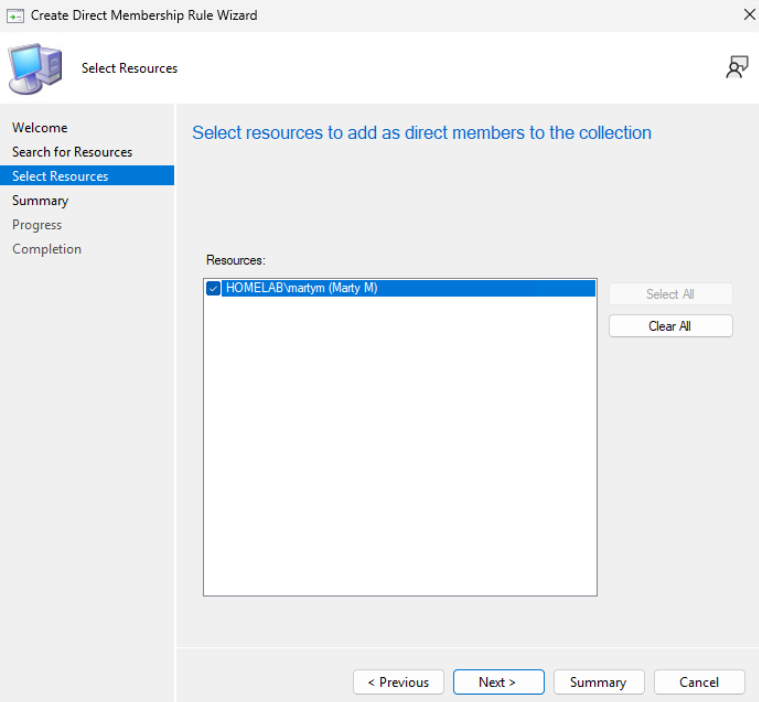
- You can see that I have my Marty Test user collection.
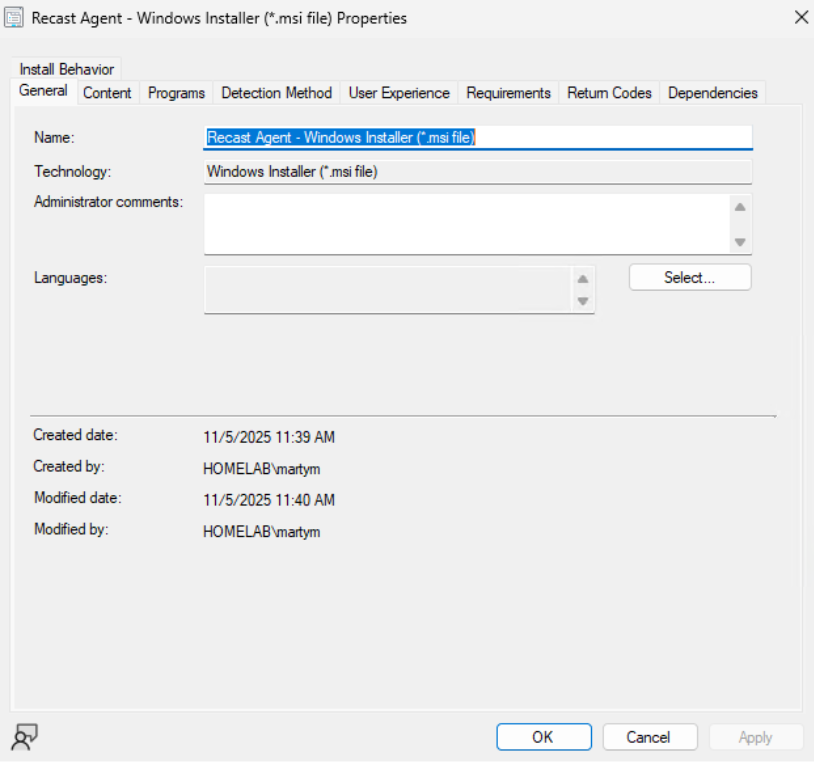
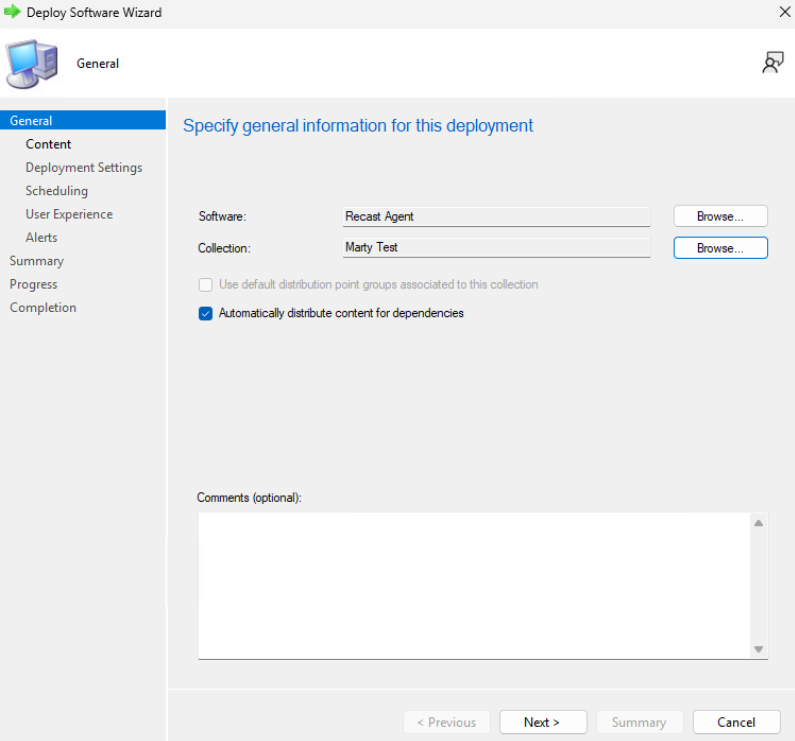
- Let’s create a simple application and deploy it. Here are two helpful references: Create Application and Deploy Application.
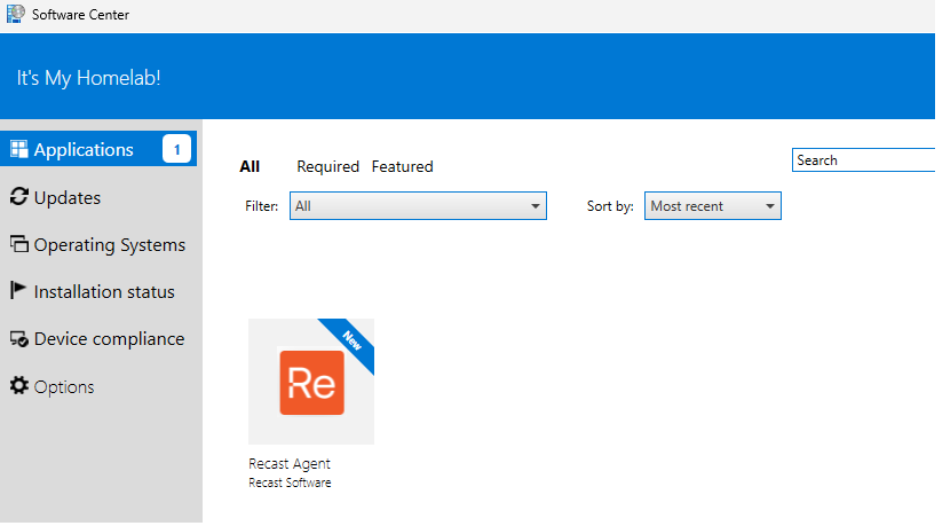
- If everything is working, you can check Software Center on any device you are logged into, and you should see it as an available application.
Great work! Next let’s configure SQL Server Reporting Services so we can access ConfigMgr reporting as well as Right Click Tools Insights in a future post.
Next steps
Make your homelab more powerful. Download our free tools to help you automate, troubleshoot, and validate configurations in your test environment.
The Homelab Series
Step 1: Creating a Domain Controller with DNS
Step 2: Adding a Certificate Authority
Step 3: Setting up a Gateway VM to Be Used as a Virtual Router (Optional)
Step 4: Configuration Manager Server Prerequisites
Step 5: Settings for Active Directory and Group Policy
Step 6: Installing SQL For ConfigMgr
Step 8: ConfigMgr Basic Settings
Step 9: Configuration Manager Collections and Application Deployments
Step 10: Installing SQL Server Reporting Services
Step 11: Cloud Management Gateway (CMG) Overview
Step 12: Installing the Recast Management Server and Right Click Tools (Optional Step)
Step 13: Recast Management Server (RMS) Configuration (Optional Step)
Step 13.5: Installing and Using the Right Click Tools Browser Extension
Step 14: Installing Right Click Tools Insights – ConfigMgr Reporting
Step 15: Configuring Right Click Tools Patching
Step 16: Setting up Right Click Tools Privileged Access