




Installing ConfigMgr
This post will cover installing ConfigMgr in your homelab environment. The download for ConfigMgr has a baseline install version, and then you install ConfigMgr updates from there.
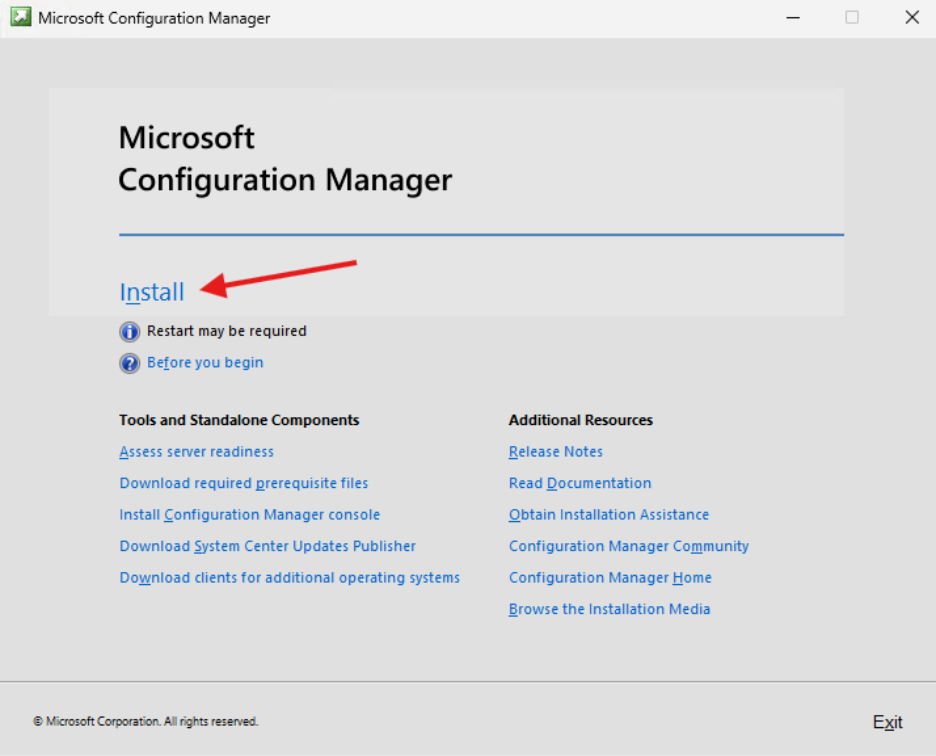
Click Install
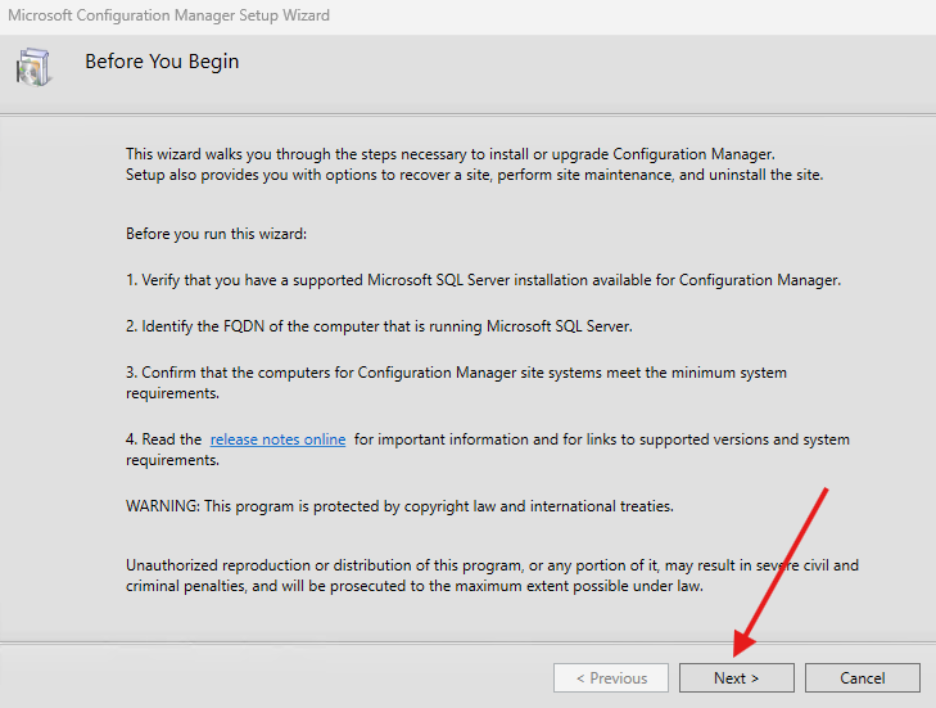
Click Next
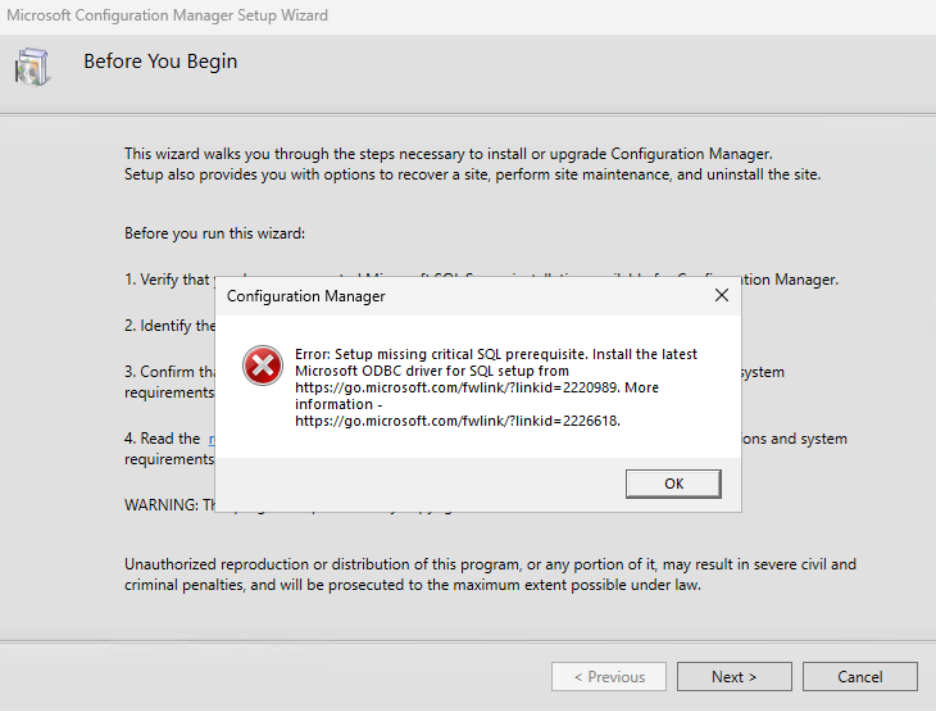
You may run into some issues along the way. For example I was missing an ODBC Connector for SQL. After installing that component I was able to move forward.
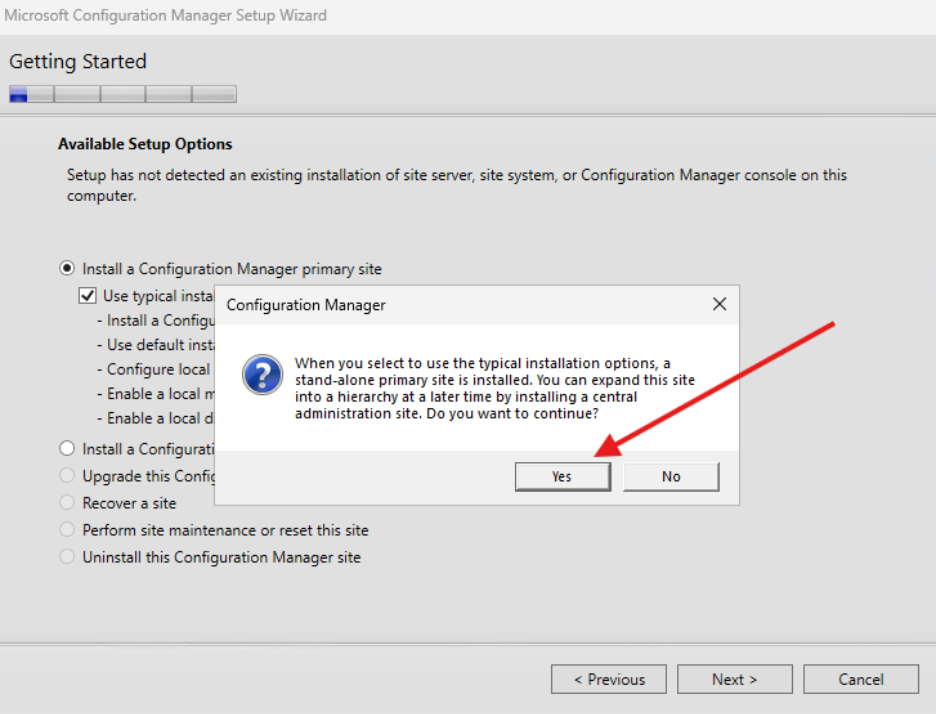
Click Use Typical Installation Options for a Stand-Alone Primary Site and then click Next.
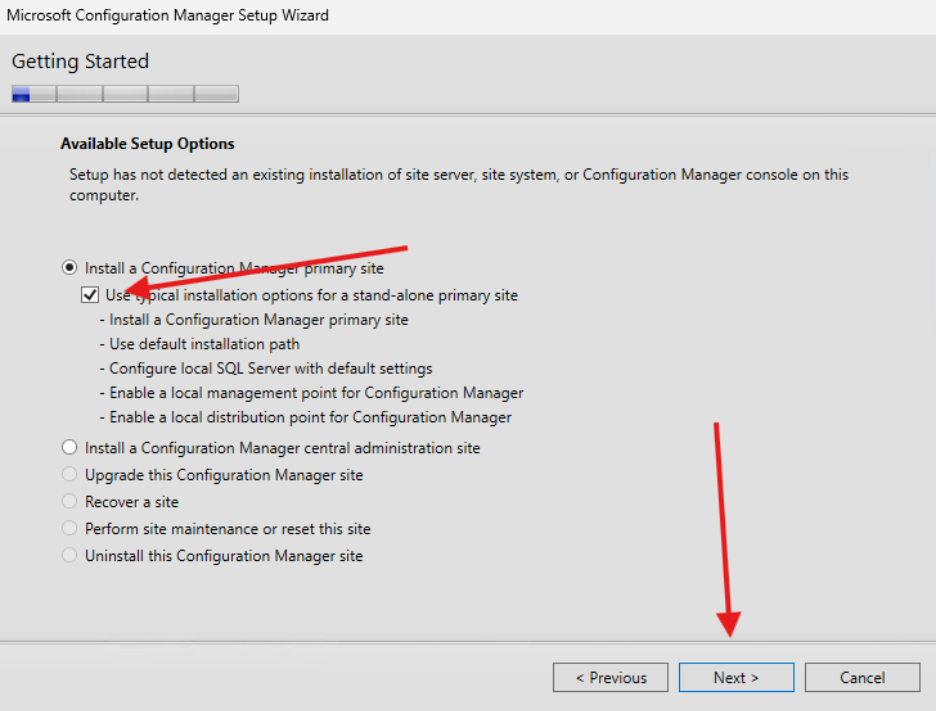
Yes, you want to continue. No, you do not want to install a CAS.
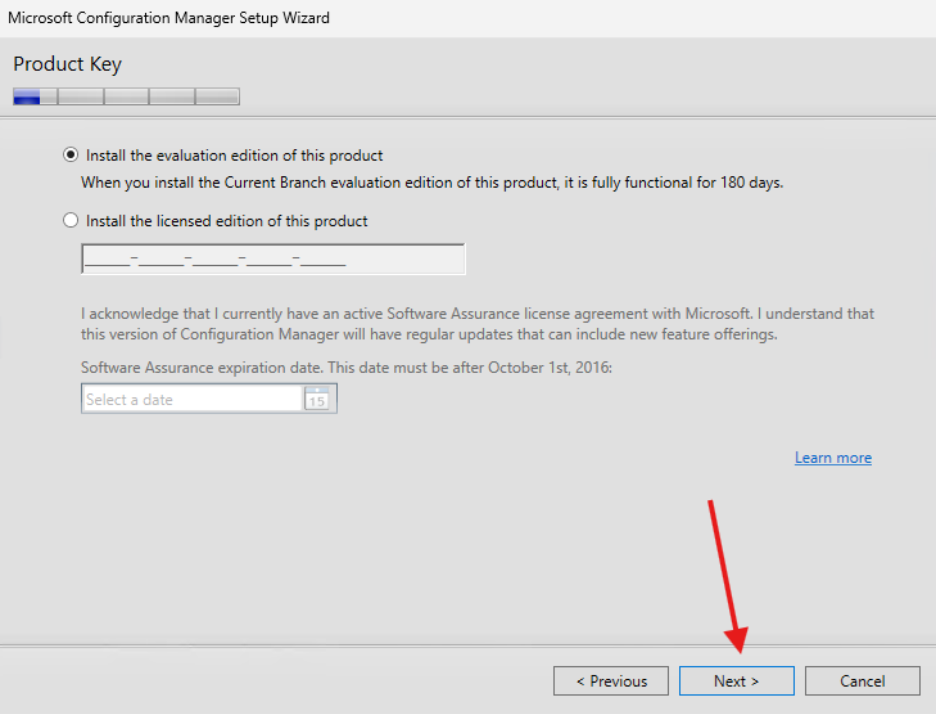
Select Evaluation Edition (unless you have a license key) and select Next.
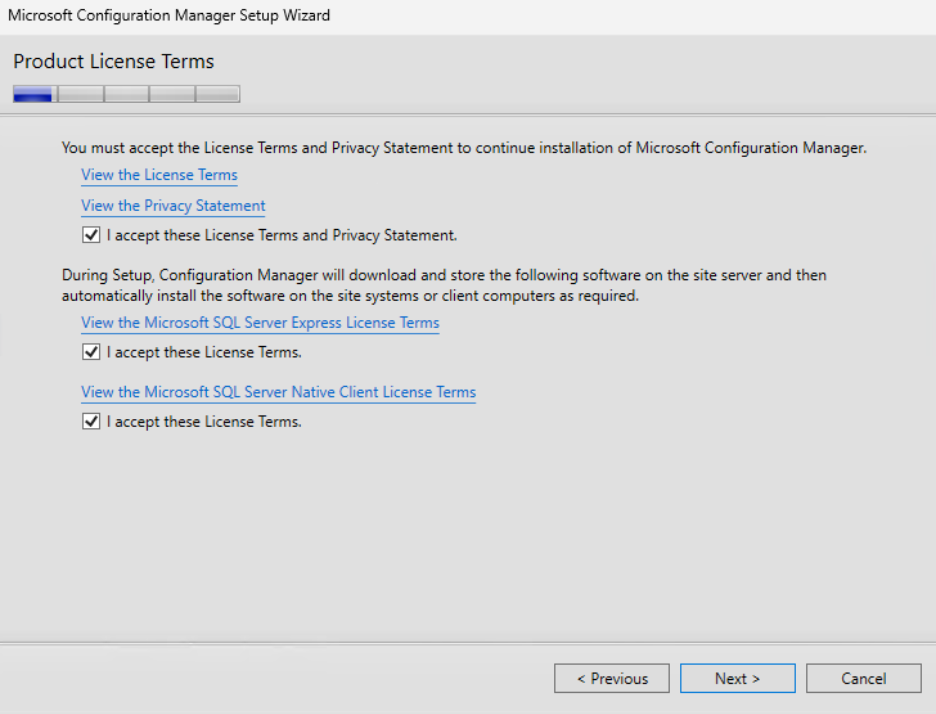
Accept the terms and click Next.
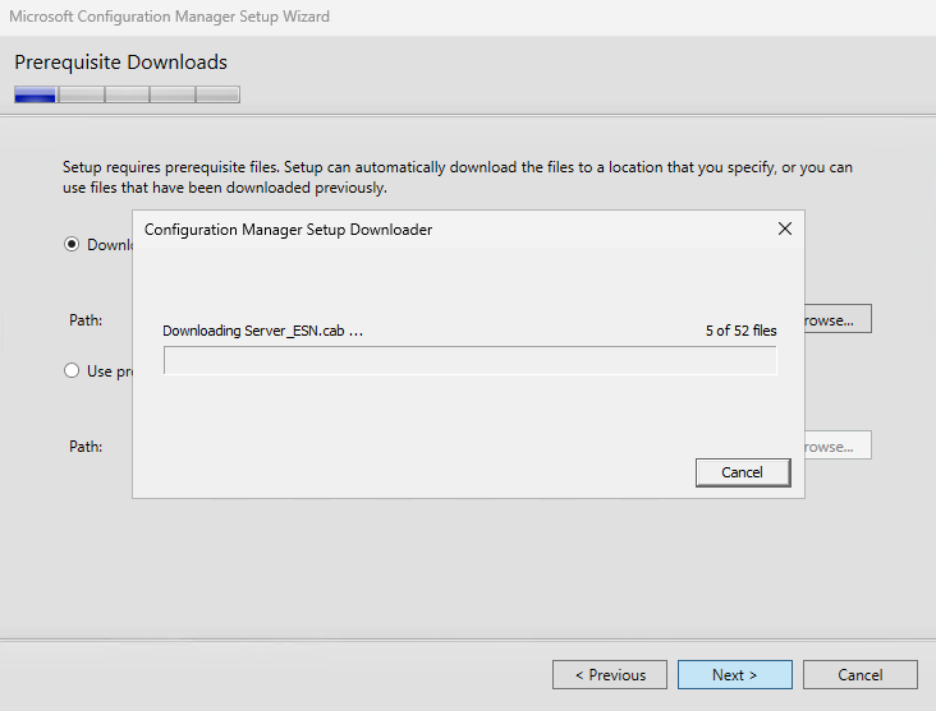
Add a path for required downloaded files.
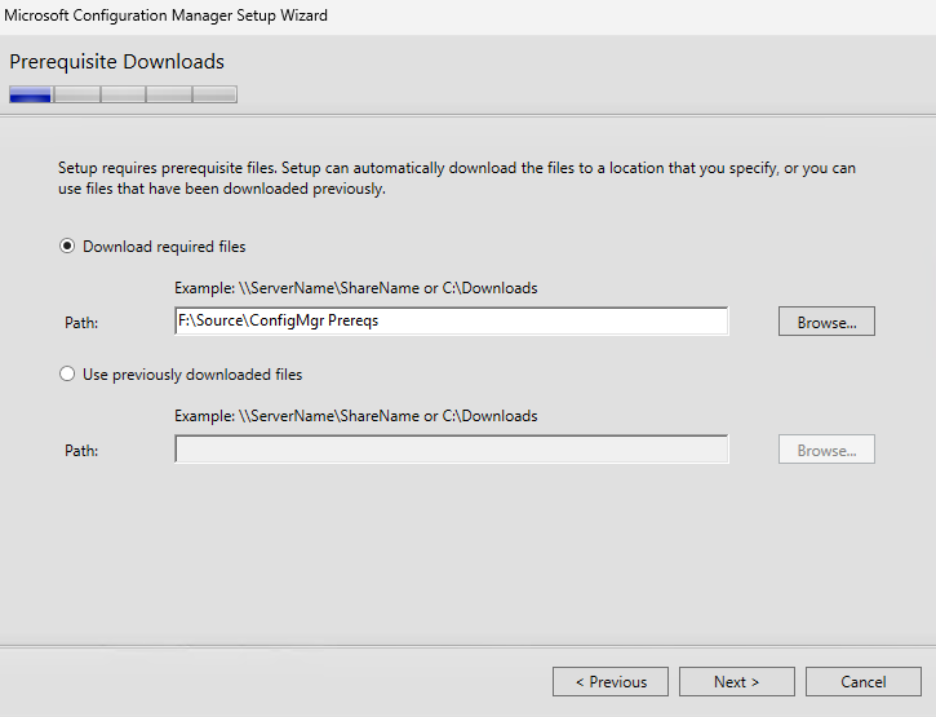
The downloader will download.
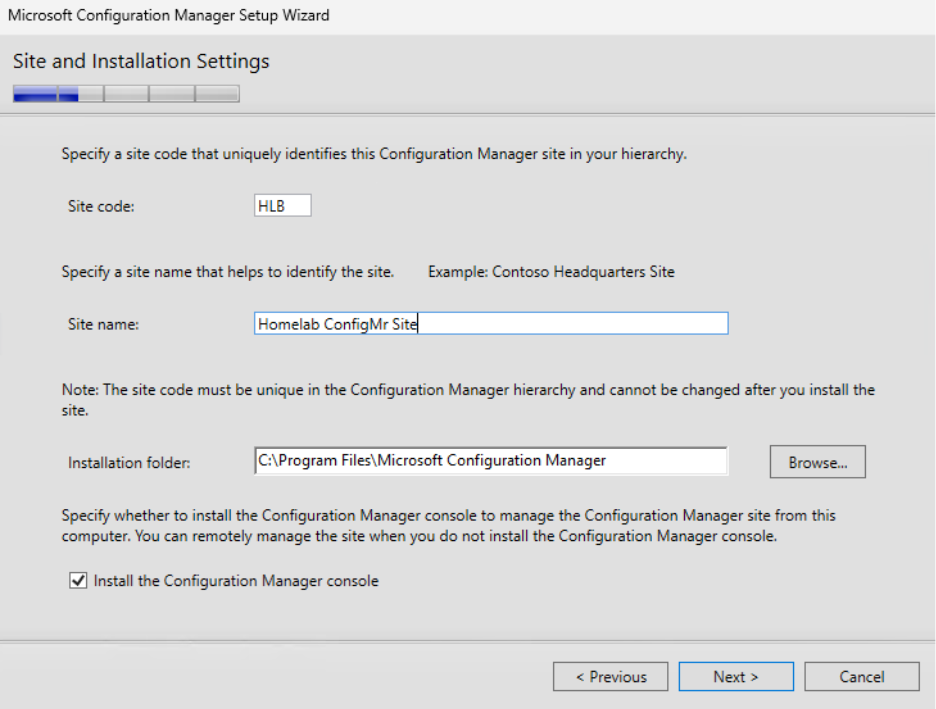
Select a site code, a site name, and the installation folder.
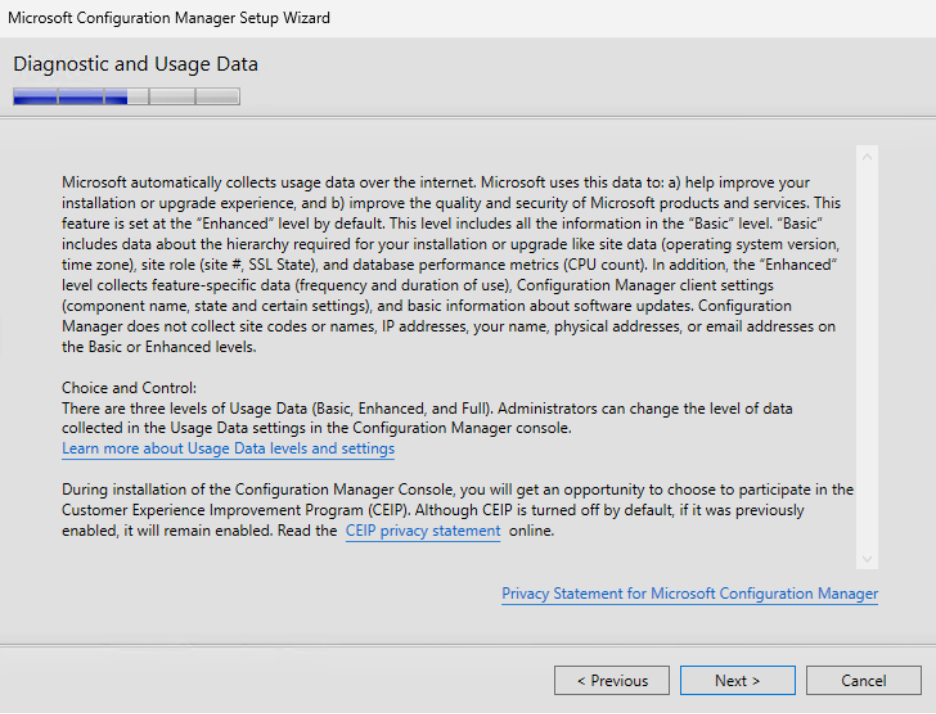
Microsoft will download some diagnostic data. Promise. Click Next.
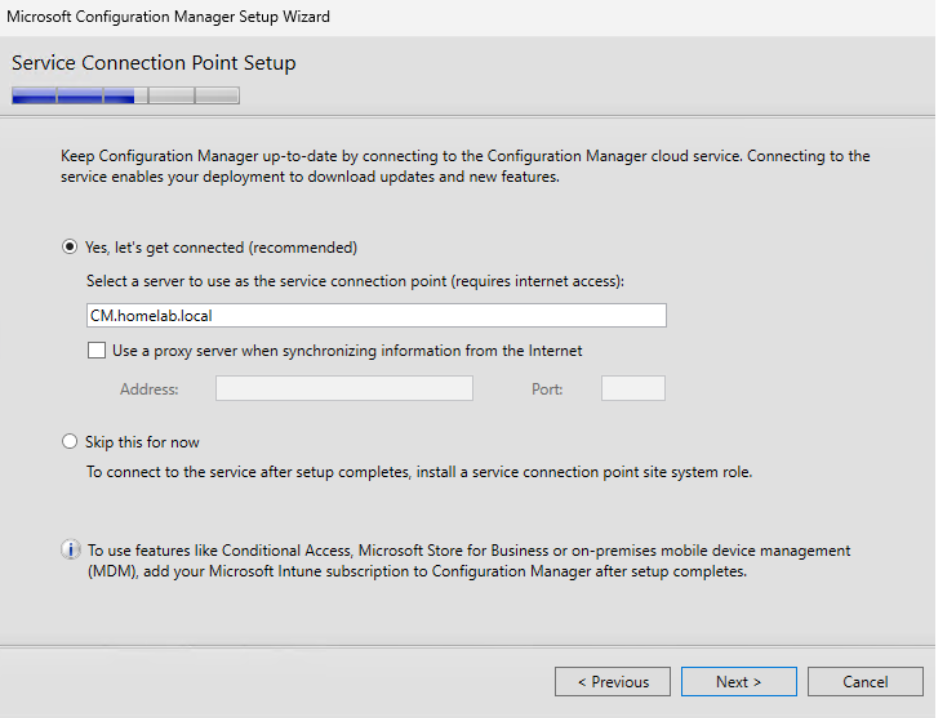
Continue to the service connection point setup. Click Next.
You’ll get a summary. Click Next.
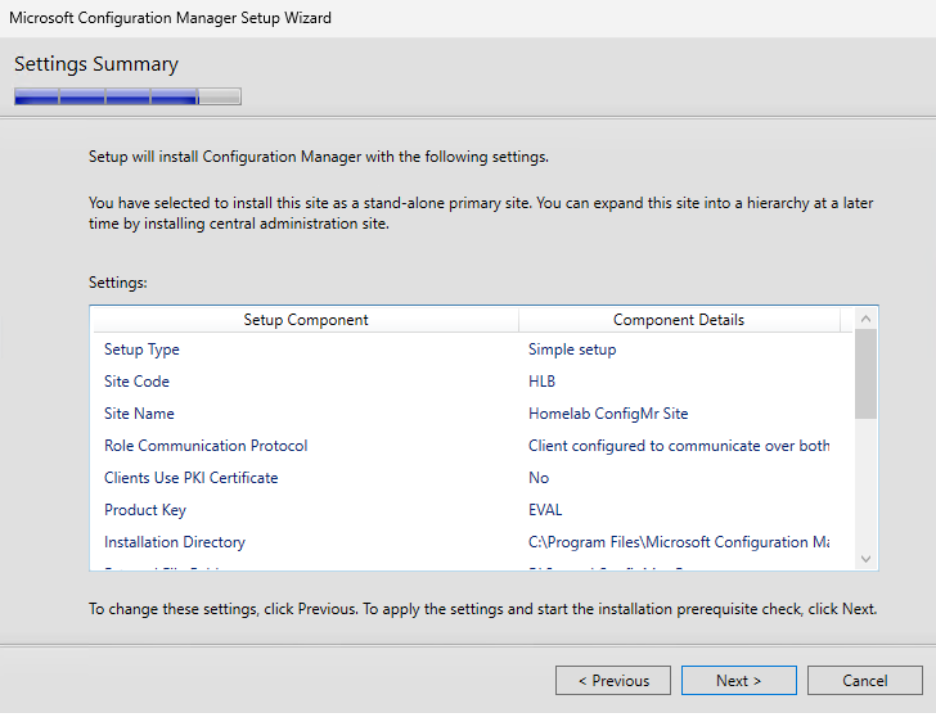
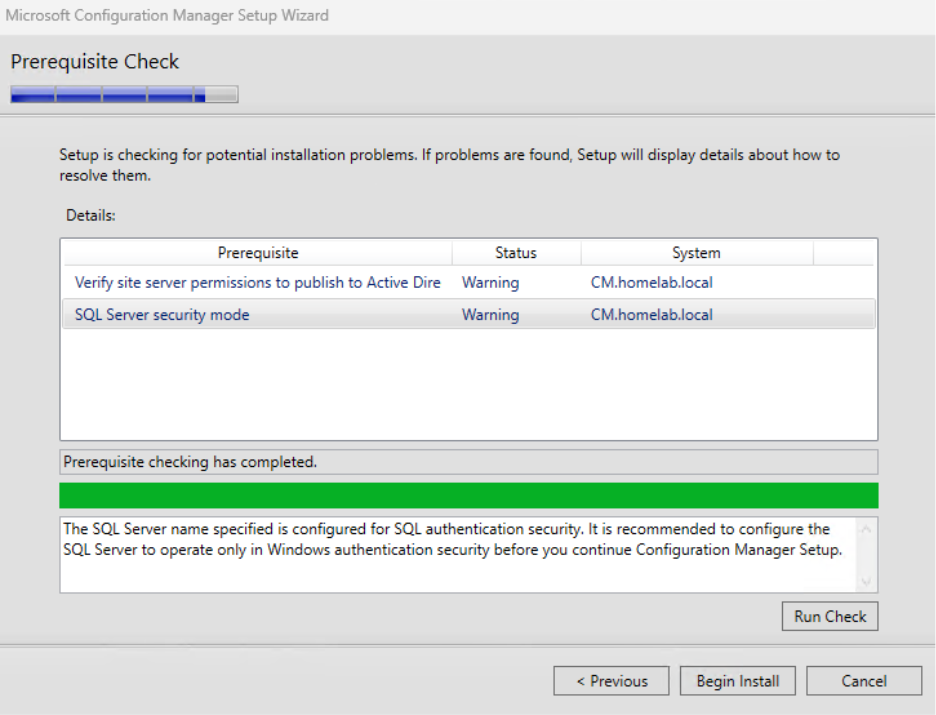
Here’s the prerequisites check. Do you need anything? I had two warnings, both of which I remediated but couldn’t get the warning to go away. YOLO right? Let’s click Begin Install.
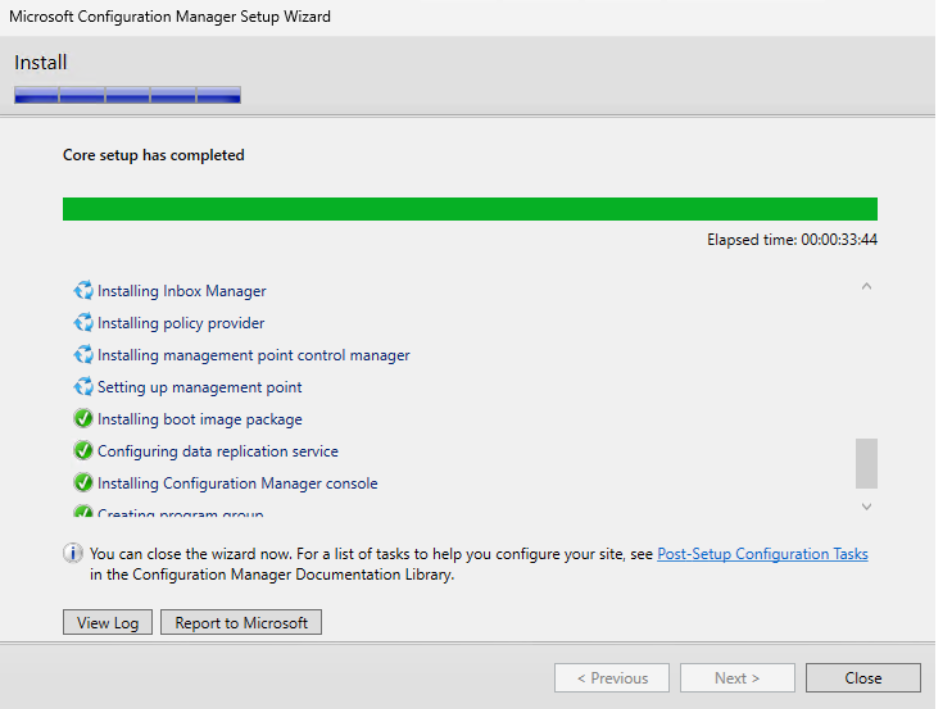
The setup wizard will finish, and even though there may be some items that are still completing, you can click Close.
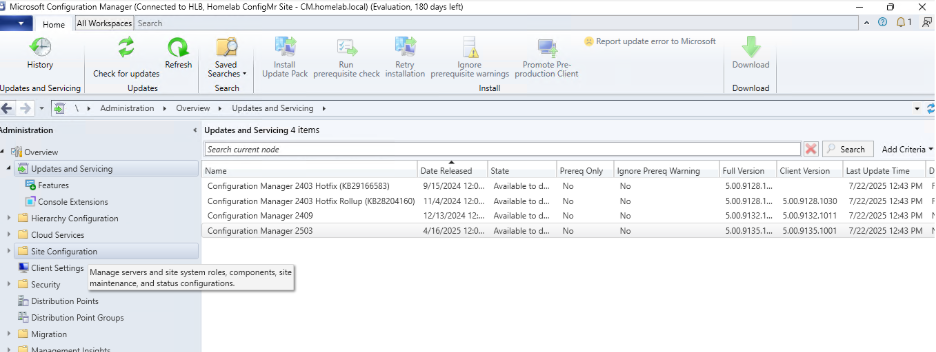
Open the ConfigMgr console, go to Updates and Servicing and update to the most recent version. After that, we can start configuring things for your new CM environment.
Next, let’s configure ConfigMgr so we can start using it.
Next steps
Make your homelab more powerful. Download our free tools to help you automate, troubleshoot, and validate configurations in your test environment.
The Homelab Series
Step 1: Creating a Domain Controller with DNS
Step 2: Adding a Certificate Authority
Step 3: Setting up a Gateway VM to Be Used as a Virtual Router (Optional)
Step 4: Configuration Manager Server Prerequisites
Step 5: Settings for Active Directory and Group Policy
Step 6: Installing SQL For ConfigMgr
Step 8: ConfigMgr Basic Settings
Step 9: Configuration Manager Collections and Application Deployments
Step 10: Installing SQL Server Reporting Services
Step 11: Cloud Management Gateway (CMG) Overview
Step 12: Installing the Recast Management Server and Right Click Tools (Optional Step)
Step 13: Recast Management Server (RMS) Configuration (Optional Step)
Step 13.5: Installing and Using the Right Click Tools Browser Extension
Step 14: Installing Right Click Tools Insights – ConfigMgr Reporting
Step 15: Configuring Right Click Tools Patching
Step 16: Setting up Right Click Tools Privileged Access