




The time has come to talk about Intune. So far, we’ve kept it on prem for everything that we’ve done, but we’ll discuss the cloud.
The question I am asked most often is, how do I learn about Intune when I don’t want to break my production environment, or when our organization doesn’t utilize Intune yet?
Microsoft’s Intune trial option
The good news is that Microsoft has a 30-day trial of Intune to allow you to experiment. All you need to set up a Microsoft account is an email address. Then you can get an idea of how Intune works without breaking anything. You can also get the experience of setting up devices with EntraID and can connect your Recast Management Server to Entra ID. Learn more about the Intune trial.
Configuration
We could do a whole blog series on configuring Intune settings, and maybe someday that will happen. For now though, we’ll talk about how I’ve configured things, and you can decide if you like this approach.
- I have one device (a very low-end Windows 11 laptop that I bought for $100) that is an EntraID and Intune-only machine. I really don’t use it for much except to play with configurations and test application installation. I do have it connected to the Recast Management Server with an Entra App Proxy.
- The rest of my devices are hybrid-joined to EntraID as well as AD. So all of them are showing up in my EntraID portal as well as the ConfigMgr console.
- I have connected the Recast Management Server to Intune, primarily to test the deployment of applications. However, I can retrieve Bitlocker keys as well. Learn more about setting up service connections for Intune.
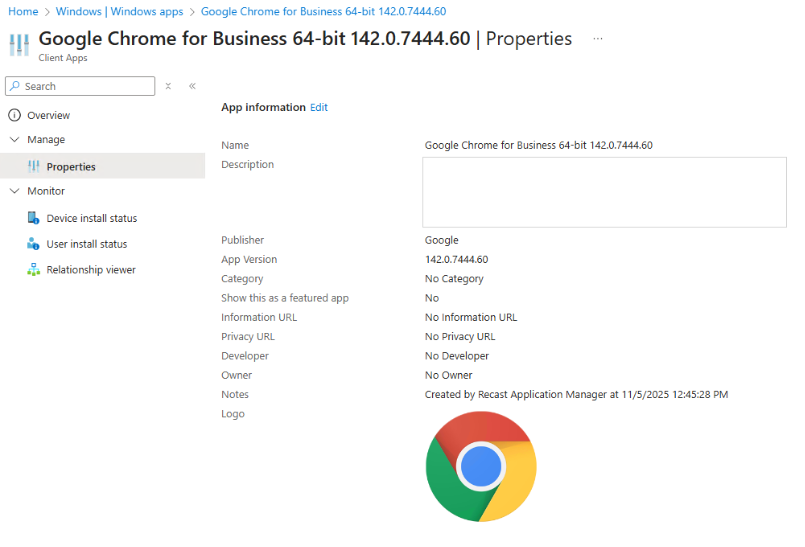
We will talk about setting up cloud attach in the next blog post.
Next steps
Make your homelab more powerful. Download our free tools to help you automate, troubleshoot, and validate configurations in your test environment.
The Homelab Series
Step 1: Creating a Domain Controller with DNS
Step 2: Adding a Certificate Authority
Step 3: Setting up a Gateway VM to Be Used as a Virtual Router (Optional)
Step 4: Configuration Manager Server Prerequisites
Step 5: Settings for Active Directory and Group Policy
Step 6: Installing SQL For ConfigMgr
Step 8: ConfigMgr Basic Settings
Step 9: Configuration Manager Collections and Application Deployments
Step 10: Installing SQL Server Reporting Services
Step 11: Cloud Management Gateway (CMG) Overview
Step 12: Installing the Recast Management Server and Right Click Tools (Optional Step)
Step 13: Recast Management Server (RMS) Configuration (Optional Step)
Step 13.5: Installing and Using the Right Click Tools Browser Extension
Step 14: Installing Right Click Tools Insights – ConfigMgr Reporting
Step 15: Configuring Right Click Tools Patching
Step 16: Setting up Right Click Tools Privileged Access