




A couple steps back, after we installed Right Click Tools, the final message let us know that we could also install the Right Click Tools Browser Extension. The time has come to make that happen. Here’s the message from the installer if you’ve forgotten.
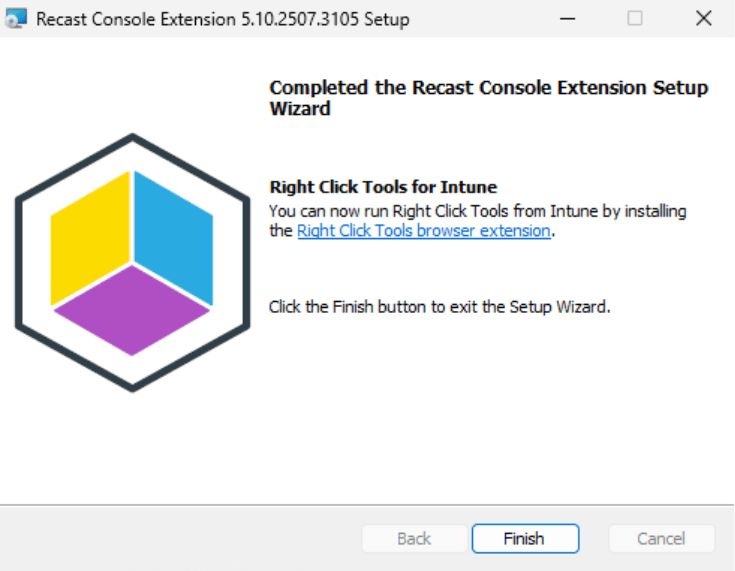
Now that you have installed your Recast Management Server (RMS) and Right Click Tools, it’s simple to install the browser extension.
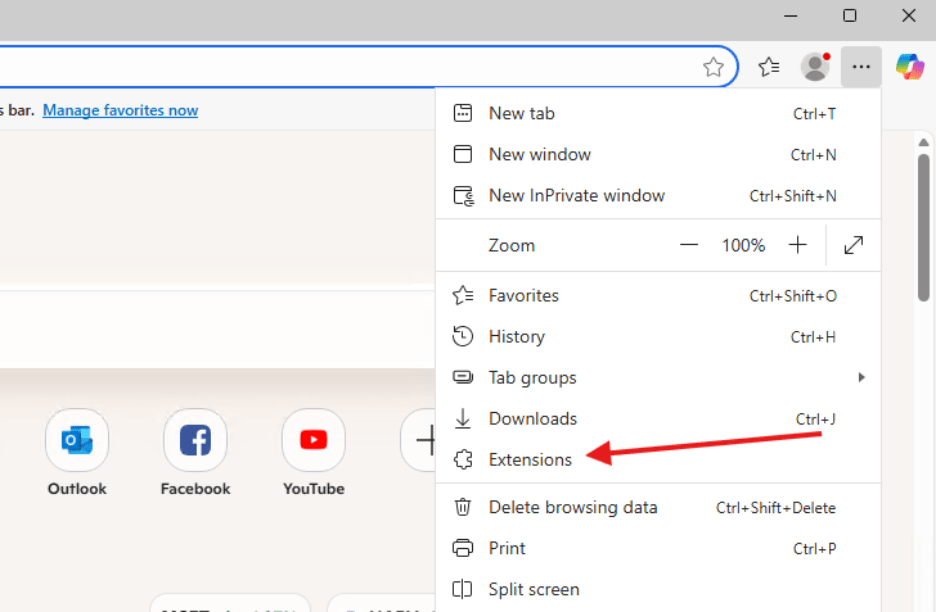
- Head over to a computer that has installed Right Click Tools. In my previous examples it was on the ConfigMgr Server: CM. On that computer open Edge or Chrome, and then open the Extension Manager.
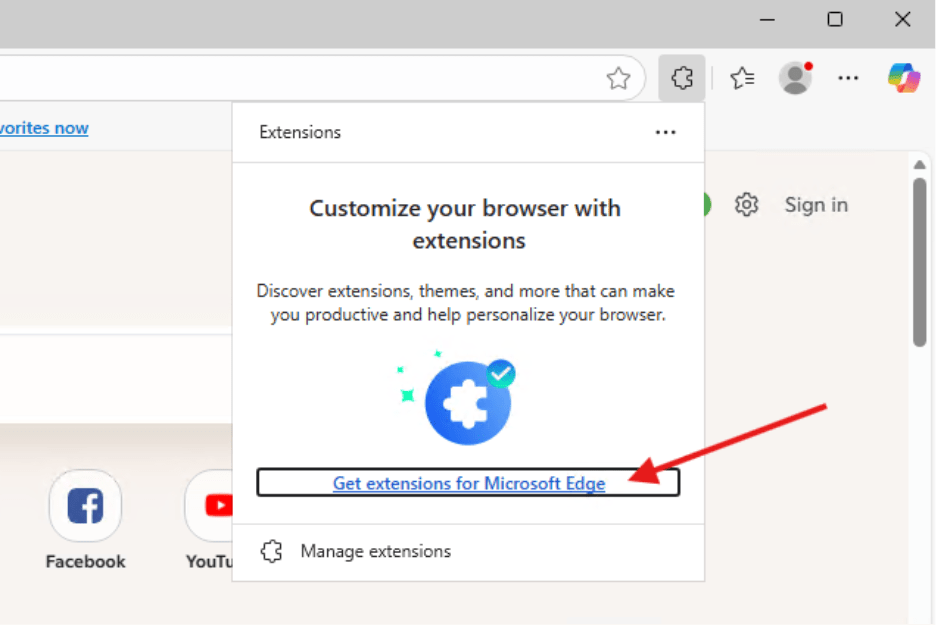
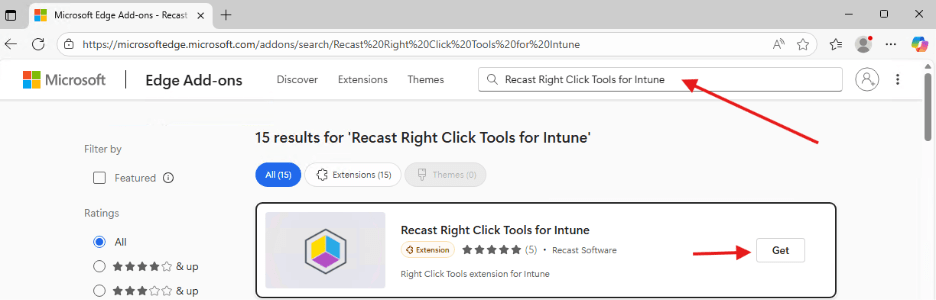
- Click Get Extensions for Microsoft Edge in the window that opens, search for Recast Right Click Tools for Intune, and click Get.
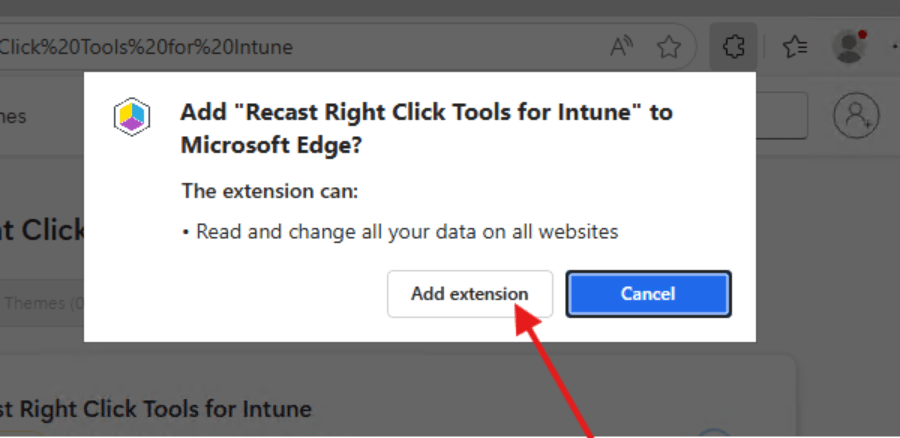
- Click Add Extension to add the extension to Edge.
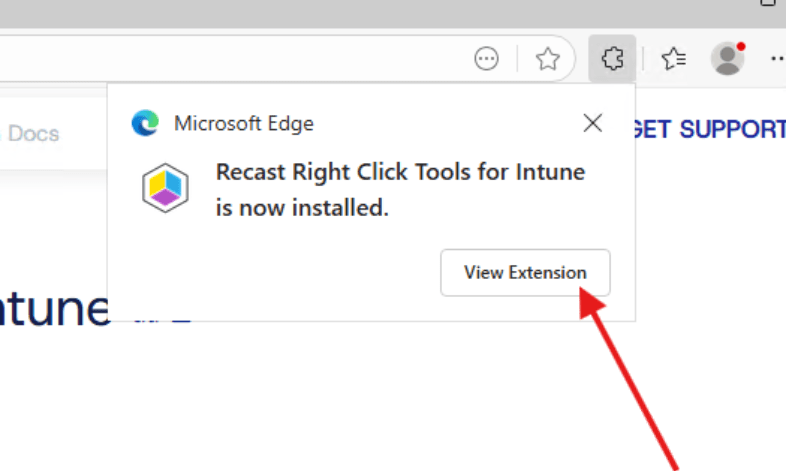
- After installation, click View Extension.
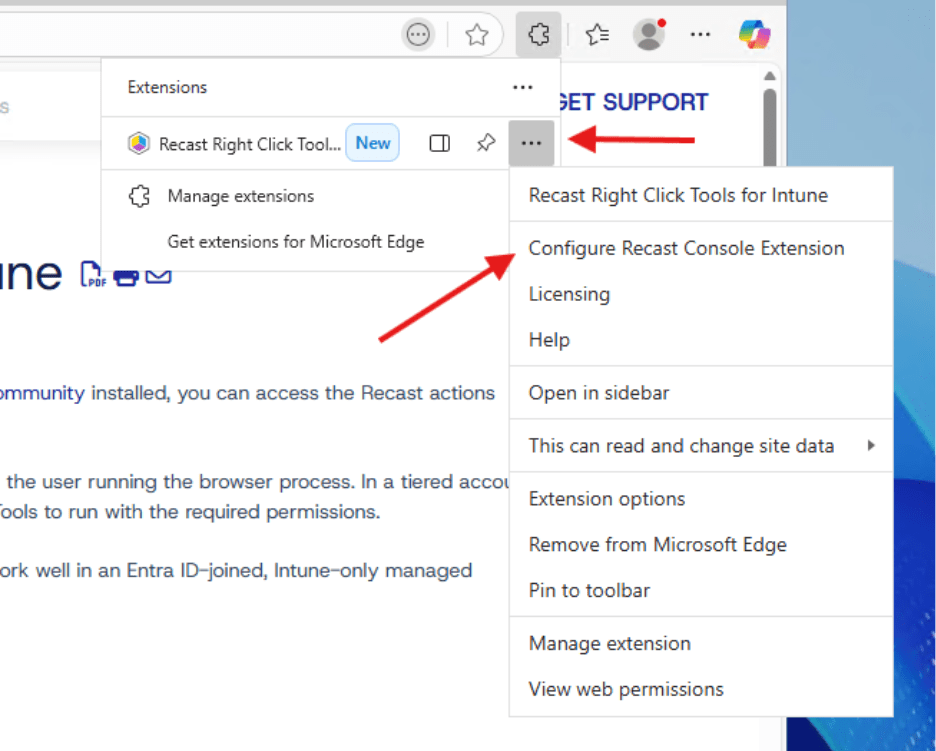
- The extension will load. Click the three dots and then Configure Recast Console Extension.
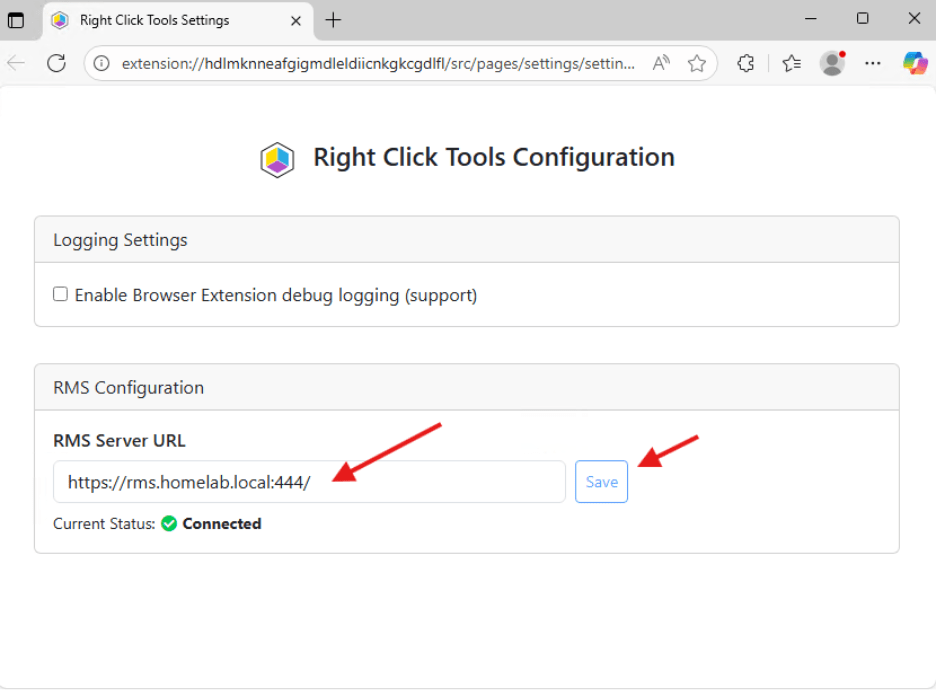
- In the Right Click Tools Configuration window, add your RMS server URL. In our environment the RMS Server is https://rms.homelab.local:444. After entering the URL click Save. The extension will require you to log into the RMS. After entering your login information you will see that it shows as Connected.
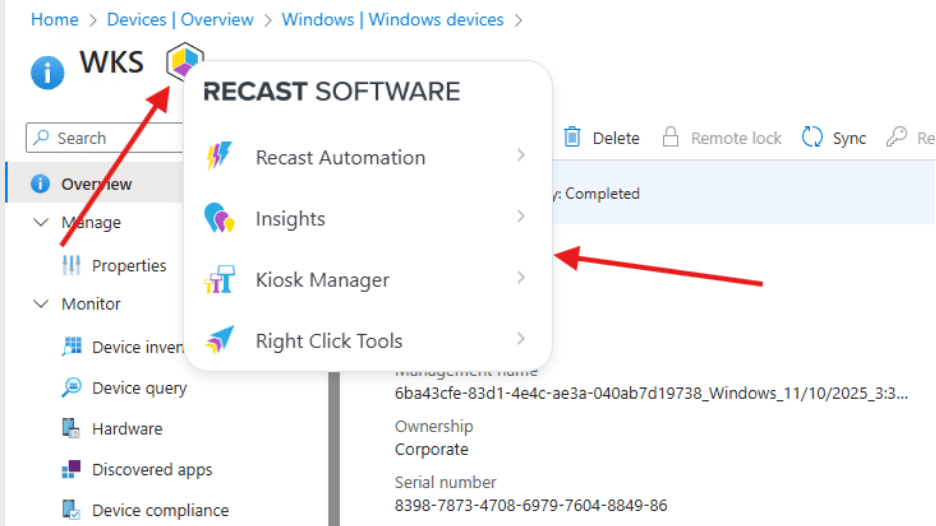
- Now if you navigate to the Intune Admin Center you will see a Recast logo that you can click to run Right Click Tools actions. Actions will open Right Click Tools, and because you are connected to the Recast Management Server, they will be routed the way you have your routes set up in the RMS.
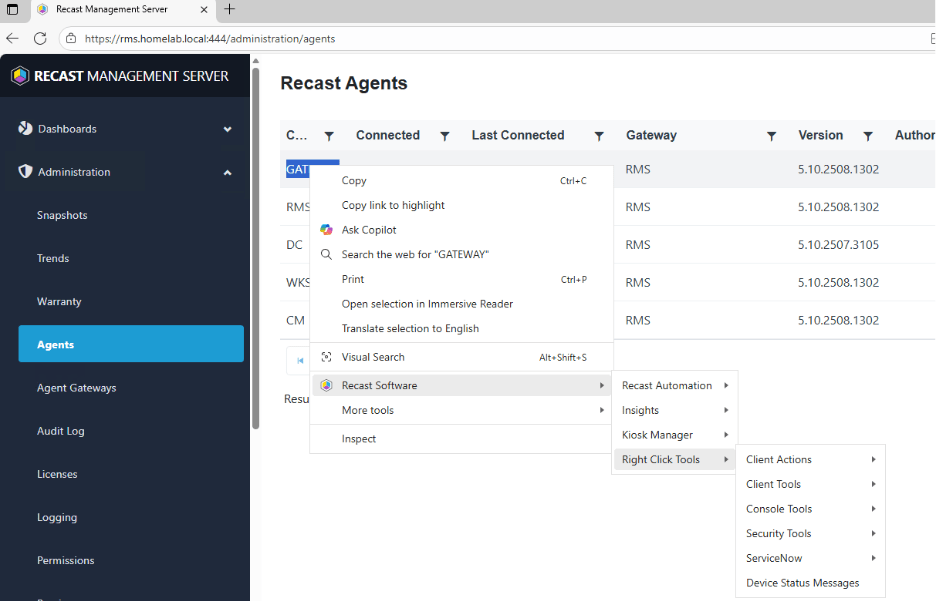
- You can also use the Browser Extension by selecting any device name and right clicking on it. Recast Software will be an option in the contextual menu, and you can run an action by selecting it in the drop-down windows.
- You can also run actions against multiple devices in Intune. I only have one device added into my Intune environment, but you can learn more about running multi-device actions in this post.
Now that we’ve configured and used the browser extension, let’s look at installing Right Click Tools Insights.
Next steps
Make your homelab more powerful. Download our free tools to help you automate, troubleshoot, and validate configurations in your test environment.
The Homelab Series
Step 1: Creating a Domain Controller with DNS
Step 2: Adding a Certificate Authority
Step 3: Setting up a Gateway VM to Be Used as a Virtual Router (Optional)
Step 4: Configuration Manager Server Prerequisites
Step 5: Settings for Active Directory and Group Policy
Step 6: Installing SQL For ConfigMgr
Step 8: ConfigMgr Basic Settings
Step 9: Configuration Manager Collections and Application Deployments
Step 10: Installing SQL Server Reporting Services
Step 11: Cloud Management Gateway (CMG) Overview
Step 12: Installing the Recast Management Server and Right Click Tools (Optional Step)
Step 13: Recast Management Server (RMS) Configuration (Optional Step)
Step 13.5: Installing and Using the Right Click Tools Browser Extension
Step 14: Installing Right Click Tools Insights – ConfigMgr Reporting
Step 15: Configuring Right Click Tools Patching
Step 16: Setting up Right Click Tools Privileged Access