




If you have ConfigMgr and Intune, you can set up Cloud Attach in your environment. This enables you to shift some of the workloads in ConfigMgr to be managed in Intune. It’s a great way to use both ConfigMgr and Intune in your environment while keeping some capabilities active on the ConfigMgr side, such as reporting.
Here’s how to set up cloud attach.
There is a prerequisite for this whole scenario: You must have the devices be hybrid joined into EntraID. Learn how to do this.
- Make sure you have a collection that you can use to test Intune policies. Make sure that the device(s) is in the Co-Management Eligible Devices collection in ConfigMgr.
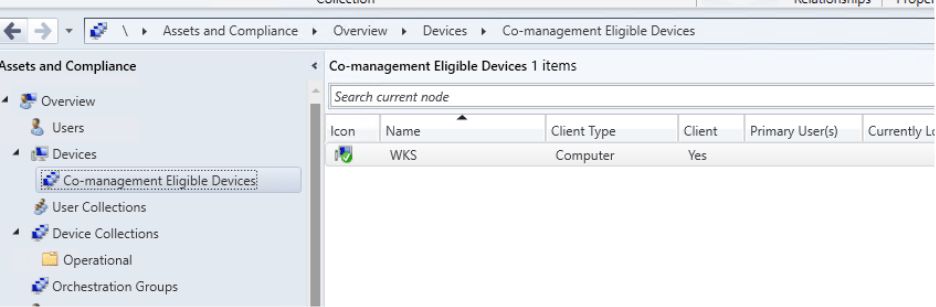
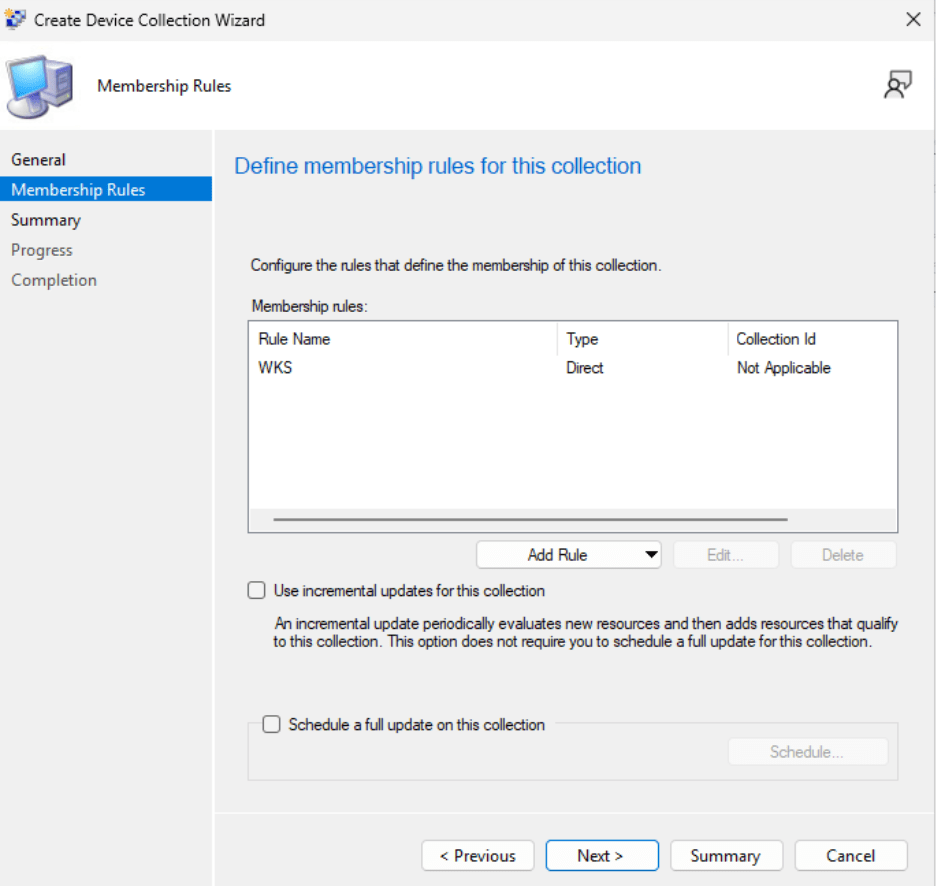
- I created a collection called Pilot Cloud Attach and made sure that the WKS device was added.
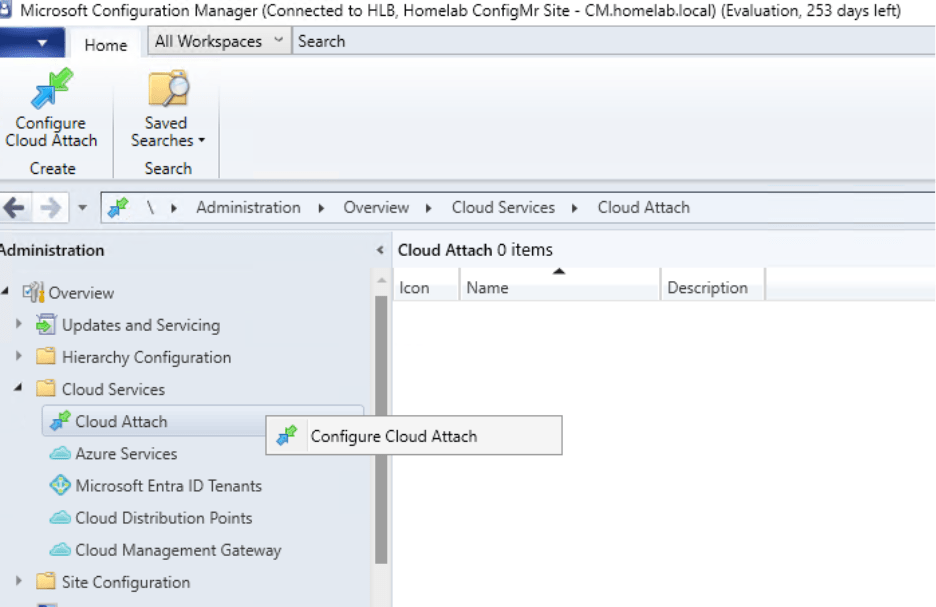
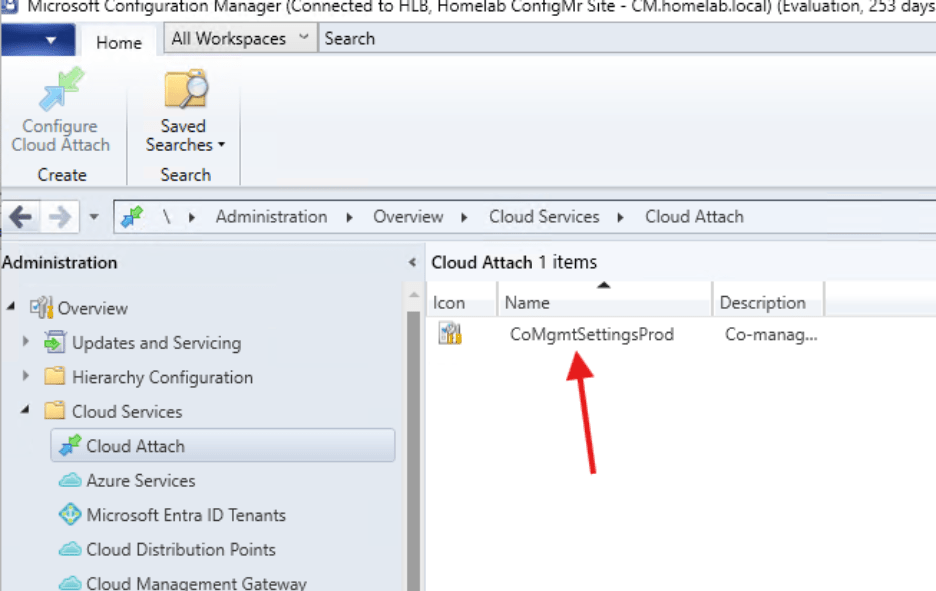
- Go to Administration > Cloud Services > Cloud Attach. Then right click and select Configure Cloud Attach.
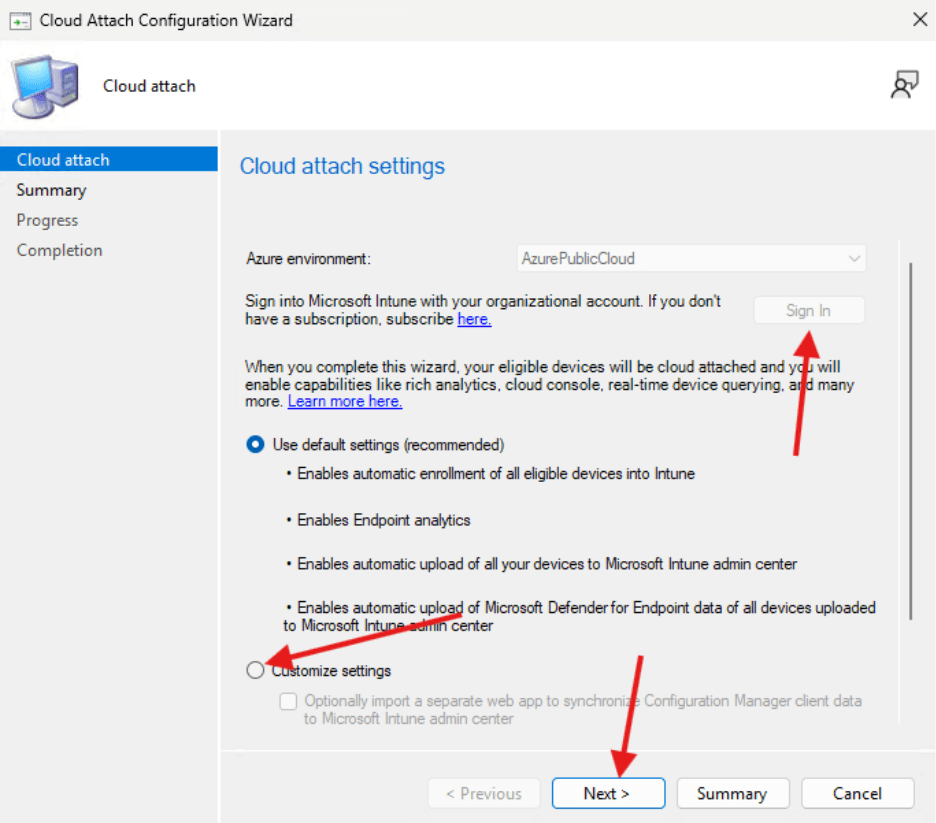
- In the window that opens, click Sign In to sign into your tenant, then click Next to continue. Go ahead and click on Customize Settings as well so you can select a collection to test with.
- You will receive a message telling you that an application will be created in your tenant to connect the devices to Intune. Click Next.
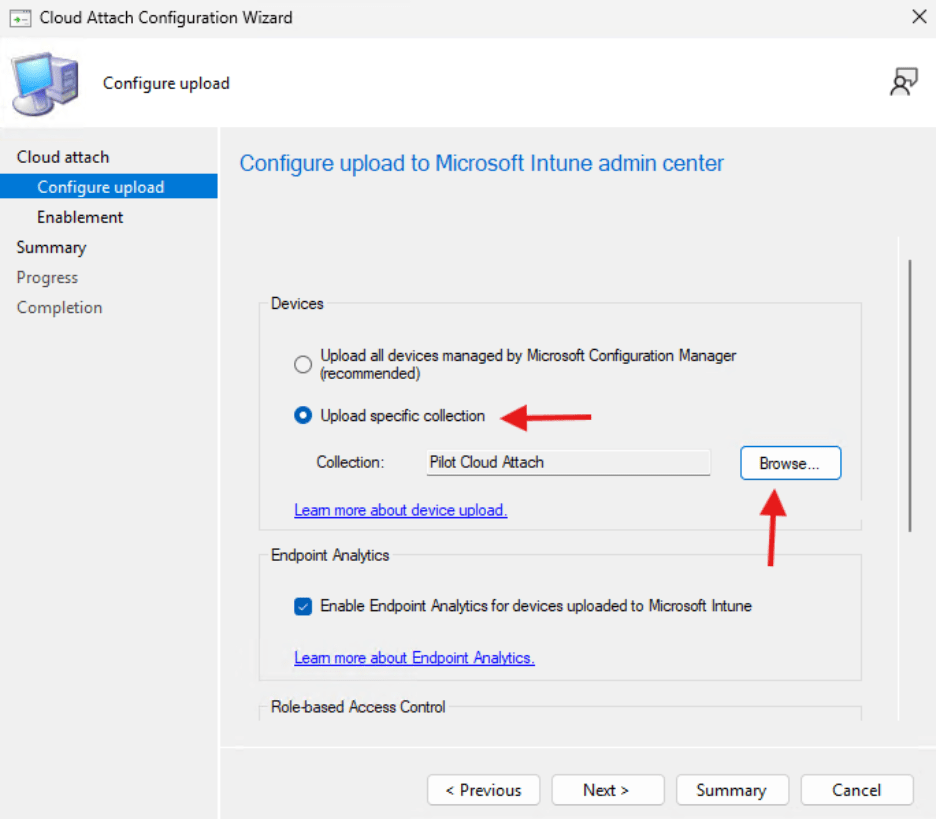
- In the next window select Upload Specific Collection and then select the collection you created earlier.
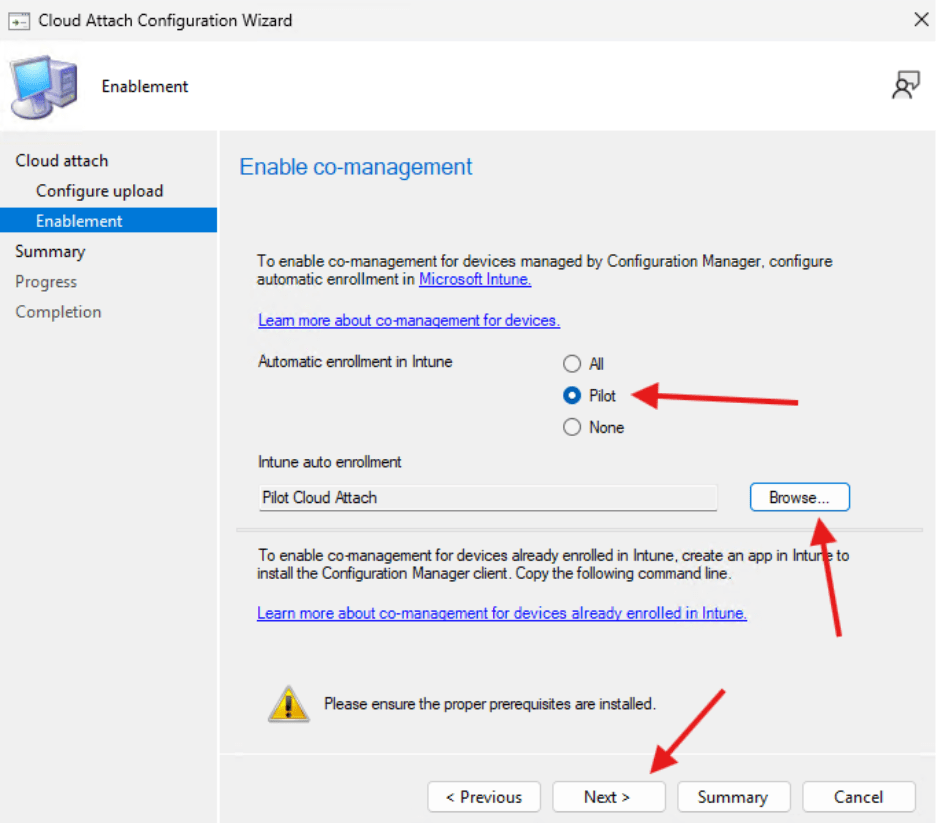
- In the next window, select Pilot for Automatic Enrollment in Intune and add the collection from earlier.
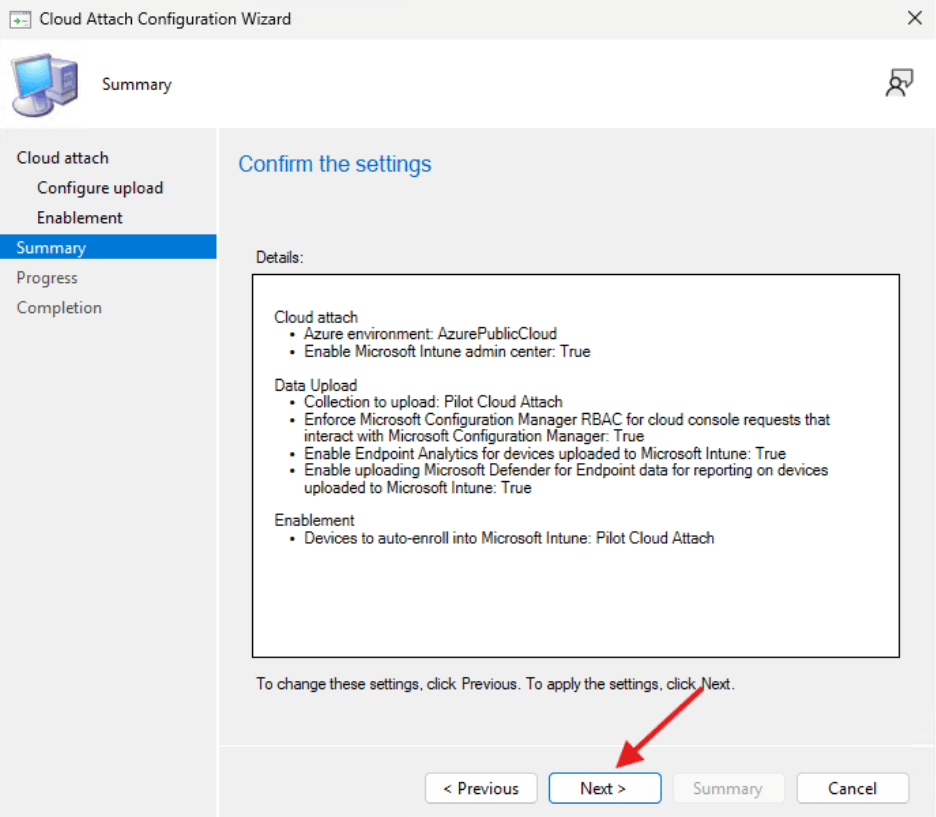
- Click Next to get to the summary and confirm the settings. Then click Next.
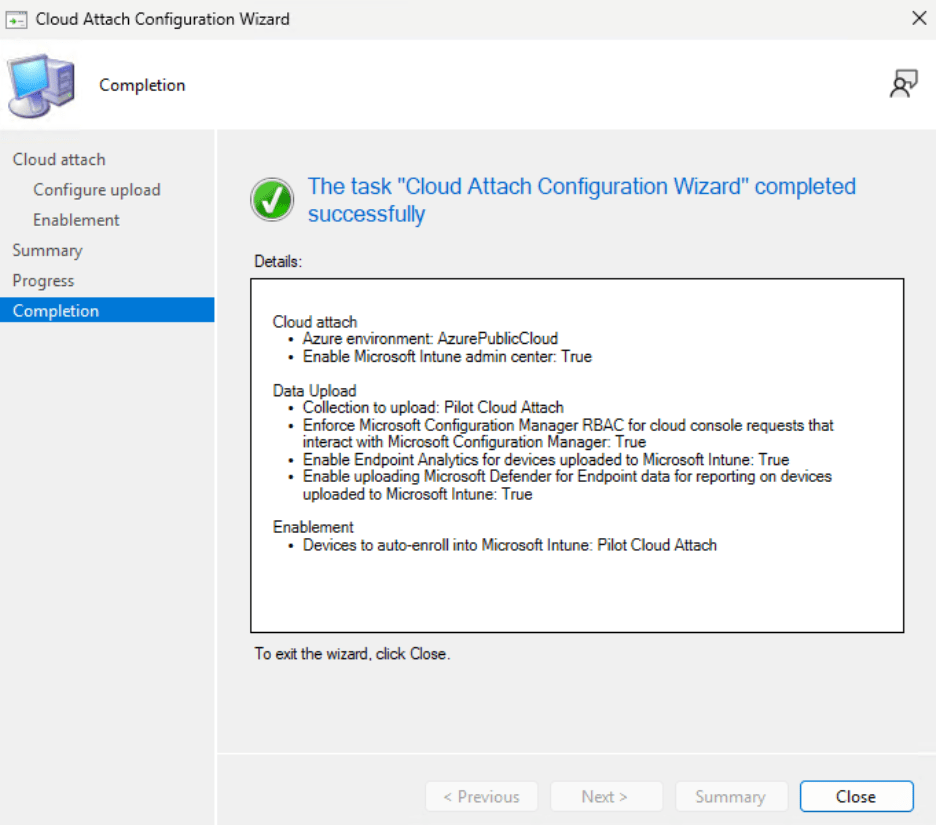
- The Wizard will complete successfully.
- In the window behind, you will now see the CoMgmtSettingsProd in the Cloud Attach section.
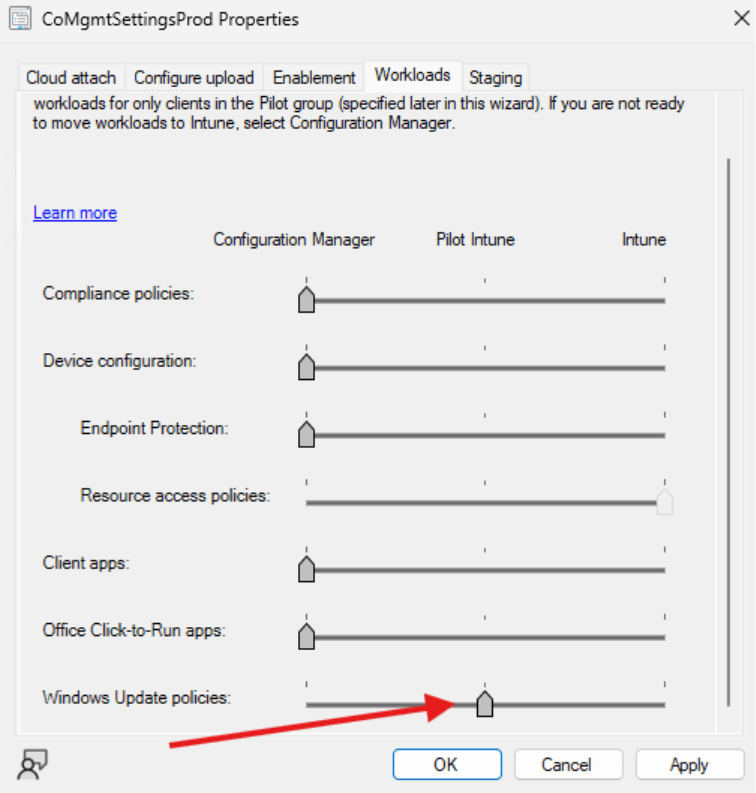
- Right click on it and the Properties window will show up. Navigate to workloads and you can move the sliders to determine if you want the workload to be done in ConfigMgr, your Pilot Intune group, or Intune. I’m going to move the Windows Update policies to Pilot Intune.
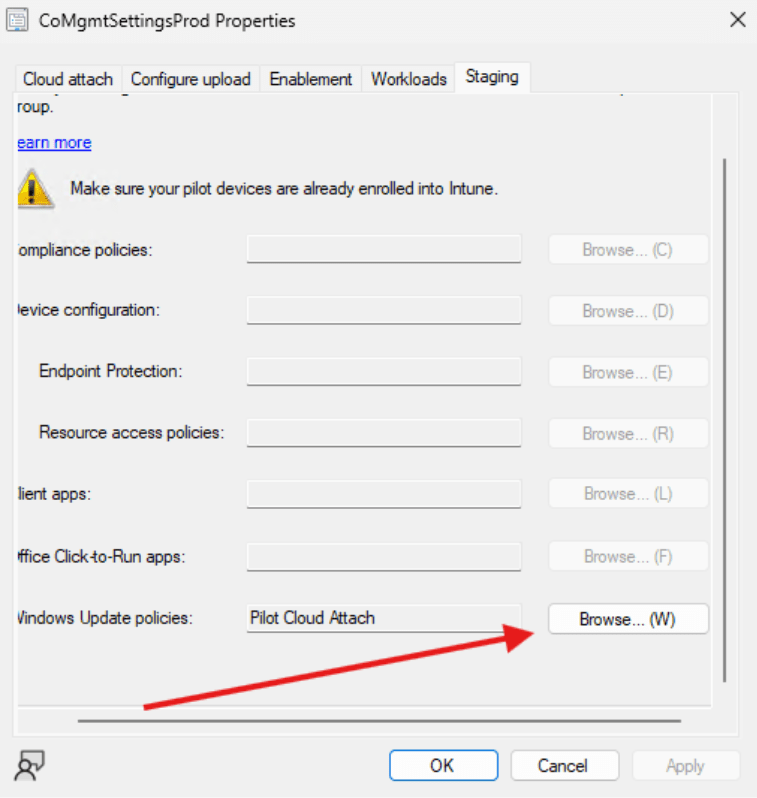
- Then click to Staging and add the collection to the Windows Update policies section to ensure that only the collection will get the policies.
- It may take some time for enrollment to be successful on the workstation computer. You can verify it’s been added to Intune by looking in the Intune Admin Center.
- Note: In my test environment, I can see in the logs on the endpoint that it is attempting to enroll into Co-Management. However, because the name of my environment is different than the name of my trial Intune account, I’m getting a Kerberos error. So, I don’t get to enjoy the full fruits of my labor, but this is the way to configure Cloud Attach in any environment you are working in.
Next steps
Make your homelab more powerful. Download our free tools to help you automate, troubleshoot, and validate configurations in your test environment.
The Homelab Series
Step 1: Creating a Domain Controller with DNS
Step 2: Adding a Certificate Authority
Step 3: Setting up a Gateway VM to Be Used as a Virtual Router (Optional)
Step 4: Configuration Manager Server Prerequisites
Step 5: Settings for Active Directory and Group Policy
Step 6: Installing SQL For ConfigMgr
Step 8: ConfigMgr Basic Settings
Step 9: Configuration Manager Collections and Application Deployments
Step 10: Installing SQL Server Reporting Services
Step 11: Cloud Management Gateway (CMG) Overview
Step 12: Installing the Recast Management Server and Right Click Tools (Optional Step)
Step 13: Recast Management Server (RMS) Configuration (Optional Step)
Step 13.5: Installing and Using the Right Click Tools Browser Extension
Step 14: Installing Right Click Tools Insights – ConfigMgr Reporting
Step 15: Configuring Right Click Tools Patching
Step 16: Setting up Right Click Tools Privileged Access
Step 17: Updating Recast Products in Your Environment