




If you installed SQL Server Reporting Services and have a license for Recast Right Click Tools Insights (formerly Endpoint Insights), you can install SQL Reports on the ConfigMgr server.
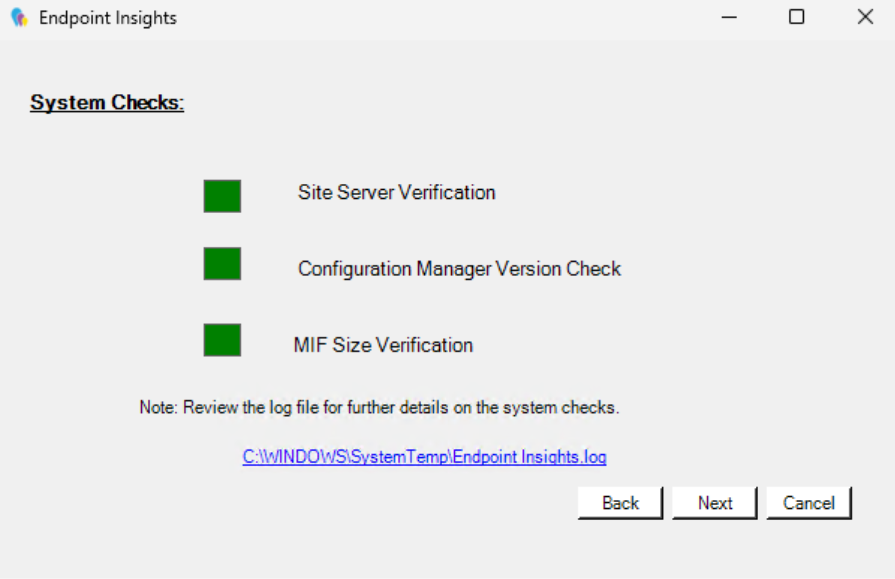
First, there’s something we need to do to extend the MIF size in our environment using these instructions. The TLDR for that is the following:
- On the CM site, open Regedit
- Navigate to HKLM\Software\Microsoft\SMS\Components\SMS_INVENTORY_DATA_LOADER
- Double click on the Max MIF Size and change the hex value to 3200000. Then restart the SMSEXEC service.
Copy the installer to the ConfigMgr server and double click to start the installation.
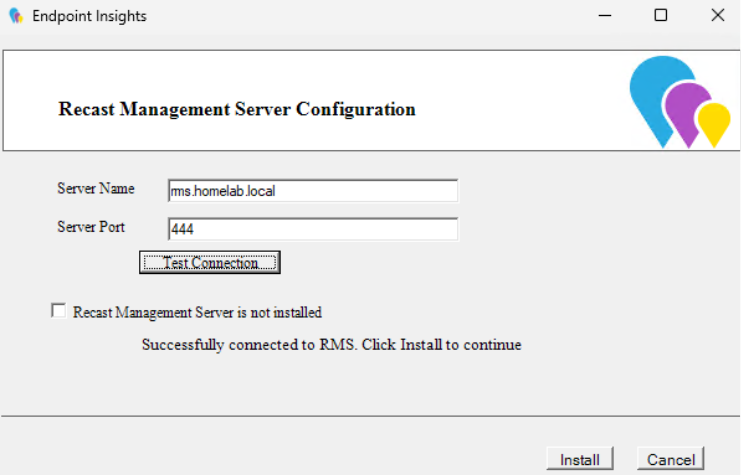
- The first window where you need to enter information is to connect Right Click Tools Insights (shown in these screenshots as Endpoint Insights) to the RMS. Enter the address of the Recast Management Server and click Test Connection.
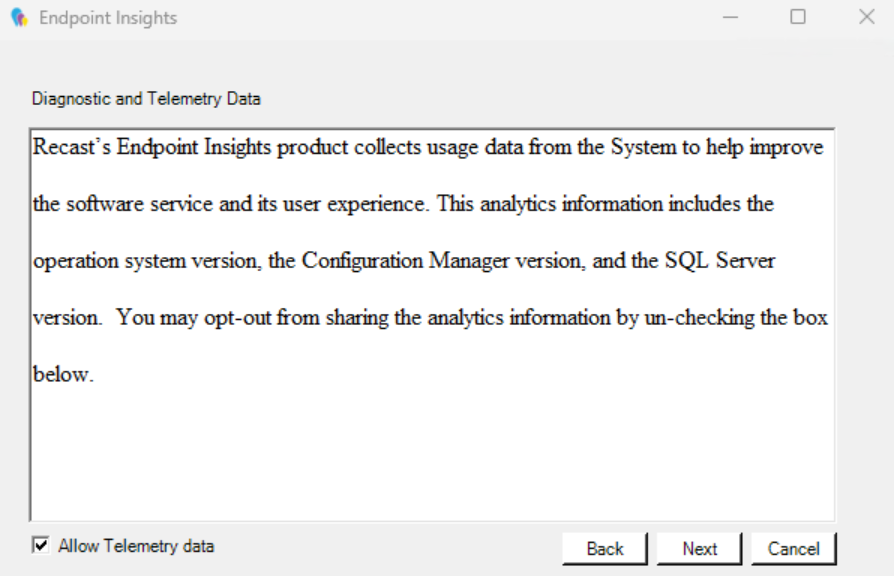
- You can decide if you would like to allow telemetry data to be sent to Recast. Then click Next.
- The installer makes sure everything is configured correctly. Here’s why we changed the MIF size.
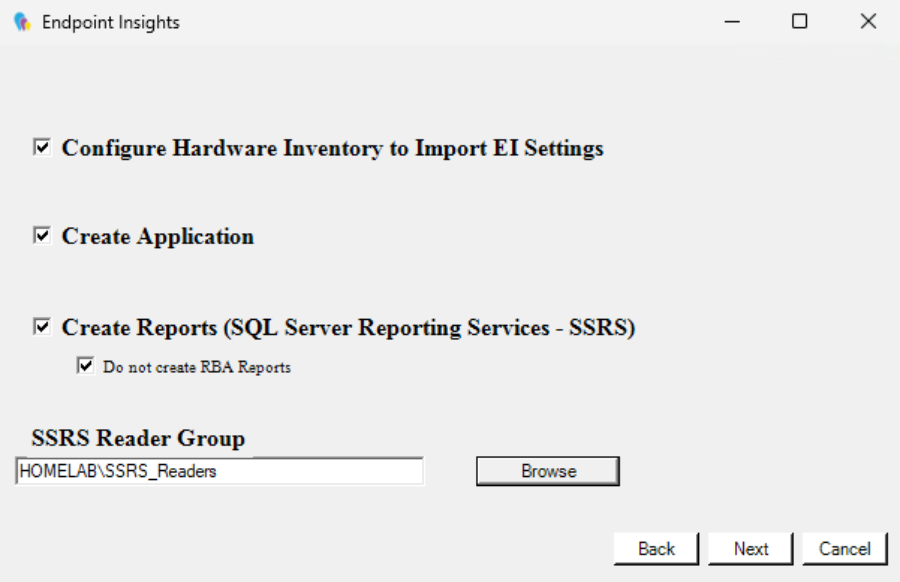
- Add your SSRS Reader Group and click Next.
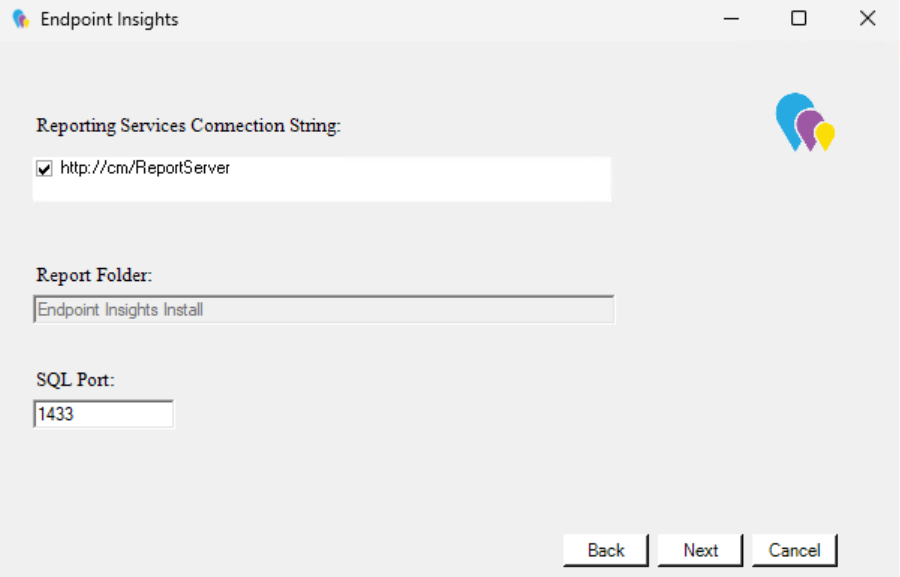
- You will see information about the Reporting Services Connection String, the Report Folder and the SQL port. In our environment, all should be automatically correct.
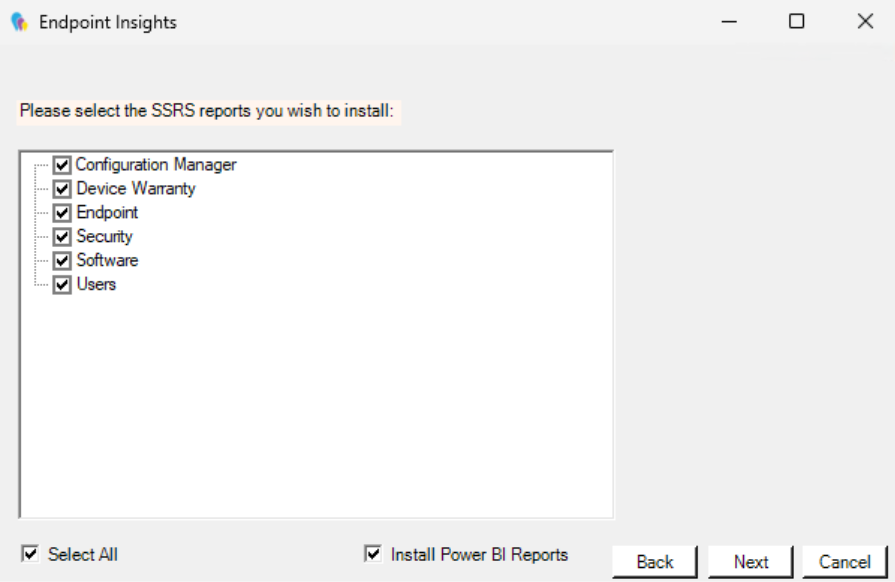
- You can select the reports you wish to install. I would recommend installing all of them. You can also choose to install PowerBI reports.
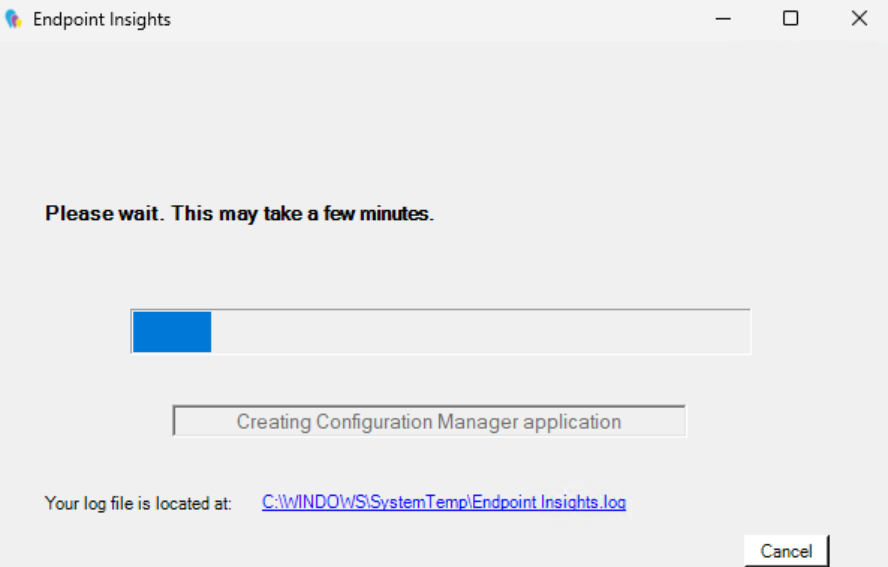
- Installation will continue.
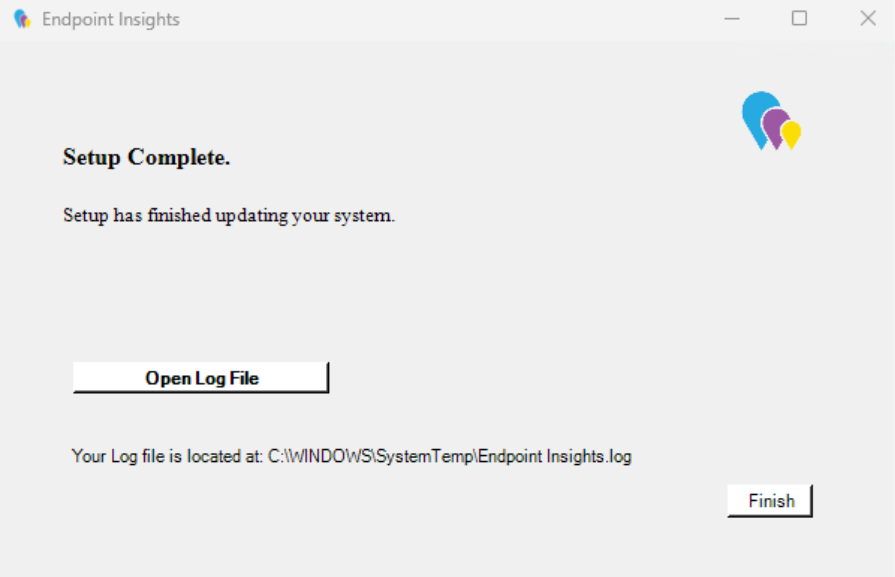
- Setup will complete.
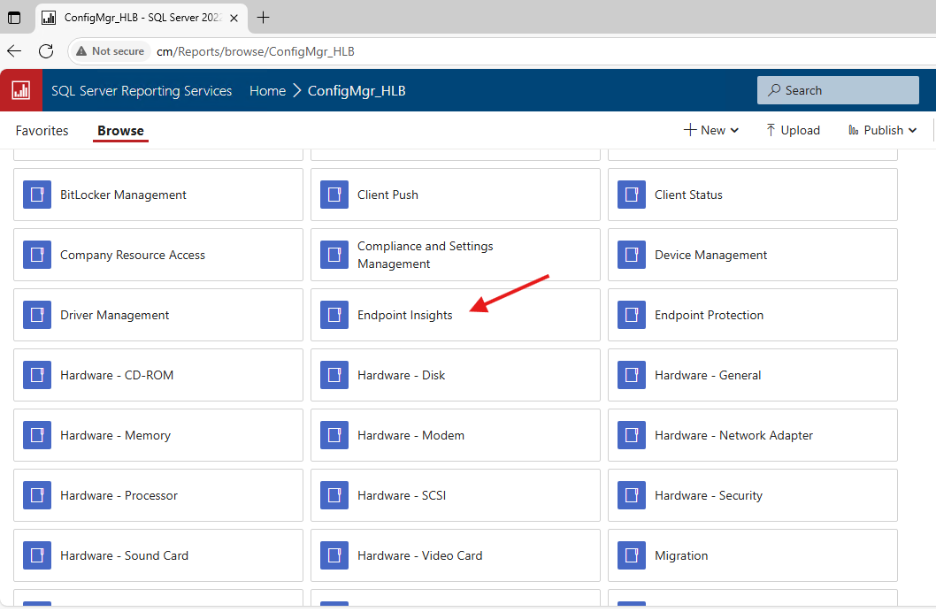
- Once setup is complete, you can go to your report server and make sure you see the Endpoint Insights folder. If you click on the folder, you should see the Insights Reports.
- It’s recommended that you install the Recast Agent on your devices to get full inventory information. You can do that manually, or you can install it using Right Click Tools Patching, which we will set up in our next post.
Next steps
Make your homelab more powerful. Download our free tools to help you automate, troubleshoot, and validate configurations in your test environment.
The Homelab Series
Step 1: Creating a Domain Controller with DNS
Step 2: Adding a Certificate Authority
Step 3: Setting up a Gateway VM to Be Used as a Virtual Router (Optional)
Step 4: Configuration Manager Server Prerequisites
Step 5: Settings for Active Directory and Group Policy
Step 6: Installing SQL For ConfigMgr
Step 8: ConfigMgr Basic Settings
Step 9: Configuration Manager Collections and Application Deployments
Step 10: Installing SQL Server Reporting Services
Step 11: Cloud Management Gateway (CMG) Overview
Step 12: Installing the Recast Management Server and Right Click Tools (Optional Step)
Step 13: Recast Management Server (RMS) Configuration (Optional Step)
Step 13.5: Installing and Using the Right Click Tools Browser Extension
Step 14: Installing Right Click Tools Insights – ConfigMgr Reporting
Step 15: Configuring Right Click Tools Patching
Step 16: Setting up Right Click Tools Privileged Access