

Right Click Tools
Enhance security, compliance, and efficiency across enterprise environments
Right Click Tools Patching
Right Click Tools Insights
Right Click Tools Privileged Access
Free Tool Download
Pricing

Application Workspace
The game-changing, end-to-end application management platform
Request a Demo
Pricing
Use Case
Back in 2014, I published a blog post called, How to Avoid Receiving Inventory Re-Sync Requests for Snapshot VMs. What I loved about that post was how task scheduler was used to schedule ConfigMgr inventory thereby avoiding ConfigMgr re-sync errors. What I disliked about that 2014 blog post was how each TriggerSchedule task needed to be created by hand. Moving forward to 2020, I turned to PowerShell in order to solve this problem and automated the process.
This is the third of a mini series of small (but important) tips to help you when troubleshooting your Task Sequences. Tip 3 is: Variables Gather and Capture
This is the second of a mini series of small (but important) tips to help you when troubleshooting your Task Sequences. Tip 2 is: Task Sequence Pause
This is the first of a mini series of small (but important) tips to help you when troubleshooting your Task Sequences. Each day we'll post something simple and easy to start using right now. Tip 1 is: Use the Description Field as a way to version your Task Sequence.
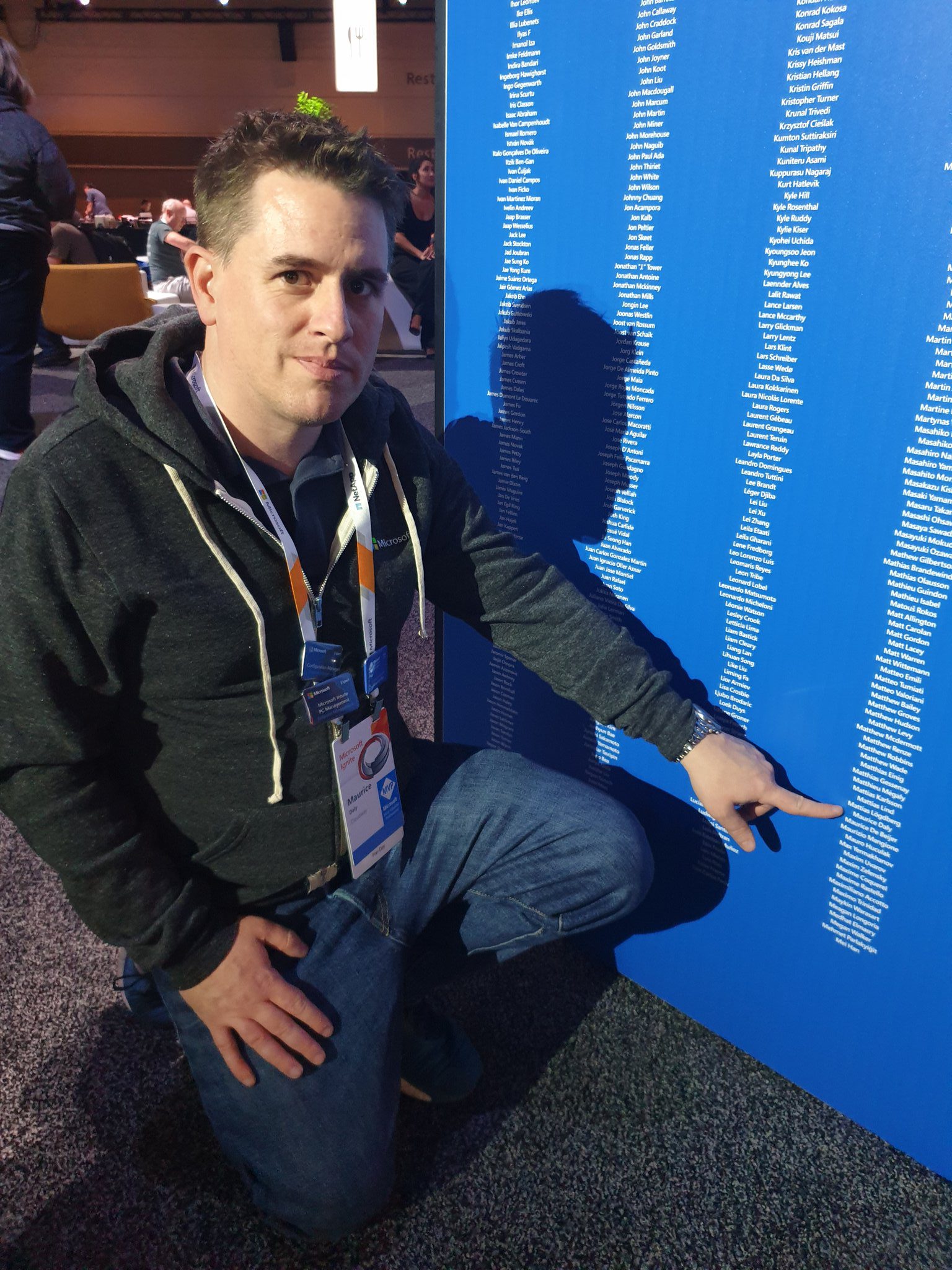
In this second installment of our ConfigMgr community highlights, I had the opportunity to have the MVP Maurice Daly (@modaly_it) participate. I've known Maurice for many years now, as one of my projects at my former company was starting to cross paths with a project Maurice was just releasing initial versions.
In this Highlight series, we'll be covering stories from community influencers who have created tools or process that have greatly impacted the community.
In this post I'm going to cover how we are using a ConfigMgr Baseline to control the user experience. I'm not suggesting everyone do it this way, but for us, we wanted to provide a good user experience, even to those on slow links, and make it look pretty while still looking legit, and native.
In this post I'm going to cover how we're doing our Self Service Deployments for the Microsoft 365 Apps. We're controlling it via Active Directory Group Membership.
We have setup 2 methods for channeling the Office Channel on devices. One that allows self-service via an application in the software center, and one that is forced via a baseline set on a collection.
Hey Team, thanks for reading through the Office 365 posts, hopefully at this point you've got a good grasp on the Office Setup Process, the Deployment Methods and the user experience. I happen to know a guy who has setup Office 365 Deployments in a rather large enterprise, and was faced with a few "opportunities".
Hey Team, Gary Blok here, I'm coming back after a few weeks and am now adding Channel Query Collections.
In this post, I'm going to do a simple "How-to" on creating an ADR and deploying it to your devices. I'm not going to go into the depth that those other 2 posts do.. because I'm not a huge fan of reinventing the wheel. I'll have a little overlap, but will keep it simple.
Thanks for making it this far in our Deployment and Maintenance of Office 365 using Microsoft's Endpoint Manager, Configuration Manager (MEMCM / SCCM) series, now that we have our Office application setup, it's time to get it deployed, and look into how we can change the channel [Channel on Docs]. Based on how you deploy it, and a setting in the XML file, you'll see different behavior.
Here at Recast Software, we are always adding new functionality to benefit our users. We were asked if we could have our tools leverage the ConfigMgr fast channel, so after a bit of development time, a few "debates" among our team, and two HR interventions, we've came up with the Recast Agent.
In this post, we're going to go over the magic of PowerShell and creating an XML file on the fly.
In this Deployment and Maintenance of Office 365 using Microsoft's Endpoint Manager, Configuration Manager (MEMCM / SCCM) post, we're going to get familiar with the Office 365 App Creation process that comes built into Configuration Manager.
This post will go over the Deployment and Maintenance of Office 365 using Microsoft's Endpoint Manager, Configuration Manager (MEMCM / SCCM).
In this post, we're going to confirm OSD, and make sure we have what we need for basic OSD. This post will NOT cover the fancy stuff, but just the basics of getting OSD working.
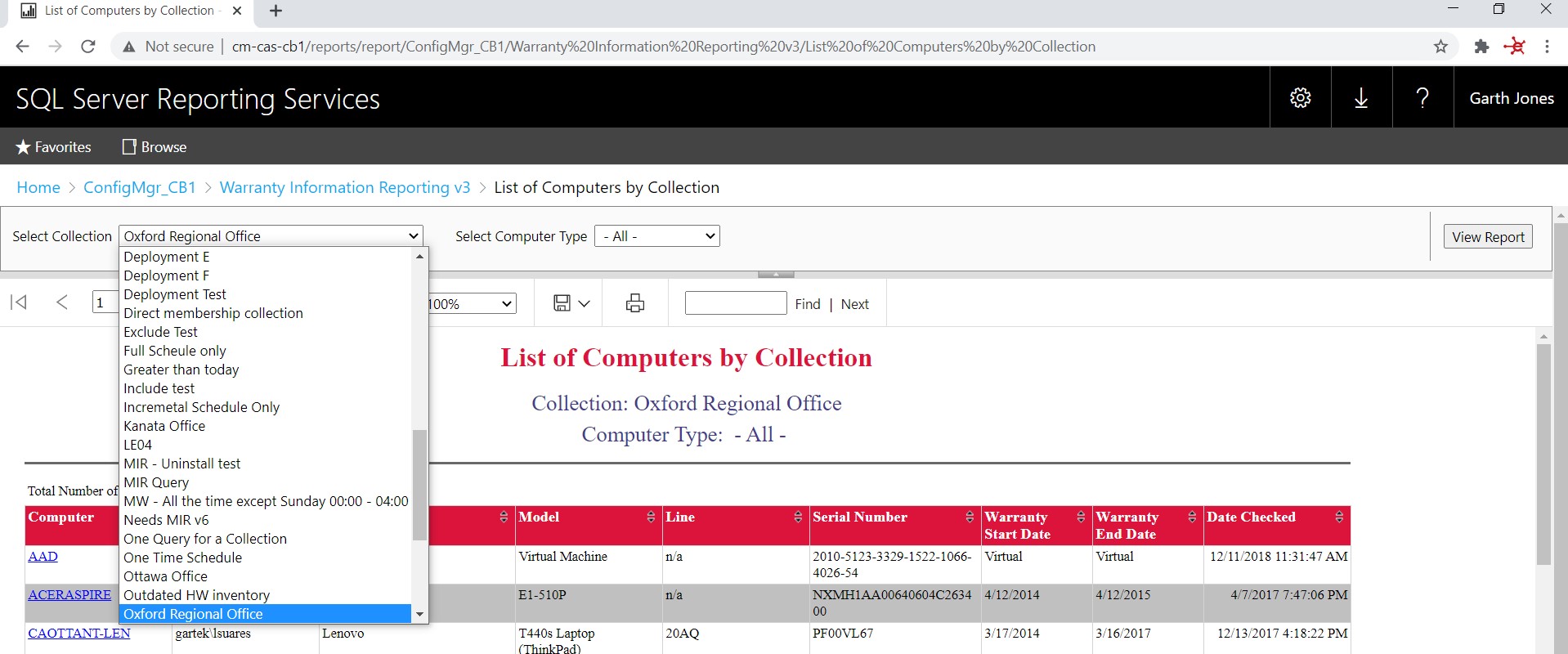
With our Hardware & Firmware Dashboard, built into Microsoft SCCM, you can streamline those processes. You can also make Windows 10 feature updates easier by getting the big picture on hardware and firmware pre-requisites. Finally, view the firmware status and versioning to assist with necessary firmware updates, which are often pre-requisites to Virtualization-based Security components.
In our previous posts, we've setup the pre-reqs and the CMG, now it's time to continue setting up CM to leverage the CMG.
So now we've got everything in place, let's do some CMG tests to confirm it's working.
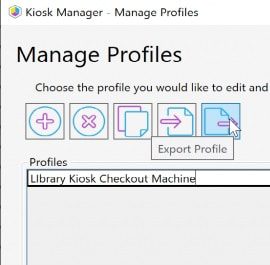
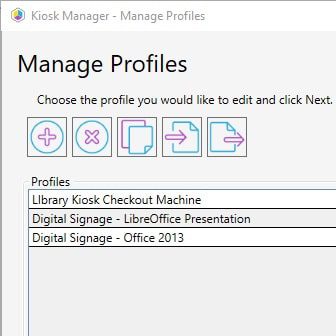
See a walkthrough of how to lock down a machine and set up digital signage players in ConfigMgr, using Right Click Tools' Kiosk Manager.
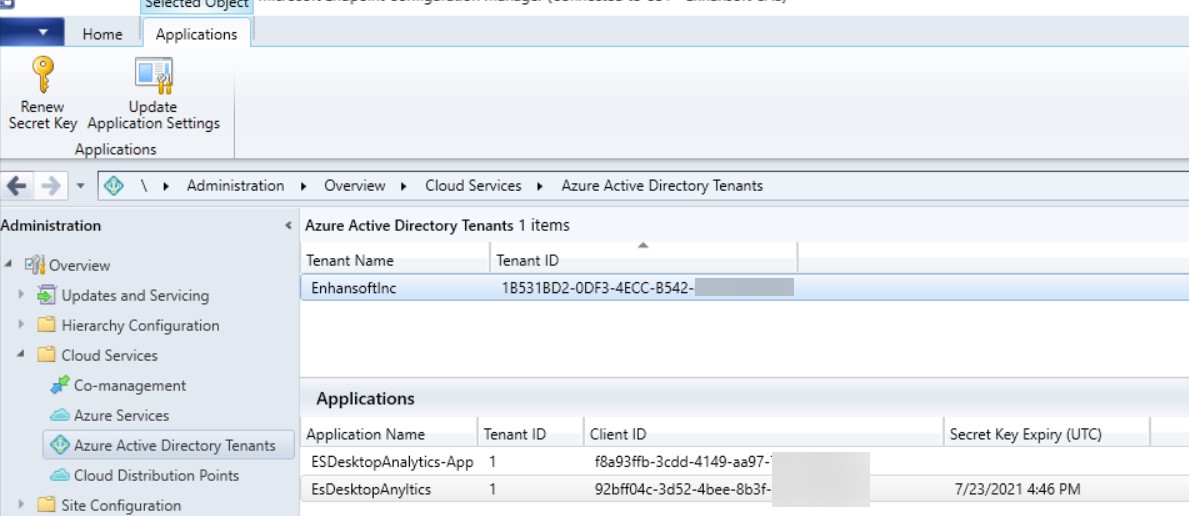
To fully utilize the Right Click Tools, you need to have some settings configured in your environments.
Someone on twitter pointed out that it would be better to use "Installed Software" instead of "Install Application" for the query, while I don't disagree, depending on your reasons, Installed software is not included in Hardware Inventory by default, so unless you went out of your way to enable it (and you should), you could not use it in a query.
This post we'll cover Microsoft's Unified Write Filter (UWF) technology and how Recast's solution will remove some of the pain of implementation of UWF.
Learn how to add additional items into Hardware Inventory. Two examples, one for HP and one for Lenovo help to import additional information into your CM Database which will help with reporting and queries.
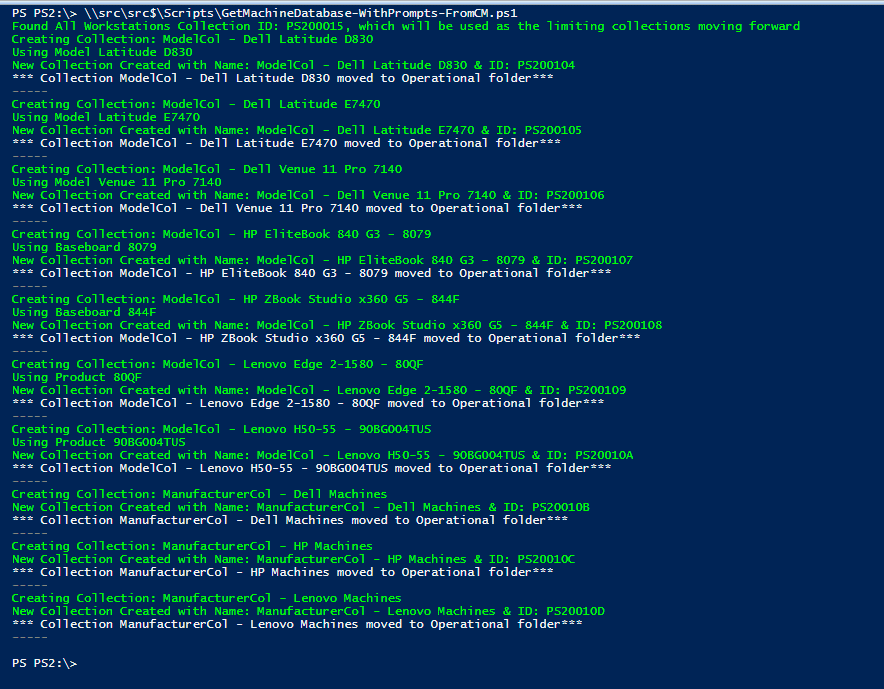
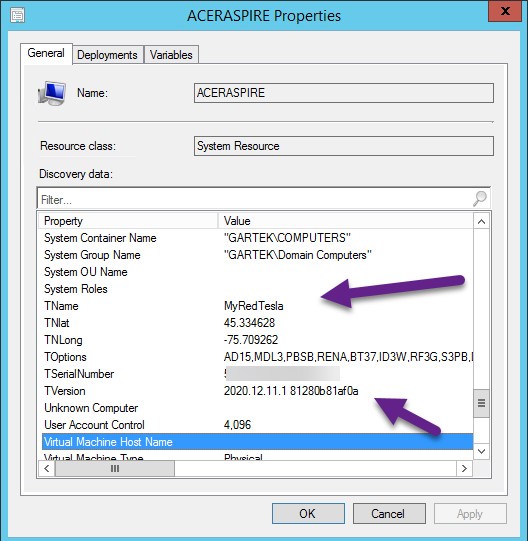
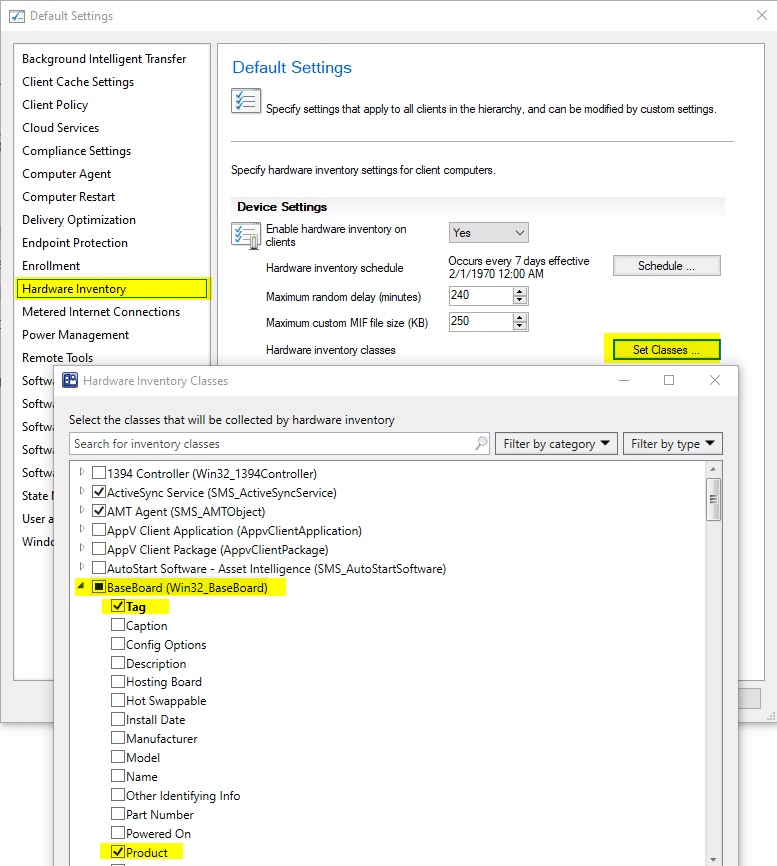
In our recently release of Right Click Tools 4.1, we added the Hardware Audit Dashboard, as we continue to add functionality, to make best use of this feature, you'll have to make sure you're collecting additional information via hardware Inventory, mainly Product in Baseboard.
For this post we'll focus on deploying Right Click Tools Client with Enterprise server support and automating the Deployment of the Recast Client Tools.
Microsoft's Unified Write Filter, its a windows feature included in your OS, off by default, but gives you the ability to prevent changes to your system. This post is geared toward a general overview and demo of implementation.
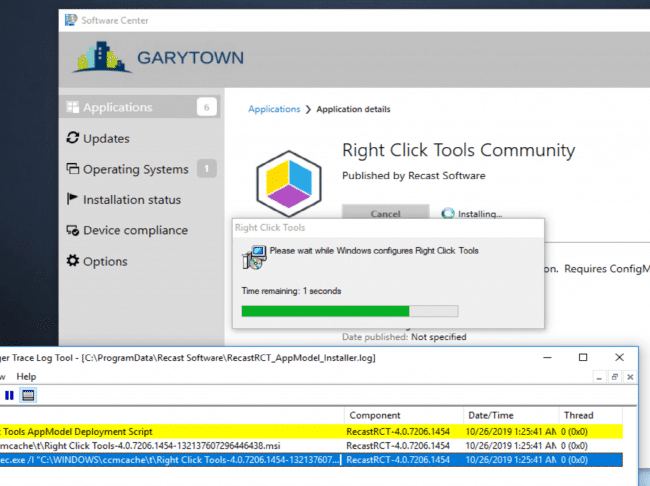
This post covers the automated deployment of the Recast Right Click tools Community edition.
Recast Proxy is a feature that enables you to extend your reach of the Right Click Tools into previously untapped areas, such as: Untrusted Domains, WorkGroup Machines, and machines the user [ConfigMgr Console User] doesn't have rights on directly.
In this post, we'll cover deployment of the Recast Proxy Software. Using ConfigMgr to Deploy the Proxy Installer is pretty easy, and can be done in a few different ways.
Recast Kiosk Manager is a fan favorite, used by many of our Enterprise customers to help control machines with a few clicks. Sometimes you want to deploy a computer and already have all of these settings applied, using the process Kiosk Manager uses, and stealing the end results, we can create a Task Sequence Module to deploy Recast Kiosk settings during OSD.
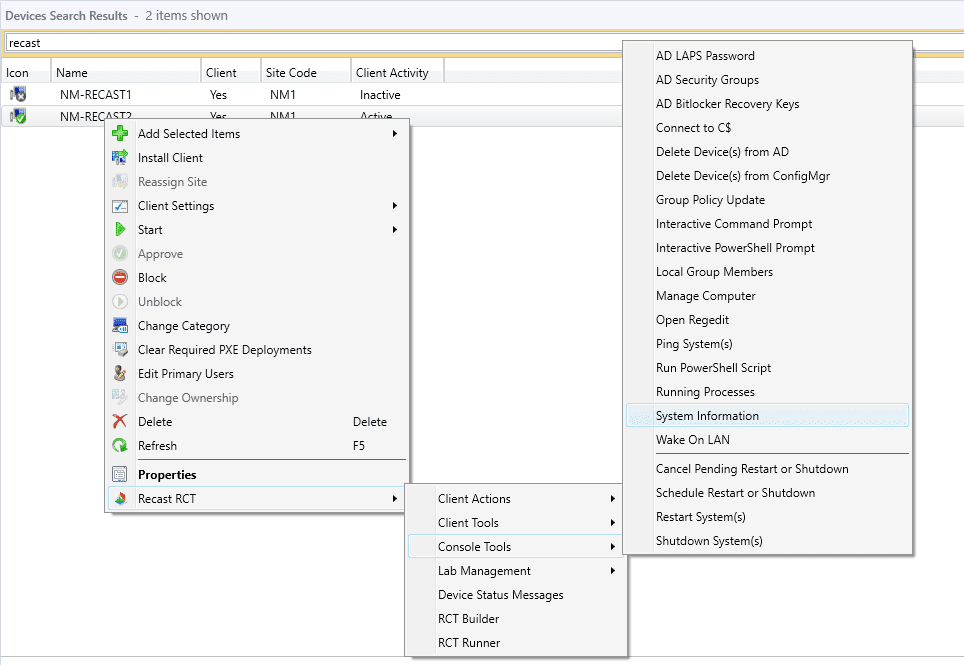
Over the past 7 years of being a ConfigMgr admin and having the Right Click Tools at my finger tips, one of them stands out as my most used tool: System Information.
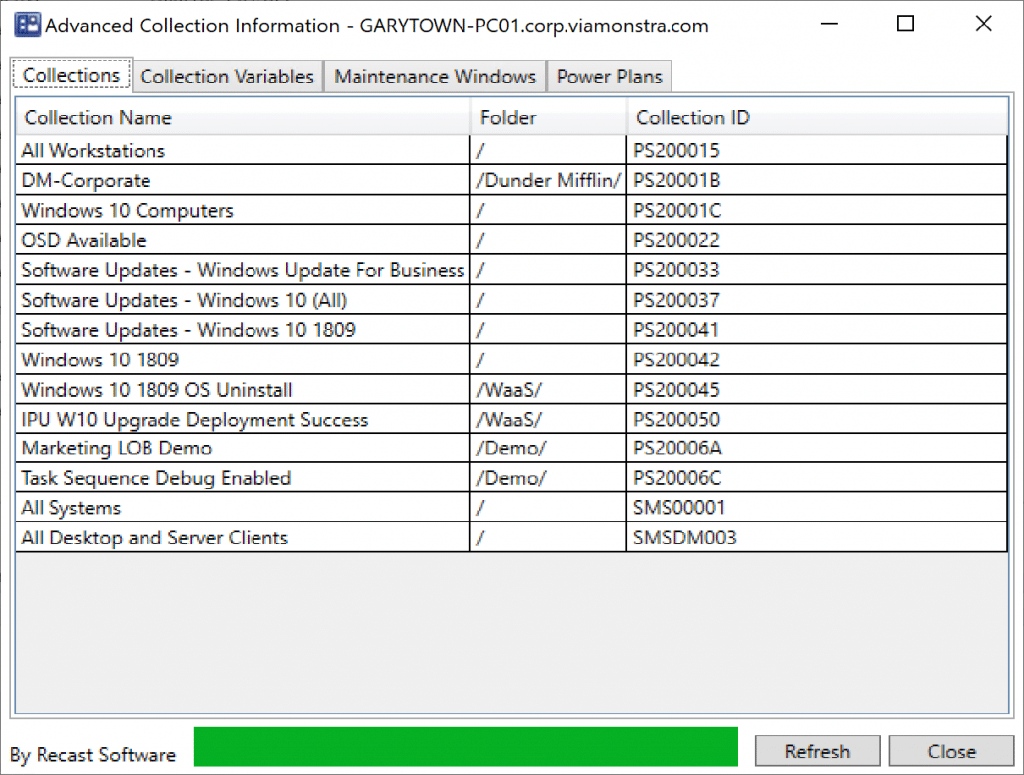
Another one of my Top 10 Right Click Tools is Advanced Collection Information. Right now you're thinking, ha, that tool is obsolete, in 1906, ConfigMgr now gives a list of collections a machine is in the lower pane. At first glance, you'd be right, however, once you launch the tool and take a closer look, you'll see some additional useful information.
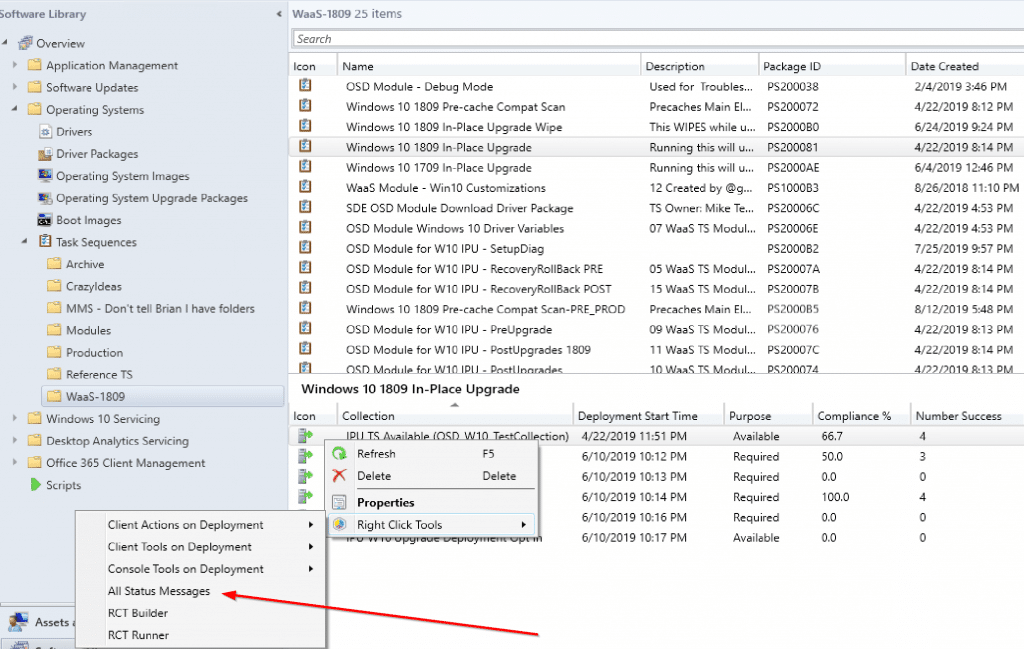
This week, we highlight another nifty little tool, which is great for troubleshooting and reporting. Before I tell you which one it is, I'm going to talk about something instrumental in ConfigMgr, but not something we often think about, Status Messages.
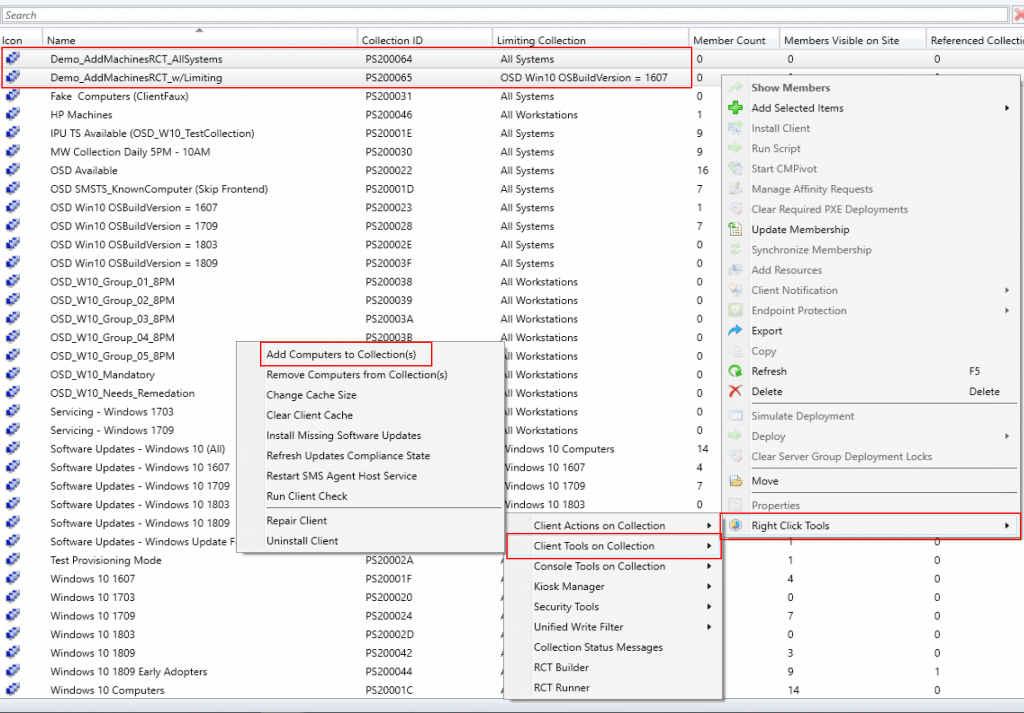
Hey Recast Right Click Tools users. This is a nifty tip that I often forget about, but is pretty powerful when adding or removing machines to and from collections.
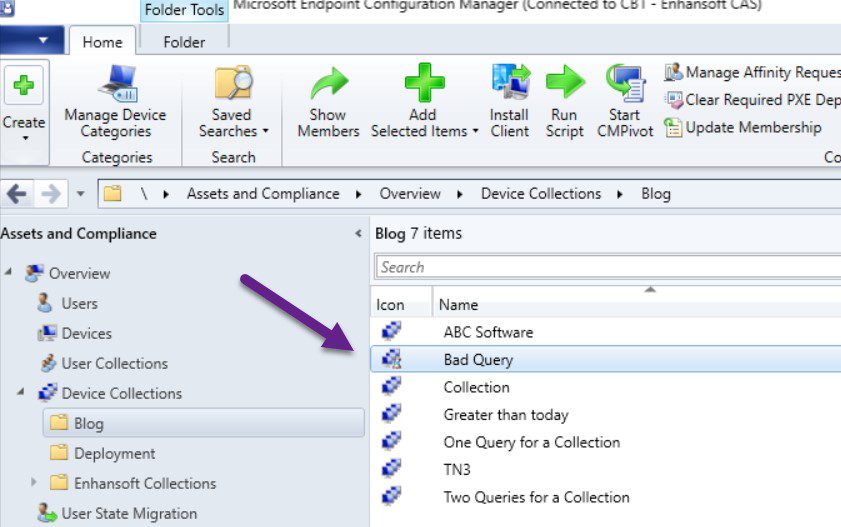
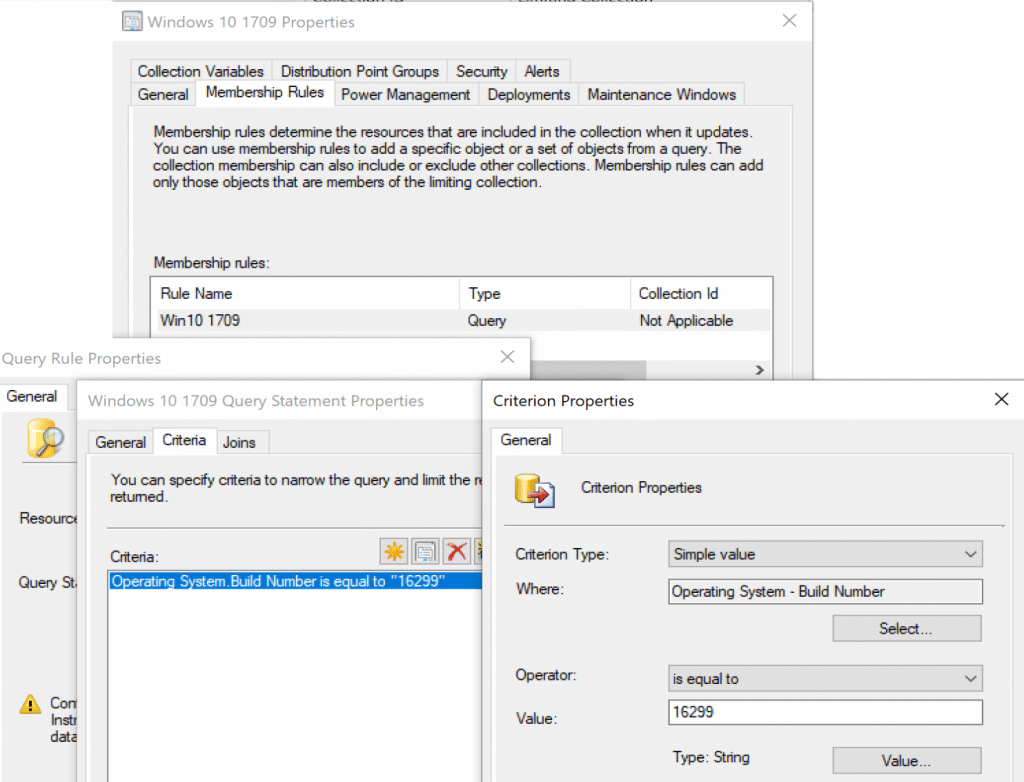
Ever wonder why a machine doesn't show up in a collection?
The System Information tool has a wealth of actionable information available at your fingertips. Here's how to use this tool to delete User Profiles from a device.
March is Women's History Month. We looked around the IT community and noticed so many strong women leaders. This blog highlights a few of them, giving them a chance to tell their stories.
In a recent customer survey, we found that the use cases for locking down devices are wide and vary by industry, from healthcare to education to manufacturing. Right Click Tools’ Kiosk Manager (previously Lab Manager) allows customers to support common kiosk-style requirements, including Shell Replacement, Automatic Login, Restart on Idle, and more.
In this post we dive into how one school district saves hundreds of hours by using Kiosk Manager to more efficiently administer their state tests.