




Installing SQL can be one of the more tedious things to do in your environment. Luckily, there are community resources available that can make things work more smoothly.
Johan Arwidmark has instructions for preparing an unattended file on his blog that can assist with installing SQL. Just note that you will need to change some settings for your SQL Admins group and the drive letters for the SQL installation.
Also, note that this blog post does not cover the installation of SQL Report services. We’ll talk about that in another blog.
Installing SQL
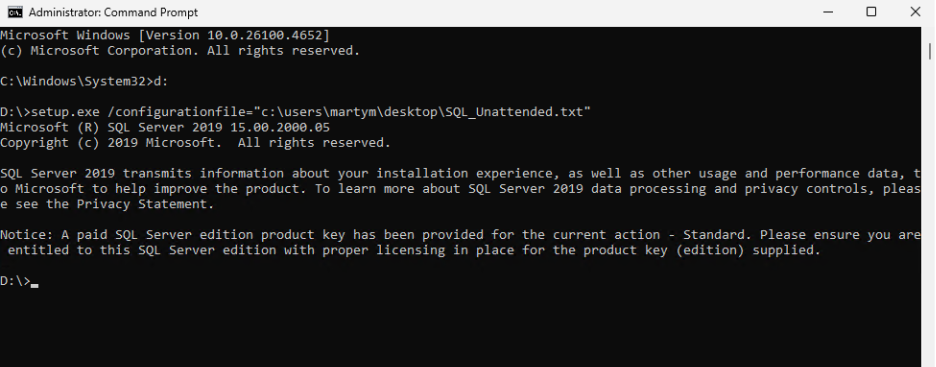
Running the script is as easy as the install command: setup.exe /configurationfile=”<Path to unattended file>
There are a couple of settings to change in the unattended.xml file. You will need to change the SQLSYSADMINACCOUNTS to the group we created earlier, and you will need to change the SQLBACKUPDIR, SQLUSERDBDIR, SQLUSERDBLOGDIR, and SQLTEMPDBDIR to the drive where you would like to install them.
When you run the script, you will return a screen like this very quickly.
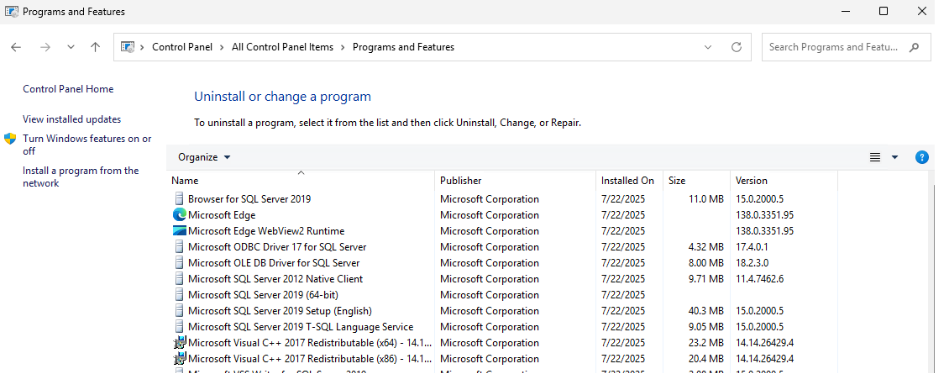
If you check in your programs and features, you will see that SQL is in fact installed successfully.
Next you will want to install SQL Server Management Studio to manage the database if needed. You can download the software here: https://learn.microsoft.com/en-us/ssms/install/install
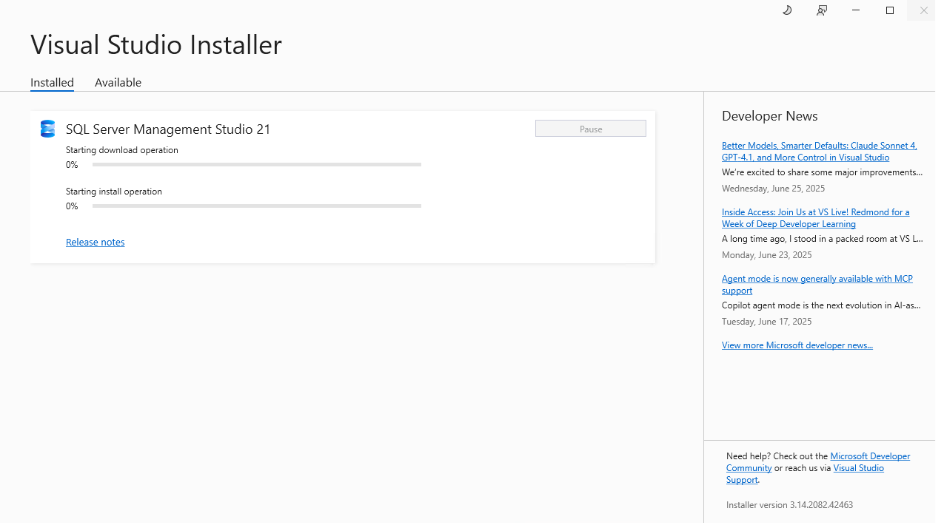
The newest version has a visual studio component, so don’t be shocked if you see a visual studio installer as it begins to install.
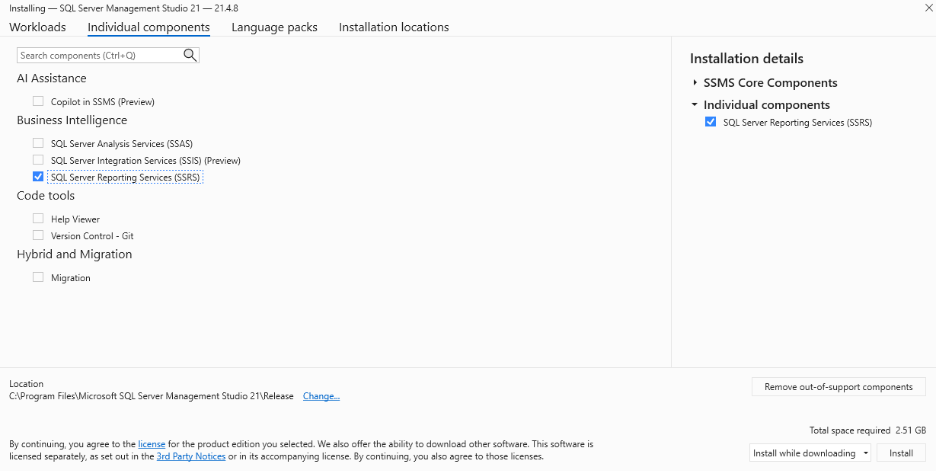
In the next window, select SQL Server Management Studio.
The installation will continue and eventually complete.
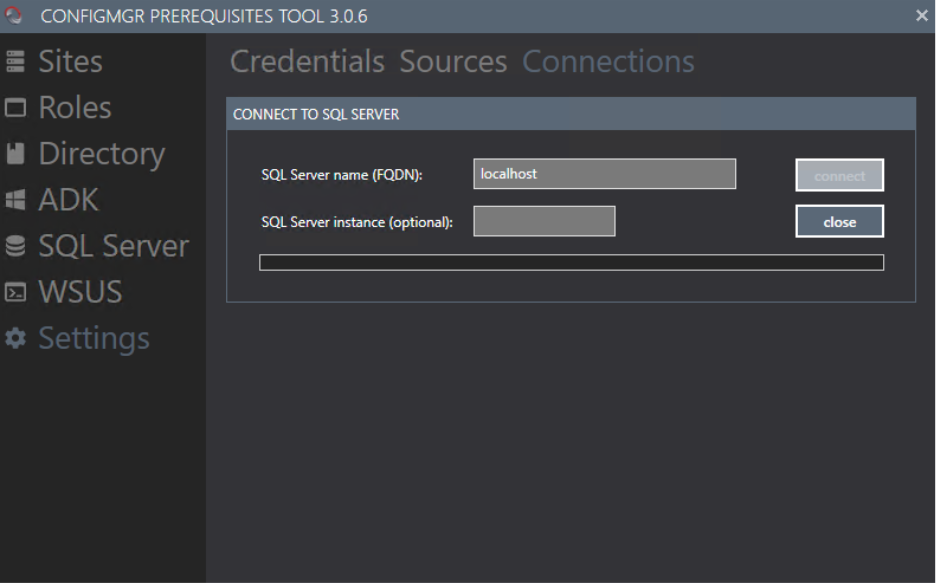
Now you should go back to the Prerequisite tool for ConfigMgr and go to the SQL section. In the first window, click Connect to connect to the SQL instance on the local computer. This will be preparing the SQL Database for ConfigMgr.
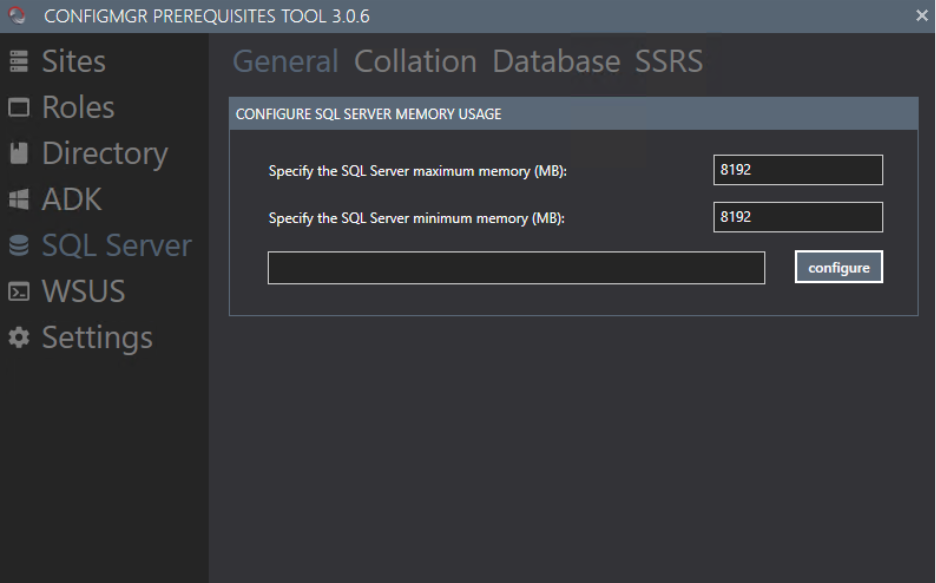
You can specify the memory. I kept it at 8 GB.
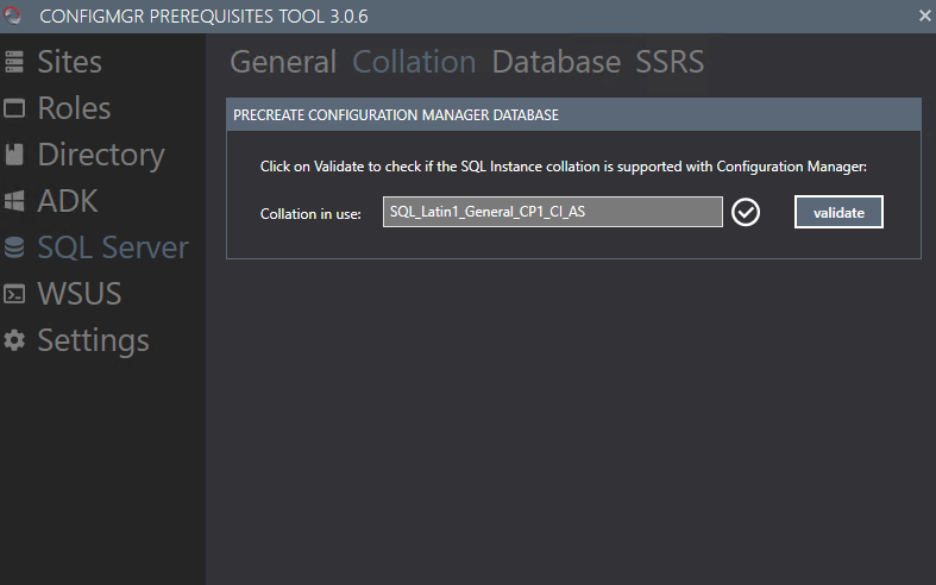
Validate the next section to ensure the collation will be set correctly.
Installing WSUS
Next, we are going to install WSUS on the computer. From the server manager, click Add Roles and Features, then select Windows Server Update Services.
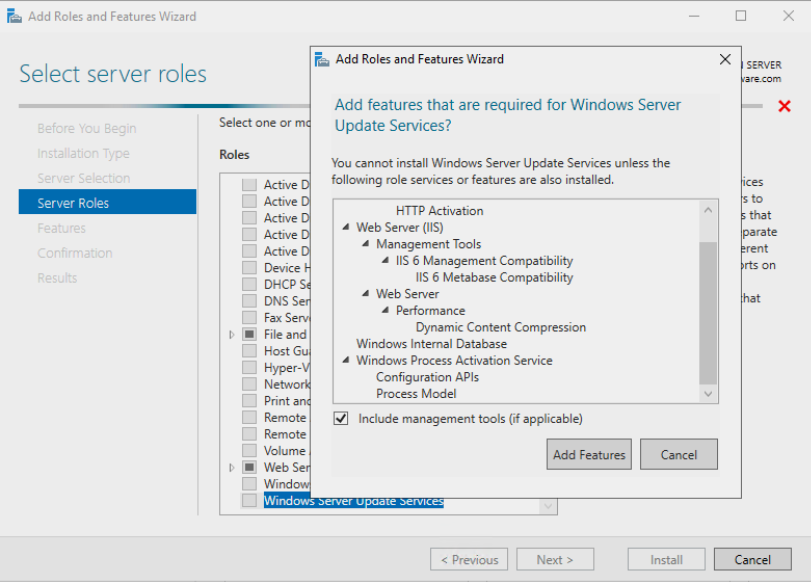
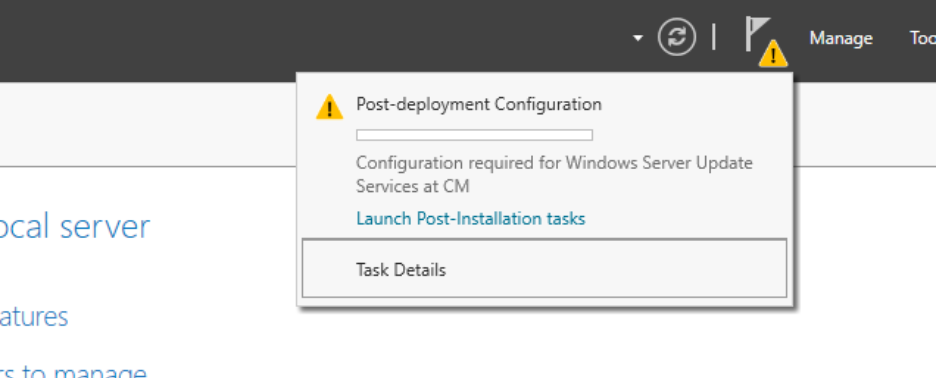
After install it will require some post install configuration
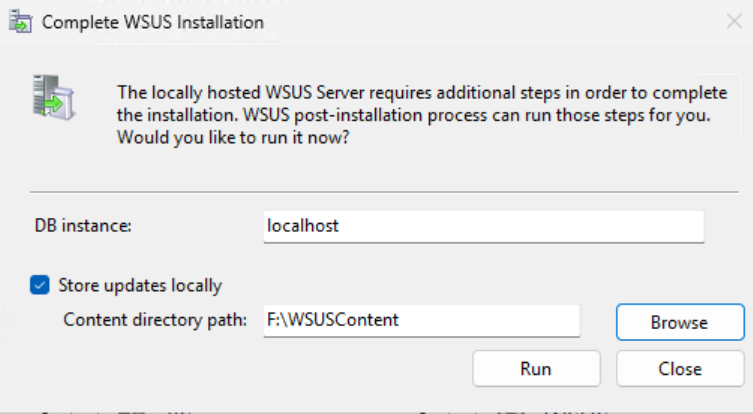
When asked to complete you will be prompted for a location for storing the WSUS Files.
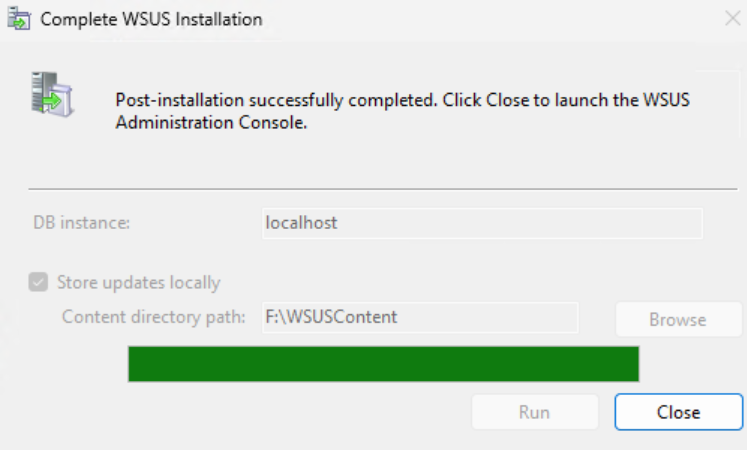
Installation will complete.
You’ve configured SQL and WSUS! It’s time to move on to the next step, installing ConfigMgr itself.
Next steps
Make your homelab more powerful. Download our free tools to help you automate, troubleshoot, and validate configurations in your test environment.
The Homelab Series
Step 1: Creating a Domain Controller with DNS
Step 2: Adding a Certificate Authority
Step 3: Setting up a Gateway VM to Be Used as a Virtual Router (Optional)
Step 4: Configuration Manager Server Prerequisites
Step 5: Settings for Active Directory and Group Policy
Step 6: Installing SQL For ConfigMgr
Step 8: ConfigMgr Basic Settings
Step 9: Configuration Manager Collections and Application Deployments
Step 10: Installing SQL Server Reporting Services
Step 11: Cloud Management Gateway (CMG) Overview
Step 12: Installing the Recast Management Server and Right Click Tools (Optional Step)
Step 13: Recast Management Server (RMS) Configuration (Optional Step)
Step 13.5: Installing and Using the Right Click Tools Browser Extension
Step 14: Installing Right Click Tools Insights – ConfigMgr Reporting
Step 15: Configuring Right Click Tools Patching
Step 16: Setting up Right Click Tools Privileged Access